
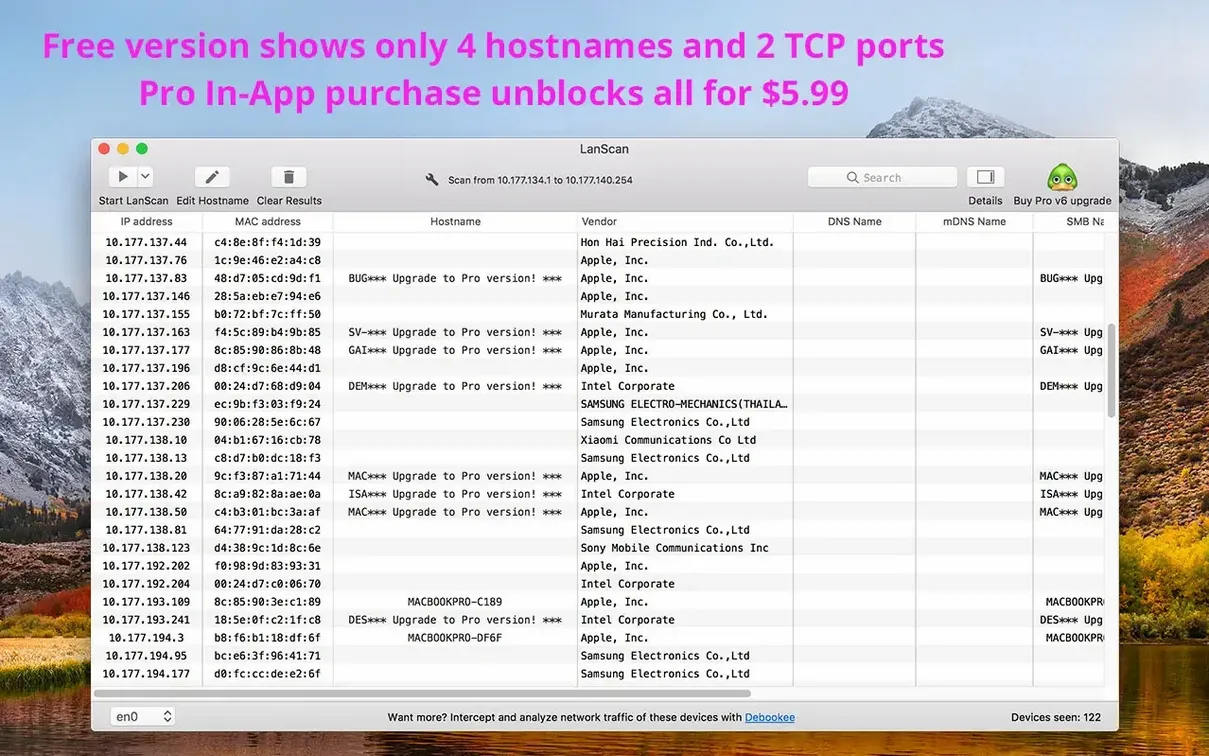
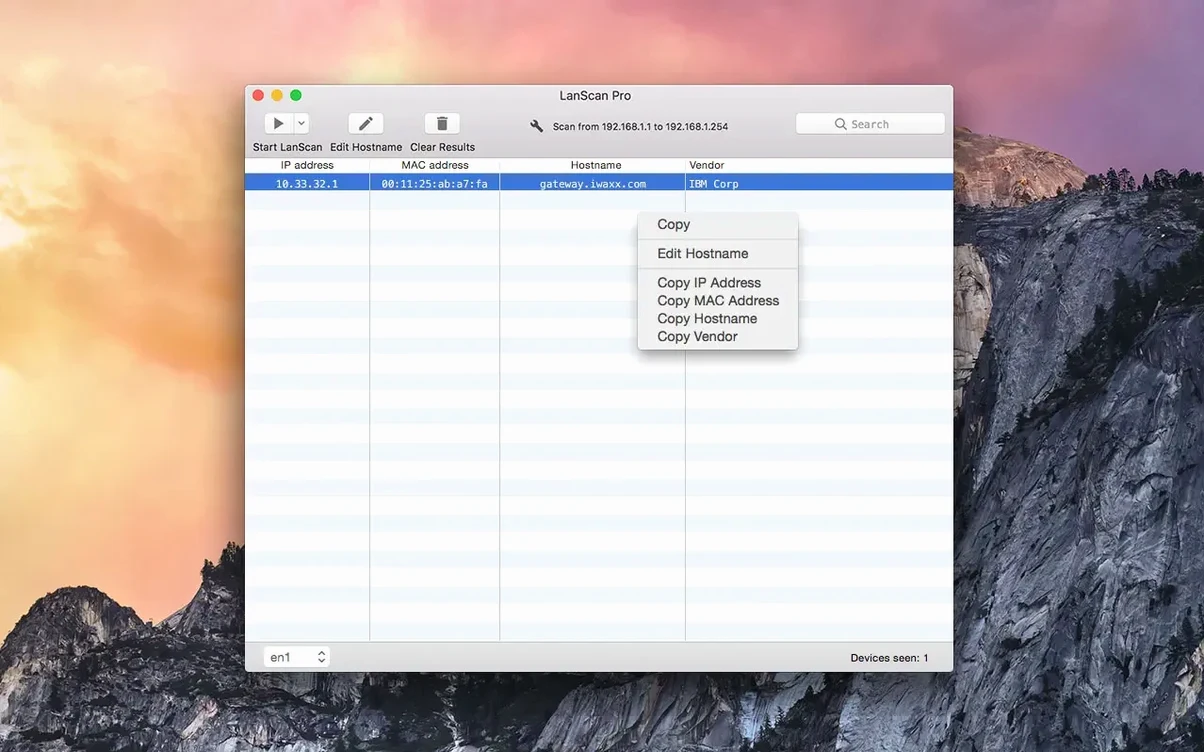
If you've ever squinted at arp -a in Terminal and wished for a proper column view with live hostname lookups, that's the gap LanScan fills. It's not a pretty dashboard for novices—it's a focused network scanner for Mac that gives experienced users direct control over what they see and how they scan.
| Detail | Info |
|---|---|
| Developer | iwaxx Sarl |
| Current Version | 8.2.17 |
| Architecture | Apple Silicon & 64-bit Intel |
| macOS | 11 or later |
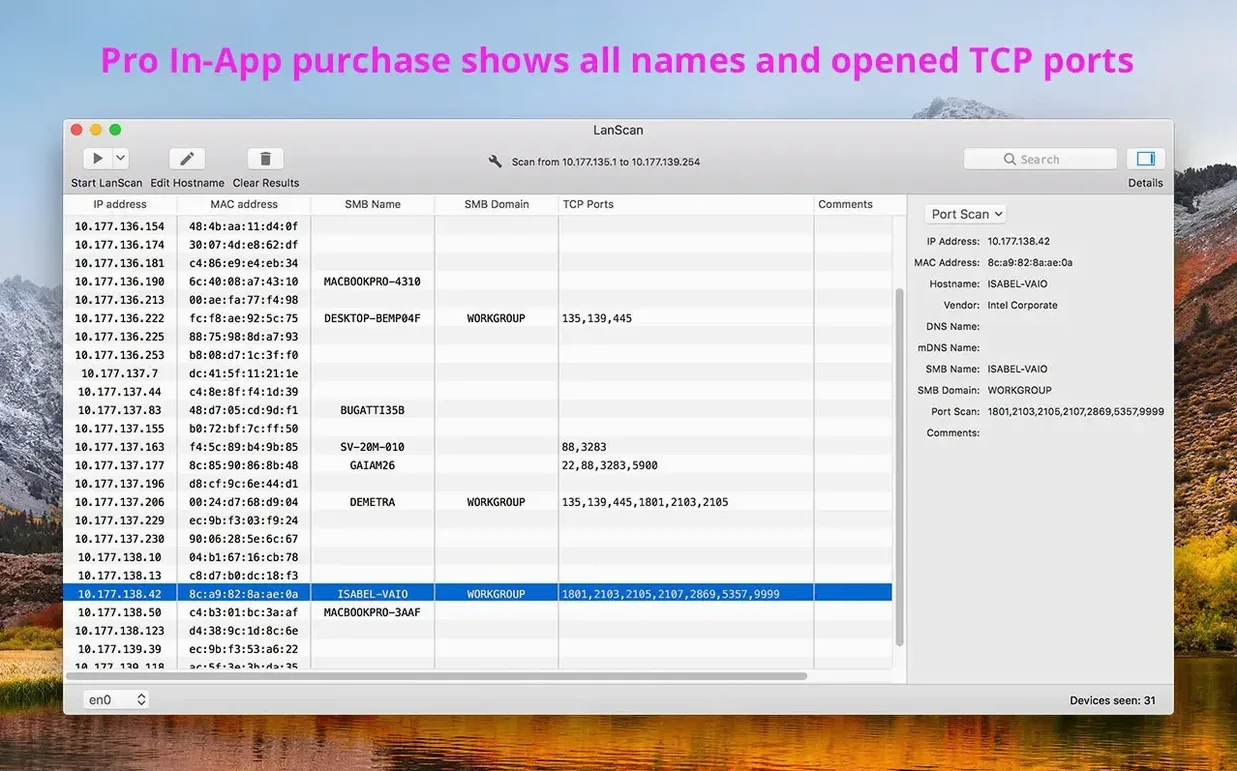
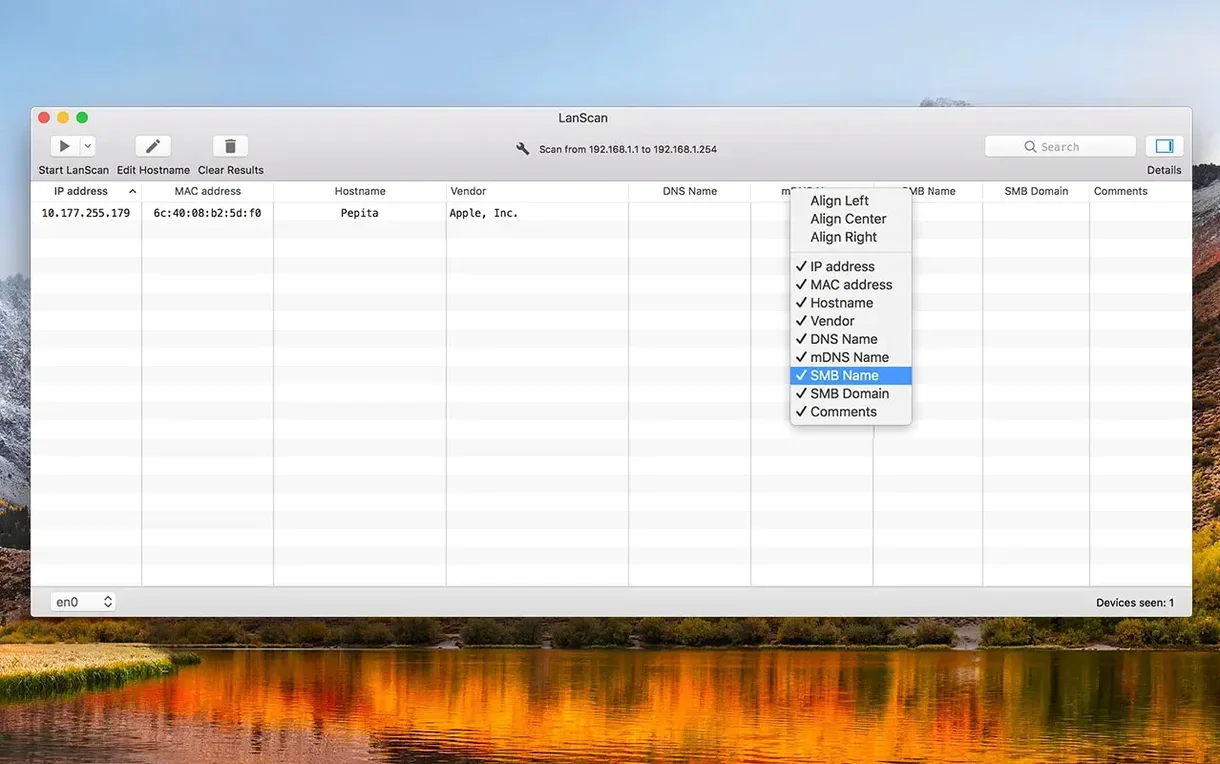
Where it fits in a workflow: you're staging a rack, auditing a subnet, or chasing an IP conflict, and you need more than a simple ping sweep. LanScan hits the local network with ARP packets to find active devices fast, then resolves hostnames through DNS, mDNS, and SMB. If an SMB domain is configured, it picks that up too—small detail, huge time-saver on a corporate LAN. There's no artificial cap on found devices, and you decide which columns stay visible by toggling them on or off. IPv4 and IPv6 networks are both supported, and it auto-detects your configured interfaces—Ethernet, AirPort, even virtual ones. When the scan's done, a CSV export gets the data out cleanly for documentation or further analysis.
Where People Get Stuck
The most common head-scratcher is a scan that returns zero devices—or worse, every device except the one you're looking for. Nine times out of ten, it's the interface. LanScan auto-detects your active connection, but if you're plugged into Ethernet while WiFi is still connected, it might latch onto the wrong one. Click the interface dropdown and force it to the correct adapter. The same fix applies when your VLAN-tagged traffic goes unnoticed; the scanner only sees what the selected interface sees.
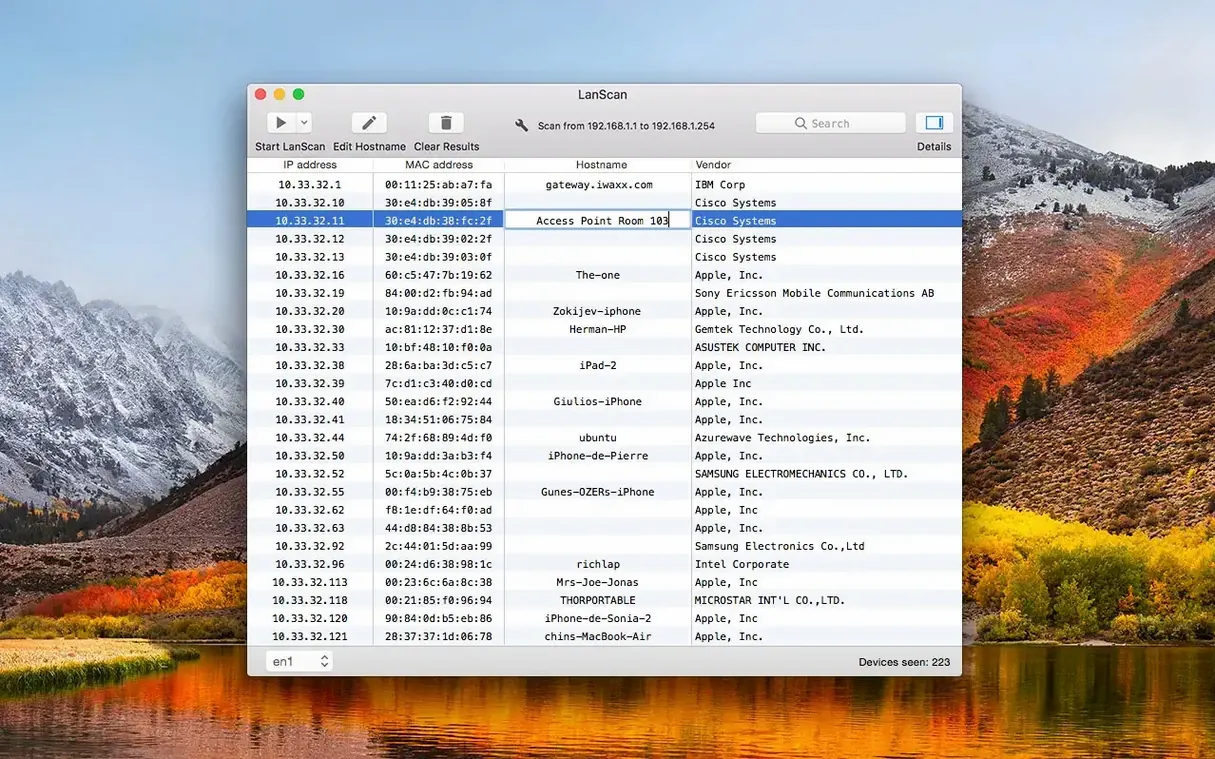
Hostname resolution is the other repeat offender. You'll spot a pile of "Unknown" entries and assume the scan failed. It didn't—LanScan just couldn't resolve those names through its usual channels. DNS might be lagging, mDNS might be blocked on that subnet, or the device simply doesn't advertise a name. Try flipping between the local scan (ARP-based) and a public-range scan (which brings Ping, SMB, and mDNS into play) to see if resolution improves. Still nothing? Right-click a device and drop in a manual hostname along with a comment—the app remembers both, so your next scan won't leave you guessing.
A less obvious snag: running LanScan from a standard user account without sufficient network permissions. On tightly locked-down Macs, especially in corporate environments, the app needs access to send raw packets. If scans hang or error out silently, check that the application has been granted network access in System Settings under Privacy & Security. The lanScan dmg installs cleanly via drag-and-drop, but permissions are handled at first launch, not during install.
Tailor the Column Layout in Ten Minutes
Don't just launch and scan. Spend ten minutes tailoring the column layout. Right-click any column header and you'll see a list of every data point LanScan can show—IP, MAC, vendor, four hostname slots, SMB domain, your custom comments, and more. Toggling off columns you rarely need (like the third and fourth hostname fields) shrinks the window and speeds up visual scanning. I keep IP, MAC, vendor, and one hostname column visible, with comments turned on for networks I audit regularly.
Next, define your common scan ranges. The interface dropdown already shows your current subnet, but the real power is in the custom range field. Type a CIDR block like 10.0.20.0/24 or a dash-separated range like 192.168.1.1-192.168.1.50, and LanScan remembers it in the history dropdown. If you bounce between a lab subnet and a production VLAN, you'll thank yourself for setting both up on day one.
The CSV export button is obvious, but the URL-opening feature is easy to overlook. Under Preferences, you can define a template URL—say, your company's internal device dashboard that accepts an IP or MAC as a query parameter. After a scan, selecting any device and hitting that button opens its management page in your browser. It's a small thing that turns LanScan from a discovery tool into a launchpad.
If you grabbed the lanscan mac download and installed from the disk image, the app lives in your Applications folder like any other. No launch daemons, no background processes. It only uses the network when you tell it to scan.
Built for macOS, Not Ported from Windows
Does this replace Advanced IP Scanner or Angry IP Scanner? Functionally, yes—if the Mac is your daily driver. Those tools have their own strengths on Windows, but LanScan is built for macOS from the ground up. It uses ARP natively, understands the Mac networking stack, and doesn't require Java or any compatibility layer. The interface is sparse by design, which means it opens in under a second and doesn't distract you with features you'll never touch.
Will it slow down my network? A local ARP scan on a /24 subnet finishes in a few seconds and generates minimal traffic—far less than streaming a YouTube video. Public-range scans take longer because they lean on Ping and mDNS queries, but you control the range. Scanning the full IPv4 space is technically possible and will take ages, but that's not a bug; it's just a big address space. For a typical home or office subnet, the impact is negligible.
Can I schedule scans? Not natively. LanScan is manual and on-demand, which suits troubleshooting and spot audits perfectly. If you need continuous monitoring, you'd pair it with something else. But for walking into a new site, plugging in, and seeing every device in under ten seconds, the manual approach is exactly right.
Does it work over VPN? It sees whatever interface macOS presents. If your VPN creates a virtual interface with its own IP range, LanScan auto-detects it and can scan that subnet. Whether devices respond depends on the VPN's routing and firewall rules, not on LanScan.
Tracking Down a Dropped Printer at 192.168.50.45
Picture this: it's Monday morning, and a client reports that a printer at 192.168.50.45 has dropped offline. I plug into the switch in their comms closet, open LanScan, and the interface dropdown already shows the wired Ethernet connection. I type 192.168.50.1-192.168.50.60 into the range field—no need to scan the whole building—and hit Enter.
Within three seconds, rows populate. I spot the printer's MAC address immediately because the vendor column reads "HP Inc." A quick glance at the IP column shows it's now sitting at .47, not .45; DHCP reassigned it over the weekend. The hostname column resolves to "HP-LaserJet-Floor2," confirming it's the right device. I right-click, add a comment ("static IP needed"), and flag it for the network admin.
While I'm in there, I notice a device with a MAC vendor I don't recognize, no hostname, and an IP outside the usual DHCP pool range. I select it, fire the custom URL button, and my browser opens the company's device inventory tool with that MAC pre-loaded. Turns out it's a rogue Raspberry Pi someone plugged into a meeting room port. I copy the full results to CSV, email it to the client with the rogue device highlighted, and close LanScan. Total elapsed time: maybe four minutes.
That's the rhythm. Open, select interface, define range, scan, inspect, act, export, close. No waiting for a splash screen, no hunting through menus, no cleaning up background processes afterward. Just a tight loop that fits between the problem and the fix.
- macOS 12 or later
- Apple Silicon or Intel 64-bit
Questions I actually get
How does LanScan identify device hostnames?
It queries DNS, mDNS, and SMB services simultaneously, and will also detect an SMB domain if one is active on the network.
Notes from the edit bay · 0
Sign in or get an edit-bay pass to leave a note.
No notes from the edit bay yet. They go up after I read them.