
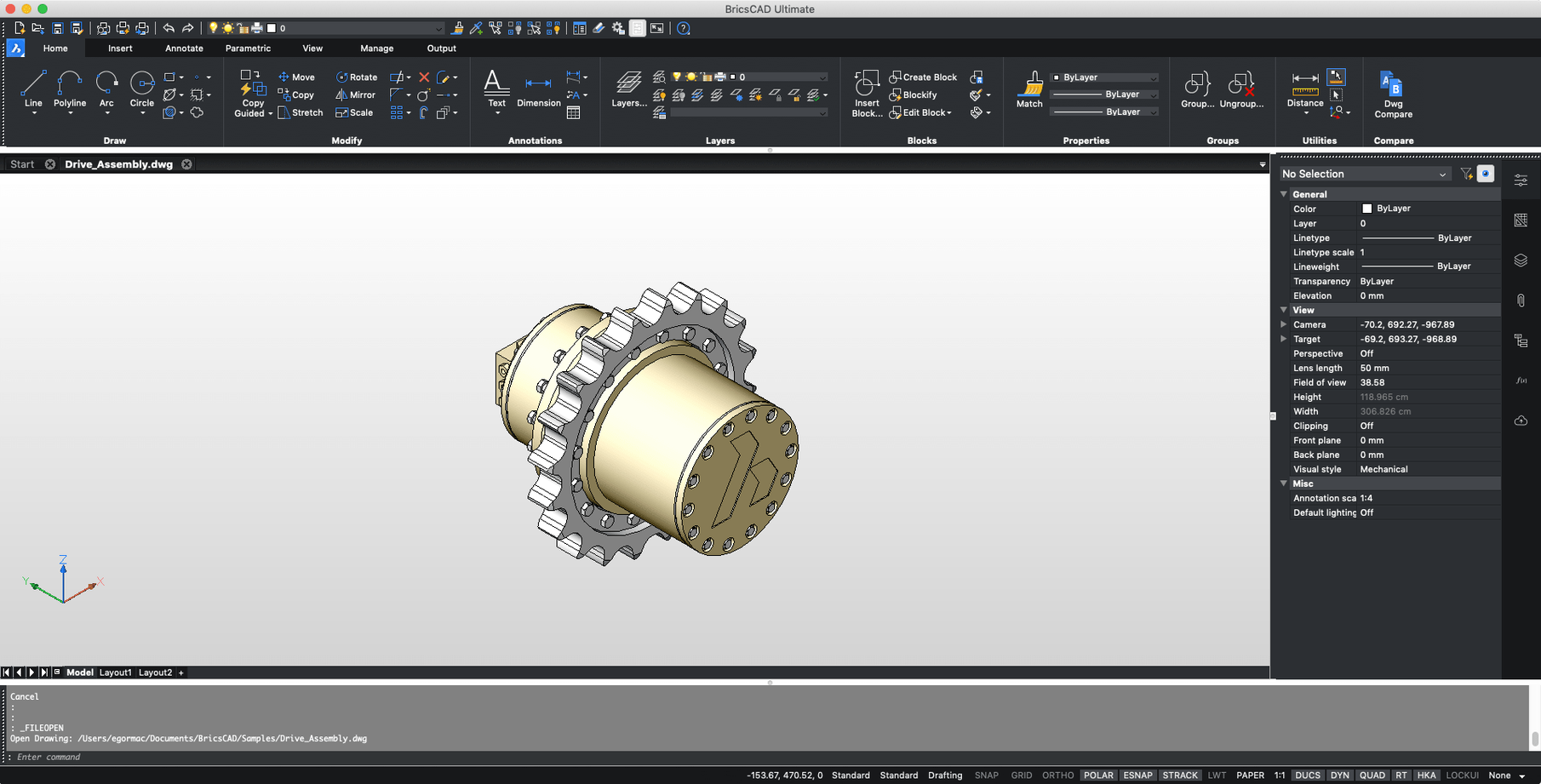
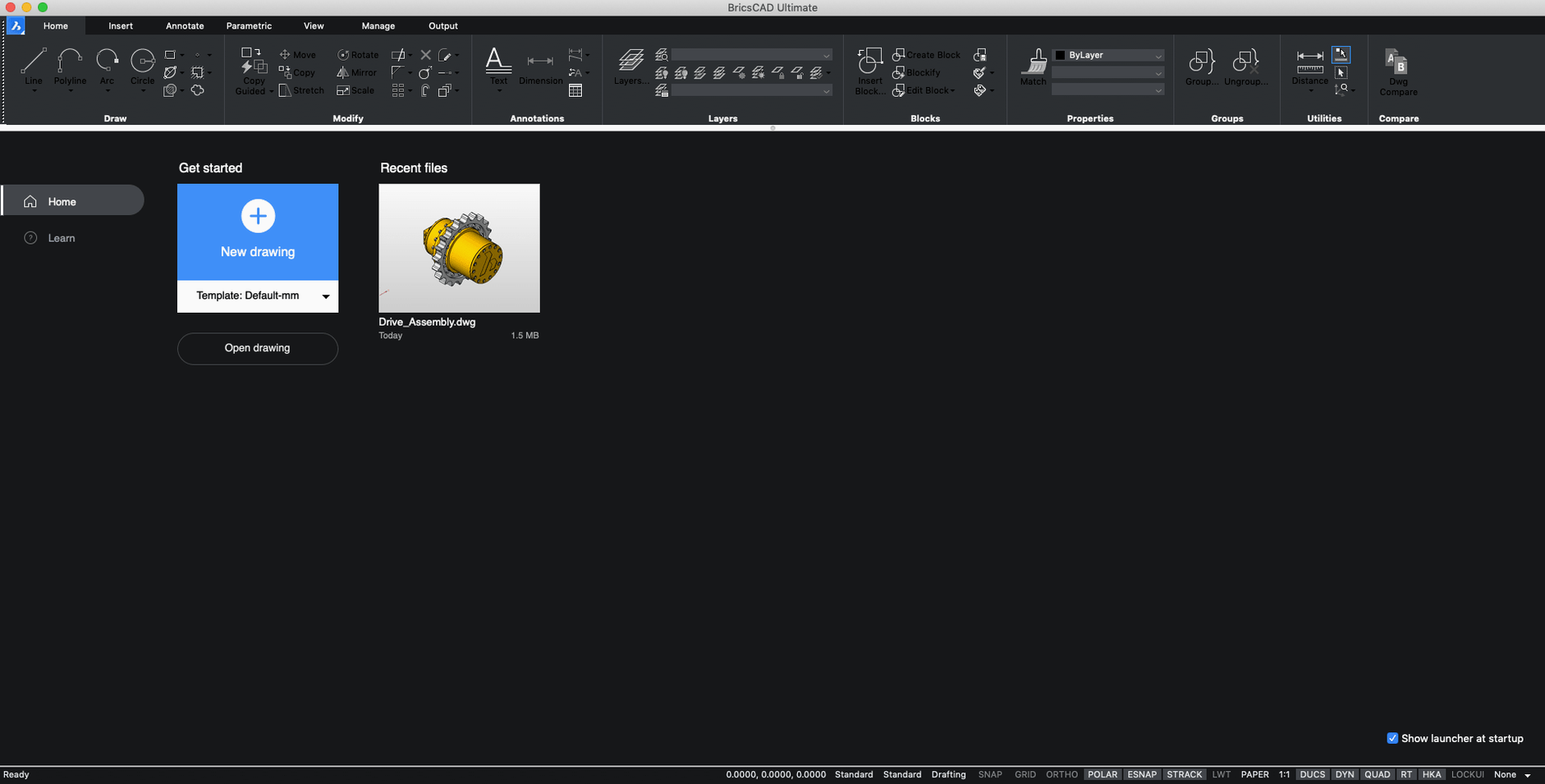
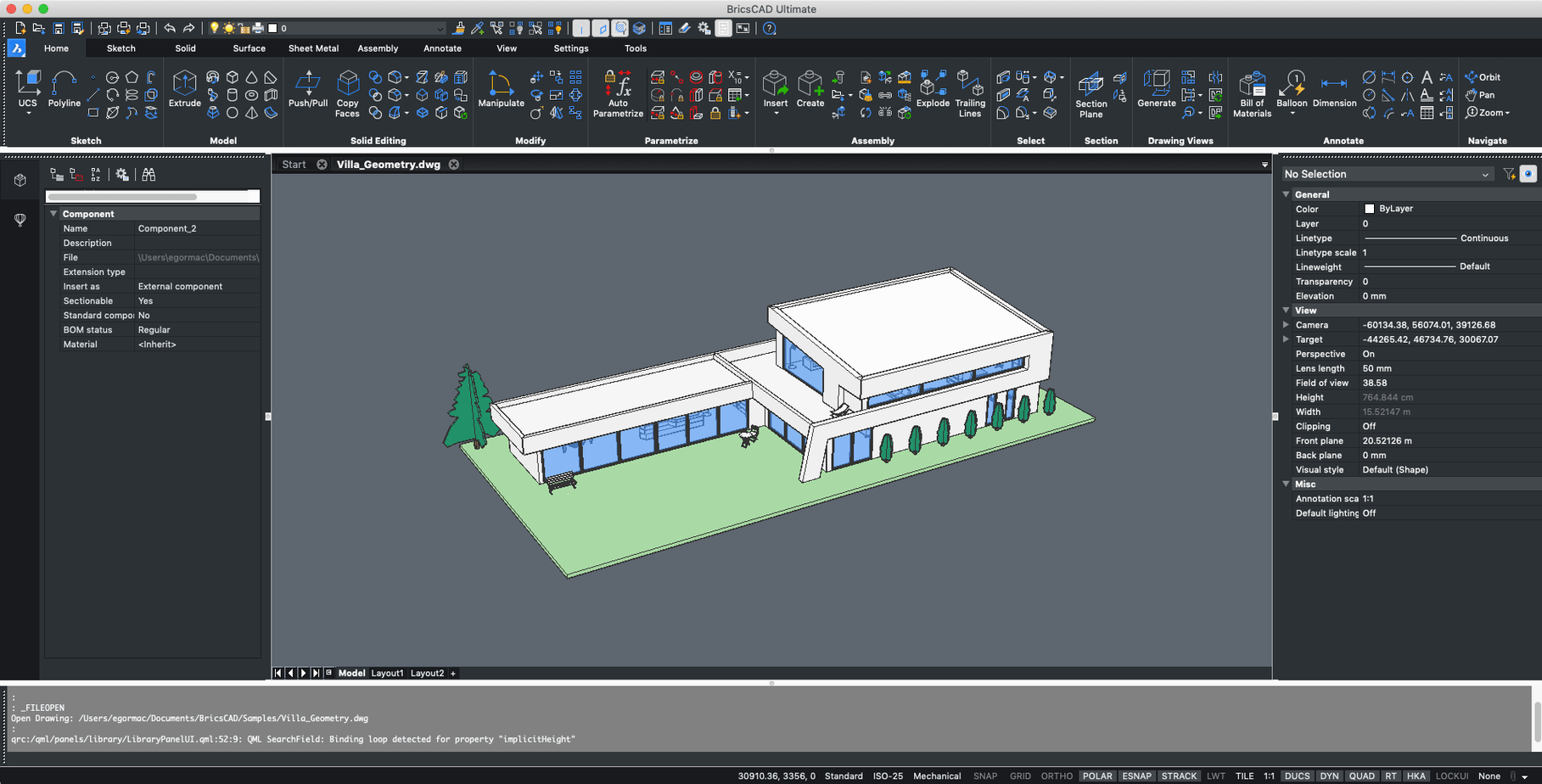
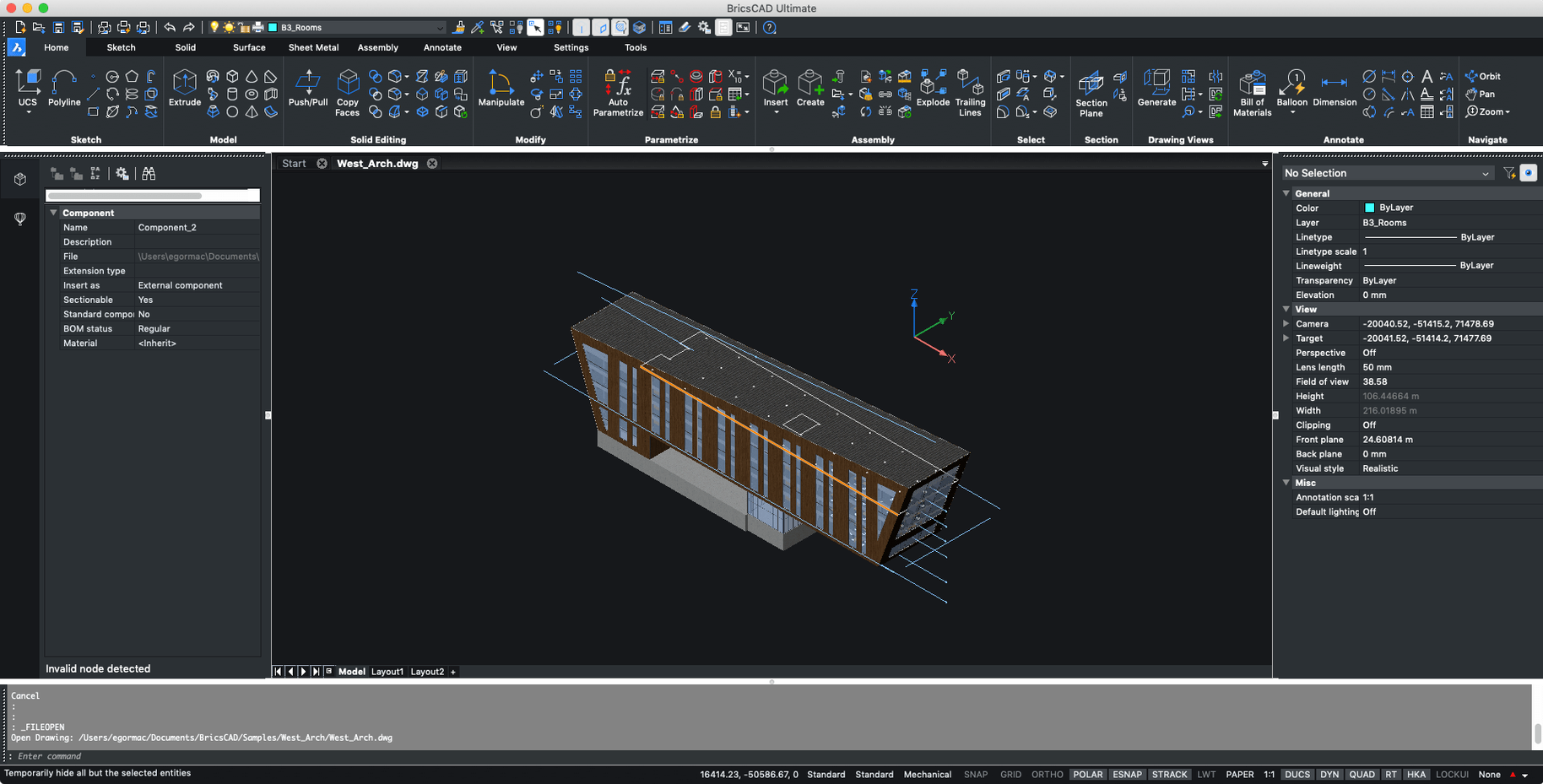
BricsCAD lands on Intel Macs running macOS 10.15 or newer, and it opens on Apple Silicon machines through Rosetta 2—no separate ARM build required. The single installer from Bricsys packs all six editions: Shape, Lite, Pro, Mechanical, BIM, and Ultimate, so the tool you need is already in the download.
Drawings That Don't Fight the Cursor
The 2D drafting engine feels direct. Snap and tracking tools cue off nearby geometry without a dialog-box parade, and the command line understands plain English—type "offset 12" and it works. When a client sends a messy DWG from another platform, the drawing health tools flag broken hatches and zero-length lines before they wreck a plot. For 3D, BricsCAD pushes solid modeling without forcing you into a history tree. Grab a face, push-pull, and the model updates. The Quad cursor puts your most-used commands under the pointer, so you spend less time hunting toolbars. These features share a common thread: they remove steps you never needed in the first place.
One File, Six Workflows
Because the installer carries every edition, you can start a concept in Shape, hand it to Pro for detailing, then open the same DWG in BIM for IFC classification—all without a file translation that strips data. Mechanical adds sheet metal unfolding; Ultimate ties in point-cloud registration for renovation scans. The Mac build ships in English and Russian, and the x86 binary keeps things predictable on older Intel hardware while Rosetta 2 handles the transition. When a deadline says end of day, a CAD tool that opens the file and stays out of the way matters more than a feature list. That's where BricsCAD fits.
Why You Should Turn On Dynamic Input Before Your First Drawing
After the install, resist the urge to jump straight into a production drawing. Spend twenty minutes inside the Settings dialog. Turn on dynamic input—it puts command prompts right next to the crosshair so your eyes never leave the geometry. Switch the background to a neutral gray that won't burn your retinas during a ten-hour session. BricsCAD ships with a dark UI that's kinder to the eyes than what most CAD users expect from a Mac app.
Next, map your most-used commands to the Quad cursor. The default set is sensible, but if you spend half your day dimensioning or placing blocks, drag those tools into the first ring. Right-click the Quad to customize it—the panel that opens is drag-and-drop simple. While you're at it, load an old AutoCAD menu file if you have one. BricsCAD reads MNU and CUI formats without conversion, so a decade of muscle memory ports over in under a minute.
One move that pays off fast: set up a template file. Open a blank drawing, dial in your layers, text styles, dimension styles, and page setups, then save it as a DWT. Point the startup dialog at that template. Every new drawing starts with your standards already baked in, and that alone cuts fifteen minutes of setup per project.
How a Missing Rosetta 2 Install Causes the Cursor Lag on Apple Silicon
The most common headache is a cursor that lags on an Apple Silicon Mac. The fix is rarely about BricsCAD itself—check that Rosetta 2 is installed. If you never opened an Intel app on that machine before, macOS may try to install Rosetta in the background while the CAD session stutters. Run any Intel-only utility once, let Rosetta finish its setup, then launch BricsCAD again. The lag vanishes.
Another recurring snag: hatches that render as solid blocks in paper space. The culprit is almost always a scale mismatch between model and layout. Open the hatch properties, set annotative scaling on, and let the viewport control the pattern density. If the hatch still misbehaves, run the HEAL command—it detects boundary gaps that the standard hatch tool overlooks.
Font substitution trips newcomers too. A DWG from a Windows shop may reference SHX fonts your Mac doesn't have. BricsCAD falls back to a default sans-serif, which shifts text positions and wrecks title blocks. Grab the missing SHX files from the client or map a close equivalent in the Fontalt system variable. Set it once in your template, and the problem disappears for every future drawing.
Where It Fits Against Other Mac CAD Apps
The Mac drafting landscape is thin, but a few apps compete for the same seat. AutoCAD for Mac is the obvious benchmark. It runs natively on Apple Silicon, which BricsCAD does not, and its collaboration features are deeper. But the DWG output from BricsCAD lands cleaner in a multi-platform pipeline—fewer proxy objects, fewer "this drawing was created in a non-Autodesk product" warnings that clients notice. BricsCAD also gives you sheet metal unfolding and IFC classification in the same binary. AutoCAD splits those across separate verticals.
ARES Commander from Gräbert is another DWG-native alternative. Its interface hews closer to classic AutoCAD, which some users prefer, and it runs natively on Apple Silicon. But BricsCAD's Quad cursor and drawing health tools don't have an equivalent in ARES, and the BIM and Mechanical editions cover specialized ground without a second license. If most of your work is 2D shop drawings, the two are close. If you touch 3D or BIM even once a month, BricsCAD pulls ahead.
TurboCAD Mac is a different beast. It's a capable 2D/3D modeler with a friendlier price tag, but it uses its own file format and translates DWG on import and export. Every round-trip through translation risks layer name corruption and dimension style drift. BricsCAD works in DWG natively, so a file that bounces between collaborators comes back intact. For anyone sharing files with AutoCAD users—which, in practice, is nearly everyone—that native DWG engine is the deciding factor. If you searched for a bricscad macos workflow after wrestling with TurboCAD's conversions, the difference shows within the first hour.
Beginner Mistakes Worth Skipping
Drawing everything in Layer 0 and sorting it later. BricsCAD's layer tools are fast—use them from the first line. A drawing with a dozen layers is manageable; a drawing with three hundred objects dumped onto Layer 0 means a full afternoon of cleanup before anyone can plot it.
Ignoring the command line. New users coming from other Mac software tend to click through menus and palettes exclusively. The command line in BricsCAD is the fastest path to anything—type a few letters of what you want, and it autocompletes. Commands like -PURGE (with the dash, for the non-dialog version) clean a drawing faster than clicking through a GUI. Learn five keyboard commands your first week, and your speed doubles.
Blindly exploding blocks to make small edits. It's the quick fix that destroys the intelligence in a drawing. Use the Block Editor instead—double-click any block reference, edit the definition, and every instance updates. Exploding a block because one attribute needs moving is like demolishing a wall to change a lightbulb.
One more: downloading a BricsCAD keygen or patched installer from an unknown source when the build you have already includes what you need. The installer from the developer ships with activation instructions and all six editions. Grabbing a repack from a forum often strips out the Mechanical and BIM toolsets, so to get everything running smoothly, check that your download includes the full toolset folders before launching. The complete package is already in the torrent. If you found this page looking for BricsCAD for Mac, the download here is the full build—nothing removed, nothing added that shouldn't be there.
- macOS 10.15 or higher
- Intel processor (Apple Silicon runs under Rosetta 2)
Notes from the edit bay · 0
Sign in or get an edit-bay pass to leave a note.
No notes from the edit bay yet. They go up after I read them.