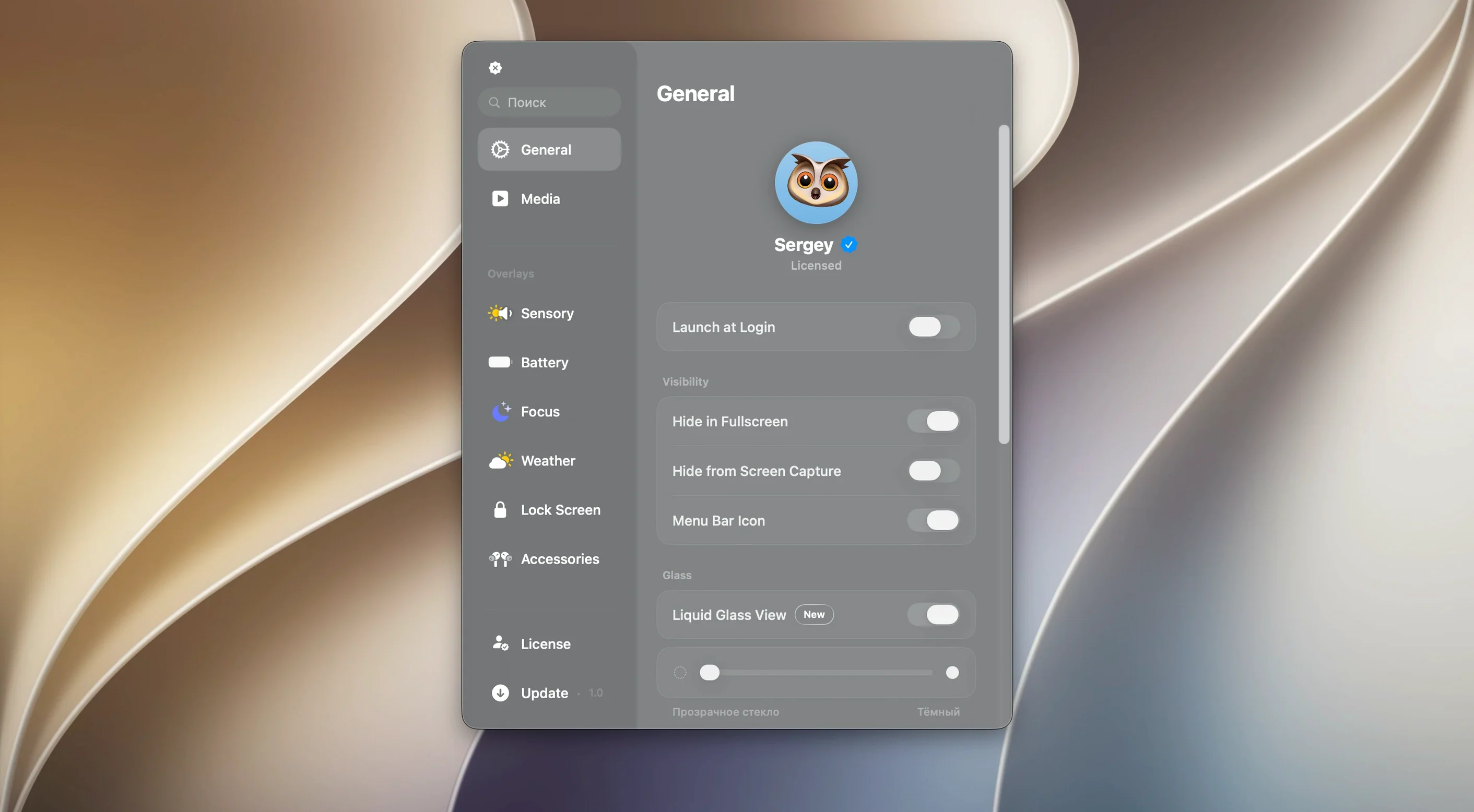
Liquid Glass effects catch your eye first—that translucent, reactive shimmer around the Now Playing widget. It’s the kind of detail that makes Canopy feel less like an add-on and more like a native piece of the system. The app puts an interactive panel right in your menu bar, or, if you’re on a MacBook with a notch, it tucks controls neatly alongside it. No notch? No problem. You get a floating, always-accessible widget parked at the top of the screen instead.
Compatibility is simple. Canopy runs on macOS 26 and handles both Intel and Apple Silicon Macs without a hitch. English is the only interface language right now. Under the hood, it’s a single purpose tool: media controls that live where you can reach them instantly, without digging through windows or Control Center. The panel reacts to playback from your current app, so skipping a track or checking what’s playing becomes a quick glance and click.
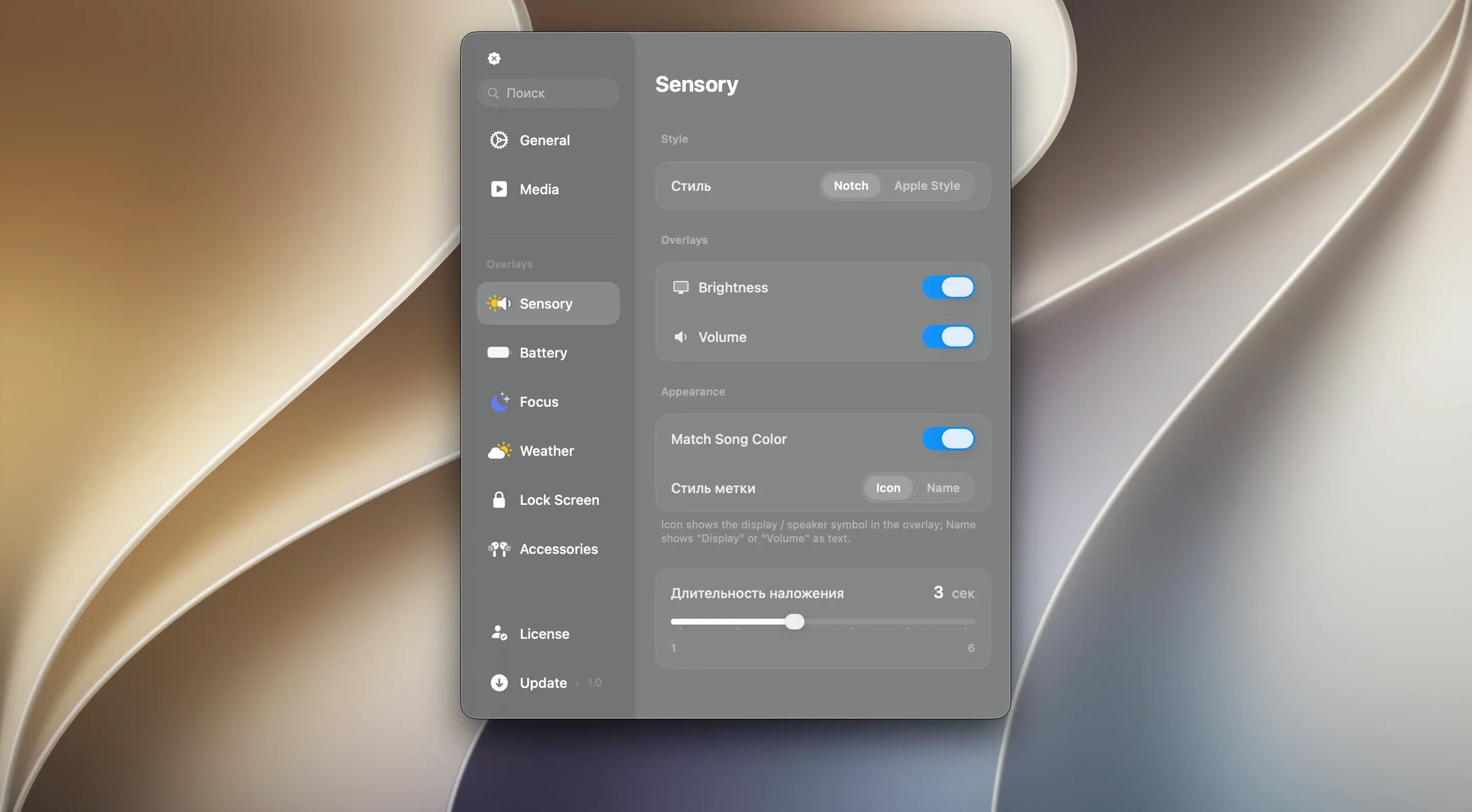
Notifications follow the same philosophy. They pop up in that dedicated top-screen space, borrowing the Dynamic Island’s trick of expanding and collapsing to show just enough information before getting out of your way. It’s a focused set of features, not a kitchen-sink utility.
Workflow: Building a Focused Music Session
Here’s how Canopy slides into a real editing session. Say you’ve got a rough cut in Final Cut, a color grade in Resolve, and a deadline breathing down your neck. Music keeps the rhythm going, but switching windows to skip a track kills momentum.
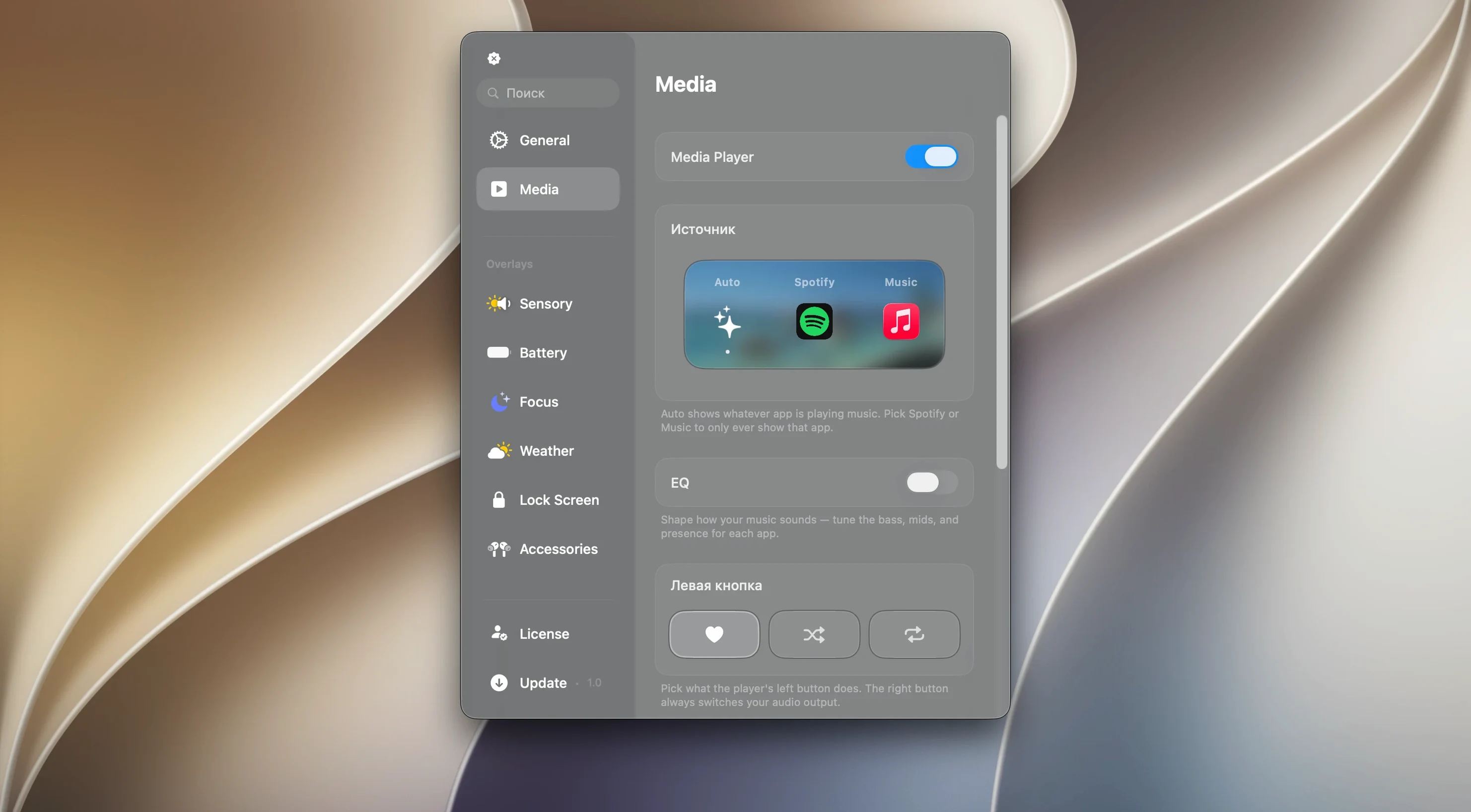
Start by launching Canopy—it lives in the menu bar, no dock icon needed. Open Apple Music or Spotify and hit play. The widget immediately shows album art, track name, and a scrubber that actually responds to a quick drag. Click the artwork to expand the panel. From there, skip forward, jump back, or tap the heart to save a track without leaving the timeline. Need a timer for a render break? Click the timer icon, set fifteen minutes, and the countdown appears right in the panel. When it ends, a gentle pulse animation nudges you without an intrusive alert.
Notifications from Messages or Slack appear briefly in the same space, then collapse. You see who’s pinging you, decide if it matters, and carry on. The whole thing feels like muscle memory after an afternoon.
It Surfaces Media Controls, Not Just Hidden Icons
Canopy isn’t the only app chasing this idea. Bartender and Hidden Bar manage menu bar clutter, but they don’t show media controls or notifications—they just hide icons. You still have to open an app to change tracks. Mac Media Key Forwarder lets you lock media keys to a specific player, which is handy, but it gives you zero visual feedback. No panel, no album art, no timer.
Then there’s iGlance and Stats, which cram system monitors into the menu bar. Useful for watching CPU temps, useless for controlling playback. Canopy stands apart because it’s an interaction layer, not just an information display. The Liquid Glass animations and Dynamic Island-style expansion make it feel like macOS itself grew a new organ. The other tools are practical; Canopy is practical and pleasant.
Plays Nice with Focus Modes and Control Center
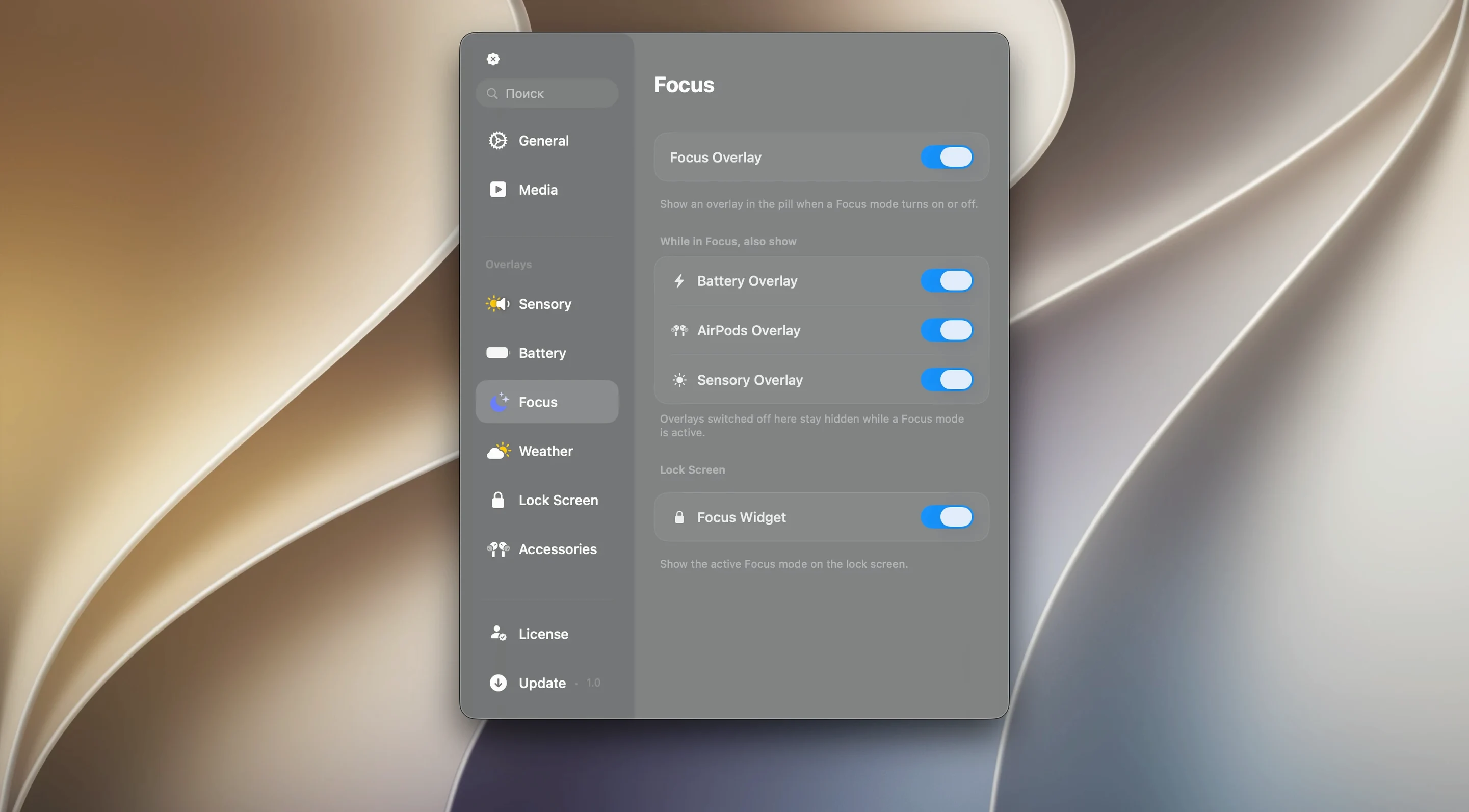
Canopy plays nice with macOS 26’s existing features rather than fighting them. Control Center still works as always—Canopy doesn’t replace it, it complements it. If you use Focus Modes, notifications respect your settings. A writing focus that silences everything? The panel stays quiet. It also coexists with Stage Manager without overlapping or stealing clicks.
For users with a notched MacBook, the canopy notch integration is the obvious pairing—controls sit right in that otherwise dead space. On a Mac mini or Studio Display, the floating widget parks at the top edge, and you can drag it horizontally to avoid overlapping other menu bar apps. The canopy v2 mac release tightened this behavior considerably; earlier versions occasionally drifted after waking from sleep, but that’s sorted now.
Quick tip: pair it with a global shortcut app like Keyboard Maestro or BetterTouchTool, and you can trigger Canopy’s panel expansion with a keypress, keeping your hands off the trackpad entirely during a heavy editing push.
Idles Around 80 MB of RAM on Apple Silicon
On an Apple Silicon machine, Canopy is practically weightless. Activity Monitor shows it idling around 80 MB of RAM and barely registering CPU time unless the Liquid Glass effect is actively animating. Even then, the GPU hit is negligible—this isn’t a render engine, it’s drawing a translucent overlay. On Intel Macs, the numbers creep up slightly, but still sit well under 150 MB. No background processes, no launch daemons, no kernel extensions.
Stability has been solid through a week of daily use. No crashes, no memory leaks ballooning overnight. The one quirk: if you’re running multiple displays with different resolutions, the widget occasionally needs a repositioning after a screen wakes. A quick drag fixes it. The developers have been responsive with updates, and the canopy download mac process is straightforward—drag, drop, launch.
For those wondering is canopy for mac free—it’s fully functional out of the gate. The panel doesn’t nag, doesn’t lock features behind a timer, and doesn’t inject ads. It sits there quietly, doing its job, which is more than you can say for plenty of menu bar utilities that trip over themselves to upsell you.
- macOS 26 or later
- Intel or Apple Silicon Mac
Questions I actually get
Is Canopy for Mac free?
The available information does not specify pricing. Canopy 2.1.0 is distributed as a direct download; check the developer’s site for current licensing details.
Does Canopy work on a Mac without a notch?
Yes. On notchless Macs, Canopy creates a floating widget at the top of the screen, giving you the same interactive controls and notifications.
Notes from the edit bay · 0
Sign in or get an edit-bay pass to leave a note.
No notes from the edit bay yet. They go up after I read them.