
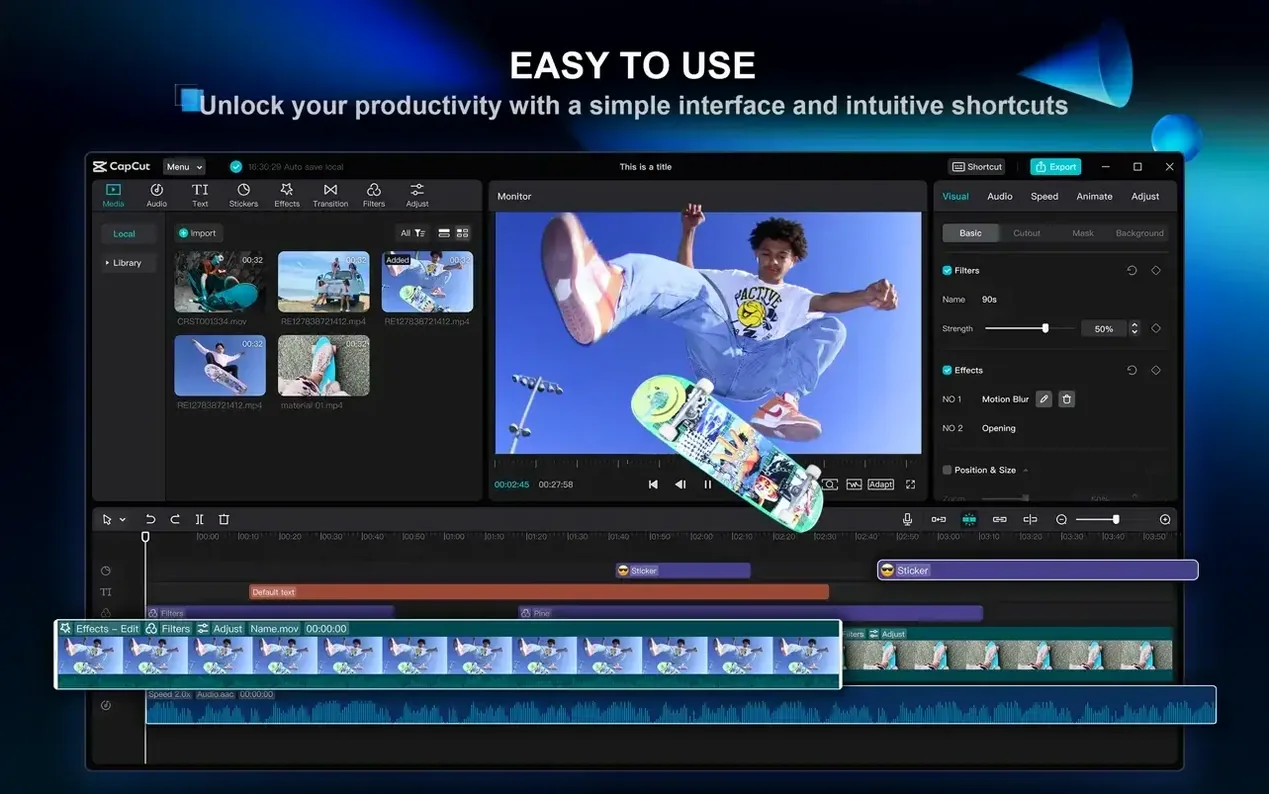
If you usually jump into iMovie for a quick trim but then hit a wall when you need a keyframed move or a clean chroma key, CapCut 9.3.0 fills that gap without pushing you into a timeline you don't recognize. It opens like a modern NLE but feels closer to a mobile editor that grew up and got a proper desktop UI.
The One-Click Jobs Final Cut Pro Can't Touch
CapCut isn't a replacement for a track-based editorial powerhouse, but it handles the one-click jobs that would take five steps elsewhere. Background removal by color, video stabilization, and automatic filler-word cutting run as single actions, which leaves your main NLE for the heavy narrative work.
Can it build a rough cut from nothing?
Yes. Feed it a script or point it at a podcast recording and it assembles a sequence, strips pauses, and drops in captions. It's a fast way to get a first assembly onto the drive before you even open your grading or audio tools.
Who needs the desktop version over the phone?
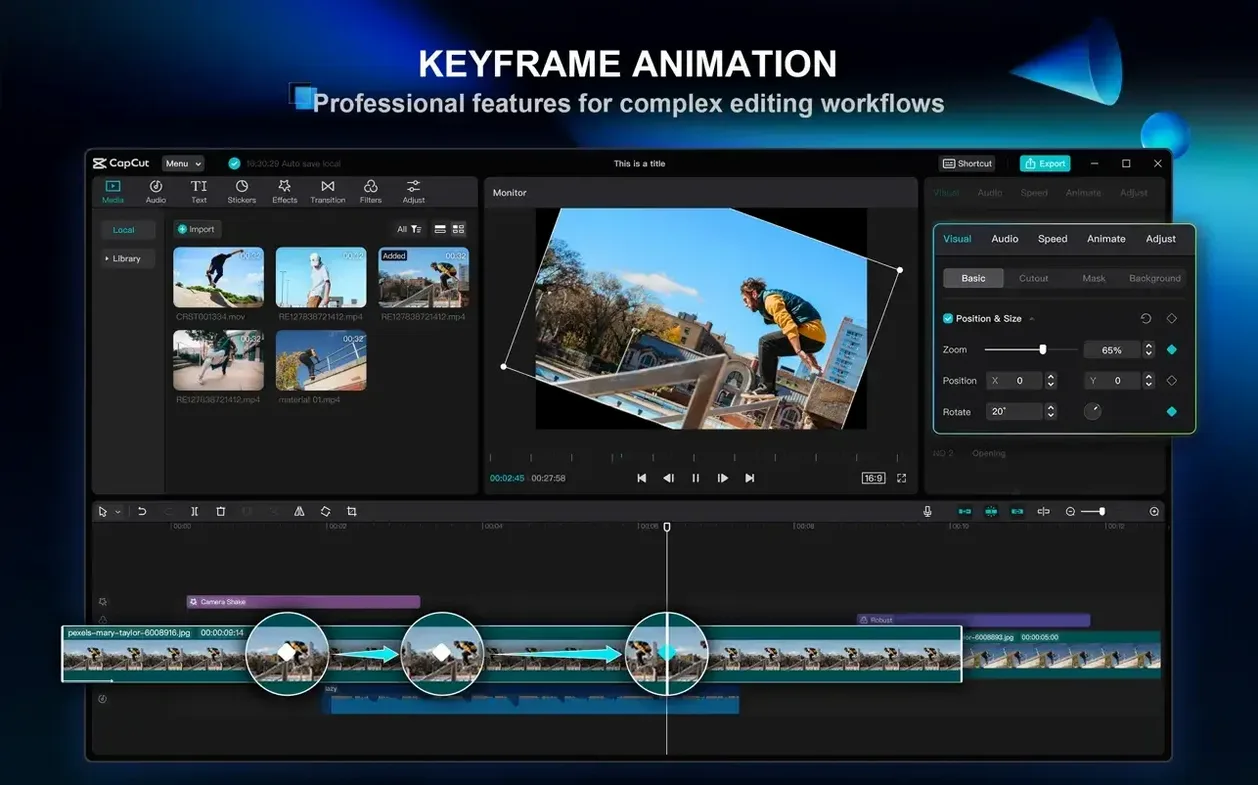
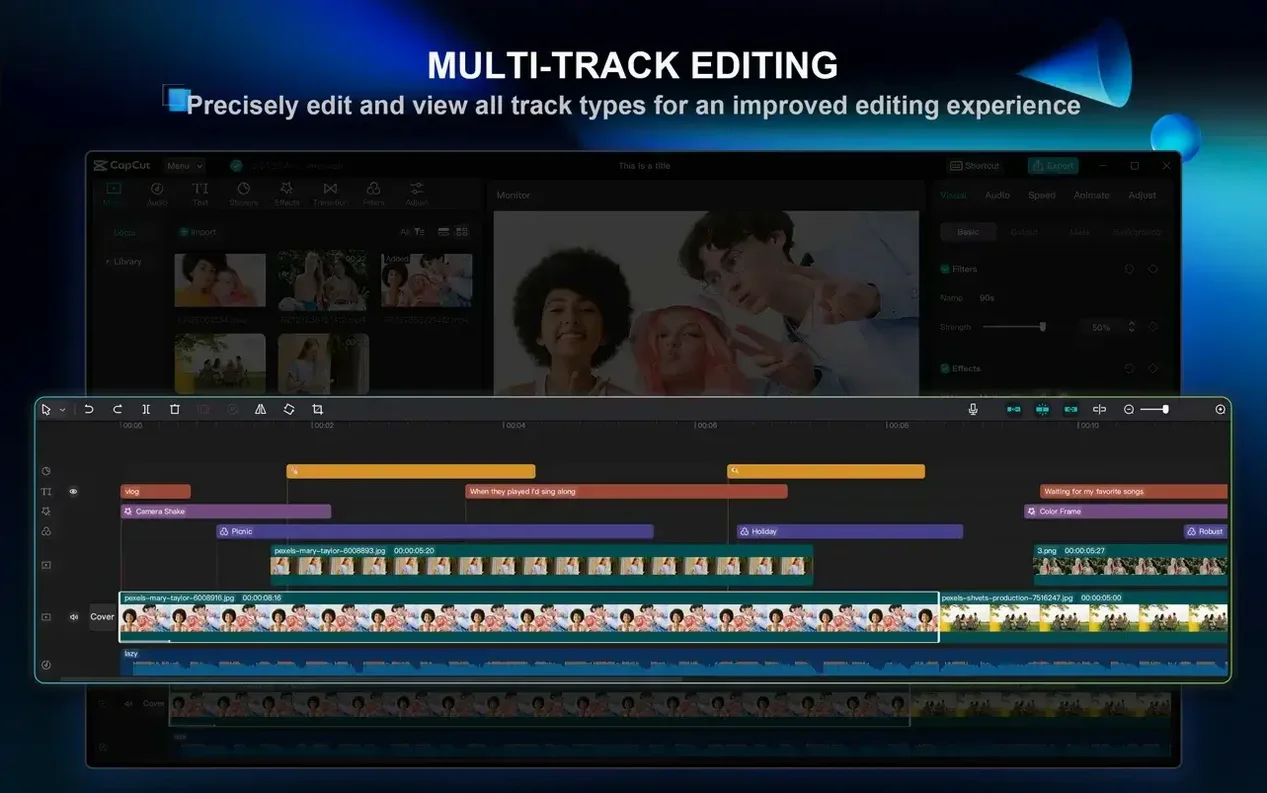
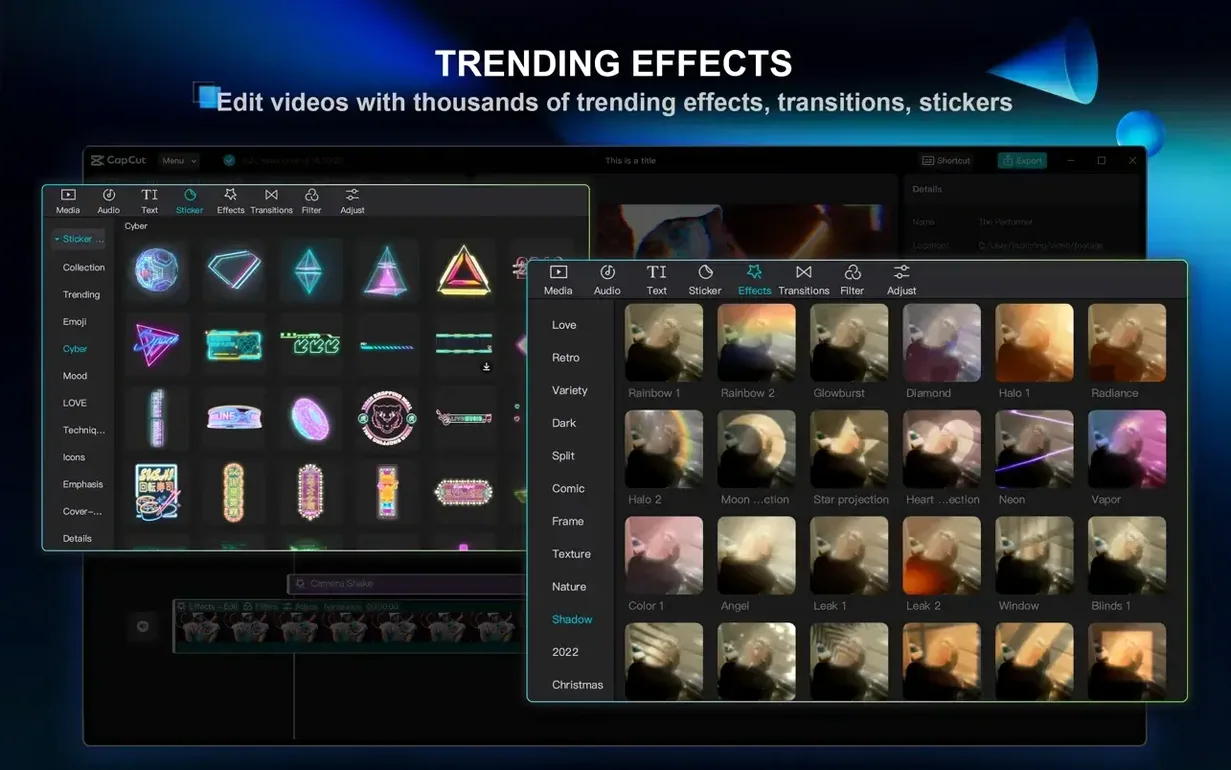
Anyone handing off assets between a Mac and a camera. The macOS app supports keyframe animation, multi-layer timelines, and the full effects library—filters, transitions, music, and type styles—on a screen big enough to actually see what you're keying out.
Proxy Generation and Other First-Day Surprises
CapCut hides a lot of power behind a friendly face, but that doesn't mean it's free of friction. One of the first things newcomers miss is proxy generation. Throw a 4K 60fps H.265 clip at an older Intel Mac and the timeline can stutter. The fix lives under the playback menu — drop the preview quality to half or quarter. Rendering stays full-res at export, but scrubbing becomes smooth enough to work.
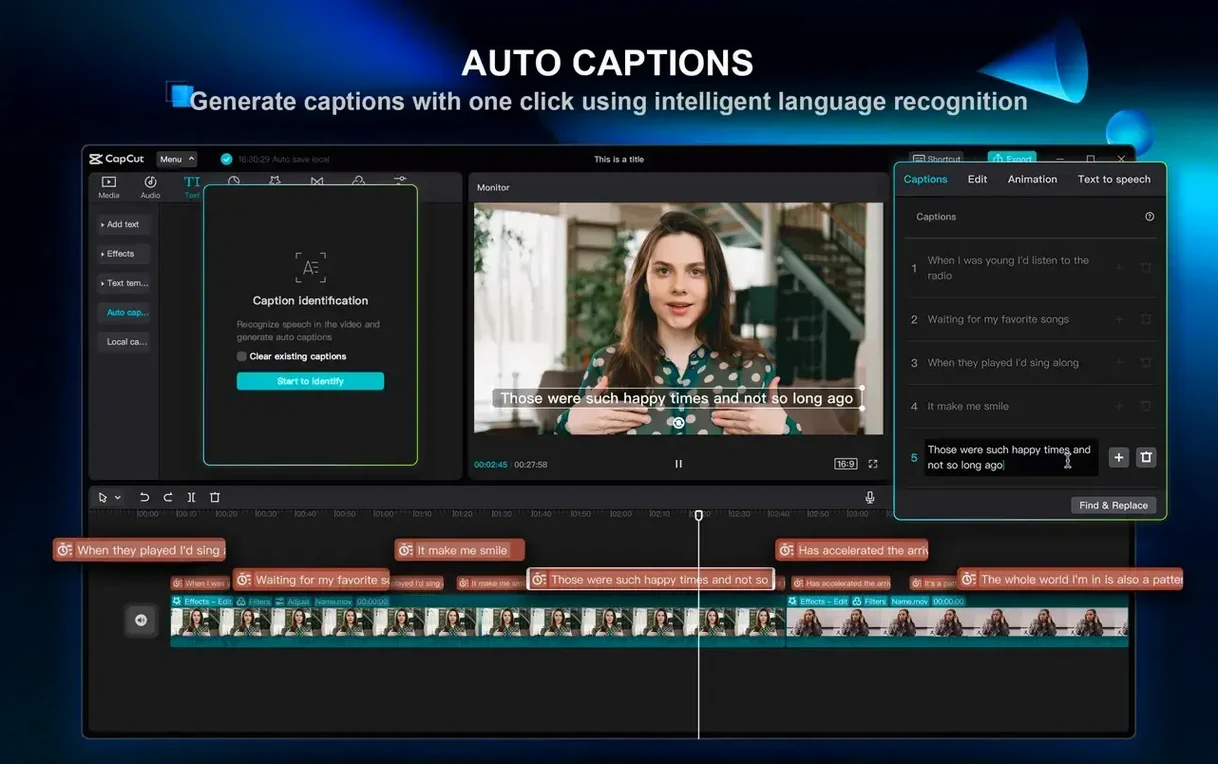
Another headache: auto-captions picking up background noise. If you're cutting a podcast and the speech recognition transcribes a fridge hum as dialogue, strip the audio through the Reduce Noise slider first. It's tucked inside the audio editing panel, right next to the voice isolation switch. Five seconds of cleanup before hitting "Generate captions" saves a lot of manual text edits later.
Chroma key giving you a flickering edge? That's usually uneven lighting on the green screen. CapCut's keyer has an Edge Feather control that softens the transition, but the real fix is dropping a mask around the subject first so the algorithm isn't trying to key a whole frame full of wrinkles and shadows. Dial the similarity threshold gently — small moves here do more than cranking the slider.
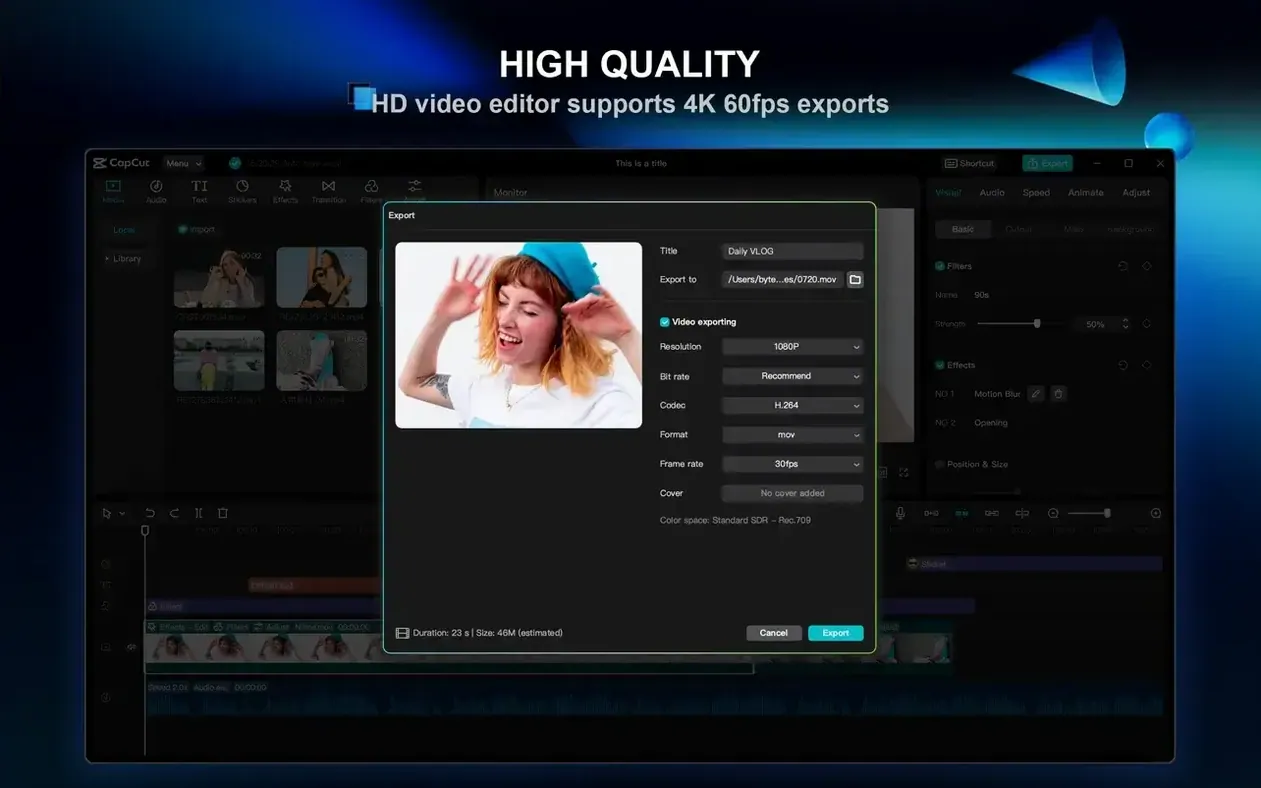
Also fixed: export presets sometimes lock to 30fps even when your timeline is 60. Before you hit export, check the frame-rate dropdown manually. Auto-detect doesn't always read your project settings correctly, especially after you've mixed clip types.
Building a Talking-Head Video With Text Overlays, Start to Finish
Here's a real path through the app for a short social cut — something like a 90-second product explainer with a speaker against a clean background and animated lower thirds.
- Ingest and rough cut. Drop the main clip into a new project. Blade-trim the dead air at the head and tail, then run Cut long pauses and filler words from the right-click menu. CapCut scans the waveform and speech, then chops the gaps. Review the cuts — it's aggressive, so you might undo one or two where a pause was intentional.
- Background cleanup. With the speaker isolated, hit Remove Background. The auto-matte isn't always perfect around hair, so switch to the manual brush and paint over the problem edges. Toggle the overlay view on and off to check your work.
- Color and light. Add an adjustment layer above the clip. Drag a LUT from the built-in library or pull the curves up a touch. CapCut's scopes are basic but usable — keep skin tones in the 60-70 IRE range.
- Captions and text. Generate auto-captions from the voice track. Select all the caption blocks and apply the style preset that matches your brand. For the lower thirds, drop a text template onto track three, keyframe the position to slide up over six frames, and type the speaker's name and title. Copy-paste the text block for each section of the video, adjusting copy only.
- Audio polish. Normalize the voice track to -16 LUFS for social delivery. Duck the background music under the voice by setting the music track to Auto-ducking and pointing it at the dialogue layer. A 0.3-second fade is enough.
- Export. Choose H.264, 4K, 60fps, and let it render. The whole thing — from import to finished file — should clock in under twenty minutes once you know where everything lives.
How a Music Video Editor Actually Uses It
Ren, a freelance editor in Nashville, cuts performance videos for country artists on a tight turnaround. Her main timeline lives in Final Cut, but she keeps CapCut open for two specific jobs that save her billing hours.
First, rough selects with auto-captions. A band sends over a forty-minute rehearsal with multiple takes of the same song. She dumps the whole thing into CapCut, lets the speech-to-text engine index every "one, two, three, four" count-in, and then searches the caption track for the song title. Each hit marks the start of a take. She drops markers, exports an XML reference, and rebuilds the selects in Final Cut in half the time it used to take scrubbing waveforms.
Second, vertical cutdowns. The client wants TikTok and YouTube Shorts versions of the final video. Ren opens the finished horizontal master in CapCut, changes the project aspect ratio to 9:16, and uses the auto-reframe tool to track the lead singer's face. A quick manual adjustment on the guitar solo section — auto-reframe tracked the guitarist's hands instead of the singer's face — and the short is ready. She exports directly to the vertical preset and delivers both versions before the artist's tour bus hits the next city.
For editors who already own a heavy NLE, CapCut earns its keep on the prep and delivery sides. The middle of the workflow still belongs to the tool with the deepest color and audio control, but the edges — ingest, rough selects, captions, social reformatting — are where a CapCut Pro torrent Mac build slots right into a fast-turnaround pipeline without friction.
- macOS 10.14 or later
- 2-core processor minimum
- Runs on Intel and Apple Silicon Macs
Questions I actually get
Does CapCut for Mac work on older machines?
The developer states a 2-core processor and macOS 10.14 are sufficient, so it runs on Intel and Apple Silicon Macs that meet that baseline.
What AI tools are actually inside the editor?
One-click background removal, automatic filler-word and pause cleanup for dialogue, and script-to-video assembly are the main AI-assisted features.
Notes from the edit bay · 0
Sign in or get an edit-bay pass to leave a note.
No notes from the edit bay yet. They go up after I read them.