The latest build, 2026.2.3, squashes a crash that would hit on startup or during an export. That stability fix means the tool's defining features can actually do their job without the render bar stopping mid-stride.
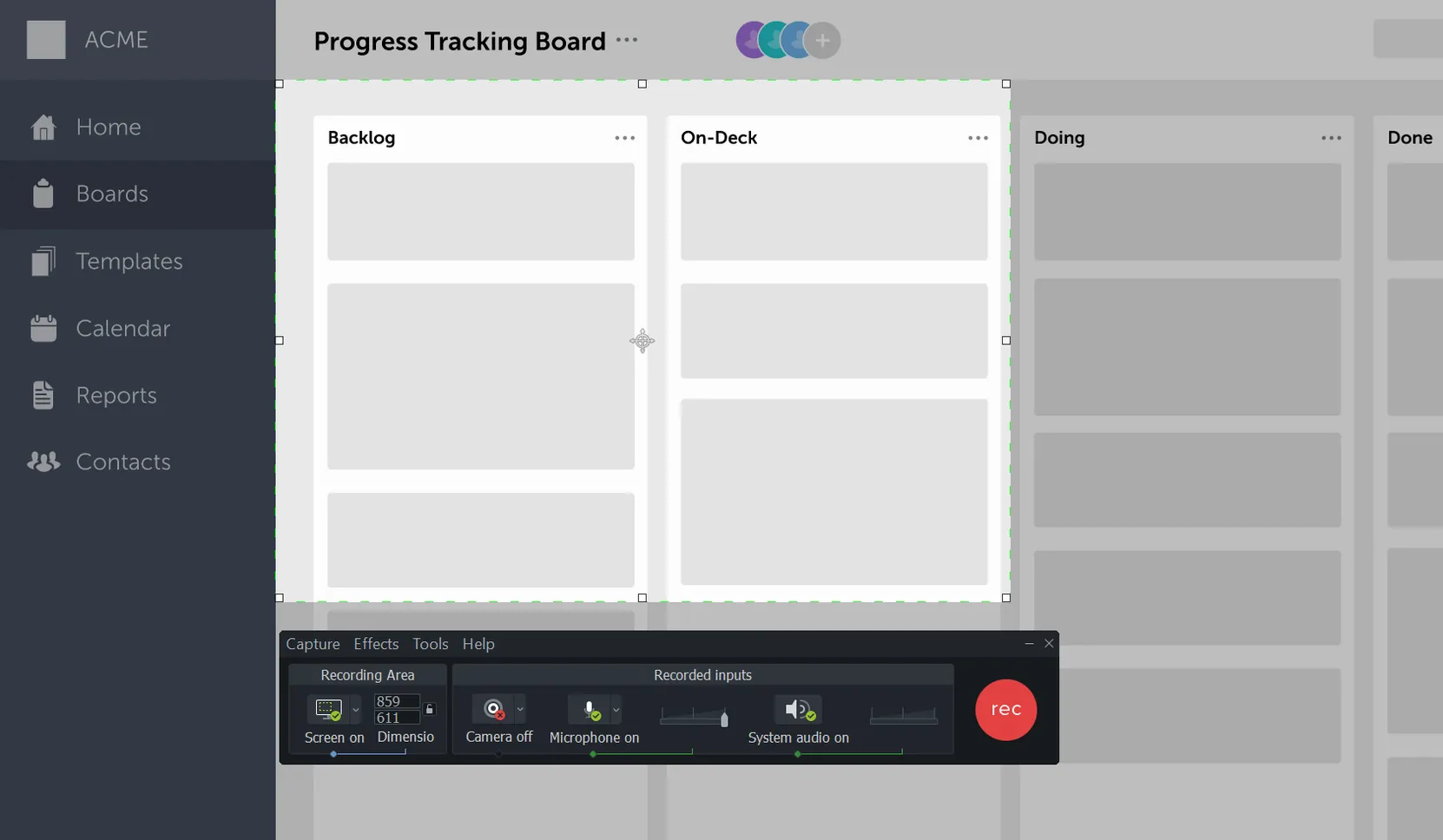
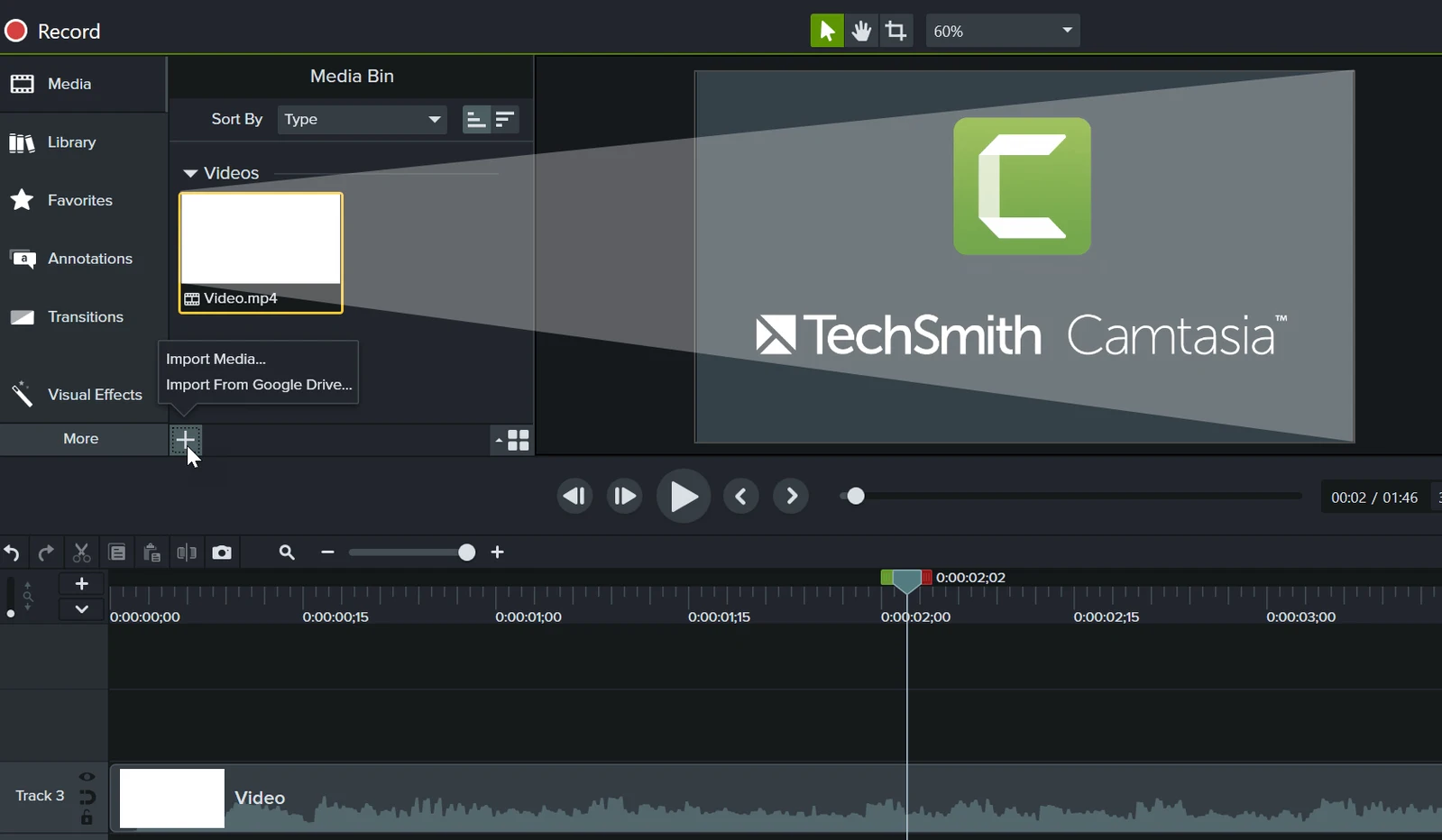
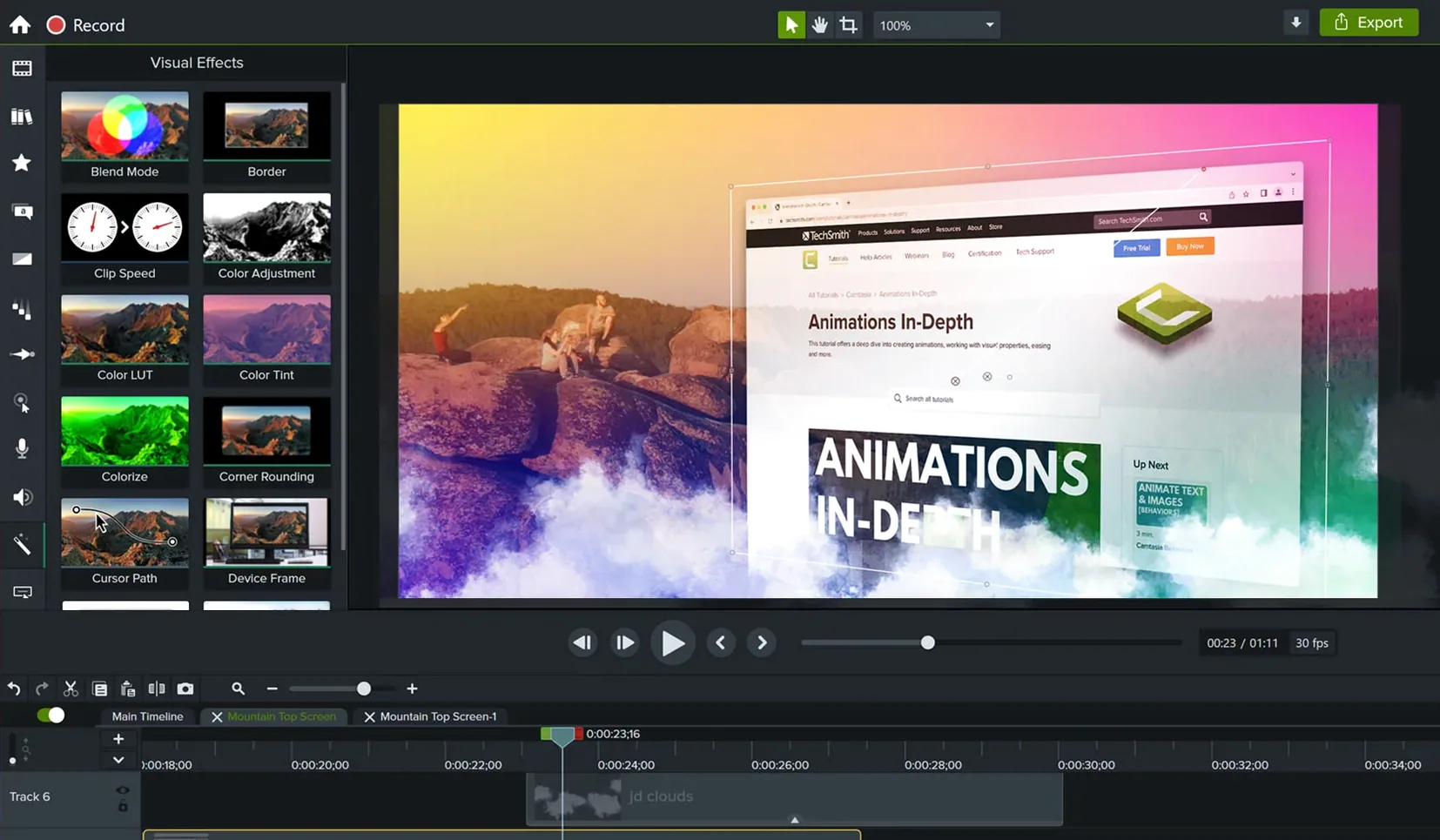
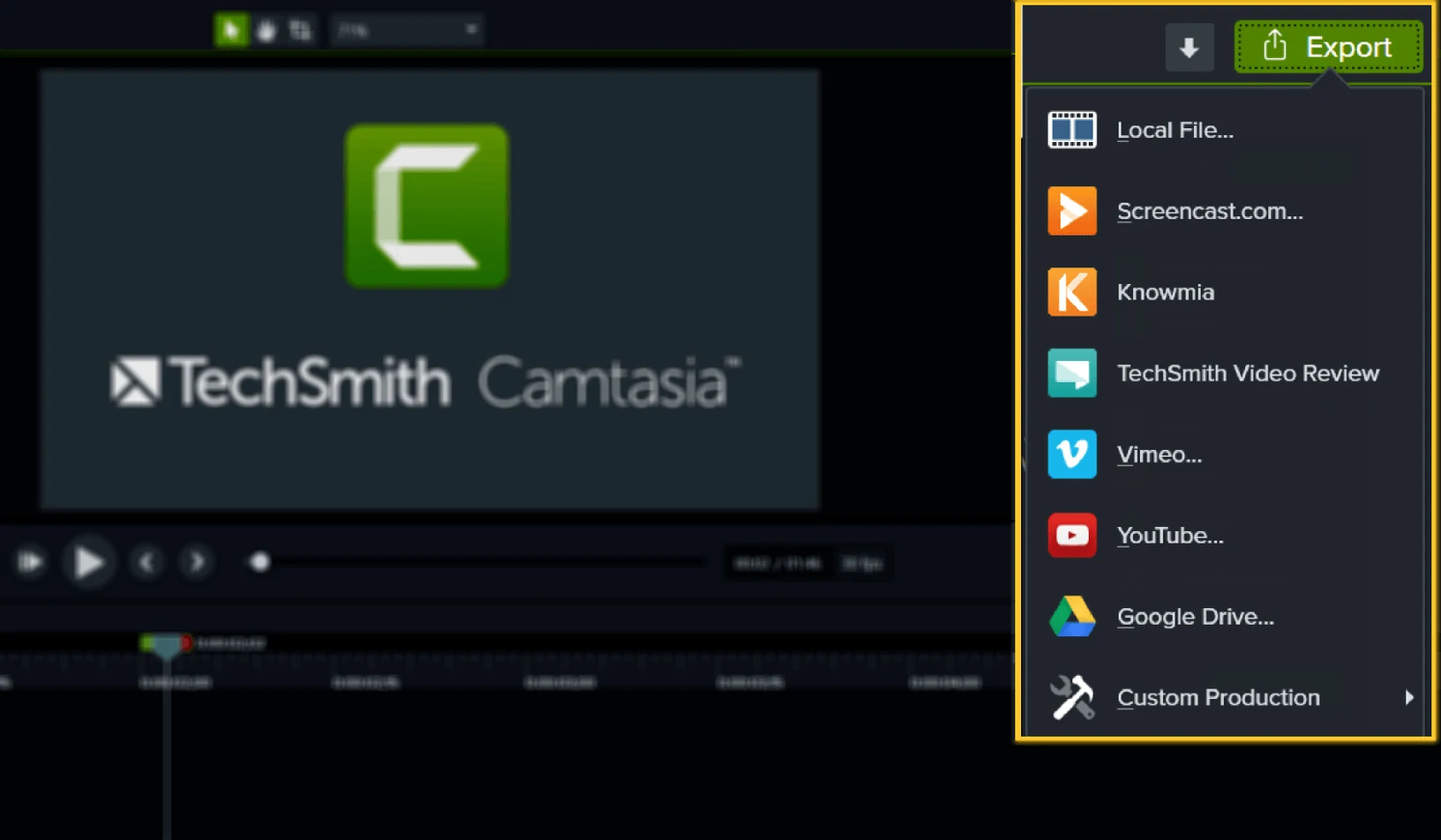
Screen Capture — Grabs your entire display, a single window, or a custom region. It's the first step of any tutorial, demo, or quick feedback clip. Media Bin — Where you import existing video, audio, and image files. Drag your phone footage, stock clips, or field recordings here so they sit alongside your screen recordings in one project. Multi-track Timeline — Layers screen video, camera video, and audio on separate tracks. This is how you cut a talking-head insert over a software demo, or duck music under voiceover. Annotations & Effects — Callouts, arrows, blur, and cursor effects. These aren't decoration; they direct the viewer's eye to a button, a field, or a number that matters in the frame. Sharing Engine — Local export of an MP4 file, plus direct upload to platforms like YouTube or Vimeo. You render once and deliver where the audience actually watches.Tweak the Frame Rate and Audio Source Before You Record
Out of the box, Camtasia defaults to a recording framerate of 30 fps and captures system audio from whatever device macOS considers active. That's fine for a quick test, but a few tweaks in Preferences save you from re-recording later.
Head to Recorder Preferences and bump the capture framerate to 60 fps if your tutorial involves any UI motion — scrolling, dragging sliders, opening menus. The difference in smoothness is noticeable, and the file-size hit is modest on Apple Silicon. While you're there, lock the audio input to your actual microphone instead of leaving it on "System Default." macOS loves to switch to a webcam mic the moment you plug one in, and you won't catch it until playback.
In the editor preferences, switch the timeline thumbnail size to medium or large. The default tiny thumbnails make spotting a specific section of a recording harder than it needs to be. Also enable auto-save every 3 minutes — the default 10-minute interval is a gamble when you're cutting against a deadline.
One last move: under Export, set your default to MP4 with H.264 encoding and a bitrate target of 15 Mbps for 1080p or 30 Mbps for 4K. The "Best Quality" preset sometimes over-allocates bitrate for simple screen recordings and bloats file sizes without a visible gain.
Monday Morning: From Sticky-Note Plan to Screen Capture
Monday morning. You need a six-minute walkthrough of a new web-app feature for the support team. You've already mapped out the clicks in a sticky-note list stuck to the bottom of the monitor.
You launch the recorder and pick Custom Region, drawing a box that fits the browser window exactly. You check the mic level, hit record, and talk through the flow while clicking at a deliberate pace. You flub a sentence halfway in — instead of stopping, you pause for two beats and say the line again cleanly. That silent gap becomes your edit point later.
The recording lands in the timeline automatically. You drag the playhead to the mistake, drop a split with Cmd-Shift-S, select the bad take, and hit delete. The two-second silence you left makes the cut invisible. You ripple-delete the gap so the timeline snaps tight.
Next you pull a Cursor Highlight effect from the annotations panel onto a section where the user needs to notice a tiny gear icon. You keyframe the highlight's size so it shrinks once they've seen it. A Zoom-n-Pan animation brings the viewer closer to the settings panel for three seconds, then eases back out.
You drop a title card from the Library tab at the front, type the feature name, and drag a pre-built outro template to the end. The audio ducking slider pushes the background music down automatically whenever your voiceover track has signal. You hit Share > Local File, pick your MP4 preset, and fifteen minutes after you started recording, the file is sitting on the desktop.
Why Your First Recordings Should Stay Under Two Minutes
Start with short recordings — under two minutes. Long captures tempt you to fix everything in the timeline, and editing a twenty-minute raw screen grab is a different skill. Short clips force you to plan what the viewer needs to see in that specific chunk. You can always stitch sections together later.
Learn the Ripple Split shortcut immediately. It's Cmd-Shift-S on Mac, and it cuts a clip while pulling the remaining segments together in one motion. Without it, you spend half your session dragging clips around to close gaps. While you're at it, memorize Cmd-Option-I to insert a freeze frame — invaluable when you want the viewer to study a settings dialog before the next action.
Build a small personal library of custom presets. Whenever you dial in a zoom level, a cursor effect, or a blur shape that works well, right-click it and save it. By week two you'll have five or six go-to effects you can apply without touching the Properties panel. This alone cuts editing time by a third on repeated tutorial styles.
Record system audio on its own track, not mixed with the microphone. In the recorder, uncheck "Record system audio to the same track as microphone." This gives you independent volume control later — you can lower the notification ping that fired mid-recording without affecting your voiceover level.
Finally, export a 15-second test clip before committing to a full render. Pick a section with motion, effects, and audio. Watch it in QuickTime Player, not in Camtasia's preview window. You'll catch encoding quirks, color shifts, or audio sync drift before you've burned thirty minutes on a full export.
When Templates Turn Daily LMS Deliverables Into One-Click Exports
Software trainers and onboarding specialists live inside this app. They record screen flows daily, need consistent callouts and cursor treatments, and deliver to internal LMS platforms. The template system means they can set up a company-branded intro and outro once, then reuse it across every module. The direct YouTube upload bypasses the "export then manually upload" dance that eats fifteen minutes per video.
Online course creators benefit from the PowerPoint import. You can build slides in Keynote or PowerPoint, drop them into a project, and record voiceover against each slide on the timeline. The quizzing and interactive elements aren't here — that's an LMS job — but for lecture-style content with screen demos, the round-trip from slide deck to finished MP4 is tighter than running a separate screen recorder and a non-linear editor.
Marketing and support teams who need quick-turnaround product demos will use Camtasia differently than a Premiere editor. They're not mixing multi-cam shoots or grading log footage. They need a clean screen recording, a few lower thirds, maybe a webcam inset, and a render that goes straight to the help center. The whole tool is tuned for that narrow but high-volume use case.
Mac users who record in one environment and edit in another will appreciate that a Camtasia for Mac download produces project files that open on the Windows version without conversion. Cross-platform teams — common in corporate training departments — can pass a project between macOS and Windows editors freely.
It's less of a fit for narrative editors or anyone deep in the FCP or Resolve ecosystem. If your timeline already has twelve video tracks and you're keyframing color wheels, this isn't replacing that. But for the person whose week is measured in tutorials shipped and walkthroughs updated, the tool's opinionated workflow — record, cut, annotate, share — eliminates decisions that don't serve the deadline.
Here it is: Camtasia 2026.2.4 lands with stability fixes and a handful of small refinements that keep the timeline humming.
- macOS 13 or later
- Apple Silicon or Intel 64-bit Mac
Notes from the edit bay · 0
Sign in or get an edit-bay pass to leave a note.
No notes from the edit bay yet. They go up after I read them.