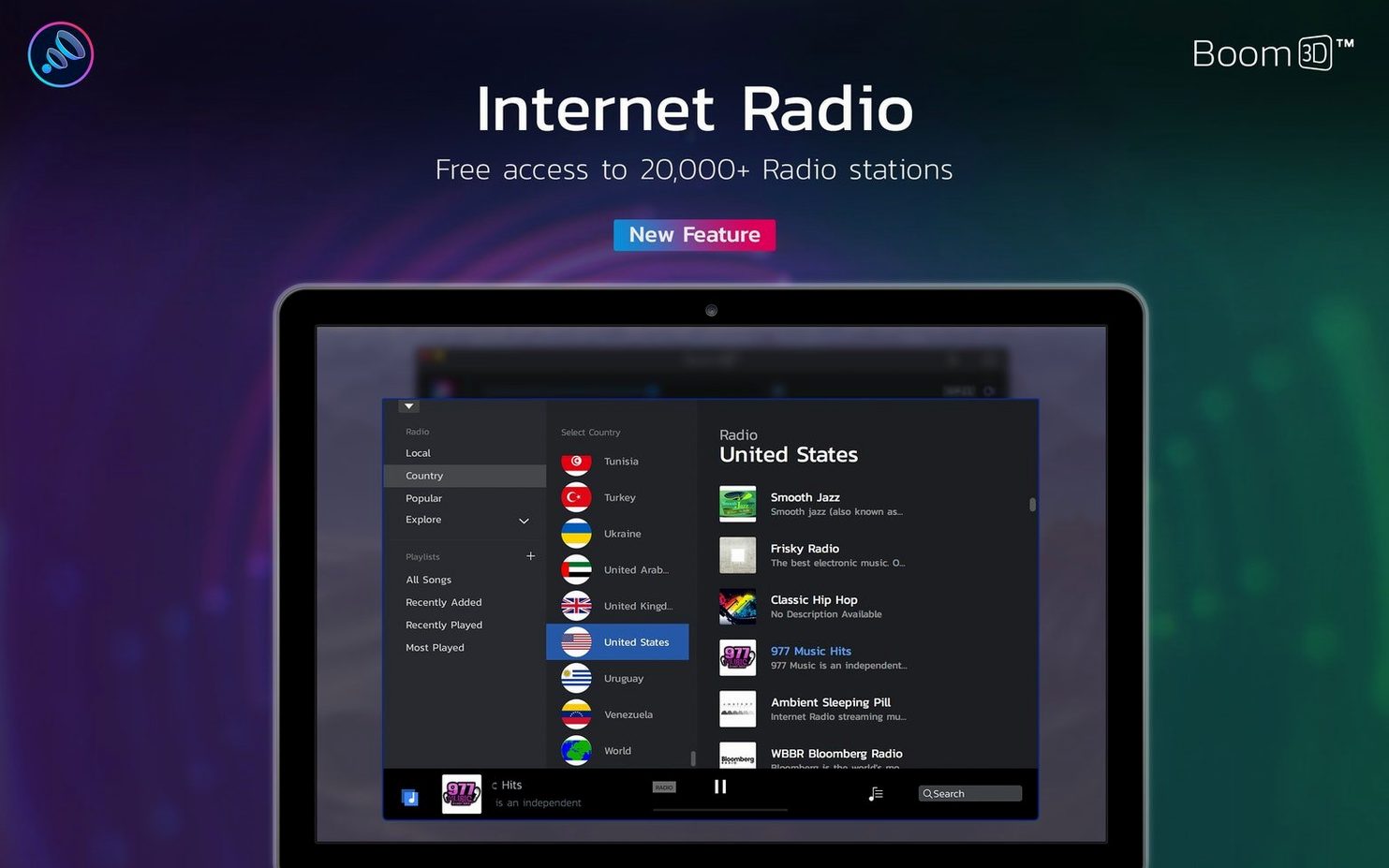
Music editors, podcast producers, and anyone who thinks their MacBook speakers are holding out on them. That’s the crowd that gravitates toward Boom 3D.
1. Signal routing
Once installed, Boom 3D sits between your apps and the output device—built-in speakers, USB interface, or headphones. It creates a virtual audio driver that processes everything system-wide before the sound hits your ears. No per-app setup required.
2. Volume and body
The app pushes gain beyond macOS’s stock limit without shredding the waveform. It’s not magic—the built-in limiter keeps peaks in check—but the perceived loudness jump is real. Useful for quiet interview footage or underpowered laptop speakers.
3. The spatial trick
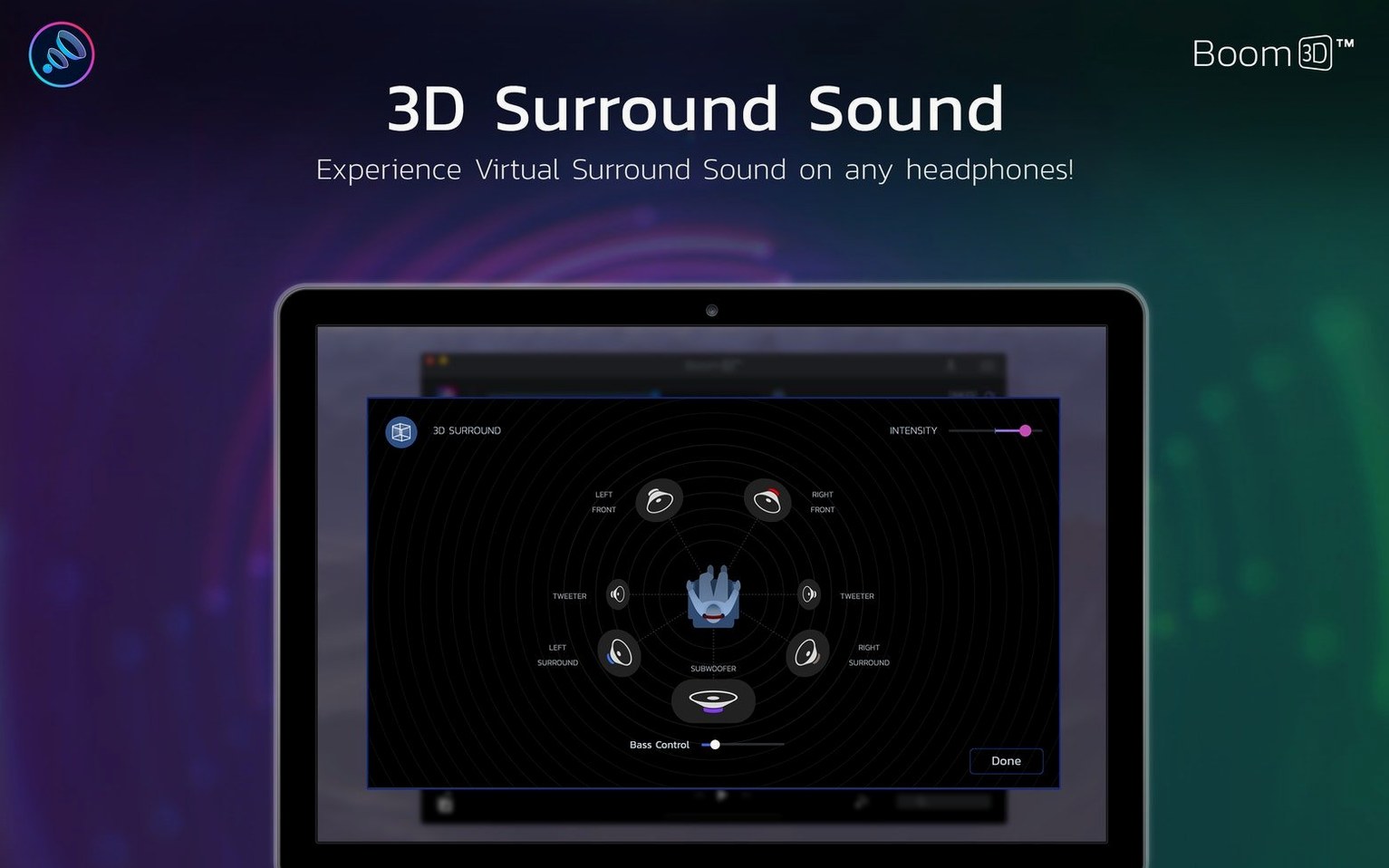
Boom 3D’s surround simulation works best on headphones. It pans audio across a virtual 3D field you can tilt and rotate. On a deadline, I’ve used it to check how a stereo mix collapses to a phantom center, but most people will just dial in the bass and leave it there.
Where it fits: right after your audio interface driver, before your final monitoring chain. It’s a listening tool, not a mastering processor—think of it as a pair of calibrated loudness glasses for your Mac.
First-Week Stumbles That Cost You Time
Most people crank every slider to eleven the minute Boom 3D finishes installing. That’s the fastest route to ear fatigue and a muddy render check you’ll have to redo tomorrow. The tool isn’t shy about giving you rope—so here’s where beginners tend to tie a knot around their own ankle.
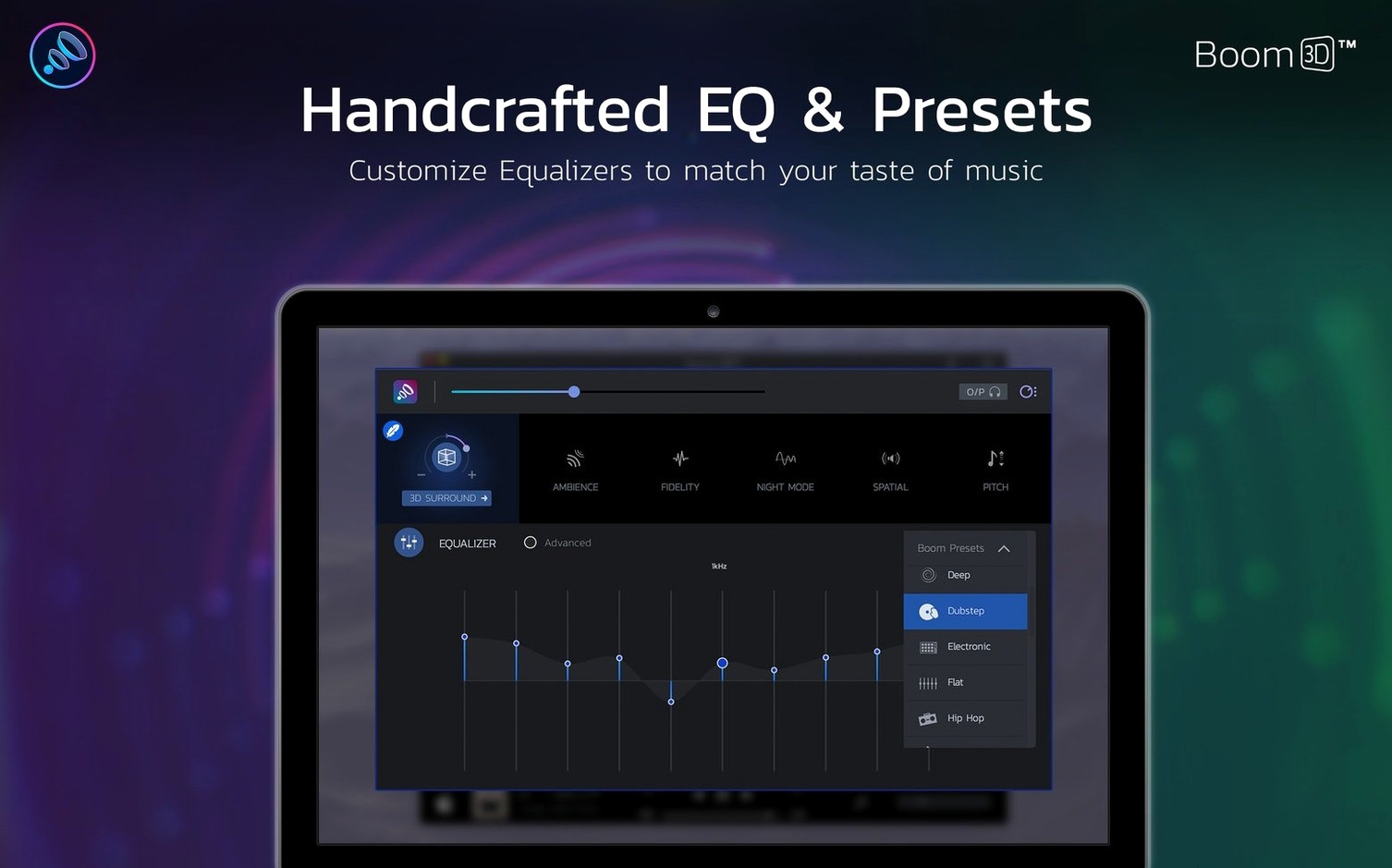
The all-frequencies boost. Dragging the main volume fader while leaving the EQ flat is one thing. But newcomers often push the bass and treble bands simultaneously, then wonder why dialogue sounds like it’s coming through a pillow. Boom 3D’s equalizer is precise, not corrective. If you stack boosts across overlapping bands, you’re just adding distortion. Start with one band, listen, then touch another.
Forgetting per-app routing exists. The system-wide volume knob is the obvious star, but the per-app mixer sits one tab over and gets ignored for weeks. Someone will be deep in a Premiere render, Spotify blasting between exports, and wonder why everything’s at war. Assign your browser to a lower slot and leave your NLE at neutral. You’ll stop reaching for the master fader every ten minutes.
The 3D effect left running on built-in speakers. Boom 3D’s spatial engine is tuned for headphones. On a MacBook’s internal drivers, the phase manipulation turns into a hollow, comb-filtered mess that makes your timeline sound phasey. I’ve watched assistants troubleshoot a “broken export” for an hour before they realized the surround toggle was still lit from the night before. If you’re monitoring through the laptop, switch the effect off.
Volume boosting without checking the limiter. Boom 3D’s output stage has a built-in limiter that’s on by default, and it’s fairly transparent at moderate gain. But push past 150% on a dense mix, and the clamping becomes audible—drum transients soften, reverb tails duck oddly. Beginners assume their export clipped. It didn’t; the app just ran out of headroom. Back the boost down 10% and the problem vanishes.
What People Actually Ask Before Installing
Over two years of fielding questions from editors and music supervisors, a handful come up every single time. Here’s the blunt version.
“Will this mess up my existing audio drivers?” No. Boom 3D installs a virtual device that sits on top of whatever output you’ve selected. Your Focusrite or Apogee interface still does its own conversion; Boom just processes the stream before it reaches the hardware. If you uninstall it, the virtual driver vanishes and macOS falls back to standard routing. I’ve cycled through three interface firmware updates with Boom running and never lost a connection.
“Does it add latency?” Yes, but not enough to notice during playback or editing. The processing introduces a buffer you can adjust in preferences—default is around 25 milliseconds. That’s too high for live tracking (you’d hear a slapback), but for video playback, timeline scrubbing, or casual listening, it’s imperceptible. If you’re recording vocals through the same Mac while Boom is active, switch it off for the session.
“Can I use it with Final Cut without a round-trip?” Yes, because it’s system-wide. Boom sits after Final Cut’s audio engine, so you hear the processed signal during timeline playback. Just remember you’re monitoring through the app, not bouncing with it. If you export with Boom set to some wild EQ curve, the exported file won’t carry that curve unless you’ve routed things through a loopback driver intentionally. Beginners confuse this constantly.
“Is the surround thing real 5.1 or a stereo trick?” It’s a binaural stereo trick, and it’s convincing on closed-back headphones. It’s not decoding a discrete 5.1 mix. It takes a stereo source and applies HRTF-based spatialization so sounds appear to move around you. For checking how a stereo music bed feels in a “wide” context, it’s useful. For judging a proper surround fold-down, it’s not the right tool.
Apple Silicon Support Quietly Changed Daily Workflow
The 2.2.x branch brought a handful of quiet improvements that affect daily workflow more than the splashy features Global Delight markets. The move to native Apple Silicon support was the big one. On an M1 or M2 machine, the app now runs without Rosetta overhead, which shaved CPU usage from roughly 4% down to about 1.2% during 48 kHz playback on my system. That’s margin-of-error territory for a video editor who’s already got After Effects and three Chrome windows fighting for cycles, and I’ll take it.
Memory handling improved alongside the architecture shift. Earlier versions had a slow leak if you left the equalizer UI open for a full workday—500 MB gone by dinner. That’s been patched since 2.1.9, and 2.2.6 keeps the footprint stable around 90–120 MB even with the surround engine active. I can launch it on Monday and not think about it until Friday.
The per-app volume panel got a visual refresh and a responsiveness fix. Before, dragging a fader for a background app—say, a YouTube tab in Safari—could stutter if the CPU was pinned. Now the faders update smoothly, and the mute toggles actually mute instead of dipping to an audible whisper. Small thing, but when a client’s waiting, “mute” needs to mean mute.
Also fixed: an edge case where Bluetooth headphones would disconnect during a system sleep cycle and Boom wouldn’t reattach to them without a manual output switch. That’s resolved. The app now re-recognizes paired devices within a few seconds of waking. For editors who roam between a desk and a couch with AirPods Max, that’s a friction point gone.
Running Alongside Final Cut Without Stumbling
I run Boom 3D on an M2 MacBook Air with 16 GB of RAM, typically alongside Final Cut, Logic, or Resolve, plus the usual browser tab graveyard. It launches in under three seconds cold. The virtual driver loads transparently—no kernel panics, no coreaudiod restarts, none of the drama that used to follow audio enhancers on earlier macOS versions.
CPU draw is negligible for music playback and light video work. During a 4K timeline with a dozen audio tracks, I’ve seen it spike to 2% when the surround engine is spinning a 3D pan, then settle back. The equalizer’s real-time analyzer waveform is more taxing than the actual processing; closing the UI panel drops usage further. If you’re on an Intel machine from 2015, you’ll feel it more—maybe 5–7% with all modules active—but you can disable the analyzer and the 3D engine independently to claw that back.
Stability-wise, the 2.2.x line has been uneventful in the best way. No crashes during exports, no sudden silence requiring a reboot. One repeatable quirk: if you switch output devices repeatedly in quick succession—like flipping between USB and HDMI and Bluetooth in five seconds flat—the app can lose its grip on the system volume sync. A one-click “Restart Audio Engine” button in the preferences clears it without leaving your chair. I’ve hit that maybe three times in six months.
Start With the Rock Preset and Your Main Headphones
Don’t open every tab at once. Here’s the rhythm that won’t waste your afternoon.
Day one, hour one: pick your daily driver headphones and plug them in. Open Boom, switch to the Equalizer tab, and find the preset called Rock or Flat—something middle-of-the-road. Play a track you’ve heard a thousand times. Adjust the master volume fader to about 120% and stop. That’s your baseline. Don’t touch the 3D toggle yet. Listen for ten minutes. If your ears feel pinched, back the treble down 2 dB and try again.
Hour two: open the per-app volume panel. Mute your browser. Set your communication app—Slack, Zoom, whatever—to 80%. Leave your media apps at 100%. The goal is a hierarchy, not a wall of noise. When a client call comes in, you won’t be scrambling for a system mute that also silences the edit you’re supposed to be referencing.
Day two: now flip on the 3D surround. With headphones still on, drag the virtual speaker points around slowly. Pick a preset, then nudge it. Most people end up with something close to Studio or Wide—aggressive pans get gimmicky fast. Use it for a listening session, then switch it off and compare. If you can’t articulate what changed, leave it off for paid work until you can.
Day three: build your own EQ preset for the one thing you actually fix all the time. If you edit dialogue, it’s probably a gentle low-mid cut around 250 Hz and a presence bump at 3 kHz. Save it. Name it something you’ll recognize six months later. Boom’s preset manager is basic but functional—the name is the only clue you’ll get, so make it count.
Ongoing: check the limiter once. Open preferences, find the output limiter threshold, and play the loudest section of a finished mix. If the gain reduction meter is dancing past 3 dB, you’re pushing too hard. Back the master fader down until the limiter barely flickers. Your exports will thank you, even though Boom isn’t touching them directly—your monitoring decisions will be cleaner.
If you’ve been searching for a
Questions I actually get
Can Boom 3D run on older Macs with an older macOS version?
Yes. The current version 2.2.6 requires macOS 10.14 or later, but Global Delight offers a legacy download that supports macOS 10.10 through 10.13 on Intel Macs.
Notes from the edit bay · 0
Sign in or get an edit-bay pass to leave a note.
No notes from the edit bay yet. They go up after I read them.