CleanShot X runs on any Mac with macOS 11 or newer, Apple Silicon or Intel. That covers a lot of machines still in daily use for editing and content work.
| Key detail | Info |
|---|---|
| Current version | 5.0.1 |
| Developer | MakeTheWeb |
| Runs on | macOS 11+, Intel & Apple Silicon |
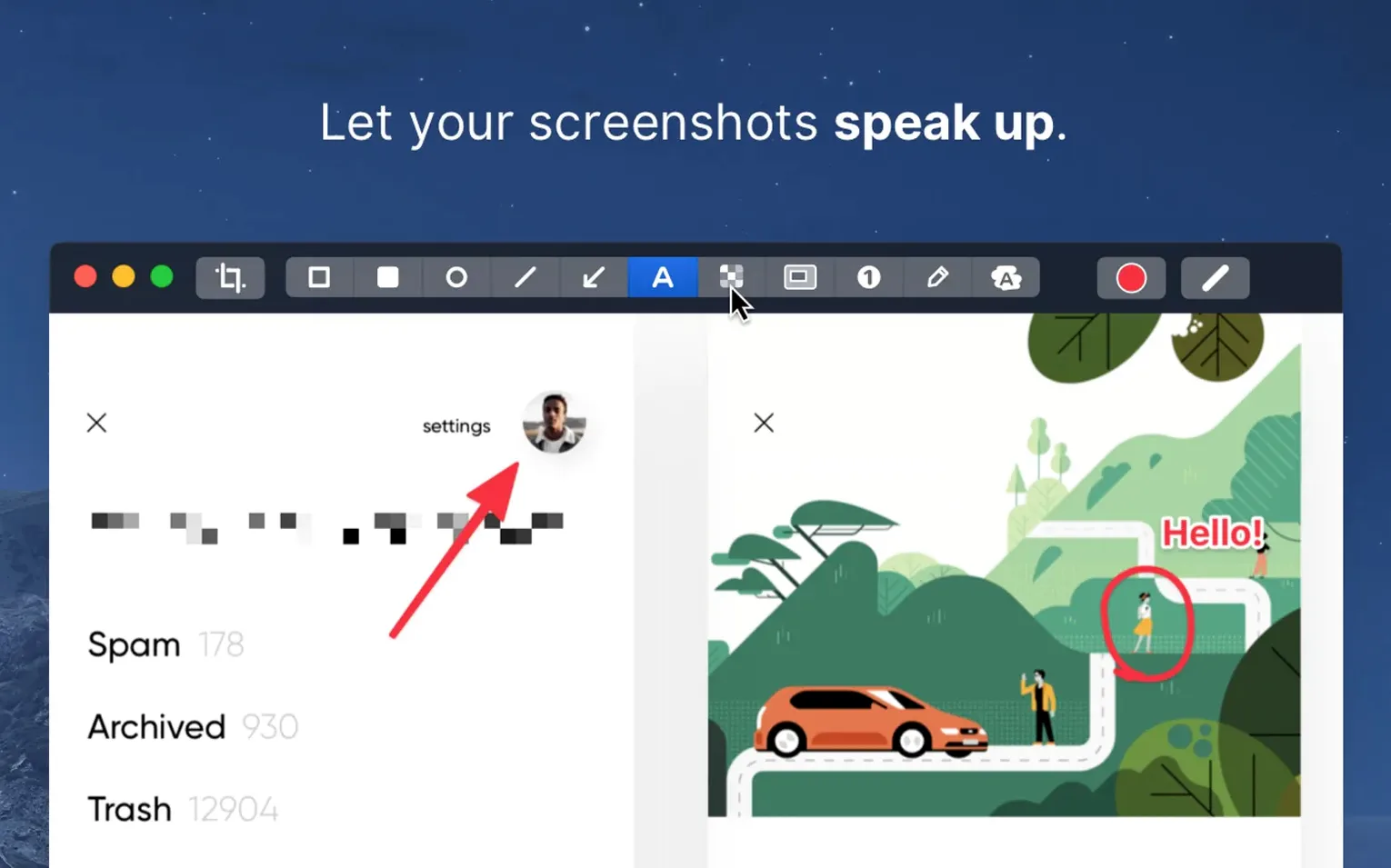
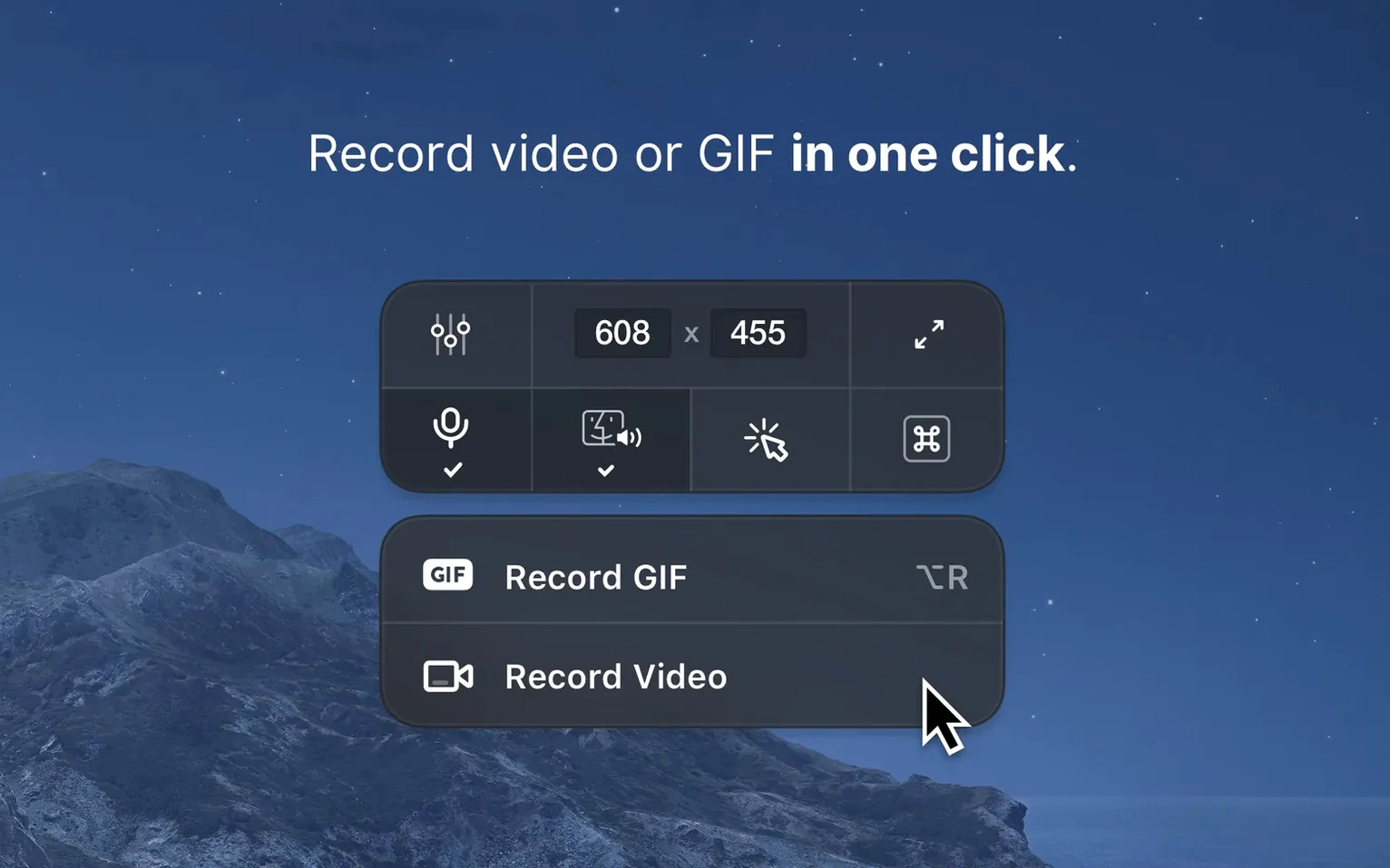
What makes CleanShot X stand out isn't one headline feature but how its tools line up with actual jobs. Need a quick product demo? Record video or GIF directly during capture. Need a clean hero image for a deck? Set the screenshot background to a solid color or your own image. Pitching an edit or a design? The annotation set covers the usual arrows, text, and highlights without sending you to another app. And when you're recording a walkthrough, you can disable desktop notifications so a Slack ping doesn't wreck the take. For Mac users who capture and share screens constantly, it replaces a handful of separate utilities with one focused toolkit.
Where a Scrolling Capture Pro Leaves Shottr Behind
The screen capture space on macOS isn't empty. Built-in tools handle the basics, and a few third-party apps have loyal followings. Here's where CleanShot X fits among them.
Shottr is lightweight, fast, and free for most everyday captures. Its scrolling capture is solid, and the pixel-perfect zoom when you're dragging a region feels precise. Where Shottr stops, CleanShot X pushes further: video and GIF recording, the pin-to-screen feature, and the full annotation editor live inside one app rather than requiring a hop to Preview or another tool. Shottr suits the person who grabs quick screenshots and marks them up occasionally. CleanShot X suits the person whose day includes recording a short product clip, pinning a reference image while they work, and sending an annotated screenshot to a client — all before lunch.
Snagit brings cross-platform muscle and a deep editor with templates and step-by-step workflow tools. It's the closest comparison in scope, but its Mac version carries Windows DNA that never quite feels native. Menus sprawl, and the UI weight shows during quick bursts of work. CleanShot X feels like a Mac app first — lighter on its feet, with keyboard-driven workflows and a menu bar presence that stays out of the way. Snagit wins on template libraries and advanced callout styles; CleanShot X wins on speed and the sense that it belongs on macOS.
Against the built-in macOS screenshot tools (Cmd-Shift-3/4/5), the gap is obvious once you need more than a basic capture. CleanShot X adds scrolling captures, backgrounds, annotations, blur tools, and the ability to hide desktop clutter before the shot. The QuickTime screen recorder covers video, but without GIF export, annotations during recording, or notification suppression. If you take three screenshots a week, stick with the built-in tools. If you take thirty a day and four of them need a quick edit, CleanShot X earns its place.
When Scrolling Capture Fails Inside Electron Apps
A few friction points come up often enough to mention. Most have straightforward fixes.
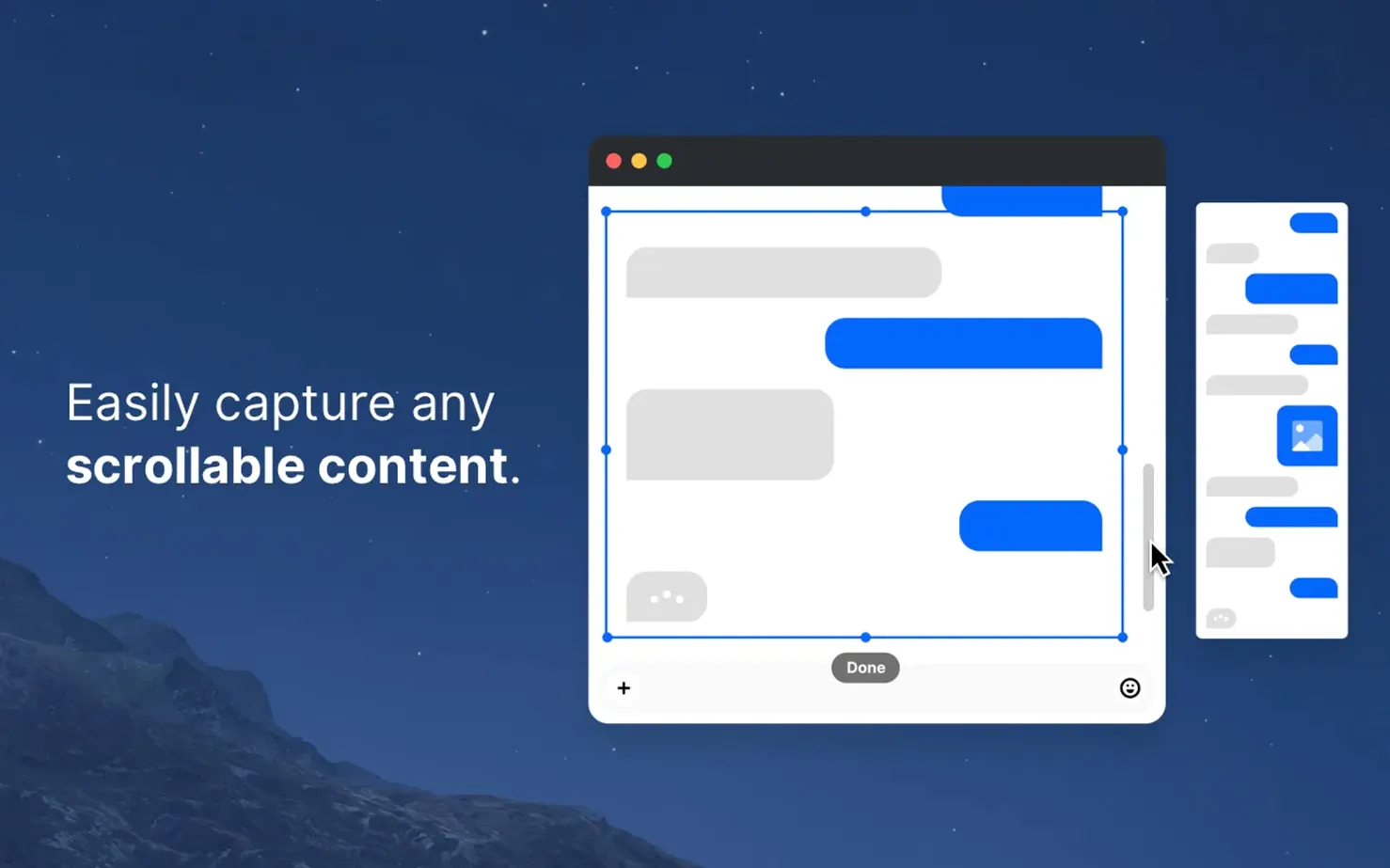
Scrolling capture won't trigger. This usually happens in apps that draw their own scrollbars or use non-standard views — think some Electron apps, certain IDEs, or browser windows with custom CSS. The fix: try the same capture in Safari or a native Mac app first to confirm the feature works. For stubborn windows, use the "Web capture" option if the content lives in a browser, or fall back to a full-page capture extension, then annotate in CleanShot X afterward.
Desktop icons keep showing up. The "Hide desktop icons" toggle lives in the capture overlay, not in the main preferences. People sometimes dig through the app settings looking for it and come up empty. When the capture interface is active, look for the eye icon or the wallpaper toggle — that controls desktop clutter for the shot you're about to take. If you want icons hidden every time, set that as the default in the app preferences under the capture section.
GIF recordings come out huge. GIF isn't a modern video format, and even short clips bloat fast. The built-in compressor helps, but the single biggest lever is resolution. Drop to standard resolution instead of Retina before recording a GIF meant for Slack or email. Also trim the canvas to the exact area you need — recording a full 1440p display as GIF is a recipe for a 90MB file that nobody wants to download.
Notifications still appear during recording. The "disable notifications" feature relies on macOS's Do Not Disturb integration. If you've customized Focus modes or use a third-party notification manager, the toggle might not catch everything. Before an important recording, manually flip on Do Not Disturb from Control Center as a belt-and-suspenders move.
The Keyboard Shortcuts Worth Rebuilding First
The app does a lot right out of the gate, but a few early tweaks make it stickier.
Dial in the keyboard shortcuts first. CleanShot X ships with sensible defaults, but they'll clash if you already use other tools that claim similar combos. Open preferences on day one and walk through the shortcuts tab. The ones you'll use most — capture area, record video, open annotation editor — deserve prime real estate. If you're coming from the built-in macOS shortcuts, you can mirror Cmd-Shift-4 for area capture and retrain muscle memory fast.
Set your default save behavior. Do you want captures to land on the desktop, in a specific project folder, or straight to the clipboard? The app supports all three, and you can also auto-upload to cloud storage if you configure it. Pick a destination that matches how you work. If you're constantly pasting screenshots into Slack or Figma, clipboard-first saves a step every time. If you archive everything, a dated folder structure keeps things sane.
Learn the annotation shortcuts. The annotation editor works with a mouse, but it's fastest with a few keys. Numbers 1–6 switch between tools. Cmd-Z undoes. Esc closes the editor. Spend five minutes opening a throwaway screenshot and running through each tool. The blur and highlight tools especially benefit from a quick dry run — getting the brush size right before you're annotating something urgent saves frustration.
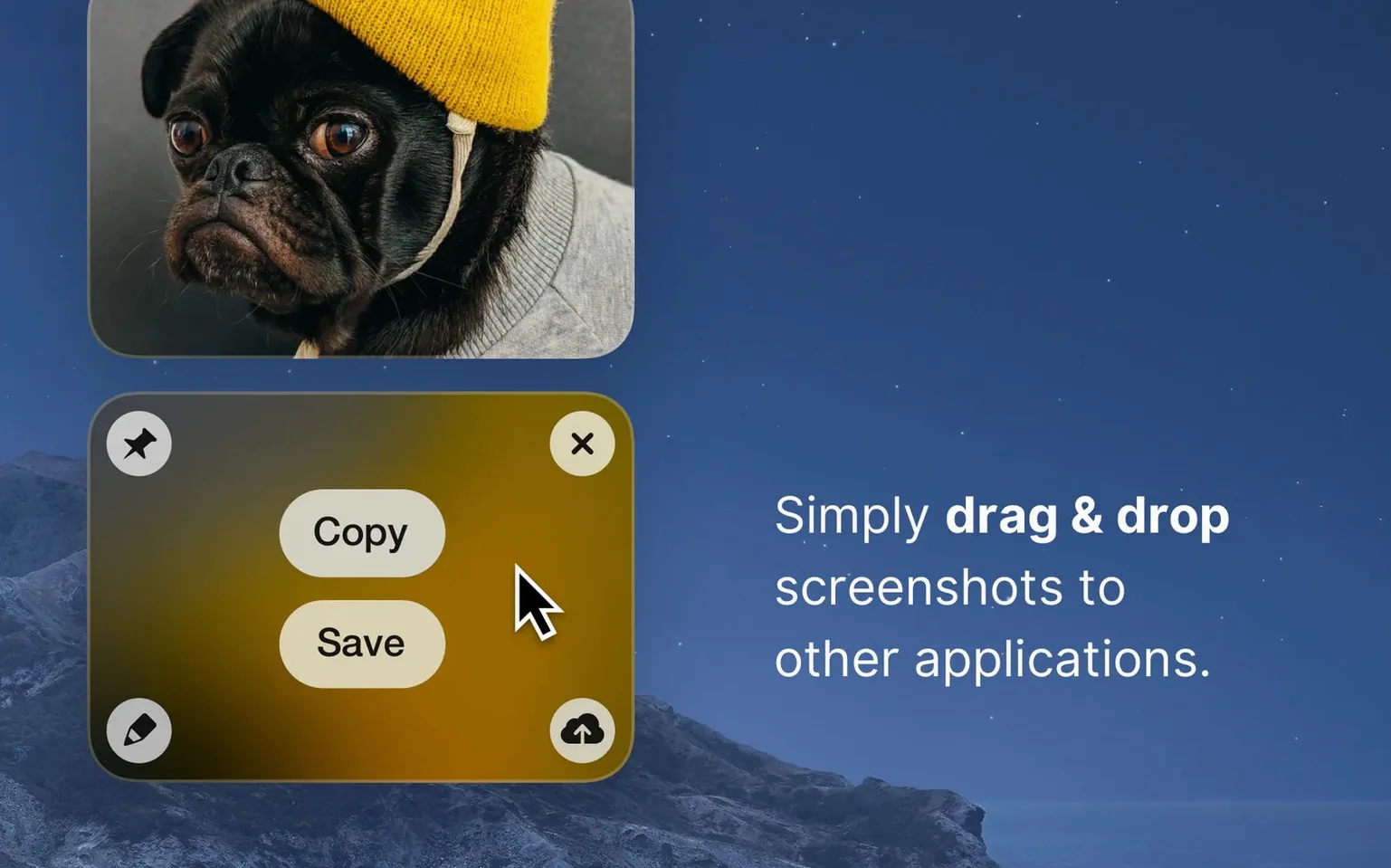
Test the pin feature early. Pinning a screenshot so it hovers above other windows sounds like a gimmick until you use it. Grab a reference image, a color palette, or a chunk of script notes, pin it, and work underneath it. It's the kind of thing that becomes muscle memory after the first real use.
Why Video Editors Keep It in the Feedback Loop
Not every Mac user needs a full capture toolkit. The people who feel the difference most are those whose output depends on showing what's on their screen.
Content creators and video editors live in feedback loops. A client wants a timestamped frame with a note. A collaborator needs a quick GIF of a timeline glitch. CleanShot X collapses the gap between seeing the thing and sending the thing. The annotation editor handles arrows, boxes, and text without launching a separate app, and the video recording catches UI bugs or edit decisions in motion. For editors cutting in Final Cut or Premiere who need to communicate visually all day, it removes friction.
Product designers and developers who file bugs, write documentation, or review builds benefit from the precision tools. Scrolling capture grabs full-page mockups. The blur tool redacts sensitive data in a click. Pinning a spec or a design comp while coding keeps the reference visible. These aren't flashy features, but they compound across a workweek.
Remote workers and async communicators — the people writing detailed PRs, recording Loom-style walkthroughs, or documenting processes — use the recording and GIF features more than they expect. A ten-second video of a workflow step often replaces a paragraph of text. The notification suppression alone saves retakes.
Casual users who take occasional screenshots won't feel the same pull. The built-in macOS tools already cover their needs. CleanShot X clicks when the volume of captures tips past "occasional" into "constant."
Screen Recording Without Opening QuickTime
Does it replace QuickTime for screen recording? For most screen recording tasks, yes. CleanShot X records video with system audio or microphone, exports to MP4 or GIF, and handles basic trimming. QuickTime still wins if you need to record an iOS device screen or need precise audio input routing, but for Mac screen recording — especially the kind you'd share in a chat or a ticket — CleanShot X is faster and skips the extra import steps.
Will it slow down my Mac? The app is native on both Intel and Apple Silicon Macs, and the overhead sits mostly in the capture and encoding moments. Idle, it's a menu bar utility with a negligible footprint. During a 4K screen recording, you'll see CPU and GPU activity comparable to QuickTime. On M-series Macs, the hardware encoders do the heavy lifting.
Can I use it alongside the built-in macOS screenshot tools? Yes, and many people do. CleanShot X doesn't disable Cmd-Shift-4 or Cmd-Shift-5. If you want to keep both active, just set different shortcuts for CleanShot X's capture triggers. Over time, most users gravitate toward using one tool exclusively, but nothing forces that choice.
Does it handle multi-monitor setups well? It does. The capture overlay lets you select regions across displays, and you can capture a specific window on any connected screen. The hide-desktop-icons toggle and background settings apply per capture. If you run a laptop with an external monitor and move between desks, the menu bar icon stays accessible and the shortcuts work regardless of which display holds focus.
Version 5.0.1 is a maintenance pass: minor bug fixes and improvements.
- macOS 11 or newer
- Works on Intel and Apple Silicon
- Interface language: English
Questions I actually get
Can CleanShot X record GIFs?
Yes, it can record video or GIF during capture, which is useful for quick how-to clips and lightweight sharing.
What changed in CleanShot X 5.0.1?
The official changelog lists version 5.0.1 as containing minor bug fixes and improvements.
Does CleanShot X help keep recordings clean?
Yes, it can disable desktop notifications during recording so your capture isn't interrupted by banners or alerts.
Notes from the edit bay · 0
Sign in or get an edit-bay pass to leave a note.
No notes from the edit bay yet. They go up after I read them.