The per-connection cache settings are where a daily workflow either holds together or fills your startup disk with ghosts. CloudMounter doesn't blanket-sync everything to your Mac—files stay remote until you open them, and the local cache is yours to steer. You pick a folder, set a size cap, and the app respects it. No mirroring, no surprise storage alerts.
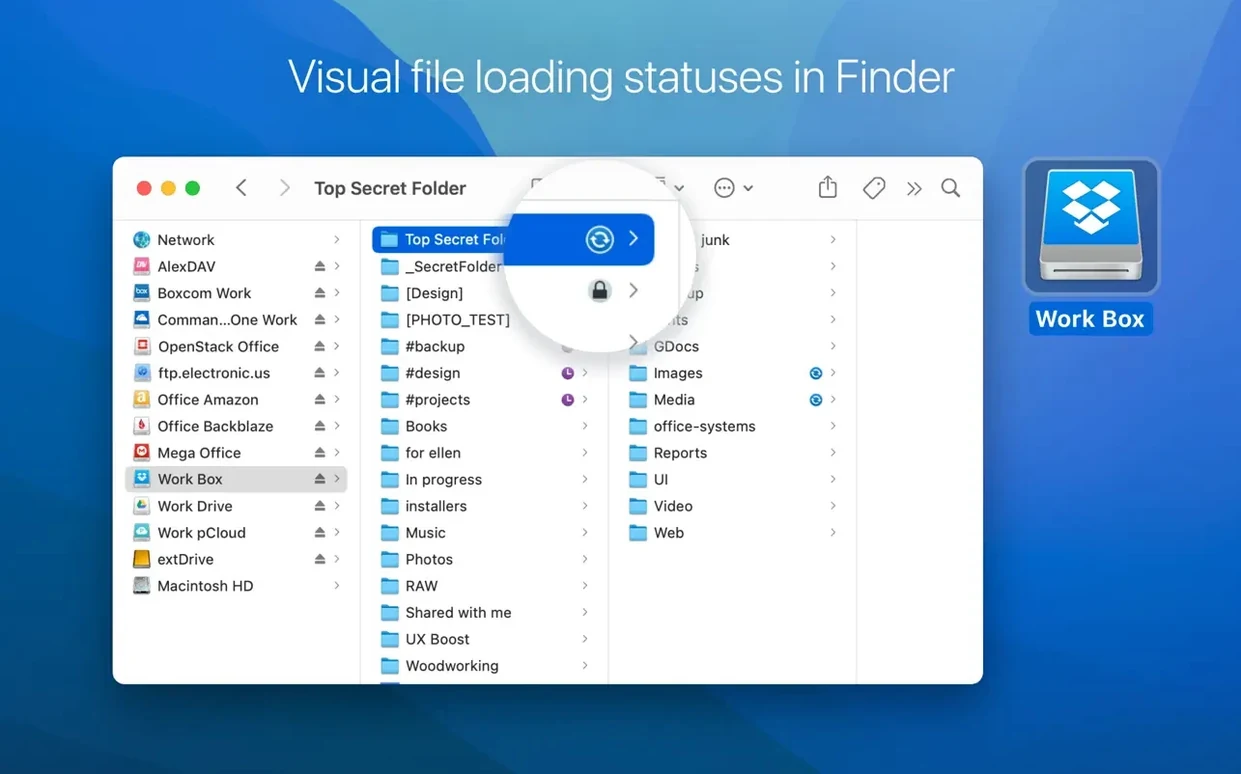
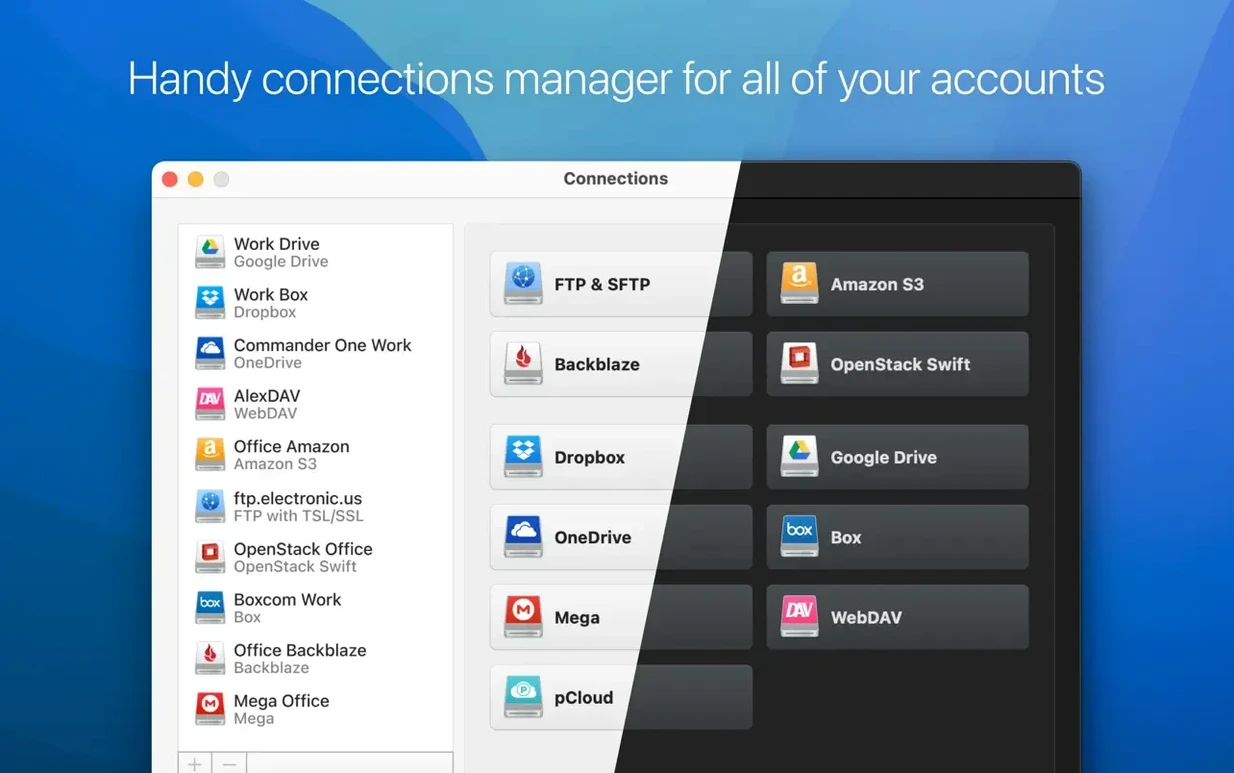
For anyone juggling client drives that live on different platforms—one project on MEGA, dailies on an SFTP server—the ability to mount them side by side in Finder changes how you structure a day. Each connection gets its own volume, its own icon, its own progress indicator. Transfers, uploads, and moves show clear status icons, not a spinner with a prayer attached. When a large upload chokes, you see where it stopped, and version 4.18 sharpened that feedback loop significantly with improved large-file uploads and tighter MEGA handling.
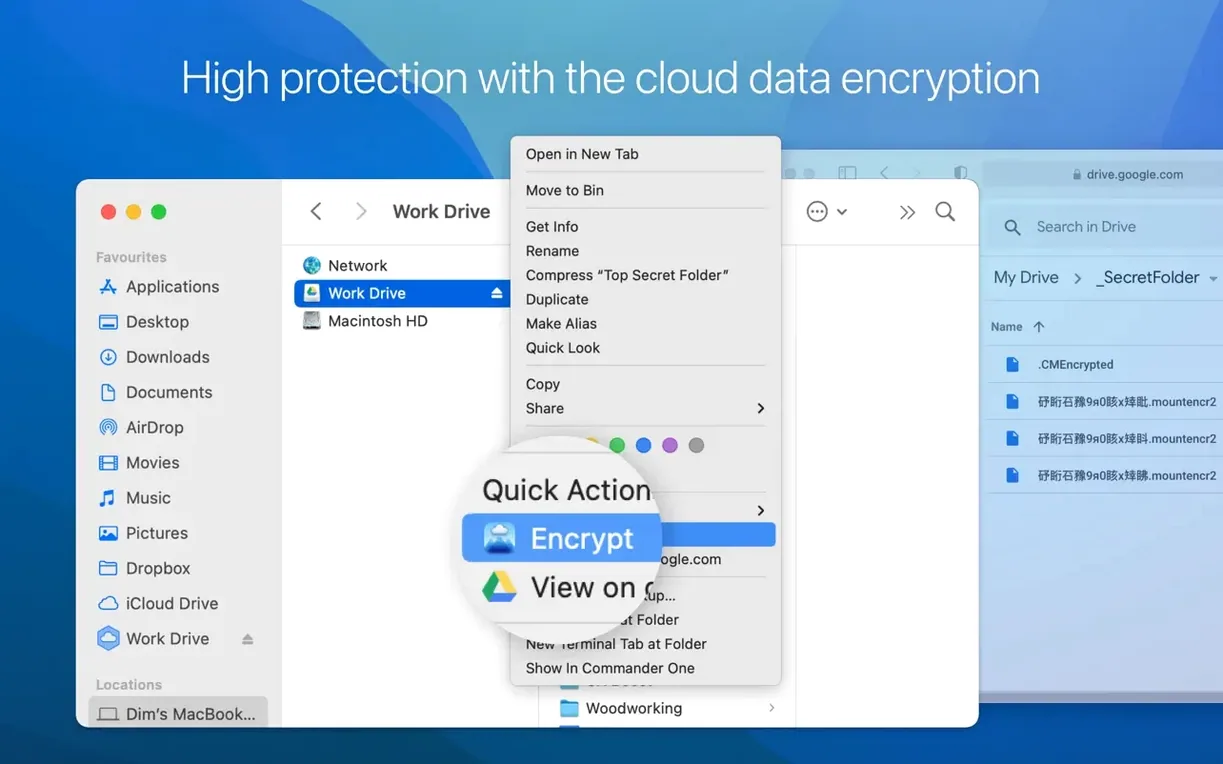
AES-256 encryption is available per connection, not as an afterthought buried in preferences. You set a password, and data leaving your Mac gets encrypted before it ever touches the cloud. For rushes, contracts, or anything with a paper trail, that's the difference between a tool you recommend and one you hide from a post supervisor.
This isn't a sync client with Finder badges. It's a volume mounter that treats remote storage like a drive you plugged in, with all the Finder operations that implies, minus the local bulk.
Little Things You'll Kick Yourself for Missing
Right-click any mounted volume in Finder and choose "Show in CloudMounter." The app jumps straight to that connection's settings—no hunting through a connection list. It's the kind of shortcut you stumble into three months late and feel dumb about.
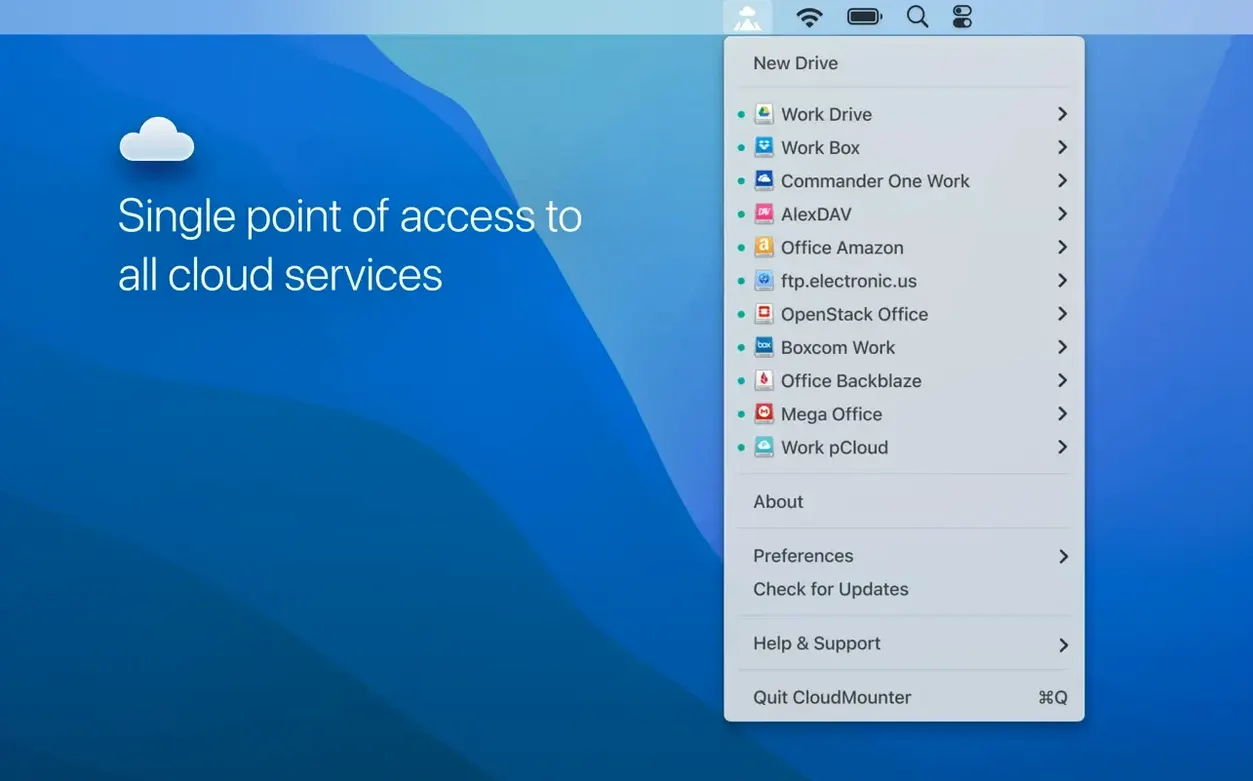
The menu bar icon does more than sit there. Click it once and every mounted volume lists out with its current free space. A dimmed entry means the connection dropped. Click the name to reconnect without opening the main window. For quick server hops between edits, that's faster than pulling up the full interface.
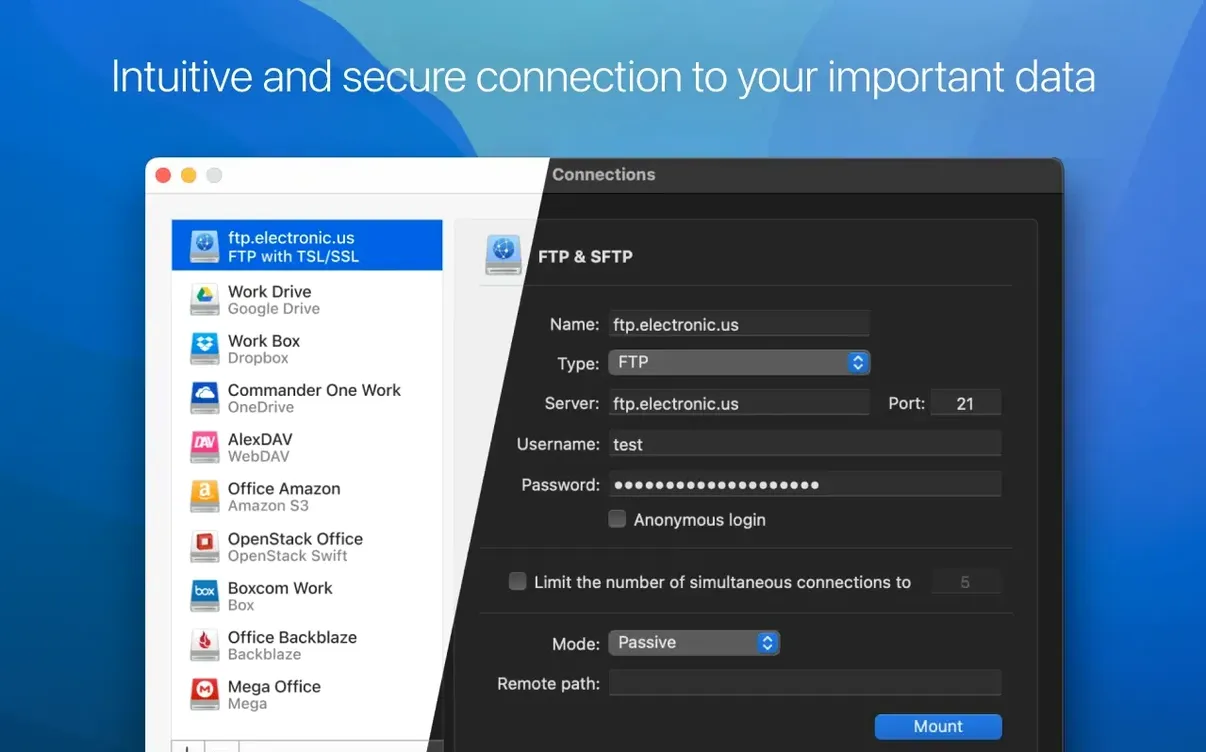
When you mount the same FTP server across two jobs with different root folders, CloudMounter lets you label each connection independently. Call one "Client_A_Proxy" and the other "Client_A_Finals." Finder sees two distinct volumes, no confusion, no accidental overwrites.
Dragging files between cloud volumes works directly in Finder—no intermediate local copy unless the file is huge and the cache fills up. The app pipes data from source to destination through your Mac's memory, so a move from Dropbox to Backblaze B2 doesn't double-write to your SSD. Small thing, enormous when you're shuffling 50 GB of camera originals.
And if you ever need to flush the cache for one connection but leave the rest alone, right-click the volume icon on the desktop, hit "Eject," then reconnect. The old cache stays on disk until you clear it manually in preferences, but the app starts fresh for that mount. Useful after a corrupted transfer that left garbage behind.
Will This Fill My SSD?
Does it sync everything to my Mac? No. CloudMounter doesn't mirror cloud storage the way Dropbox or OneDrive's native clients do. Files stream on demand and cache only what you open—or what you explicitly mark for offline access. The cache has a size limit you set, so your internal drive doesn't slowly fill with cloud cruft. If you disconnect a volume, those cached files sit dormant until you either clear them or reconnect.
Will my Finder extensions break? People worry about this with any app that messes with the file system. CloudMounter uses Apple's own FUSE-style mechanism to present volumes, so standard Finder operations—Quick Look, column view, tags, Spotlight comments—all behave. What won't work: third-party sync tools that watch for file system events on local APFS volumes. Those tools don't see cloud-mounted drives as real local storage, and that's by design.
What happens when my internet drops mid-transfer? The app pauses the operation, marks the file with an error icon in the transfer queue, and waits. It won't silently abandon the job or corrupt the remote copy. Once the connection comes back, you resume manually from the transfer list. In 4.18, the download cancellation fix for SFTP connections cleaned up a scenario where interrupted pulls would sometimes leave partial files that looked complete.
Is encryption worth the overhead? Depends on what you're storing. AES-256 encryption happens on your Mac before upload, so the cloud provider sees ciphertext only. The CPU hit is negligible on any Intel Mac from the last eight years—you'll bottleneck on your upload speed long before the encryption saturates a core. The tradeoff: encrypted files lose the ability to generate share links directly from the cloud provider's web interface because the provider can't read the contents. That's the whole point, but it trips people up.
Mountain Duck vs. ExpanDrive vs. CloudMounter: The Feel Test
People looking for a cloud-mounting tool on macOS usually end up comparing CloudMounter with Mountain Duck and ExpanDrive. They solve the same root problem—remote storage as a local volume—but the feel is different enough that your choice says more about your workflow than about any feature checklist.
Mountain Duck leans hard into the developer and sysadmin crowd. Its interface lives almost entirely in the menu bar, and it supports a wider spread of server protocols out of the box. If you spend half your day inside Transmit or Cyberduck and just want volumes that mount quietly and stay out of the way, Mountain Duck fits. But its Finder integration feels more utilitarian—fewer visual cues, no per-connection encryption UI that a non-technical client could navigate. CloudMounter gives you a proper window with connection thumbnails, storage usage bars, and a transfer queue that makes sense to someone who edits video, not YAML configs.
ExpanDrive chases the enterprise feature set: version history browsing, multi-user drive mapping, search across all connected volumes from one field. It's powerful, but the interface carries the weight of all those features. For quick, daily mounting of three or four cloud accounts alongside a couple of FTP servers, CloudMounter starts faster and feels lighter. ExpanDrive also pushes its own sync engine in the background, which can conflict if you're already running native clients for some services. CloudMounter coexists cleanly with Google Drive's and OneDrive's own apps because it doesn't compete for sync locks—it just presents a separate volume and stays in its lane.
Where CloudMounter pulls ahead is the combination of per-connection encryption and the cache discipline. Neither Mountain Duck nor ExpanDrive makes encryption this straightforward for someone who isn't comfortable with Cryptomator or manual VeraCrypt containers. And the cache cap—a hard limit you set once and trust—is something the others either bury in advanced settings or handle less transparently. For a freelancer's MacBook with finite SSD space, that single feature eliminates the Sunday-afternoon panic of discovering 200 GB of mystery cache files.
Large-file uploads got the attention they needed—transfer reliability is up and progress reporting is clearer. MEGA connections are tighter across the board.
Also fixed: download cancellation on SFTP now actually stops the transfer. Changing the cache volume no longer trips up file downloads, and storage usage info for online connections finally shows the right numbers.
- macOS 10.14 or later
- Intel Mac
Questions I actually get
Does CloudMounter sync all my cloud files to my Mac?
No, it mounts them as a local drive without automatically syncing everything. Files are downloaded on demand and cached locally only when you open them.
Can I encrypt files I store in the cloud through CloudMounter?
Yes, the app lets you apply AES-256 encryption to individual connections, so data is encrypted before it uploads to your cloud storage.
Which remote server types does it support?
It connects to popular cloud services as well as remote servers via protocols like SFTP, all mountable as separate volumes in Finder.
Notes from the edit bay · 0
Sign in or get an edit-bay pass to leave a note.
No notes from the edit bay yet. They go up after I read them.