
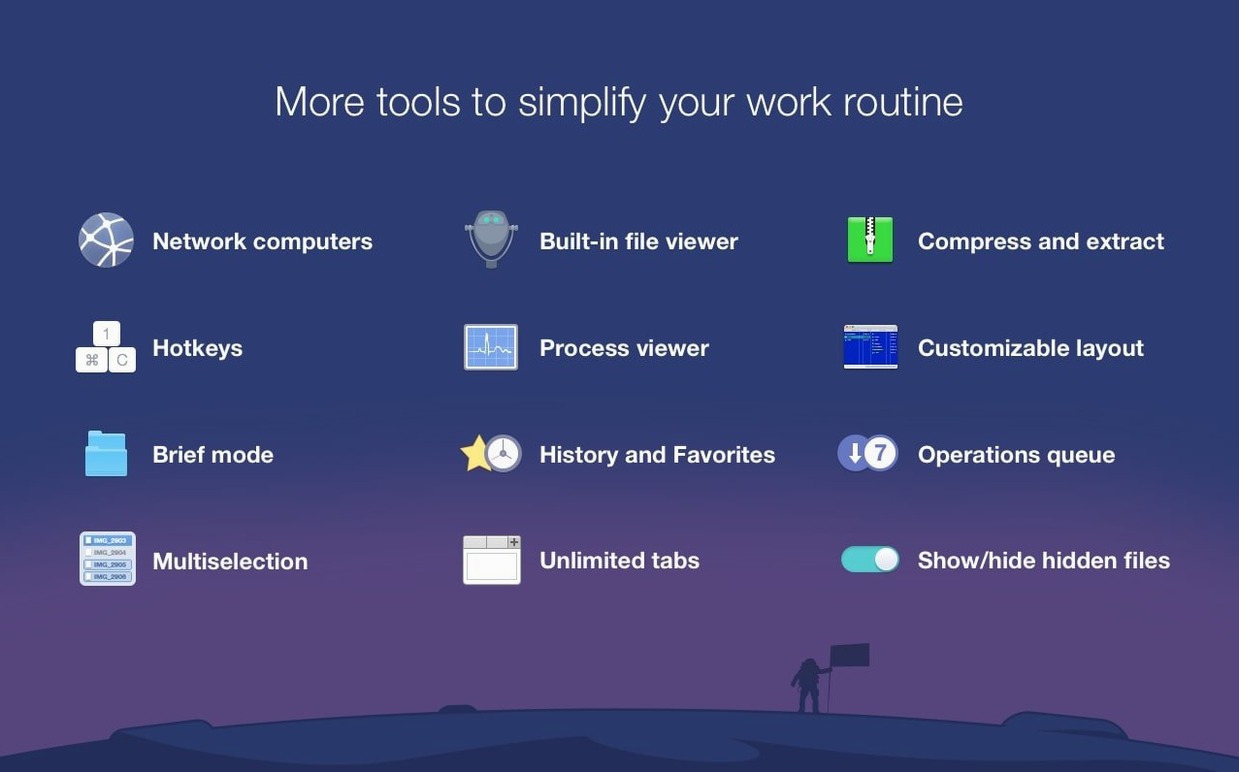
Brief Mode is where it clicks. You strip the interface down to just file names, stacked vertically, and suddenly cleaning a messy project drive or sorting a batch of raw footage feels quick, not overwhelming. That view alone makes Commander One Pro a genuine Finder alternative for anyone who lives in their files.
A Workflow Built on Two Panes
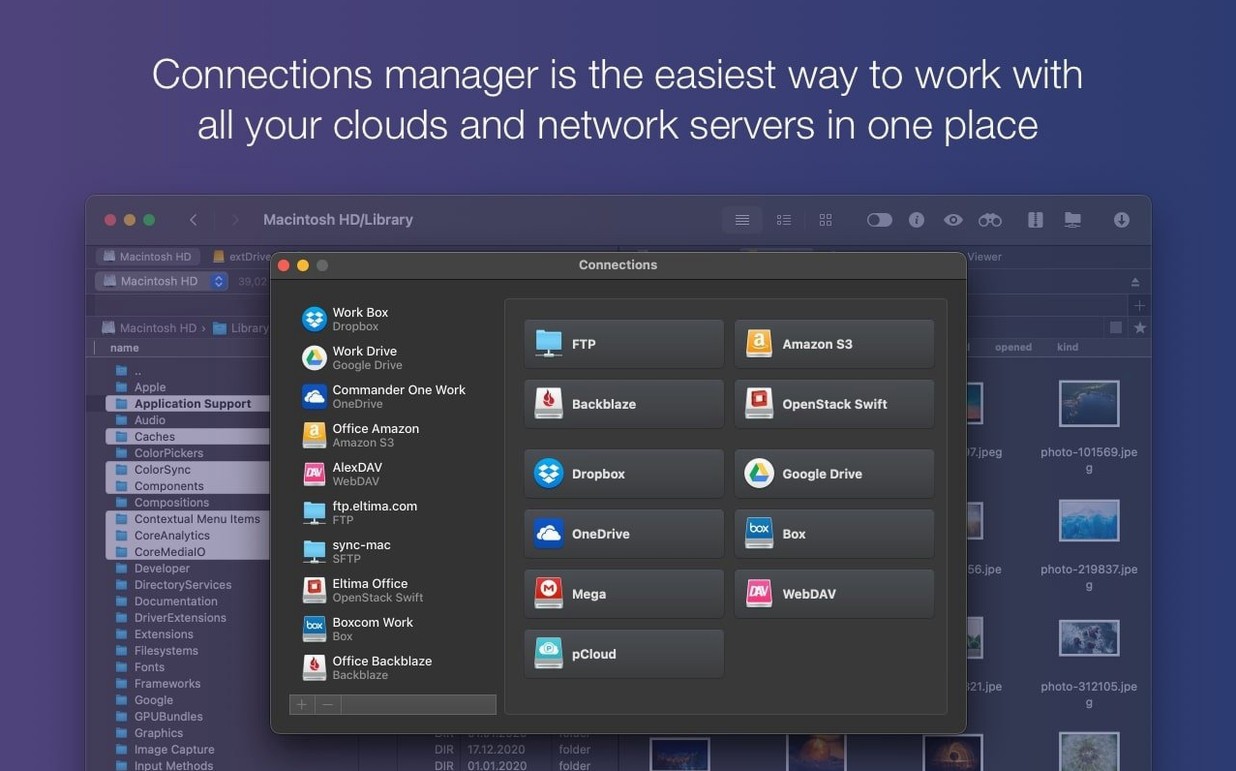
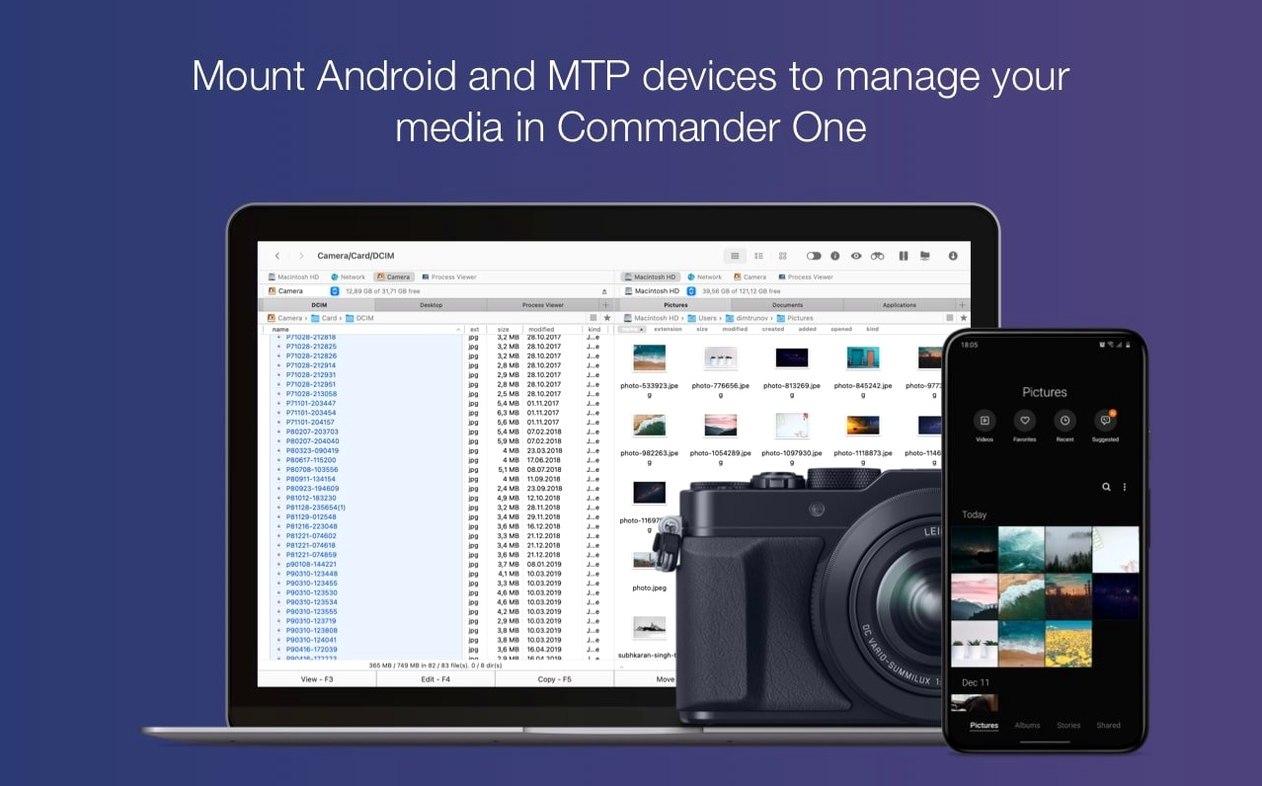
- Connect your sources. Mount an iPhone or Android device via MTP, or hook straight into Dropbox, Google Drive, or an Amazon S3 bucket. The remote folder sits in one pane, your local working drive in the other.
- Move and filter. Drag from pane to pane. No spring-loaded folders, no separate windows. Use the built-in archiver to unpack a ZIP, RAR, or 7z file right where it lands.
- Clean up. Switch into Brief Mode to scan a hundred filenames at once. Strip duplicates, flatten folder structures, or reorganize before an edit deadline hits.
Where Finder makes you juggle tabs and windows, Commander One Pro keeps the whole path visible side by side. It speaks the same shortcuts you already know, but the dual-pane layout turns file operations into a single motion instead of a back-and-forth dance. For video editors and anyone pushing large file sets around, that layout fits right between the quick look of Finder and the heavy lifting of a terminal session.
Jetpack Fixes That Still Trip Up Your First Week
Grabbing a dual-pane manager feels like strapping a jetpack onto Finder. But the first week with Commander One Pro trips up even experienced Mac users in a few predictable spots — and each one costs time you meant to save.
Ignoring connection presets. New users often re-type FTP credentials every session. The Connections Manager is right there, ready to save a server, pick a protocol, and drop it onto a hotkey. Skip the preset, and you turn a one-click log-in into a typing chore that eats the edge of the tool.
Misreading pane focus. The active pane has a faint highlight, easy to miss when you are moving fast. A delete or rename aimed at the left pane can hit the right one instead. You learn to glance at the tab border or tap Tab to flip focus deliberately before destructive moves. Muscle memory takes about three days to lock in.
Overlooking the archiver. People reach for a separate unarchiver app out of habit. Commander One Pro handles ZIP, RAR, TBZ, TGZ, and 7z natively. Right-click, extract, done. Launching a second tool for a simple unpack is pure muscle memory from Finder days, and it wastes the integration already sitting under your cursor.
Cloud storage confusion. Dropbox and Google Drive accounts need to be added inside the app, not assumed from what Finder sees. A fresh install shows only local volumes until you explicitly connect each cloud service. If you skip that step, the dual-pane setup feels half-empty for no good reason.
None of these are design flaws. They are old habits colliding with a faster way of moving files. The fix is usually one right-click away — once you know where to look.
An Afternoon Session, Step by Step
Picture a freelance editor wrapping a client project. The edit is done, but the handoff folder is a mess: renders, proxy files, old audio stems, a couple of ZIPs from the client, and an ISO the colorist shared via FTP. Here is how Commander One Pro pulls that afternoon together without a single Finder window.
1. Mount the remote server. The colorist’s FTP details are already saved as a connection preset. One click in the Connections Manager opens the server in the left pane. The right pane shows the local project drive.
2. Pull the ISO and unpack it. The ISO is a 40 GB disk image. A drag from the FTP pane to the local pane starts the transfer. While it copies, a right-click on a client ZIP in the same local directory extracts everything in place. No separate app, no waiting for the copy to finish first.
3. Show hidden files and clean house. After the transfer, hitting Cmd-Shift-. reveals the .DS_Store litter and leftover thumbnail caches. A quick selection and delete strips them from the deliverable folder.
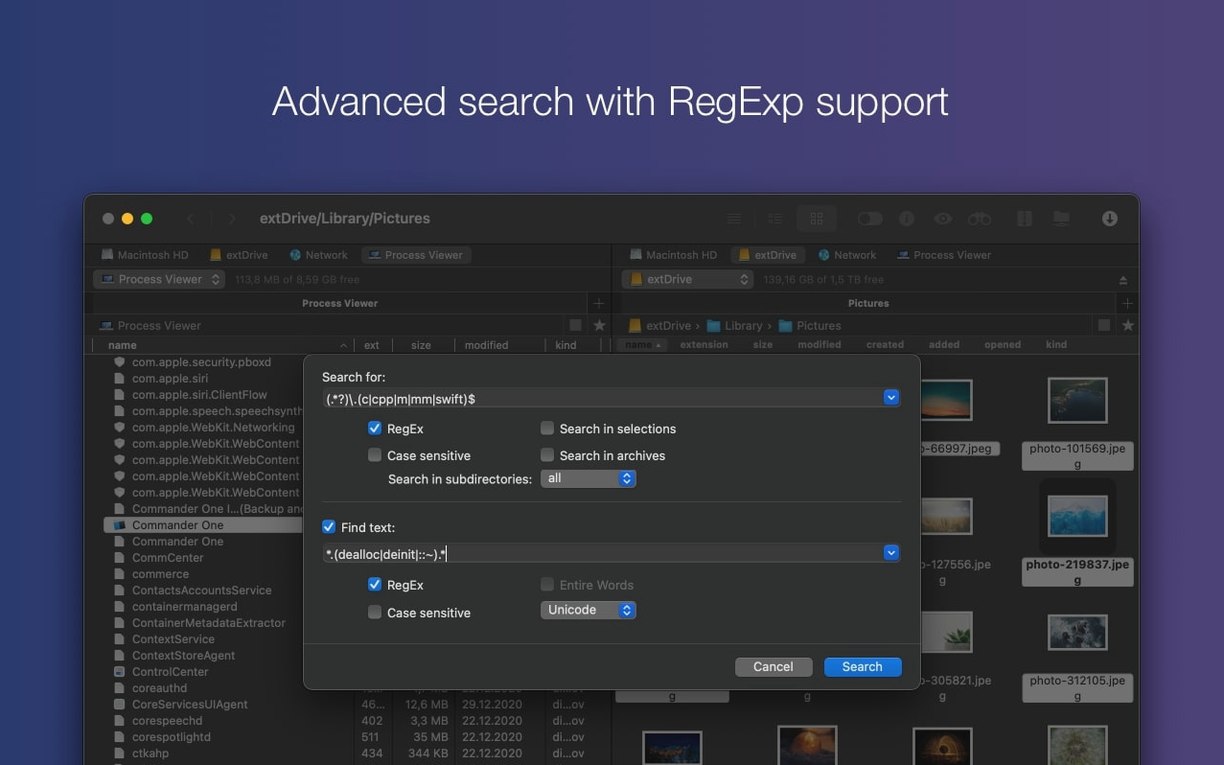
4. Switch to Brief Mode and filter. With a hundred files in the handoff directory, Brief Mode collapses every column except the filename. A regex search isolates all proxy files by pattern — _proxy — and a batch delete clears them in one move. The same search finds redundant audio stems and flattens the list to only final deliverables.
5. Verify and close. The Process Viewer in Commander One Pro confirms no hung render tasks are still writing to the drive. The session ends with a clean folder and no stray processes. Total time from messy handoff to upload-ready: under eight minutes. Most of that was the ISO transfer, not the file management.
10,000-Item Drives Without the Finder Scroll Stutter
Commander One Pro launches cold in roughly two seconds on Apple Silicon. Pane switching is instant. Large directory listings — like a 10,000-item media drive — populate without the scroll stutter Finder sometimes shows while thumbnails load. The app is written in Swift, and it shows in the smoothness of column resizing and the responsiveness of the archiver when unpacking multi-gigabyte archives.
Memory use sits modestly. With two local panes and one active FTP connection, it hovers around 120 MB of RAM. Adding a cloud mount and a regex search pushes it toward 180 MB, still light enough to leave breathing room for an NLE or a DAW running alongside. CPU activity spikes only during archive extraction or large file transfers, and it settles back to idle immediately after.
Stability in daily work holds up well. I have thrown multi-threaded FTP transfers, simultaneous archive unpacks, and rapid pane switching at it without a crash. The version 3.18.0 build tightened drag-and-drop behavior on newer macOS releases, and the hotkey fixes for non-English layouts mean switching between Korean, Russian, or German input sources no longer swallows shortcuts. That matters when you toggle hidden files or jump between panes dozens of times an hour.
The one resource trade-off is disk I/O during cloud operations. Reading from an Amazon S3 bucket while extracting a local RAR competes for throughput on slower external drives. On an internal SSD, the overlap is imperceptible. On a spinning USB drive, you notice a brief slowdown — not a freeze, just a queue forming. It is a fair trade for keeping two jobs in flight, and the app never hides what it is doing behind a generic spinner.
If you are looking for a commander one pro full mac experience that stays out of your way during heavy sessions, the combination of low memory pressure and predictable I/O behavior makes it a tool you leave running all day. It does not degrade under long uptime, and it does not leak memory after repeated cloud mounts. For an editor who treats stability as a deadline requirement, that consistency is the real feature.
macOS 27 compatibility got a tune-up, and drag-and-drop behaves properly on the latest system. Also fixed: a few hotkeys that misbehaved with non-English keyboard layouts.
- macOS 10.13 or later
- Apple Silicon or Intel 64-bit
Questions I actually get
Can Commander One Pro open ZIP and RAR files without another app?
Yes, it unpacks ZIP, RAR, TBZ, TGZ, and 7z archives directly inside the file manager.
Does Commander One Pro work with cloud services?
Yep, you can connect and manage files on Dropbox, Google Drive, and Amazon S3 right from the dual-pane interface.
Notes from the edit bay · 0
Sign in or get an edit-bay pass to leave a note.
No notes from the edit bay yet. They go up after I read them.