
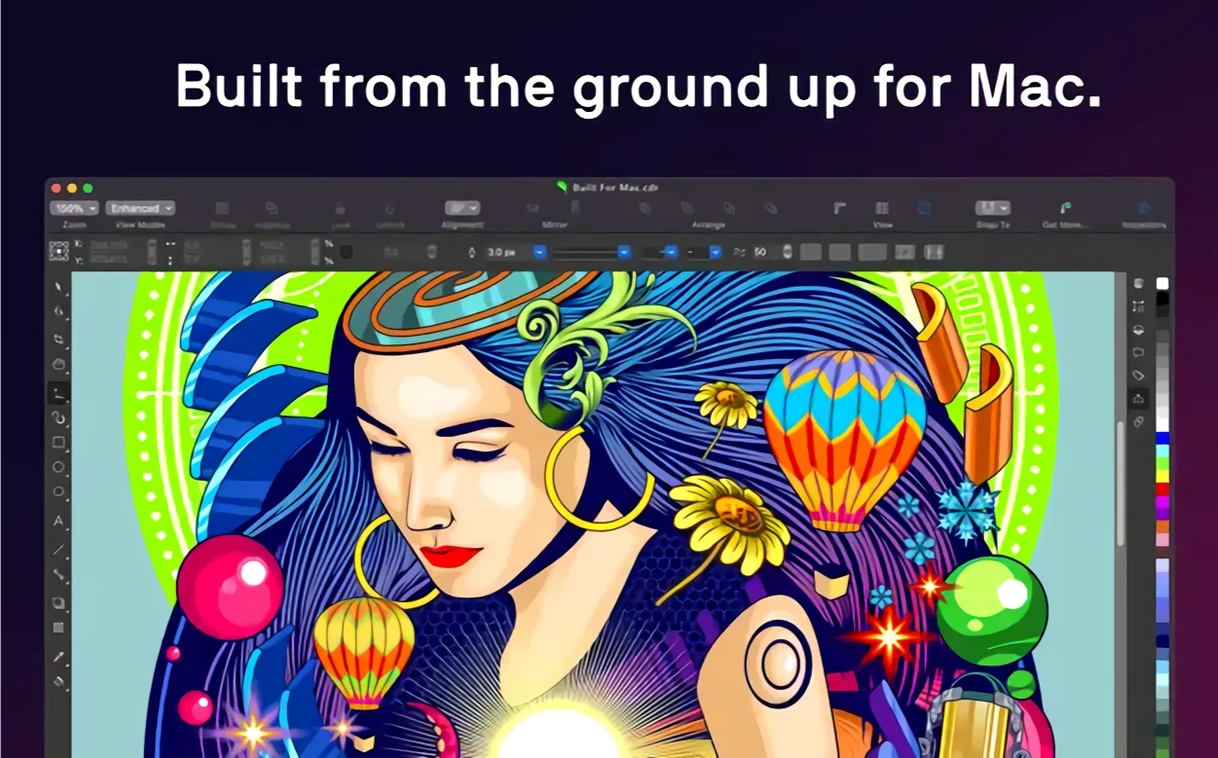
A logo needs to stay sharp from a business card to a billboard, and a brochure has to hold its layout across eight panels. That’s where CorelDRAW slides into a workflow built for precision and scale, not just a single canvas.
Vector illustration with real drawing tools
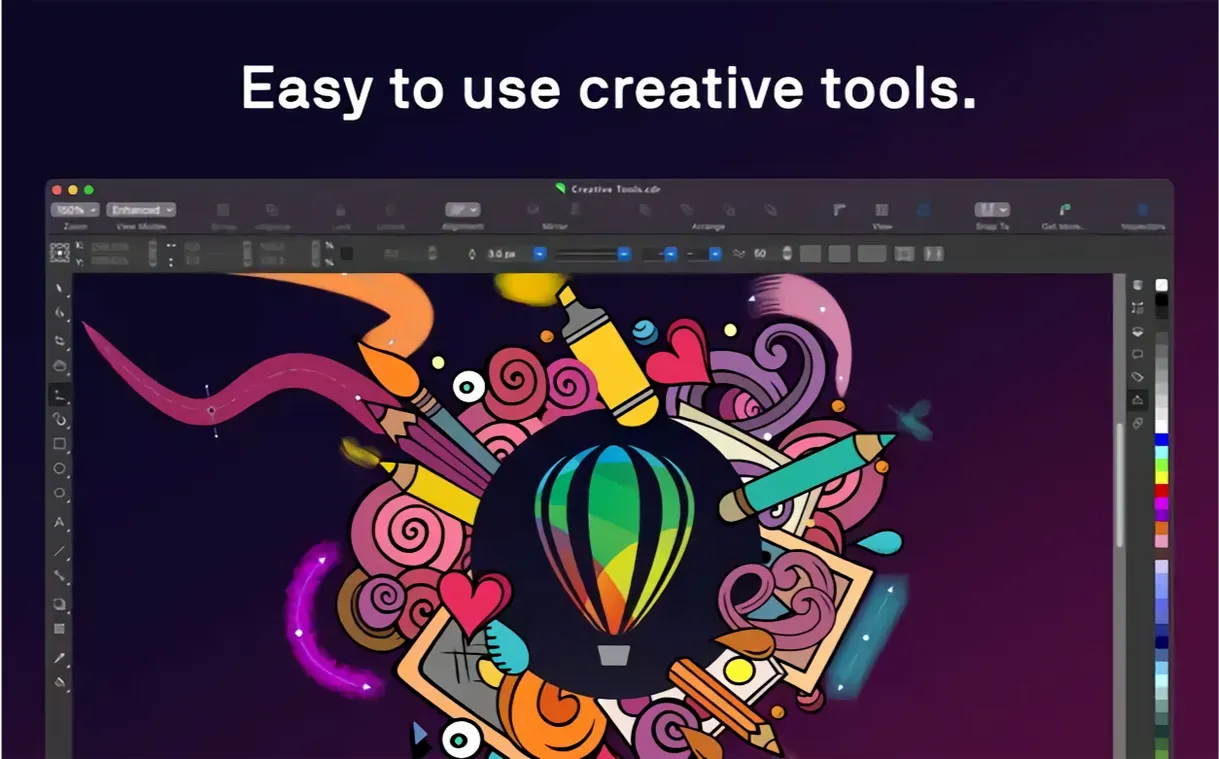
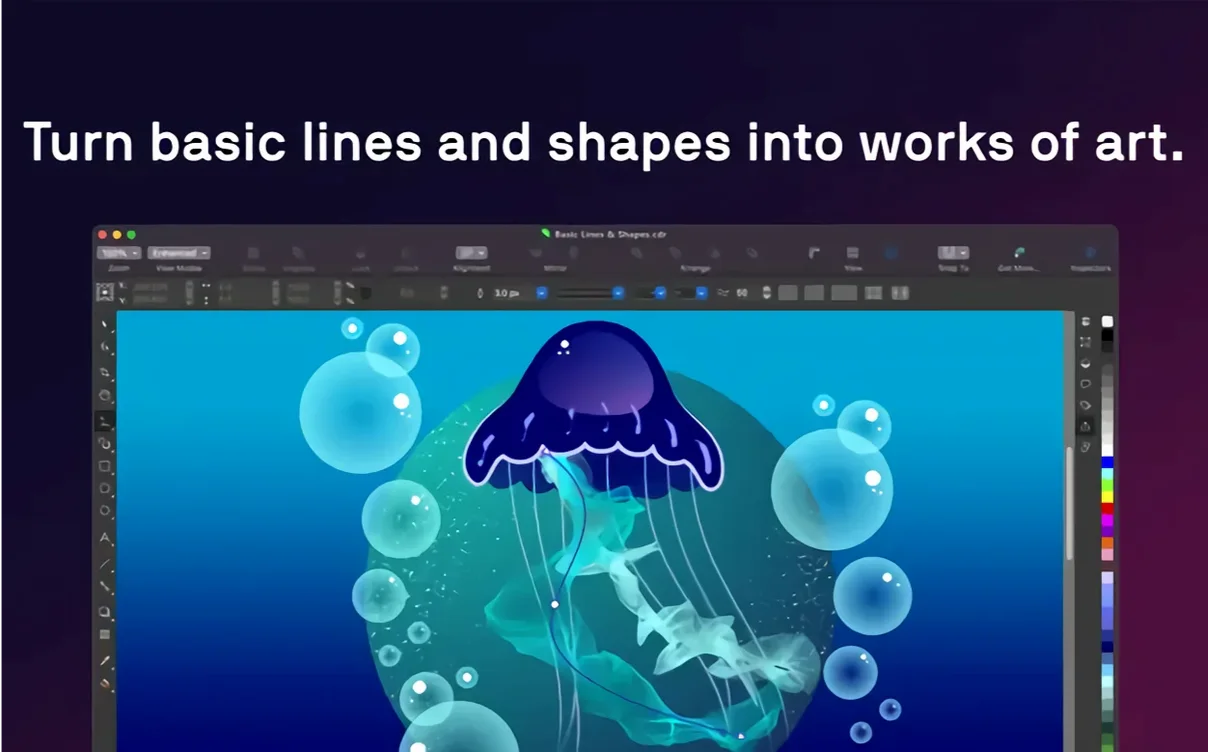
Building from scratch feels direct with the native macOS interface and Touch Bar controls that jump between layers and text tools. On an iPad, Sidecar turns the Apple Pencil into a pressure-sensitive pen while the Mac screen shows the result live.
Multi-page layouts that hold together
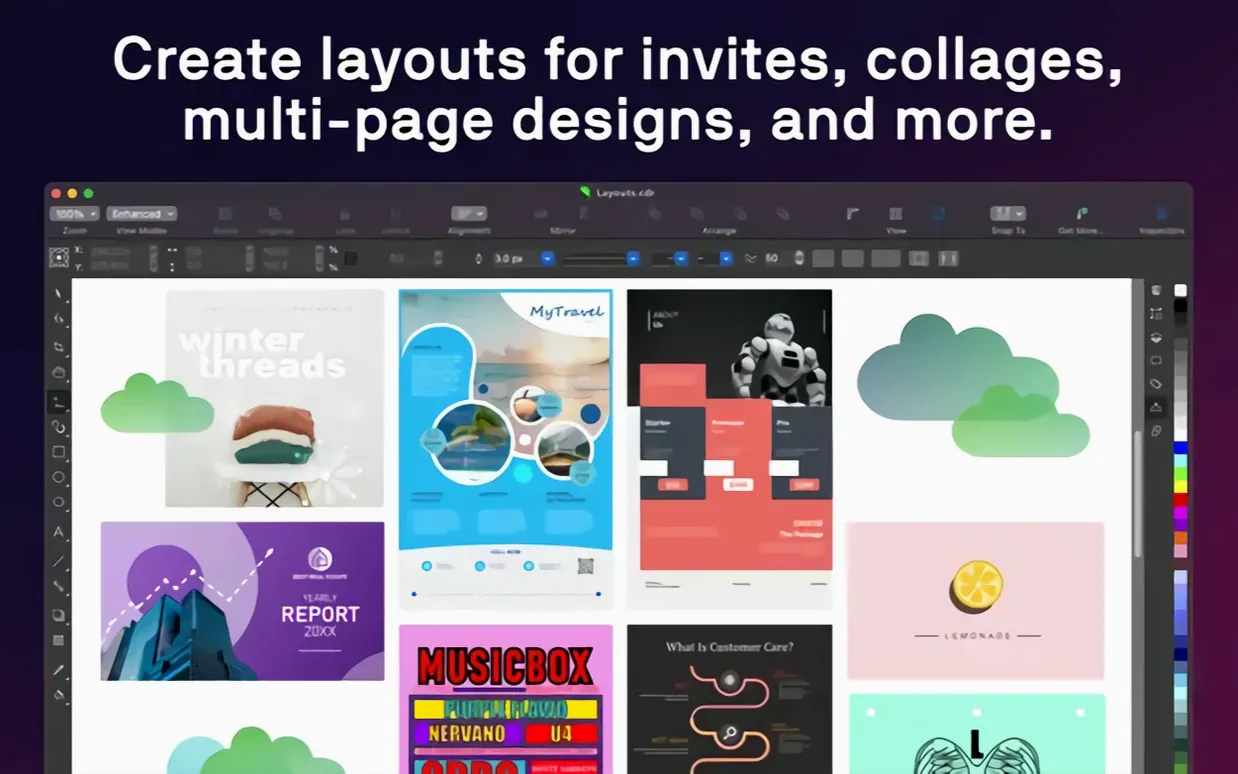
Brochures, reports, and folded menus stay organized with typography controls for font, spacing, shadow, and outline. Everything sits in a page-layout engine that handles multi-page documents without gluing separate files together later.
Photo editing kept inside the project
Corel PHOTO-PAINT handles raster touch-ups without launching another app. File support stretches from AI and PSD to SVG, DWG, and HEIF, so assets land on the artboard in their native form.
Undo the defaults that fight your Illustrator muscle memory
Out of the box, CorelDRAW ships with a few defaults that fight muscle memory if you've spent time in other Mac vector apps. Three changes make the first hour less annoying.
First, head into CorelDRAW > Settings > Tools and flip the scroll wheel behavior. The factory setting zooms when you spin the wheel; most designers expect it to scroll the canvas. Switching that to Scroll and assigning zoom to Cmd-scroll feels natural within minutes. Second, under Display, bump the view quality from the default Normal to Enhanced — vector edges stay smooth during zoom-heavy detail work and gradient banding disappears on Retina screens. The render hit on Apple Silicon is negligible. Third, turn on Auto-backup and knock the interval down to 10 minutes. The default 20-minute gap lost me a batch of node edits once, and I'm still bitter about it.
While you're in settings, check the Color management tab. If you're designing for print, set the CMYK working space to match your print shop's profile. Screen-only work sits happier in sRGB. CorelDRAW keeps these per-document, but setting the default now saves a panicked re-export later.
Three interface habits to lock in before client work
Don't open a client file on day one and expect to fly. Spend an afternoon with a blank page and three habits that settle the interface into your hands.
Dock the Object Manager on the right edge and leave it open. Layers in CorelDRAW behave more like Illustrator than Figma — every object sits on a named layer, and the stacking order inside a layer matters. Keeping the Object Manager visible trains you to name layers as you go instead of untangling forty unnamed curves at 2 a.m. Right-click any object and hit Move to Layer to clean up the mess early.
Learn the Pick tool modifiers. Holding Option while dragging duplicates; holding Shift constrains proportions; holding Cmd temporarily switches to the Shape tool for quick node edits without leaving the Pick tool. Those three keys cover half the moves you'll make in a working session. Practice them on simple rectangles until they turn automatic.
Build a personal template. Set up a blank document with your preferred units, color profiles, a standard set of layers, and a style set for body copy and headings. Save it as a .cdt template file. Every new project starts from that, not from the generic default. The style set alone — where you define font, size, leading, and color for paragraph and heading styles — shaves minutes off every multi-page layout that walks through your door.
Unlock imported vectors that arrive as frozen groups
A few headaches surface predictably in the first weeks. Here are the ones I hear about most, and what actually solves them.
Imported AI or EPS files land as a single locked group. You can't ungroup them, and the Object Manager shows a cryptic "Group of 1 object." The fix: select it and run Arrange > Break Apart (Cmd+K). That fractures it into editable pieces. If Break Apart is grayed out, the file likely contains a raster preview embedded in the vector — open it in Corel PHOTO-PAINT first, then paste back into your document.
Gradients print with visible banding even though they looked smooth on screen. Nine times out of ten, the document's rasterization resolution is too low. Go to File > Document Properties > Render Resolution and push it to 300 dpi. While there, confirm the page size matches your final trim size — a mismatch here causes more export surprises than any other setting.
Text frames refuse to link. CorelDRAW uses a different linking model than InDesign. Click the bottom handle of the first frame — it's a tiny square, easy to miss — then click inside the second frame. That establishes the flow. If the second frame doesn't accept the link, check that it's not already filled with placeholder text and that both frames sit on the same layer. Linked frames on different layers won't thread.
The app beachballs on launch. On Intel Macs, this usually traces back to a corrupted font cache. Open Corel Font Manager, run File > Rebuild Font Cache, and restart. On Apple Silicon machines, the same symptom occasionally means Rosetta didn't kick in properly — a quick reboot fixes it. If the beachball persists, temporarily disable any third-party font managers; they sometimes lock the font database while CorelDRAW is scanning it.
Workflow from scratch: a folded brochure
Here's a real task: a tri-fold brochure for a real estate firm, printed double-sided, with photos of three properties, a map, and contact details. The whole thing runs inside CorelDRAW, start to finish.
1. Document setup. Choose Print from the new document dialog, set the page size to Letter landscape, and switch the layout to Tri-fold Brochure. That automatically divides the page into three equal panels with fold guides. Set margins to 0.25 inches and bleed to 0.125 inches — trimming knives drift, and bleed is cheap insurance. Duplicate the page for the reverse side immediately, so you design both faces in the same file.
2. Photo prep. The client sent six property photos as JPEGs, shot in mixed lighting. Drop them into Corel PHOTO-PAINT one by one. Use Adjust > White Balance to neutralize the warm living-room lamps, then run the AI JPEG artifact removal on images that came in over-compressed. Save back as TIFFs into a project folder. Import into CorelDRAW and use PowerClip to place each photo inside a rounded rectangle frame — PowerClip keeps the original image intact and lets you reposition it inside the frame without cropping destructively.
3. Map and graphics. The map arrives as a PDF exported from a mapping tool. Place it on the back panel, scale to fit, and use the Transparency tool to fade the edges into the background so it blends rather than sitting in a hard white box. Add a gradient fill behind the contact block — three stops, deep navy to a lighter blue — and set the blend mode to Multiply over a subtle pattern fill pulled from the Content Exchange library.
4. Typography. Create two style sets: one for property descriptions (9 pt sans-serif, 14 pt leading, dark gray) and one for the contact panel (11 pt, white, bold for headings). Apply them across both pages. The big win here is consistency — changing the body font later means editing the style once, not hunting through twelve text frames.
5. Export for print. Use File > Publish to PDF and choose the PDF/X-4 preset. Under Preflight, check that all images are at least 300 dpi at final size and that fonts are embedded. Enable bleed and crop marks, then export. For the client preview, export a second copy as a low-res PDF with spreads turned on so they see the folded sequence.
When to bounce a photo to another editor and back
CorelDRAW on macOS doesn't live in a bubble. Understanding where it hands off work to other tools, and where it grabs assets from them, makes the whole suite feel less like an island.
Photos that need heavy retouching — skin cleanup, complex masking, frequency separation — start in Corel PHOTO-PAINT and land on the artboard as linked files. A right-click on any linked photo offers Edit in PHOTO-PAINT, which opens the original, lets you work, and updates the placed version when you save. No re-importing, no broken links.
With Finder and Quick Look, .cdr files show thumbnails and previews natively, so hunting through project folders doesn't require opening the app. Tag files with project names in Finder and CorelDRAW's Open dialog respects those tags in the sidebar — useful when a single campaign spans a dozen files.
For typography nerds, Corel Font Manager integrates with the system font book but handles activation and deactivation without bogging down macOS Font Book. Install a typeface through Font Manager and it's available across CorelDRAW, PHOTO-PAINT, and any other app that reads the system font library. Variable fonts get their own slider panel inside CorelDRAW, so you can adjust weight, width, and slant interactively on the canvas — something not every Mac vector app exposes this cleanly.
Sidecar deserves a repeat mention here because the implementation goes deeper than mirroring. With an iPad in Sidecar, the Apple Pencil controls the Bézier tool with pressure-sensitive stroke width. The Mac screen shows the vector result without the lag that sometimes plagues third-party screen-sharing setups. It turns illustration work into a direct-manipulation experience that a mouse or trackpad can't match.
- macOS 13 or later
- OpenCL 1.2-compatible video card with 3 GB or more of VRAM
- Works on both Apple Silicon and Intel Macs
Notes from the edit bay · 0
Sign in or get an edit-bay pass to leave a note.
No notes from the edit bay yet. They go up after I read them.