
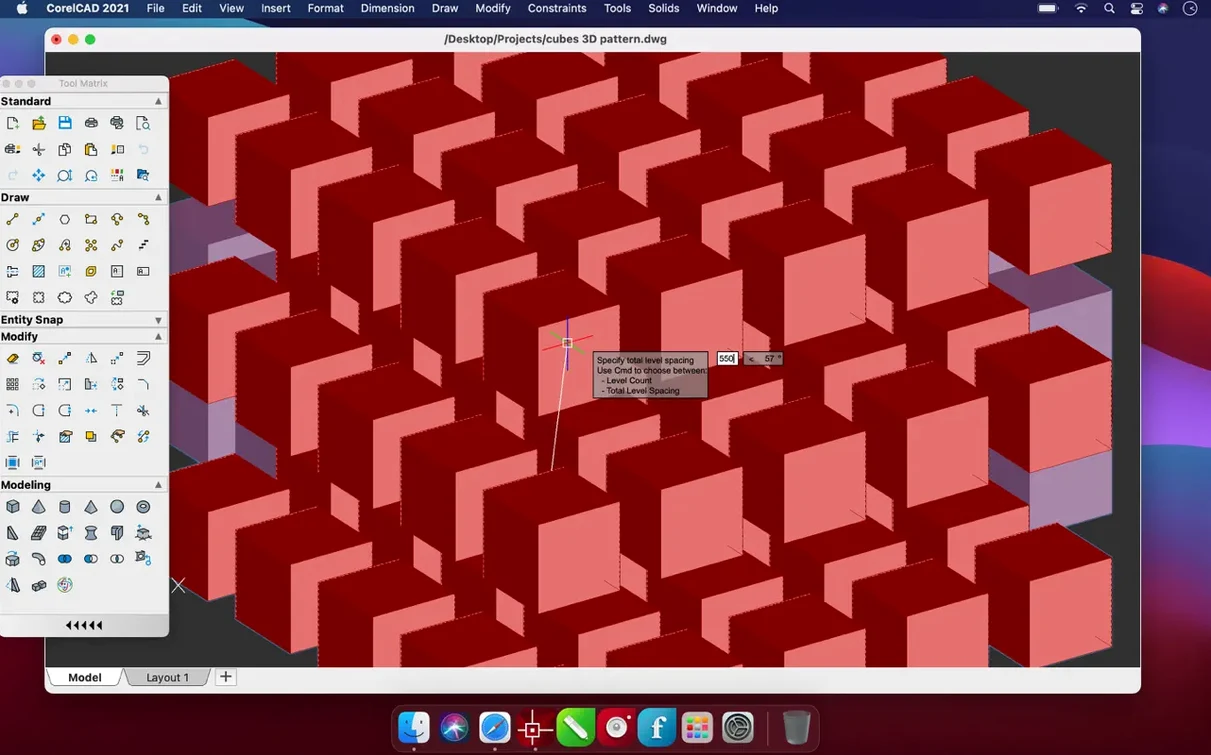
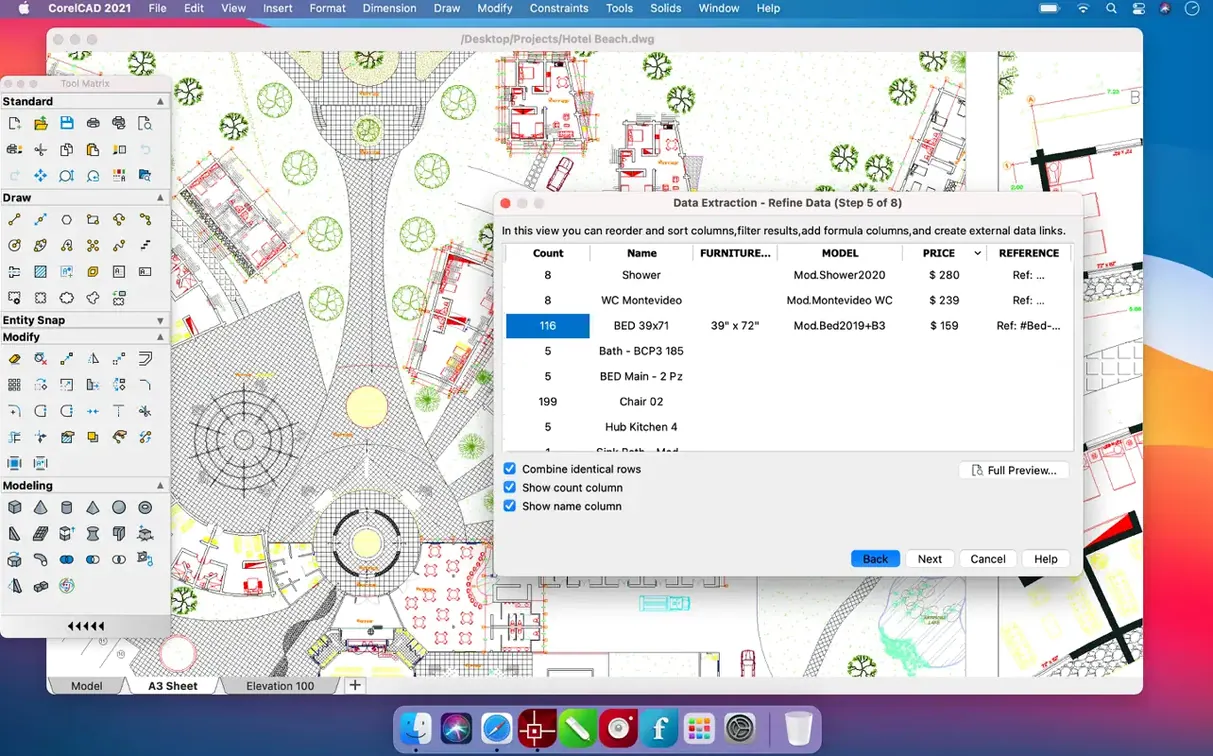
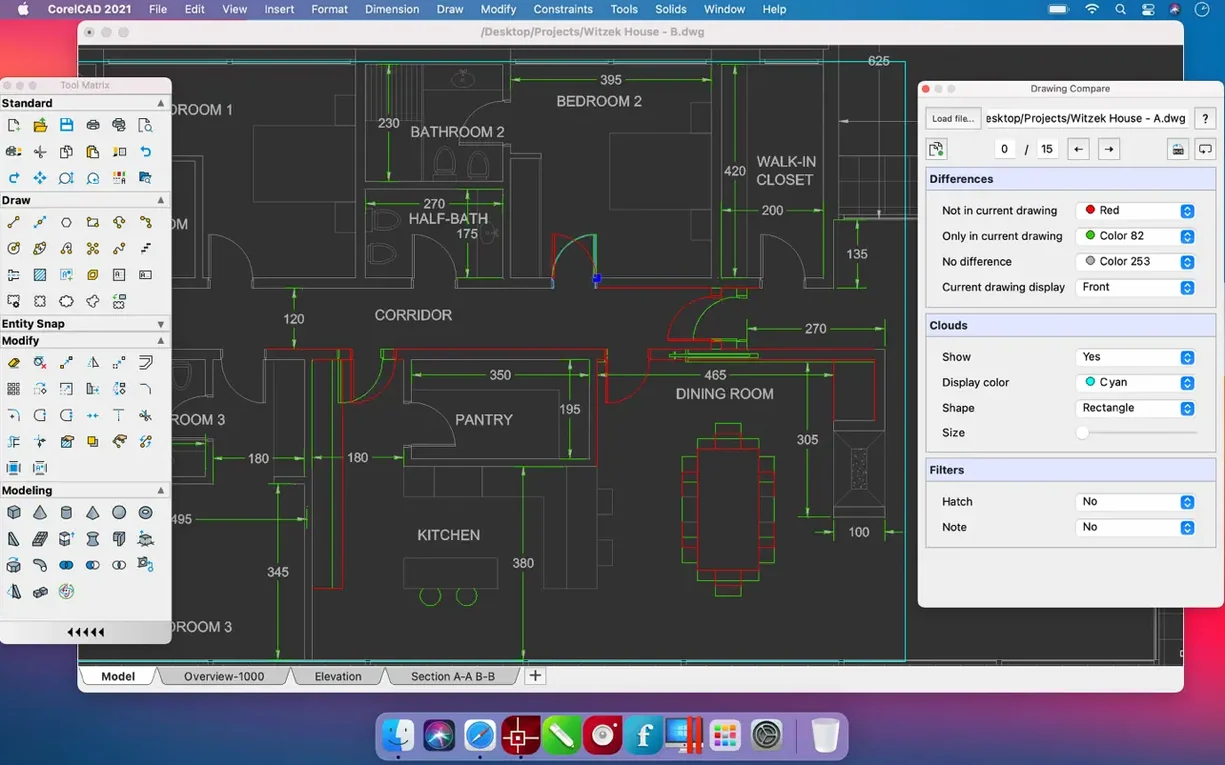
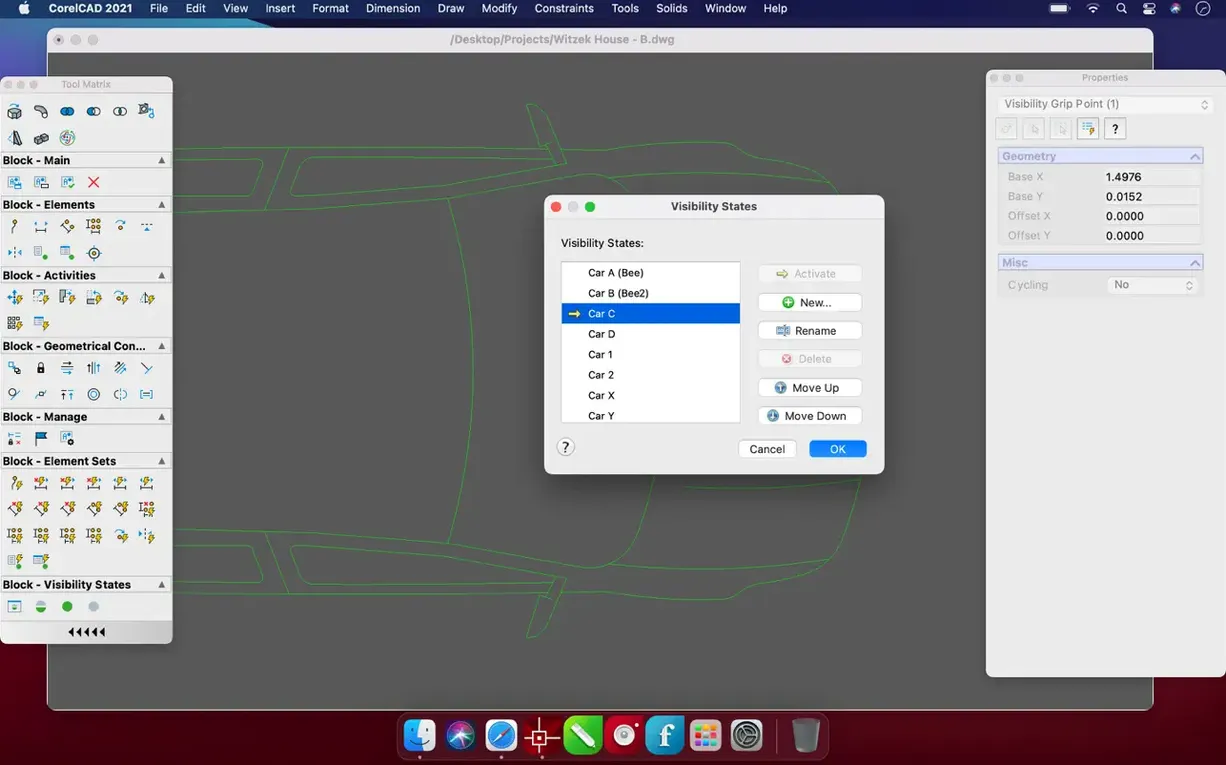
CorelCAD is a straightforward Mac application for precise 2D drafting and 3D modeling, built to work natively with the DWG file format.
Good for:
- Producing detailed technical drawings, floor plans, and layouts without leaving the DWG ecosystem.
- Moving through concept sketches to finished 3D models in a single environment.
- Teams that need a collaboration-friendly tool with native AutoCAD file compatibility on both Apple Silicon and Intel hardware.
- Users who want automation and customization options without scripting everything from scratch.
Keep in mind:
- The interface is functional rather than flashy — it prioritizes tool access over visual polish, which takes a few sessions to feel natural.
- Support for macOS 10.14 and later is solid, but some older Macs may feel the weight of complex 3D models.
- It covers core drafting and modeling well, but it isn't a direct substitute for specialized parametric modelers if that's your main workflow.
From Floor Plan to 3D Walkthrough — a Workflow
Most projects start flat. Here's a clean path that turns a 2D floor plan into a 3D model you can orbit and section, without ever leaving CorelCAD.
- Set up the drawing environment. Launch the app, pick a metric or imperial template, and hit
UNITSto confirm millimeters or inches. Turn on Ortho mode and set your grid spacing to something sensible — 100 mm works well for residential plans. - Block out exterior walls. Grab the Rectangle tool, snap to the origin, and draw the building footprint. Use the Offset command to create wall thickness in one click — type the distance, pick the inner edge, done.
- Add doors and windows as blocks. Draw a door swing once, run
BLOCKto define it, then insert copies withINSERT. Same for window types. Blocks keep the file light and let you update every instance of a window style by redefining one block. - Layer the annotations. Create separate layers for dimensions, text notes, and hatching. CorelCAD lets you lock and dim layers, so you can dimension the exterior while the furniture layer stays untouched.
- Extrude into 3D. Switch to the 3D Modeling workspace. Select the exterior wall polyline, run Extrude, and pull it up to ceiling height. Repeat for interior partitions. In under a minute, the flat plan has volume.
- Cut a section. Use the Section Plane tool, position it through the living area, and generate a 2D section block. Export that as a PDF or drop it straight onto a layout sheet for a client review.
The whole sequence — from blank template to extruded shell with a labeled section — takes about twenty minutes once the block library is built. The real time-saver is staying inside one file format the entire way.
Why You Run AUDIT on a Berlin Architect’s DWG Before Anything Else
You open CorelCAD mid-morning with coffee and a DWG file from an architect in Berlin. Here's how the next hour plays out.
Minute 0–5: The drawing loads with all layouts intact. You run AUDIT out of habit — it finds nothing, which means the file came from a clean source. You switch to the layout tab that holds the ground-floor plan and zoom into the mechanical room.
Minute 5–15: The HVAC layout needs duct runs that the architect blocked out but didn't size. You trace the centerline with the Polyline tool, then offset it by duct width. The Quick Dimension tool snaps to endpoints as you click — no manual alignment needed. You drop the dimensions onto their own layer set to cyan, so they pop against the architectural grayscale background.
Minute 15–35: A section of the duct clashes with a structural beam. You orbit the model, find the interference, and move the duct run down 200 mm with the 3D Move gizmo. The clash is gone. You add a callout note and save. No export, no conversion — the DWG stays a DWG.
Minute 35–55: You switch to a layout sheet, drop in a viewport at 1:50 scale, and lock it. A title block block comes in from your library with one INSERT command. You plot the sheet as a PDF and email it to the architect before the coffee goes cold.
Minute 55–60: You close the file, but first you drag the revised DWG into the shared project folder. The Berlin team will open it in AutoCAD and see everything you touched — layers, blocks, viewports, the works.
Scenario: The Kitchen Remodeler
A cabinetmaker in Austin takes on a kitchen remodel. The client hands over a rough sketch with measurements scribbled in pencil. Instead of redrawing from scratch, she scans it, drops the image into CorelCAD as an underlay, and scales it to real-world dimensions using a reference line she knows is exactly 3600 mm.
With the scan locked on its own layer, she traces the room perimeter with the Polyline tool, then offsets for counter depth. Cabinets become blocks — one base unit, one wall unit — mirrored and arrayed along the walls. The Array command places five base cabinets at 600 mm intervals in two clicks. Appliance cutouts are simple rectangles subtracted with Subtract.
For the client meeting, she extrudes the countertops and cabinet boxes into basic 3D solids, assigns a wood-grain material from the built-in library, and orbits the view to show the sightline from the dining area. No render engine — just shaded with edges, which reads clearly on a laptop screen. The client approves the layout, and the cabinetmaker extracts a 2D elevation from the 3D model for the shop drawings. One file, from concept to cut list.
How a Single Custom Ribbon Row Kills Your Menu-Hunting Habit
A few moves that make the first week smoother.
- Customize the ribbon early. Right-click any panel, pick Customize, and drag your most-used tools — Trim, Extend, Offset, Match Properties — into one row. You'll stop hunting through menus by day two.
- Set your autosave interval tight. Head to Preferences, punch in 10 minutes, and pick a folder you can find. CorelCAD's recovery files have saved more than one deadline.
- Build a template with your layers. Spend thirty minutes creating a clean DWT with your standard layers, text styles, and a title block. Every new drawing starts with your logic already in place. Name it something obvious like
MyTemplate_A3.dwtand set it as default. - Learn three command aliases.
Ofor Offset,TRfor Trim,Efor Erase. Type them instead of clicking icons — the speed difference shows up fast when you're drafting for hours. - Use the Properties palette as a dashboard. Leave it docked on the right. When you select an object, it shows color, layer, linetype, and geometry in one place. Change layer assignments for a dozen objects at once by selecting them and picking the target layer from the dropdown.
- Check 3D print readiness early. If the model is heading to an STL file, run
EXPORTwith the STL option and open the result in a slicer preview. Look for flipped normals or gaps — fixing them in CorelCAD before the export saves a failed print later.
CorelCAD for Mac settles in quickly if you treat it like a drafting table, not a software mystery. Get the template right, memorize a handful of aliases, and the tool itself fades into the background while you do the actual work.
Build 22.3.1.4090 brings the 2023.5 update, focused on under-the-hood enhancements. The release rolls in a handful of performance and stability improvements that keep panning, zooming, and file operations snappy during long editing sessions.
Also fixed: general snags from previous builds that could slow down layer-heavy drawings.
- macOS 10.14 or later
- Apple Silicon or 64-bit Intel processor
Notes from the edit bay · 0
Sign in or get an edit-bay pass to leave a note.
No notes from the edit bay yet. They go up after I read them.