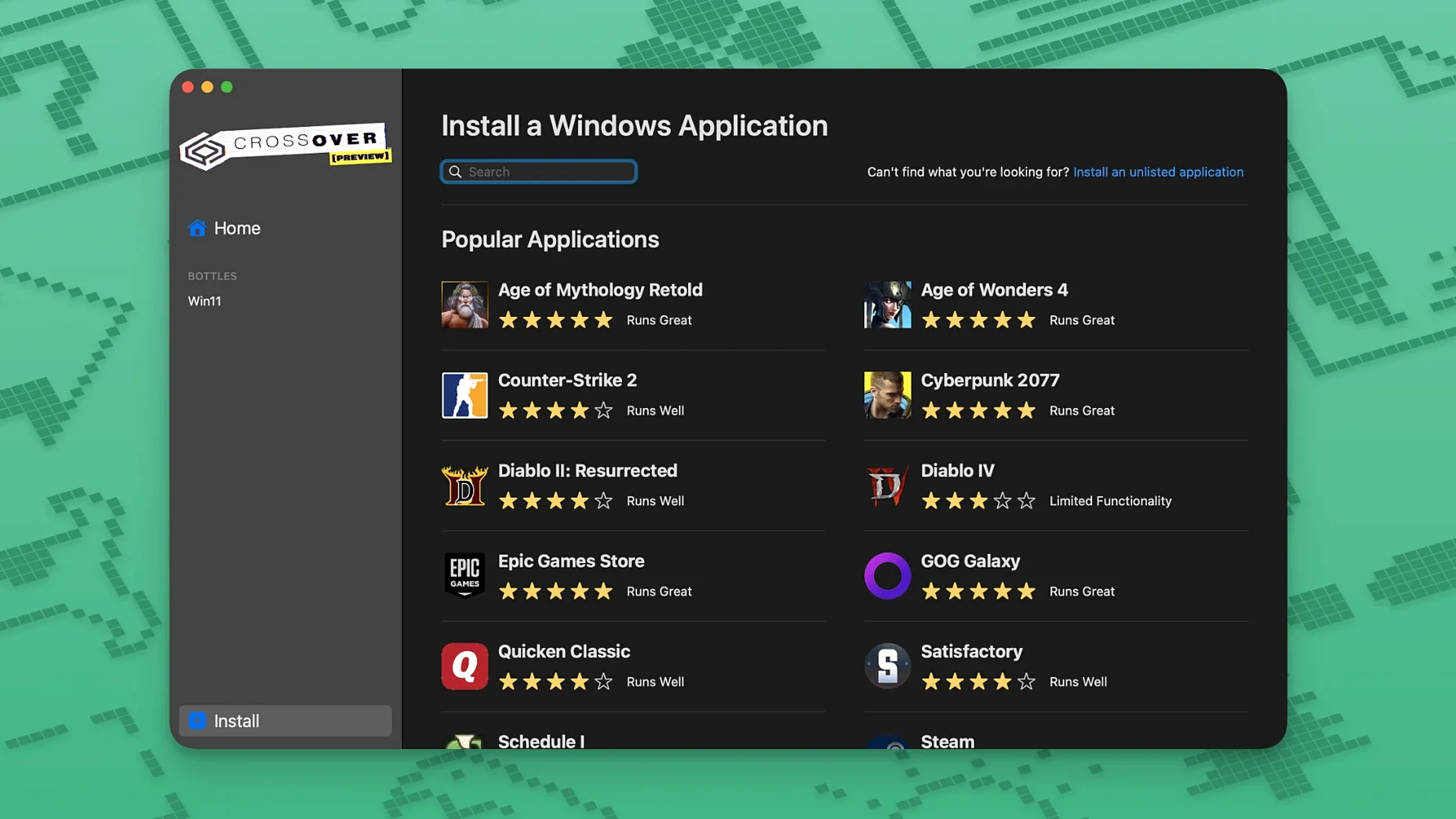
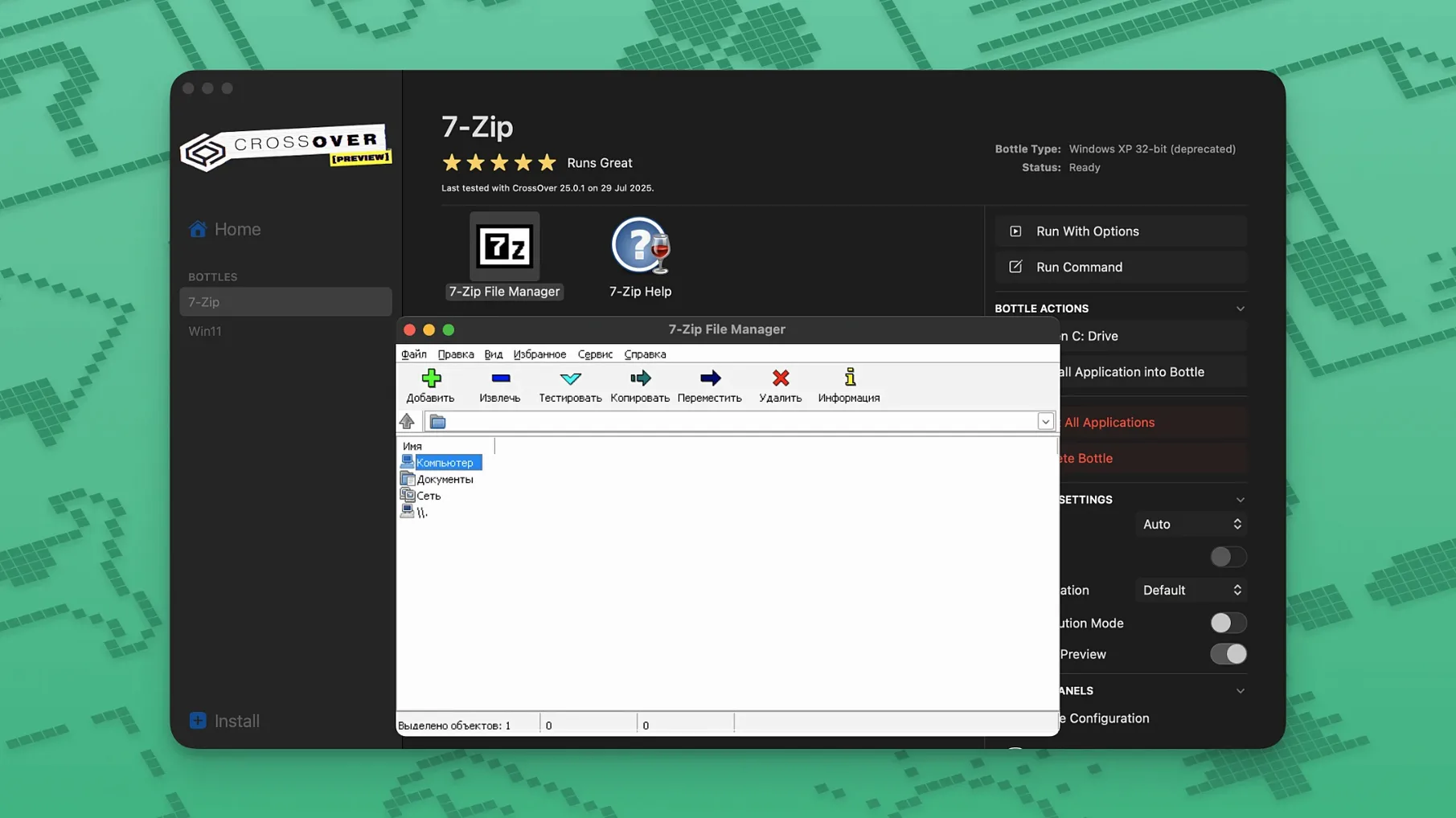
CrossOver 26.3.0 ships with fixes for three specific headaches: Diablo IV refusing to launch after a patch, Epic Games Launcher downloads stalling on Mac, and the GOG Galaxy client hanging on load. That tells you a lot about where this tool fits—it lives in the space between a full virtual machine and wishful thinking, translating Windows API calls on the fly so you can run apps without installing Windows itself.
Good to know right away:
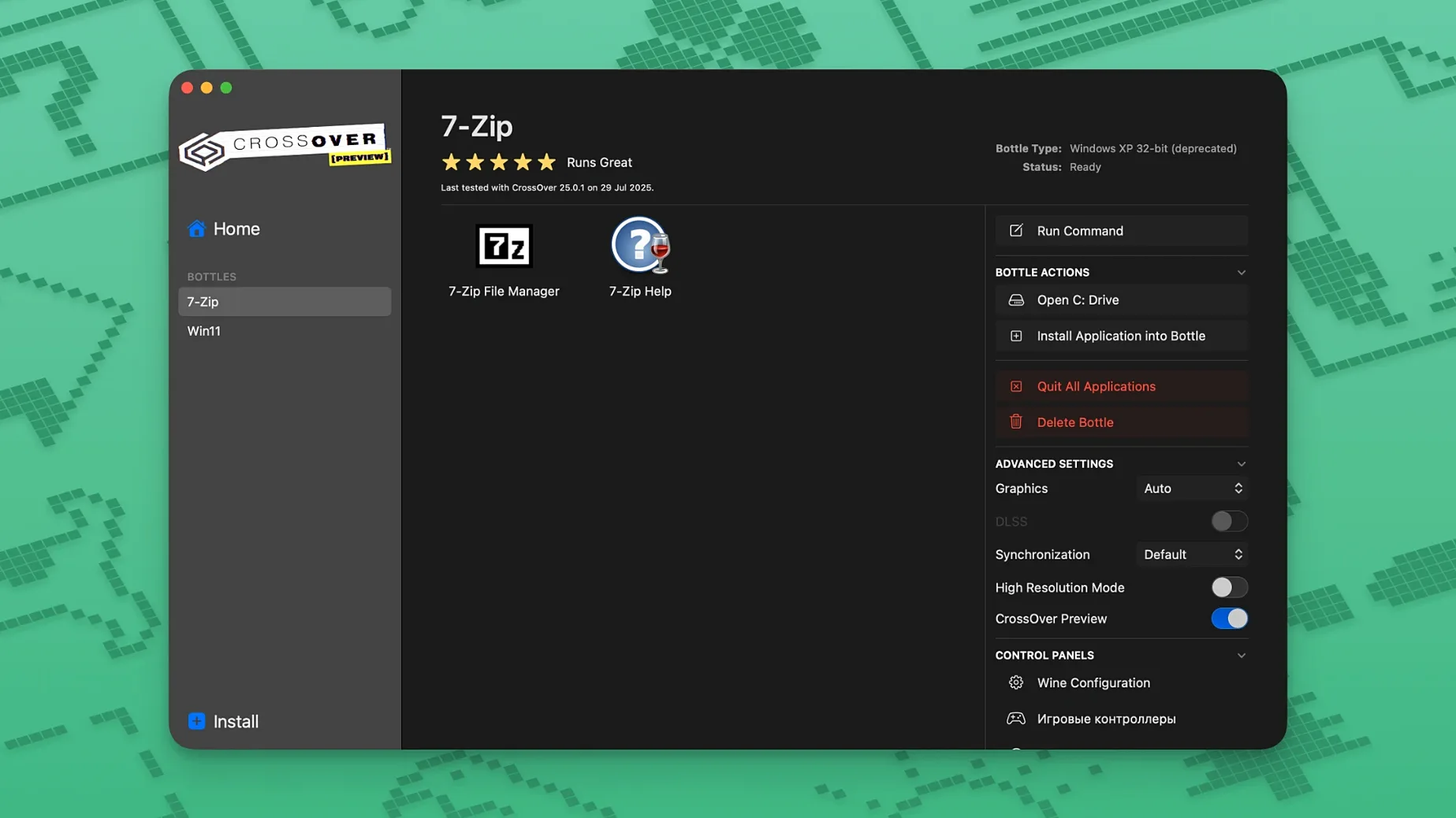
- Each app gets its own "bottle"—a self-contained Windows environment with a C drive, registry, and folder structure. You can mess up one bottle without touching another.
- Productivity software, small utilities, and a growing list of games all run inside the same interface. No need to switch tools.
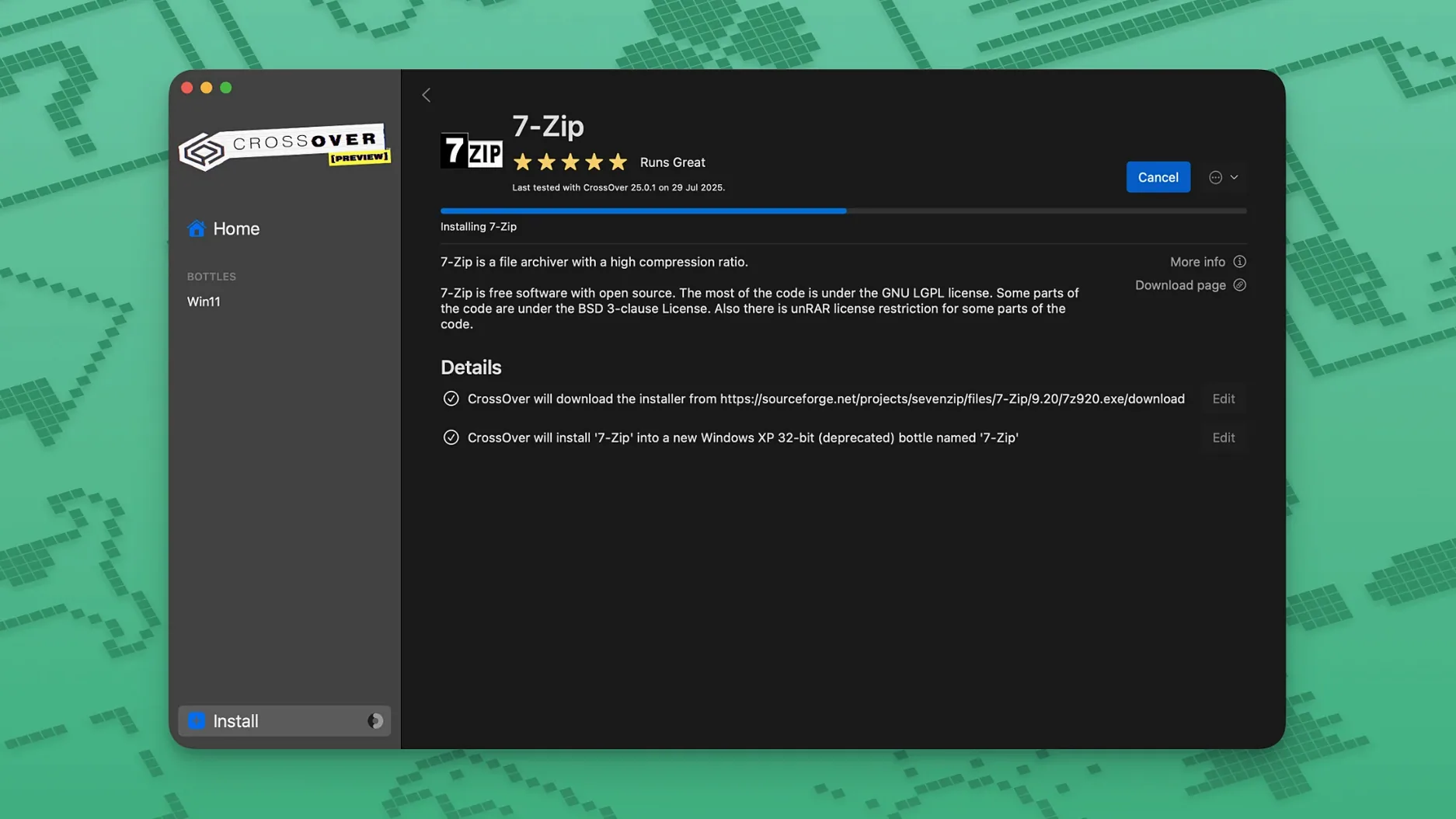
- Many Windows apps will ask for their own installer inside the bottle. That's normal—CrossOver launches the .exe and handles the rest.
Keep in mind:
- CrossOver is built on Wine, and Wine's compatibility isn't universal. Apps with no official support may launch, crash, or display broken UI. It's a translation layer, not a guarantee.
- You're getting a macOS app that speaks Intel instructions. Apple Silicon Macs run it through Rosetta 2, which works but adds a translation step on top of a translation step.
- Some installers need tweaking, and deeply integrated Windows tools—antivirus, shell extensions—rarely behave.
Where CrossOver Lands in Your Toolset
CrossOver doesn't try to be a virtual machine, and that single decision shapes how it fits into a Mac workflow. VirtualBox, Parallels, and VMware all carve out a chunk of your drive, demand a Windows license, and boot a full OS before you can double-click an .exe. CrossOver skips the OS entirely. It talks directly to macOS, translating Windows API instructions as they happen. The result sits somewhere between a native Mac app and an emulator, and its neighbors in your Applications folder tell a clearer story than any spec sheet.
I keep it near WineBottler and Whisky—two other Wine-based launchers that solve parts of the same problem. WineBottler works fine for a single utility you want to wrap as a standalone .app bundle, but it hasn't seen meaningful updates in a while and struggles with anything that needs a full installer. Whisky focuses on games, specifically DirectX 12 titles, and leans on Apple's Game Porting Toolkit under the hood. CrossOver covers both camps: it handles office apps and old Windows utilities, plus a curated set of games with official tweaks baked in.
It also plays nicely with Finder and Spotlight. Once a bottle contains an installed program, you can right-click the .exe inside the bottle's C drive and open it directly. CrossOver registers file associations where it can, so double-clicking a .docx that belongs to a Windows word processor inside a bottle will sometimes launch the whole stack correctly. That deep hook into macOS—without actually being a native file handler—keeps it from feeling bolted on.
The tool also cooperates with the macOS clipboard, audio output, and printing system without extra configuration. I've copied a block of text from Notes, pasted it into a Windows app running inside CrossOver, copied a result, and pasted it back into a Mac app. It works often enough that I forget I'm crossing OS boundaries—until it doesn't, which brings us to the next point.
A Lightweight Launch, Then Deeper Demands
CrossOver 26.3.0 on an Intel Mac feels like a lightweight companion. Launching a simple Windows utility—a text editor, an old dictionary app—happens in under two seconds on my machine. The initial bottle creation takes longer because CrossOver downloads a Wine runtime and configures the virtual C drive, but that's a one-time cost per bottle. Once the bottle exists, cold-starting an app inside it adds maybe a second compared to launching a native Mac app.
Memory usage scales with what you're running. An idle bottle with no apps open sits around 80–120 MB. Fire up a mid-weight Windows program inside it and that climbs to 400–600 MB, which is reasonable. Heavy games push further. The translation layer has a CPU cost—I see 3–8% additional overhead on top of what the Windows app itself demands. On an Intel Mac that overhead is the only layer. On Apple Silicon there's Rosetta 2 translating Intel instructions for the ARM chip and Wine translating Windows calls—two hops, and you'll feel it on CPU-intensive tasks.
Stability varies by app, which is the honest answer. Apps on CodeWeavers' official compatibility list tend to behave. Office 2016, Notepad++, a handful of older Adobe tools—these run for hours without a hitch. Unsupported apps are a dice roll. I've had one Windows database client crash every forty minutes like clockwork; another obscure installer ran flawlessly for a full workday. CrossOver itself rarely crashes. When something breaks, it's almost always the Windows app inside the bottle, not the macOS host process. Force-quitting the bottle from CrossOver's interface takes five seconds and you're back to a clean state.
Disk footprint is modest. The CrossOver app itself is around 280 MB. Each bottle starts small—maybe 200 MB for the Wine runtime—and grows when you install apps inside it. A bottle with Office 2016 and a few utilities can easily hit 4–5 GB. But you can see exactly what's taking space by opening the bottle's C drive in Finder, and deleting a bottle removes everything cleanly.
Opening a 90 MB Windows .exe the Mac Couldn’t Read
Let's walk through a real scenario. I needed to open an old Windows-only project file from a client—a proprietary database export that a Mac app simply couldn't read. The Windows viewer for it is a 90 MB .exe that hasn't been updated since 2018. Here's how the session went.
Bottle setup. I clicked "New Bottle" in CrossOver, gave it a name tied to the project, and picked Windows 10 64-bit from the dropdown. CrossOver spent thirty seconds building the environment. The progress bar crept along, and then the bottle appeared in the sidebar. No prompts, no Windows setup screens, no license key. Just a ready container.
Installer launch. I dragged the viewer's .exe installer directly onto the bottle icon. CrossOver fired up its own installer wizard—a familiar Windows-style dialog rendered inside the macOS window. I clicked through the usual Next, Next, Accept, Install sequence. The installer extracted files into the bottle's Program Files folder, wrote registry entries, and finished in under a minute. CrossOver then scanned the bottle, found the new executable, and placed a shortcut in the bottle's program list.
First run. I double-clicked the shortcut. The viewer app appeared as a normal Mac window—not inside a Windows desktop frame, just a window with its own title bar and menus. I opened the project file through the viewer's File menu and everything rendered correctly. Fonts looked right. The search function worked. I exported the data I needed as a CSV, saved it to the Mac desktop (the bottle's virtual file system maps your Mac's folders), and opened it in Numbers. Total time from bottle creation to usable data: about four minutes.
Post-session. I closed the viewer, and the bottle sat idle in the background. I left it there for three days while I finished the project, launching the viewer whenever I needed to cross-reference something. No reboots, no Windows Update nagging me, no antivirus definitions downloading. When the project wrapped, I right-clicked the bottle and chose "Delete Bottle." Gone.
Virtual Machine, Emulator, or Translation Layer
Three tools compete for the same mental slot as CrossOver, and they take very different approaches. Here's how they compare in daily use.
CrossOver vs. Parallels Desktop. Parallels is a virtual machine, full stop. You install Windows, you get a Windows desktop in a window or in full-screen, and you run any Windows app inside that OS. Compatibility is nearly perfect because you're running actual Windows. The trade-off is weight: Parallels needs 20–30 GB of disk space minimum, a Windows license, and you're managing an entire second operating system—updates, security, driver issues. CrossOver skips all of that. For one or two specific Windows apps, CrossOver is far less overhead. For a workflow that demands 100% compatibility across a dozen Windows apps, Parallels makes more sense. I've used both: CrossOver when I just need a single Windows utility open next to my Mac apps; Parallels when a client's entire toolchain lives on Windows.
CrossOver vs. Whisky. Whisky focuses exclusively on Windows games through Apple's Game Porting Toolkit. It's free, it's fast on Apple Silicon, and it handles DirectX 12 titles better than CrossOver in some cases. But it doesn't do productivity software. No Office, no utilities, no database tools. CrossOver handles games and apps with official support and bottle management Whisky lacks. If you want to play a specific DirectX 12 game on a modern Mac, Whisky is worth a look. If you need to run a Windows accounting app and occasionally launch an older game, CrossOver is the broader tool.
CrossOver vs. WineBottler. WineBottler wraps a single Windows executable into a self-contained Mac .app bundle. It's great for one-off utilities you never want to think about again—I've used it to bottle a Windows text expander that still runs years later. But WineBottler's Wine version is old, and it can't handle apps that need .NET frameworks, complex installers, or registry tweaks. CrossOver's bottle system handles all of that plus ongoing updates. WineBottler is a snapshot; CrossOver is a living environment.
When the Installer Hangs Inside the Bottle
Things go wrong. Usually they go wrong inside the bottle, not in CrossOver itself, and most problems have a short list of fixes that work consistently.
An installer hangs or refuses to launch. Sometimes an .exe installer expects a specific Windows component that isn't in the default bottle. CrossOver lets you install extra dependencies into a bottle manually—Visual C++ runtimes, .NET frameworks, specific fonts. Right-click the bottle, choose "Install Software into Bottle," and search for the missing piece. I've unstuck at least a dozen stubborn installers by adding the Visual C++ 2015–2022 redistributable before running the main installer.
Text looks garbled or fonts are missing. Windows apps often assume certain system fonts are present. CrossOver's bottles include a basic set, but if an app renders boxes instead of text, install the "corefonts" package into the bottle. It pulls in Arial, Times New Roman, Courier, and a few others that satisfy most apps. Takes thirty seconds.
An app launches to a black or flickering window. Graphics translation is the hardest part of the Wine layer. Try toggling the bottle's graphics settings: right-click the bottle, open Settings, and experiment with turning off "Allow the window manager to decorate the windows" or switching the video memory size. Some older apps need DPI virtualization disabled. For games specifically, CrossOver's built-in DXVK and MoltenVK backends handle DirectX-to-Metal translation, and switching between them under the bottle's Performance settings often clears rendering glitches.
The activation step in Terminal doesn't stick. This one is specific to the installation process. If you've copied the croslic folder to the desktop and run license.tool through Terminal but still see activation prompts, check System Preferences > Security & Privacy > Full Disk Access. Terminal must be listed there. Add it manually, re-run the license tool, and restart CrossOver. The dialog should disappear.
Epic Games or GOG Galaxy still misbehaves. The 26.3.0 update fixed specific download and loading failures, but if you're hitting a different issue, try creating a fresh bottle with the Windows 10 64-bit profile—launcher apps are picky about their environment. Also make sure the bottle has Internet access; CrossOver's default network settings pass through your Mac connection, but some launchers need a quick bottle restart after the first login attempt to settle their internal updaters.
Most snags boil down to missing dependencies, graphics translation, or a bottle profile mismatch. The fix rarely takes more than a few minutes once you recognize the pattern. For apps completely outside CodeWeavers' support scope, the old Wine trick of running the .exe from Terminal inside the bottle's drive sometimes works when the GUI launcher won't. It's not pretty, but it's there if you need it.
Version 26.3.0 lands with targeted fixes for three common trouble spots. Diablo IV no longer refuses to launch after a game update, Epic Games Launcher downloads work again on Mac after an upstream fix, and the GOG Galaxy client loads instead of hanging.
- macOS 10.15 Catalina or later
- Intel-based Mac (Apple Silicon supported via Rosetta 2)
Questions I actually get
Can I run CrossOver on an Apple Silicon Mac?
Yes, but only through Rosetta 2, as the current version is built for Intel architecture. It works, though performance varies by application.
Notes from the edit bay · 0
Sign in or get an edit-bay pass to leave a note.
No notes from the edit bay yet. They go up after I read them.