macOS 10.13 High Sierra. That is the cutoff—older Macs stay in the dark. On anything newer, the app fires up on Intel and Apple Silicon without a hiccup, and the interface speaks eleven languages, from Russian and Japanese to French and Swedish.
Workflow for a Clean Drive
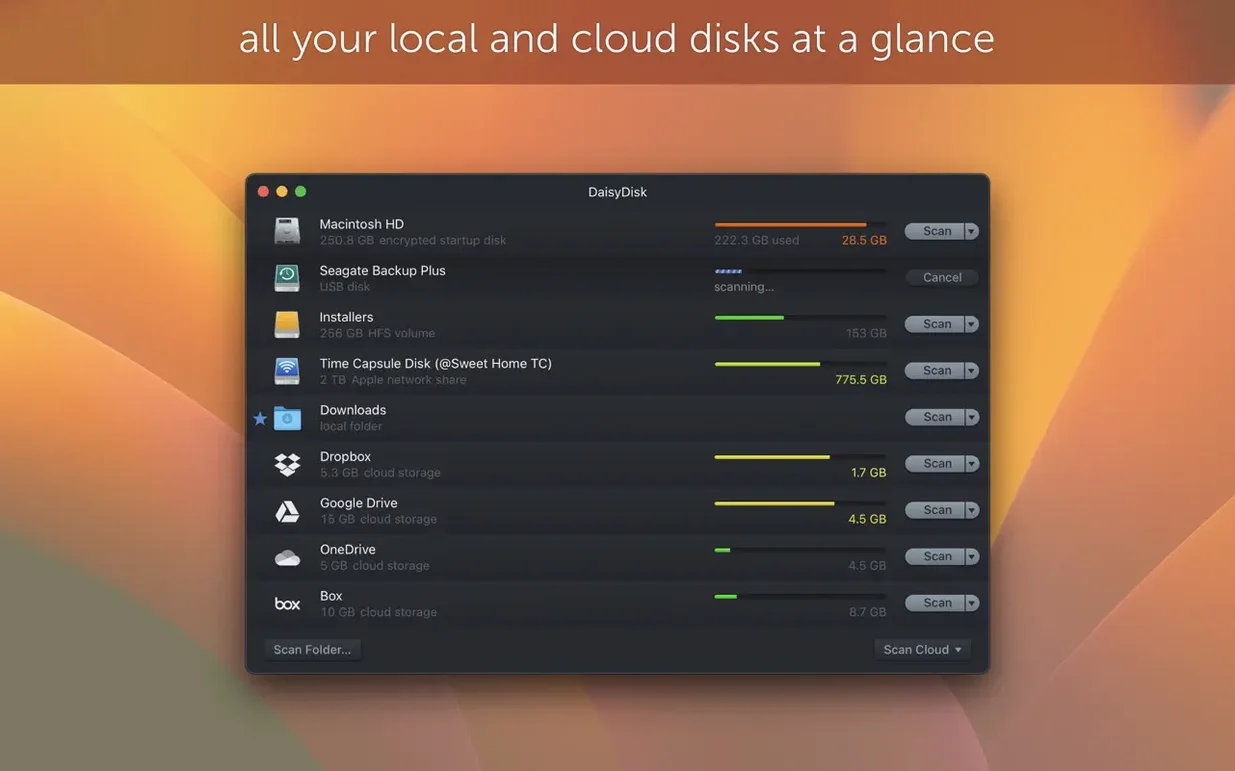
- Point it at a disk. Fire up DaisyDisk and pick any mounted volume—internal SSD, external Thunderbolt drive, even a network share. It scans in real time, building the map as data flows in.
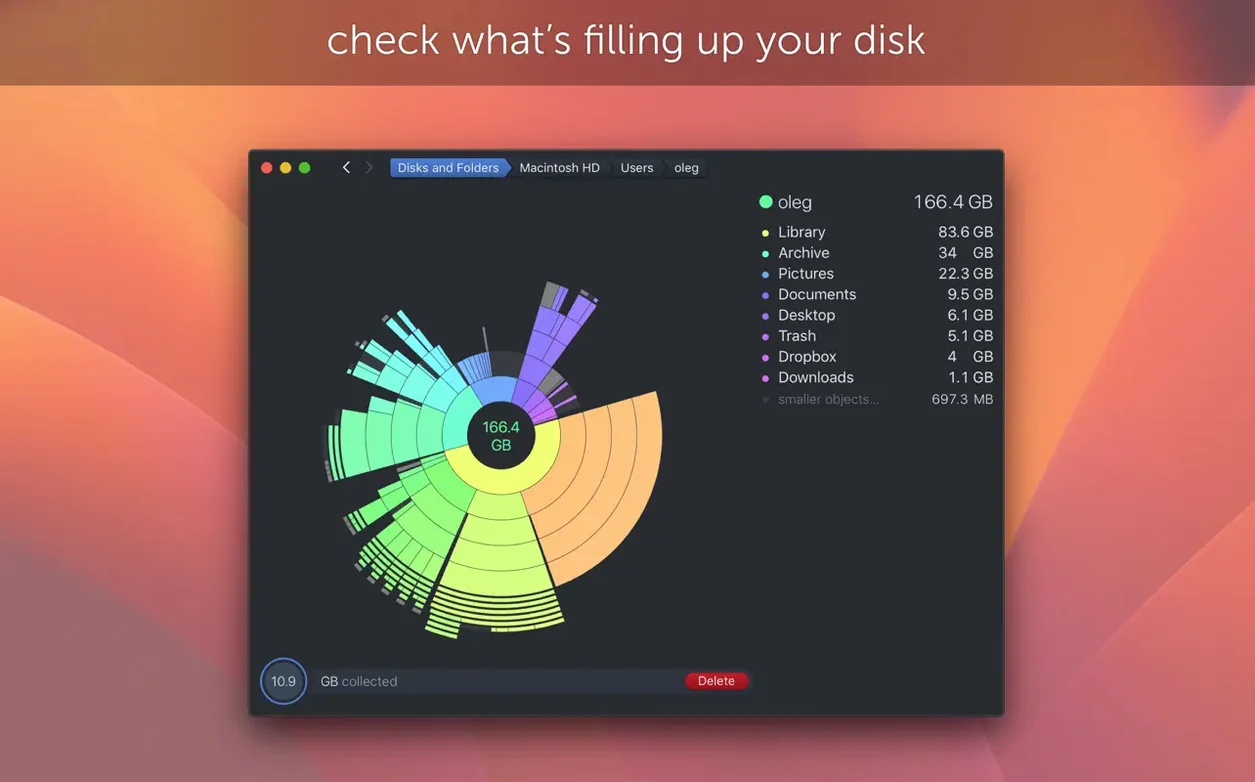
- Read the sunburst. No pie charts or tree lists. The interactive map fans out from the center, each wedge a folder. Hover to see names and sizes; click to dive deeper. The visual layout makes a 2GB mystery file impossible to miss.
- Hunt the Other category. macOS lumps caches, logs, and archived installers into “Other” storage. DaisyDisk cracks that category open, showing exactly which APFS clones and hidden caches are chewing up space.
- Delete from the map. Found a forgotten disk image or a 4K render you archived twice? Hit the delete button right inside the map. Version 4.34 counts each APFS clone only once, so the number on screen matches the space you actually reclaim.
Answering 'What Is Eating My Drive?' in Five Seconds
DaisyDisk doesn't scrub caches or automate cleanups—it answers one question: what is eating my drive? For editors staring at a render bar and a "disk full" warning, that answer is worth the five seconds the scan takes. The map turns disk management from a spreadsheet chore into something you can glance at and act on.
Don't Drag the /System Wedge to the Trash
New users tend to scan, panic, and delete. They open the sunburst, spot a chunky blue wedge labeled /System, and drag it to the trash before reading what it is. Don't. The System volume is sealed on modern macOS—the OS will block you, and even if it didn't, you'd brick the machine.
The second classic blunder: scanning the whole disk when you only care about your home folder. Hold down Option when you click the scan button and DaisyDisk lets you target a specific folder. Scans finish faster, and you are not wading through fifty gigs of Library caches you cannot (and should not) touch.
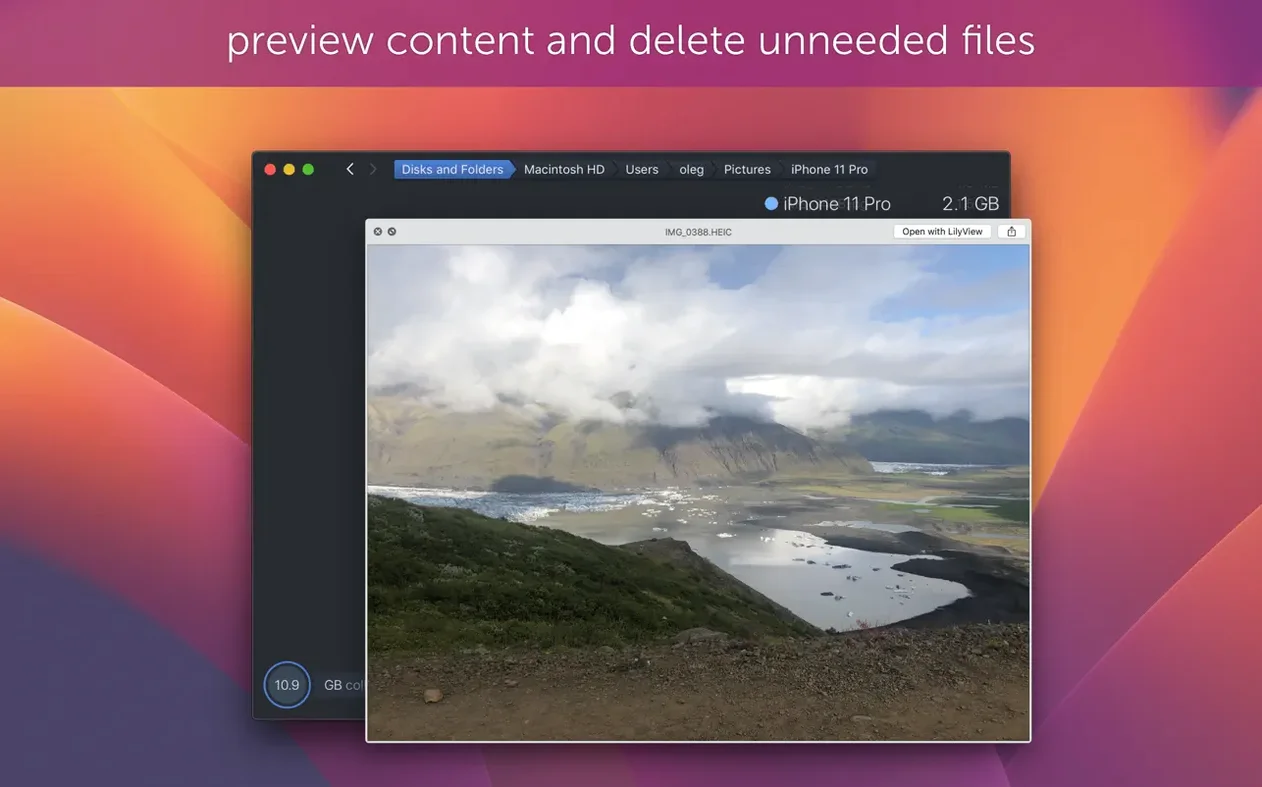
Third mistake: ignoring the Quick Look integration. Tap the Space bar on any file in the map and you get a full preview—video, PDF, Photoshop document—without leaving the interface. Beginners right-click and choose "Show in Finder" instead, then bounce between two windows for no reason. Preview first, decide second.
Why the Scan Shows More Free Space Than Finder
"The scan says I have 80GB free, but Finder says 60GB." This is usually APFS snapshots. Time Machine creates local snapshots on the boot drive, and Finder counts them as used space while DaisyDisk counts them as purgeable. Run tmutil listlocalsnapshots / in Terminal to see them. If you need that space now, tmutil deletelocalsnapshots / clears them out.
"An external drive won't mount after scanning." Rare, but it happens when you drag-delete from a FAT32 or exFAT volume inside DaisyDisk and the file system table gets confused. Eject the drive, plug it back in, and run First Aid in Disk Utility. The fix in version 4.33.2 tightened up size estimation for those file systems specifically, so this is mostly a pre-4.33.2 headache.
"The map finished but one big block just says 'Other.'" Click it. Then click again. DaisyDisk drills through the "Other" label recursively—each click reveals the real folder structure underneath. If you still cannot identify the files, select the block and hit Space for Quick Look. Nine times out of ten, it is an old iOS backup or a Steam library you forgot about.
Clearing a 2TB NVMe Before the Next Ingest
Let's say you are a video editor. A client project just wrapped, the final export is delivered, and your 2TB external NVMe is blinking red. You have ten minutes before the next ingest. Here is how that session actually goes.
You open DaisyDisk and it shows all mounted volumes at a glance. The NVMe sits at 94% full. You click it, and the scan spins up—three seconds for a 2TB drive because the app reads the file system tree, not every block. The sunburst blooms.
Immediately, one wedge dominates the ring: a folder called 2025-Q4_Projects. You mouse over it. 1.1TB. You click to drill in, then again, and there it is—a Renders folder holding seven ProRes 4444 exports you rendered for a colorist six weeks ago. The files are dated. The client approved the final cut. You select all seven, tap Quick Look on the first one just to confirm it is not a current master, then drag the selection to the Collector button at the bottom-left corner. You hit Delete.
410GB freed. The sunburst redraws instantly, wedges shifting to fill the gap. You scan your home folder next—Option-click the scan button, pick /Users/yourname, three seconds—and spot a 60GB Dropbox cache you haven't used since switching to iCloud. Gone. The drive sits at 68% full. You close the app and mount the card for the next shoot. Total time: under two minutes.
Where It Plays Well with Others
DaisyDisk is not a duplicate finder or a cache cleaner. But it pairs cleanly with the tools that are. After spotting a swollen folder in the sunburst, I often drag it to Finder and run Gemini or dupeGuru on just that subtree—no need to scan the whole disk twice. The map narrows the target, and the duplicate tool does the fine-grained work.
On the macOS side, Storage Management (found under About This Mac → Storage → Manage) does a passable job of surfacing large files and old iOS backups, but it thinks in flat lists. I use DaisyDisk to verify what Storage Management suggests—especially the "Reduce Clutter" recommendations, which sometimes flag files I actually need. Cross-check the two, and you delete with confidence.
For automation nerds: DaisyDisk reads the same disk arbitration framework as diskutil. That means you can script a mount of an external drive, trigger a DaisyDisk scan via its URL scheme (daisydisk://scan?volume=/Volumes/DriveName), and walk in to find the map already built. A small thing, but when you juggle a dozen shuttle drives a week, it adds up.
One last synergy worth knowing: the app respects Spotlight privacy exclusions. If you have excluded a folder from Spotlight indexing, DaisyDisk still scans it, but the file names may appear slower during Quick Look because the metadata index is missing. Not a bug—just something to know when you are hunting through excluded backup volumes.
Version 4.34.2 ships one fix—a bug squashed. The bigger story is the 4.34 update baked in: APFS clone smarts. The scanner now recognizes cloned files and counts only the first occurrence toward used space, so your totals reflect real physical storage, not phantom duplicates. Also fixed: compatibility refinements that keep scans snappy on macOS Tahoe.
- macOS 10.13 High Sierra or later
- Intel 64-bit or Apple Silicon processor
Questions I actually get
Does DaisyDisk count APFS clones twice?
No, version 4.34 counts only the first occurrence of each APFS clone, so the used space calculation matches the actual physical storage consumed.
Notes from the edit bay · 0
Sign in or get an edit-bay pass to leave a note.
No notes from the edit bay yet. They go up after I read them.