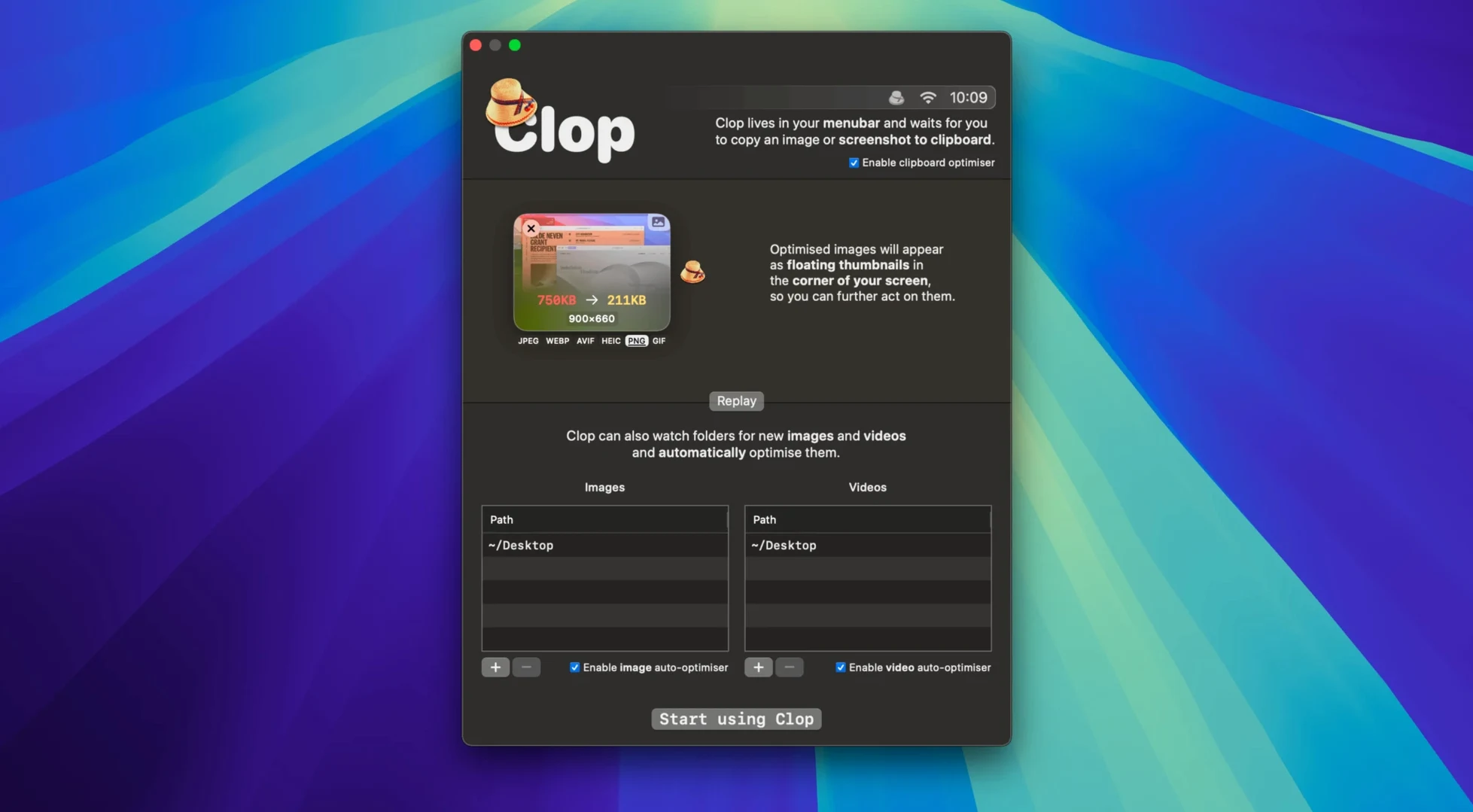
Every copy you make of a 45-megapixel photo or a 5-minute screen recording drags a bloated chunk of data behind it. Clop Pro intercepts that moment. It watches your clipboard, takes whatever you copy—HEIC, PNG, ProRes, PDF pages—and hands back a leaner version, sized for the paste you're about to hit.
Screenshots Shrink Before You Even Paste
- Auto-optimize for copied images. Grab a screenshot, paste it anywhere—Clop already ran it through its compressor. You never see a progress bar.
- Screen recordings shrink on the spot. It can watch for new recordings and optimize them without asking.
- Drag-and-drop works too. Pull a file onto the menu bar icon or a Finder action and it compresses right there, no clipboard needed.
- Video and PDF support. It's not just for stills. Video files and PDFs get the same treatment, keeping quality sensible while dropping file sizes hard.
Assets Shed Weight Before Reaching Final Cut
This isn't a batch export preset you set once. It's the tool that strips the weight out of assets before they ever land in Final Cut, a Keynote deck, or a Slack thread. Running as a menu bar app on macOS 13 and up, it stays quiet until you copy or drag something heavy—then it does its one job and gets out of the way.
Stop Confirming Every Screen Recording
Out of the box, Clop Pro plays it safe, but a few quick flips in preferences make it feel like a different tool.
- Turn off "Ask before optimizing" for screen recordings. The default confirmation dialog makes sense for cautious setups, but if you're recording demos all afternoon, it's just another click. Switch it to auto and let the app clean up in the background.
- Set a size threshold for images. By default it optimizes everything you copy. Drop a 4-pixel icon and it still processes. Setting a minimum—say 100 KB—keeps the tiny stuff moving at full speed.
- Pick your video codec. The default leans toward quality retention. If you're dumping clips into Slack or Discord, switching to HEVC can halve the file again with barely any visual hit.
- Whitelist apps that get the original. You don't want compressed assets landing in Photoshop or DaVinci Resolve. Add your editing tools to the exclusion list so they always get the untouched file.
Why It Sidesteps the Batch Export Workflow
Clop Pro vs. ImageOptim
ImageOptim is a single-purpose squeezer for stills—drag a folder, watch it crunch PNGs and JPEGs, get on with your day. Clop Pro skips the drag step entirely. It catches images at the clipboard level, which means the optimization happens between apps, not in a dedicated session. ImageOptim also gives you more granular control over compression algorithms; Clop Pro trades that for speed and automation. If you batch-process a hundred product photos every morning, ImageOptim fits. If you're pasting screenshots into emails and Slack a dozen times an hour, Clop Pro is the one that disappears into the workflow.
Clop Pro vs. Permute
Permute converts anything to anything—video, audio, images—and it's built around format shifting, not clipboard intervention. You feed it files and it spits out new ones in a different codec or container. Clop Pro doesn't care about the format; it cares about the copy event. Permute wins for deliberate batch conversions where you need specific output specs. Clop Pro wins when you don't want to think about conversion at all. The two can actually sit side by side nicely—Permute for the heavy lifting, Clop Pro for the thousand tiny copies that would never justify opening a converter.
Clop Pro vs. Built-in macOS Services
Right-click a file in Finder, choose "Encode Selected Video Files" or run an Automator workflow—macOS ships with its own compression options. They work, but they're manual. You have to remember they exist, navigate a menu, and wait for the result. Clop Pro removes the decision. The automation layer is the product. If your Mac usage involves copying a handful of files per day, the built-in tools are fine. If you copy media constantly, the friction adds up fast.
Pasting Client-Proof Comps Without Over-Compression
New users tend to trip over the same few things within the first week.
- Forgetting the exclusion list exists. They copy a high-res comp from After Effects, paste it into a client review page, and wonder why the export looks soft. Clop Pro did its job too well. Add your creative apps to the exclusion list before you blame the compression.
- Leaving the quality slider at default for everything. The global setting applies to all file types unless you tweak per-format options. A PDF of a contract and a 4K drone shot don't need the same treatment. Spend two minutes in preferences per file type.
- Dragging files onto the app and expecting clipboard behavior. Drag-and-drop triggers a one-shot optimization that saves a compressed copy. The original stays on disk. It doesn't replace what's on the clipboard at that moment—that's a different interaction. If you want to paste the smaller version, copy the result after it finishes.
- Not checking the "Retina" checkbox for screenshots. Mac screenshots at 2x resolution carry twice the pixel data. Clop Pro can downscale them to 1x if you tell it to. Skip that setting and your compressed screenshot still carries unnecessary resolution for most destinations.
- macOS 13 or later
- Apple Silicon or Intel 64-bit Mac
Notes from the edit bay · 0
Sign in or get an edit-bay pass to leave a note.
No notes from the edit bay yet. They go up after I read them.