
You spot a deep-dive tutorial on Twitter/X at lunch, a client’s Instagram Reel you need for a cut, and a LinkedIn talk worth saving. Grabbing them fast matters when you’re on a deadline.
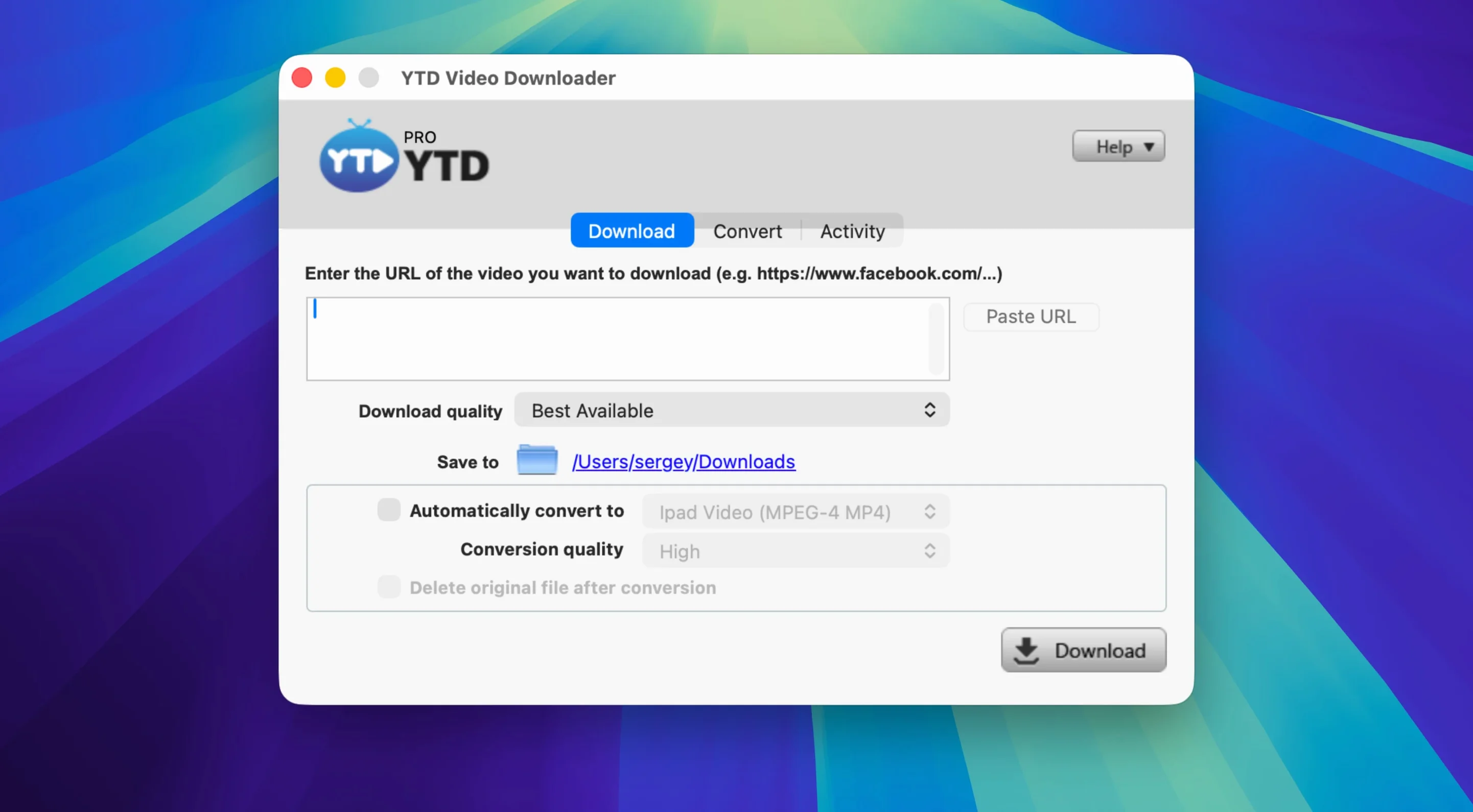
- Copy the link. YTD detects a copied video link from the clipboard. No fuss, no buried menus.
- Grab a playlist or a single clip. It pulls entire playlists in one go—handy when a series drops all at once.
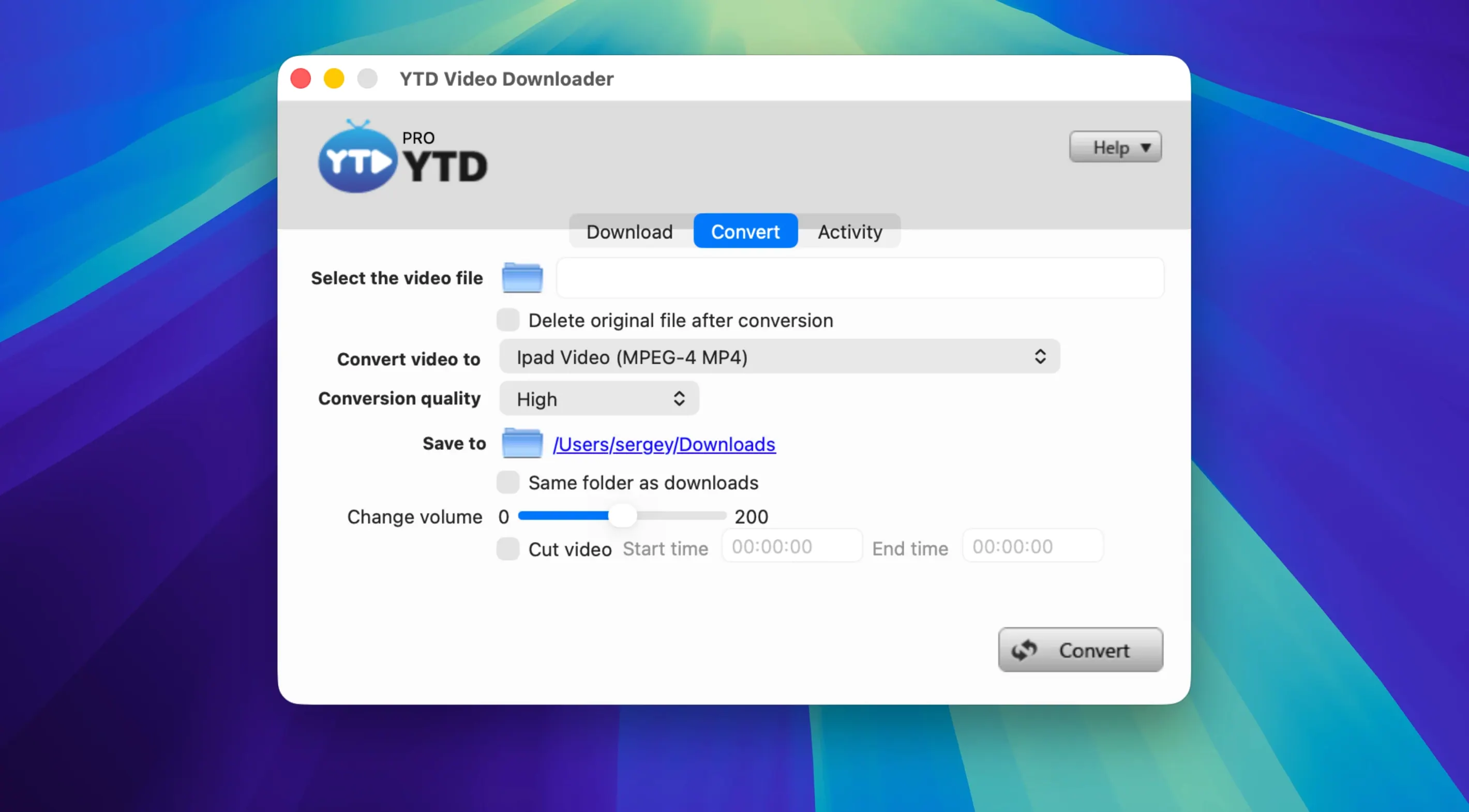
- Pick a format. Leave it as MP4 or flip the switch to convert straight to MP3 or AAC. The conversion runs in the same step as the download, so you aren’t babysitting a queue.
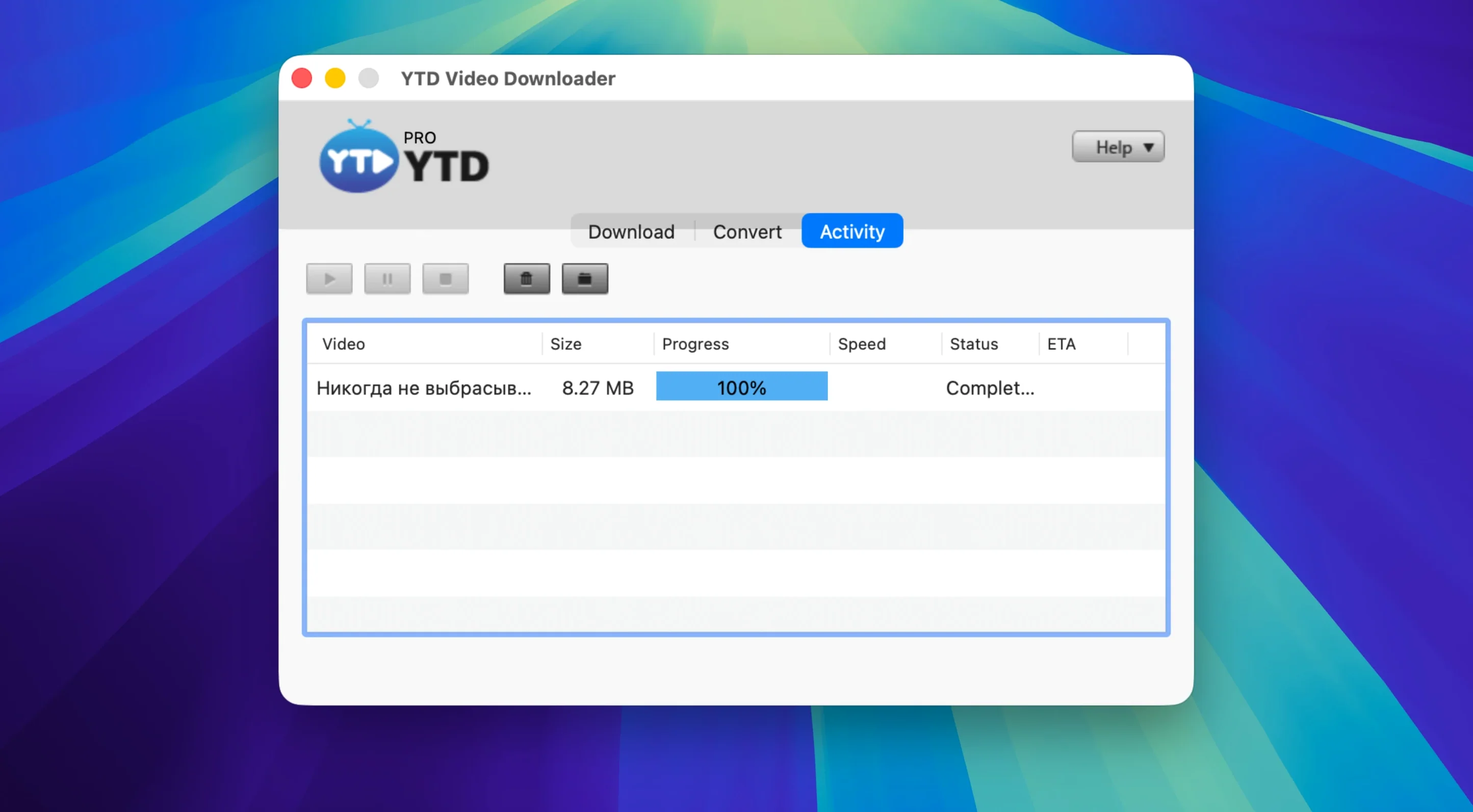
- Pause and resume. A connection flickers out mid-pull? It picks up where it left off without starting over. The auto-retry catches most drops before you even notice.
Where does it fit? It’s a straightforward downloader and converter that doesn’t log your activity or keep a history. You point it at TikTok, Instagram, Facebook, Twitter/X, LinkedIn, or other major platforms, and it pulls what you need. The conversion to MP3 or AAC makes it useful for pulling clean voiceover drafts or reference audio from video. It runs on Intel Macs back to OS X 10.10, so it still works on older editing machines. The interface is plain English, and the built-in converter also writes MOV, WMV, AVI, 3GP and FLV.
4K Capture Depends on the Site’s Encode
Does it handle 4K or just 1080p? The downloader grabs whatever resolution the source stream offers. If the site serves a 4K encode, you get that. If it caps at 720p, that's what lands on your drive. The app doesn't upscale or downscale on its own — it pulls the best available stream and lets the converter handle the rest.
Will it choke on a sixty-video playlist? It queues everything you throw at it, but the real bottleneck is your connection and the site's rate-limiting, not the app. A big playlist overnight on a stable line? No problem. Trying to hammer a hundred clips during a thunderstorm? You'll lean on that pause-and-resume button more than you'd like.
Does the MP3 extraction sound thin? The converter writes a clean 320 kbps MP3 or AAC from the source audio track. It's not a mastering tool, but for reference audio, transcription, or pulling a quick voiceover scratch track into Final Cut, it's solid. Nobody's going to ask if you ripped it from YouTube.
Grabbing Client Reels and Competitor TikToks Before Lunch
Video editors cutting corporate or social content are the obvious fit. You need a client's Instagram Reel, a competitor's product walkthrough from TikTok, or a conference talk from LinkedIn — all before lunch. YTD sits in your dock, grabs the clip, and optionally hands you an MOV or MP3 without a second app. That one-step download-and-convert flow saves a render step when you're stacking timelines.
Musicians and podcast producers pulling reference tracks or interview audio also get a lot from it. Paste a playlist link, tell it to convert everything to MP3, and walk away. You come back to a folder of labeled audio files ready to drop into Logic or DaVinci Resolve.
People still running older Intel Macs benefit too. The OS X 10.10 floor means a 2012 Mac mini sitting in a server rack can still run a scheduled download session. Not every tool in this space bothers with backward compatibility that far.
Pasted Link Does Nothing—Try the Manual Button
The most common headache: you paste a link and nothing happens. Usually the clipboard detection didn't fire. Click the "Paste URL" button manually in the main window instead of waiting for the auto-detect. If the site changed its page structure overnight, the parser might need an update — but that's rare on the big platforms.
Another snag: the download finishes but the file won't open in QuickTime. Check which format you picked. If you accidentally left it on FLV from a previous session, QuickTime won't touch it. Switch to MP4 or MOV and re-download, or run the FLV through the built-in converter to a friendlier container.
On older machines, a big playlist conversion to MOV can peg the CPU. The converter isn't using hardware acceleration in every case, so a 2014 MacBook Air will sound like a jet engine. Queue the heavy work for when you're away from the desk, or convert to MP4 instead — it's lighter on the processor.
Rookie Mistakes Worth Skipping
Grabbing the wrong quality tier is easy if you don't check the download options before you hit start. The app defaults to the highest available resolution, which sounds great until you realize you just pulled a 2 GB file for a clip that's getting shrunk to a thumbnail in your timeline. Pick 720p or 1080p explicitly when file size matters more than pixel count.
Another one: converting to MP3 and then wondering where the video went. The converter replaces the video track with audio only — it's not a split operation, it's a replacement. If you need both, download the video first, then run a second conversion to MP3 from the saved file.
Beginners also ignore the auto-retry settings. Out of the box it retries a few times, but if you're on a spotty connection, bump that number up in preferences. A single timeout doesn't kill your queue when the app knows to keep knocking.
Finally, don't treat the converter like a full transcoding suite. It writes clean files in the supported formats, but it's not going to give you ProRes 422 or custom bitrate ladders. For reference clips and social pulls, it's exactly what you need. For a master deliverable, hand the file off to your proper encoder.
- OS X 10.10 or newer
- Intel processor (64-bit)
Notes from the edit bay · 0
Sign in or get an edit-bay pass to leave a note.
No notes from the edit bay yet. They go up after I read them.