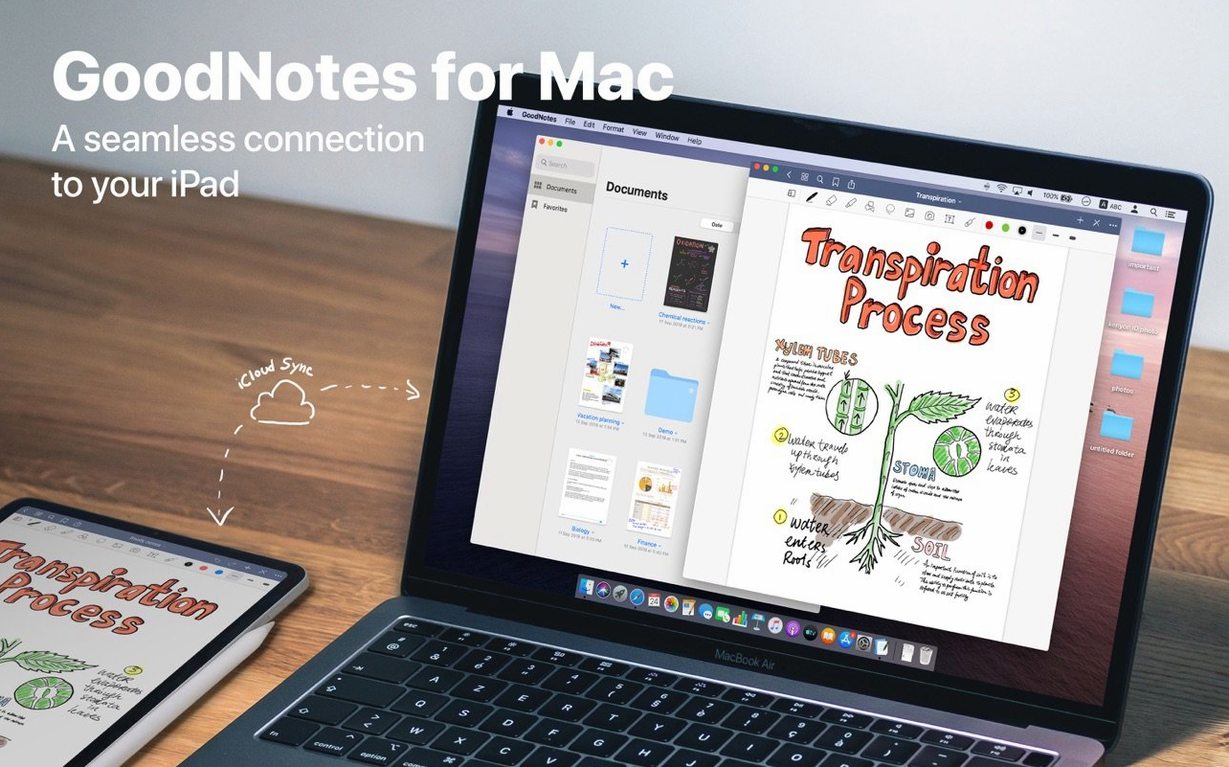
Paper notes pile up, get coffee-stained, and never show up when you actually need them. GoodNotes puts a different option on the Mac: a digital notebook that handles typed text, handwriting, and drawings without turning every page into a lost artifact. For anyone who drafts by hand but works on a computer, it closes the gap between scribble and finished document.
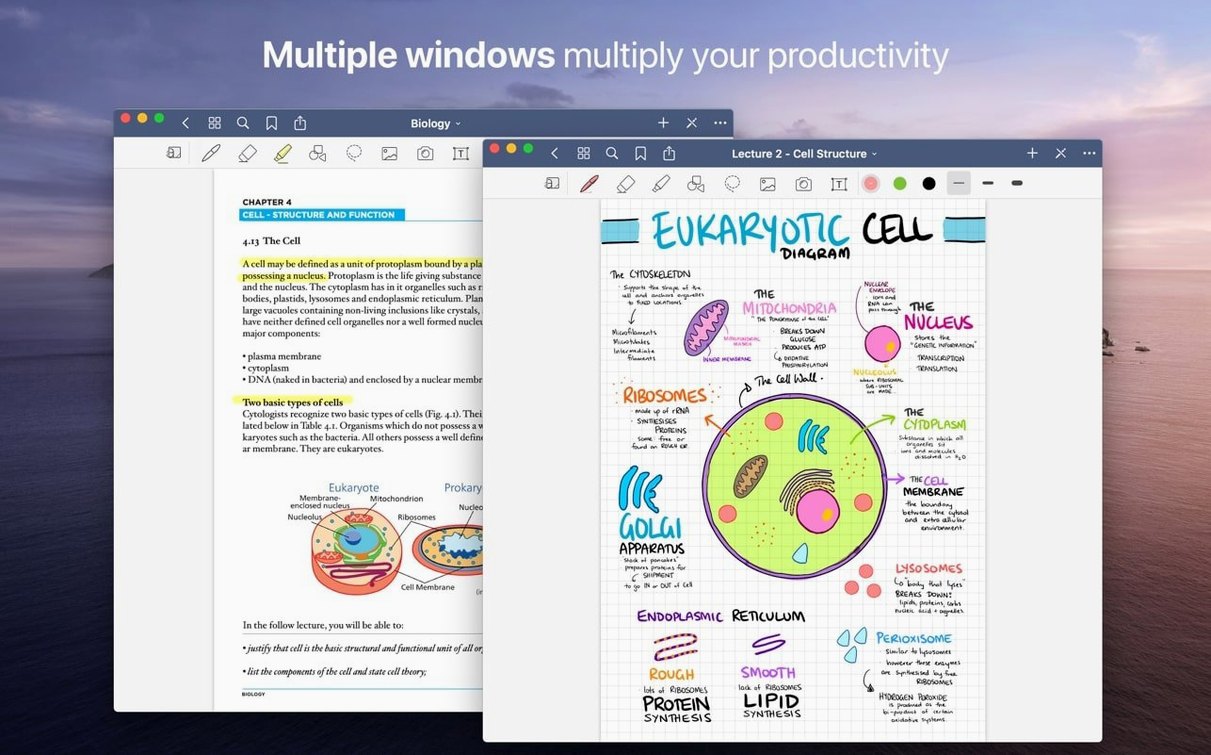
A typical session starts with dragging a PDF or a batch of images straight from the hard drive into the app. That becomes the working document. Annotate it, add handwritten comments, or resize and move a whole block of writing if the layout starts to drift. The lasso tool makes that feel less like a chore and more like rearranging paper without the glue.
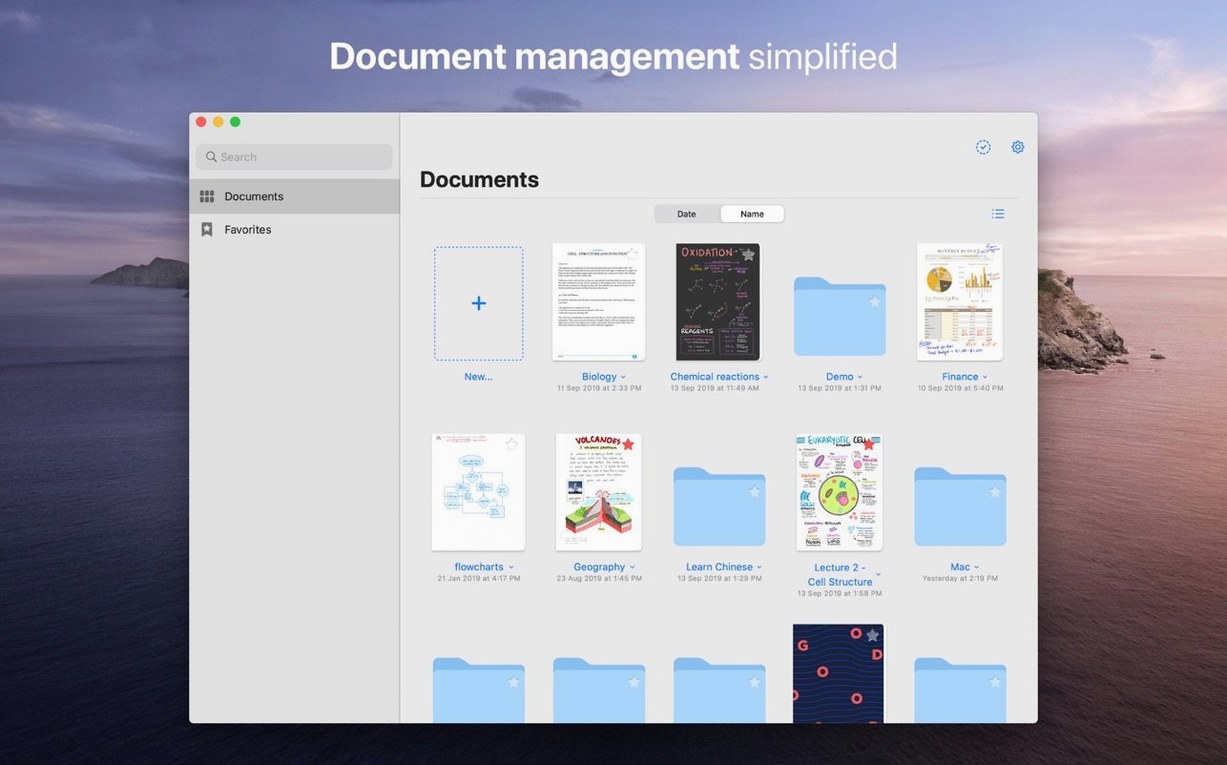
When a project grows, folders and subfolders keep the chaos in check. Mark the pages you return to most as Favorites, or build a custom table of contents so a long file doesn't turn into a scrolling marathon. Everything stays findable.
Finally, exporting is drag and drop too. Grab a single page or the whole document and pull it out as a PDF. And since the iPhone and iPad versions sync through iCloud, the notes you mark up on the Mac are the same ones waiting on the tablet.
Turn Off Auto-Advance So Your Tools Stay Put
Out of the box, GoodNotes makes a few assumptions about how you write. Three tweaks fix most of them.
Turn off Auto-Advance in the Pen & Eraser settings unless you want the app to switch tools on its own. Some people love it; most find it disorienting during a long note-taking session when muscle memory expects a tap to mean something else.
Next, head to Document Editing and switch the default zoom behavior. The Mac version can open documents in Fit to Width, but Fit to Page usually gives a better overview of a full notebook spread, especially on an external display where horizontal space isn't the bottleneck.
Last, disable Auto-Backup if you already trust iCloud sync between devices. It's a safety net that writes a duplicate copy of every note to a folder of your choice, but it can clutter a drive fast when you work with large annotated PDFs daily. Enable it only if you want a flat PDF archive outside the GoodNotes ecosystem.
First Days: Practical Workflow Habits
After dragging the app to Applications, spend ten minutes building a folder skeleton. Create broad buckets — Work, Personal, Research — and drop in one empty notebook each. That small upfront cost stops the default library from turning into a flat list of untitled documents by Thursday.
When you import a PDF, don't annotate the imported file directly. Duplicate it inside GoodNotes first. The copy becomes your working version, and the untouched original sits in the same folder as a clean reference. It's a one-second habit that saves re-downloading source material after a heavy markup session goes sideways.
For anyone working across an iPad and a Mac, open the same notebook on both devices at least once while on the same Wi-Fi network. That forces a full iCloud sync and surfaces any conflicts early, before you're on a flight with only one device and a mismatch between versions.
Shortcuts and Conveniences You'll Miss Otherwise
The Shapes tool does more than squares and circles. Draw a rough curve and hold the pencil at the end — GoodNotes snaps it into a clean arc. The same trick works for triangles, arrows, and straight lines. Release immediately if you want the rough sketch instead; the hold is what triggers the correction.
The eraser has a mode buried in its settings: Erase Entire Stroke. Tap a single letter in a handwritten word, and the whole stroke disappears instead of just the pixel under your cursor. It's the fastest way to clean up a sentence without scrubbing back and forth. Switch back to partial erase when you need the scalpel instead of the hammer.
Favorites aren't just for pages. You can favorite an entire folder or a single document, and they all surface in the same sidebar view. For a project that spans three notebooks, favorite all three and jump between them from one place instead of drilling into nested folders every time.
Hyperlinks in imported PDFs stay live, which means a table of contents from a textbook or a manual works inside GoodNotes exactly as it does in Preview. Tap a chapter link, and the document jumps. Nobody mentions that during setup, but it changes how usable a 400-page reference file feels.
Close the iPad Cover to Push Changes Instantly
Version 5.9.8 tightened the iCloud sync handshake between Mac and iPad. Previously, a notebook left open on both devices could stall updates for a few minutes. Now, closing the cover on the iPad triggers a push almost immediately, and the Mac reflects changes without a manual refresh.
Earlier 5.9 builds reworked how the lasso tool handles color changes on selected handwriting. Instead of applying a flat tint over black ink, it now preserves stroke texture — gel pen stays gel pen, fountain pen keeps its variation. That matters when you recolor notes to color-code a page and don't want everything to turn into a uniform marker blob.
Also fixed: export performance for notebooks with over a hundred pages. Dragging a large document out as PDF used to beachball briefly; the current build handles it in the background without locking the interface. Small thing, but it makes the end of a long session smoother when you're pulling deliverables.
- macOS 10.15 or later
- Apple Silicon or Intel 64-bit Mac
Questions I actually get
Does the Mac version sync with the iPad app?
Yes, changes sync between iPhone, iPad, and Mac using iCloud.
Can I export my notes from GoodNotes on Mac?
Yes, you can export documents and individual pages as PDF files by dragging them out of the app.
Notes from the edit bay · 0
Sign in or get an edit-bay pass to leave a note.
No notes from the edit bay yet. They go up after I read them.