ABBYY FineReader PDF is a desktop OCR powerhouse that turns paper scans and static PDFs into documents you can actually edit, search, and archive.
What's the first real step after launch?
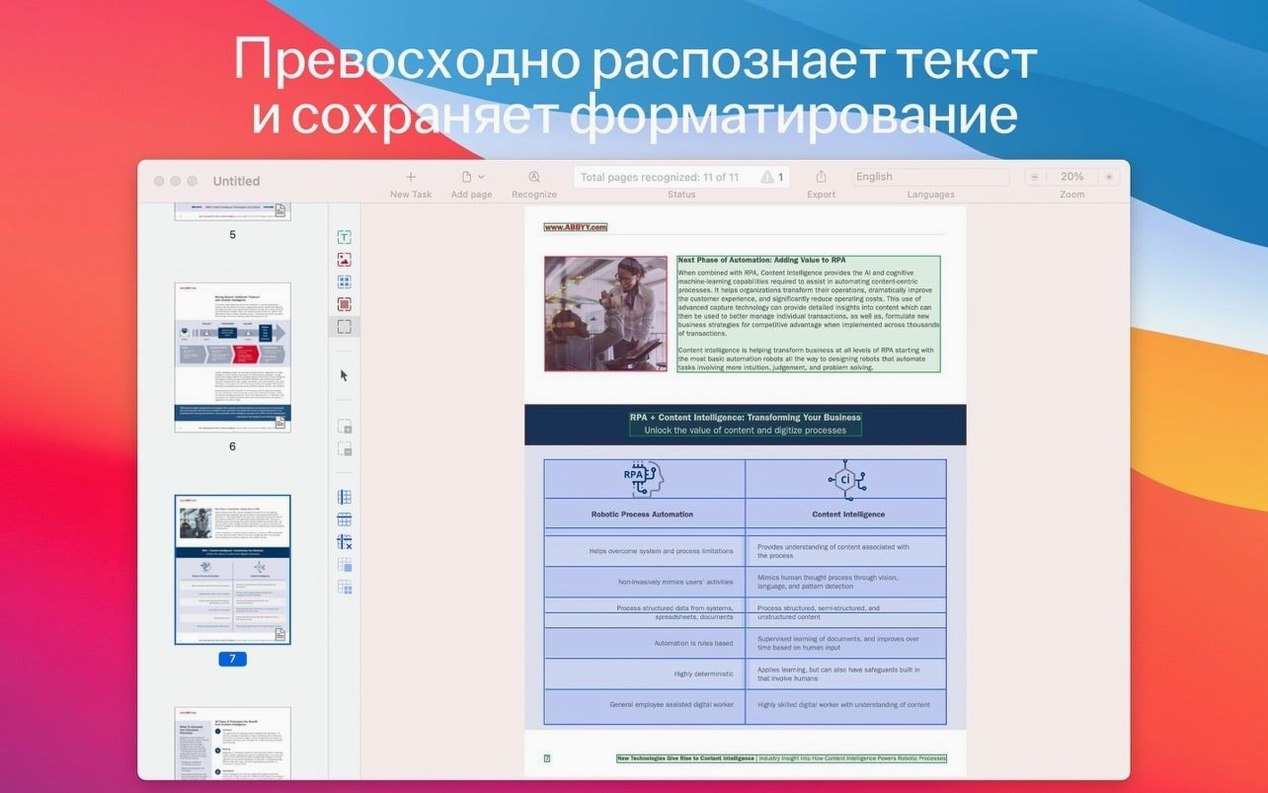
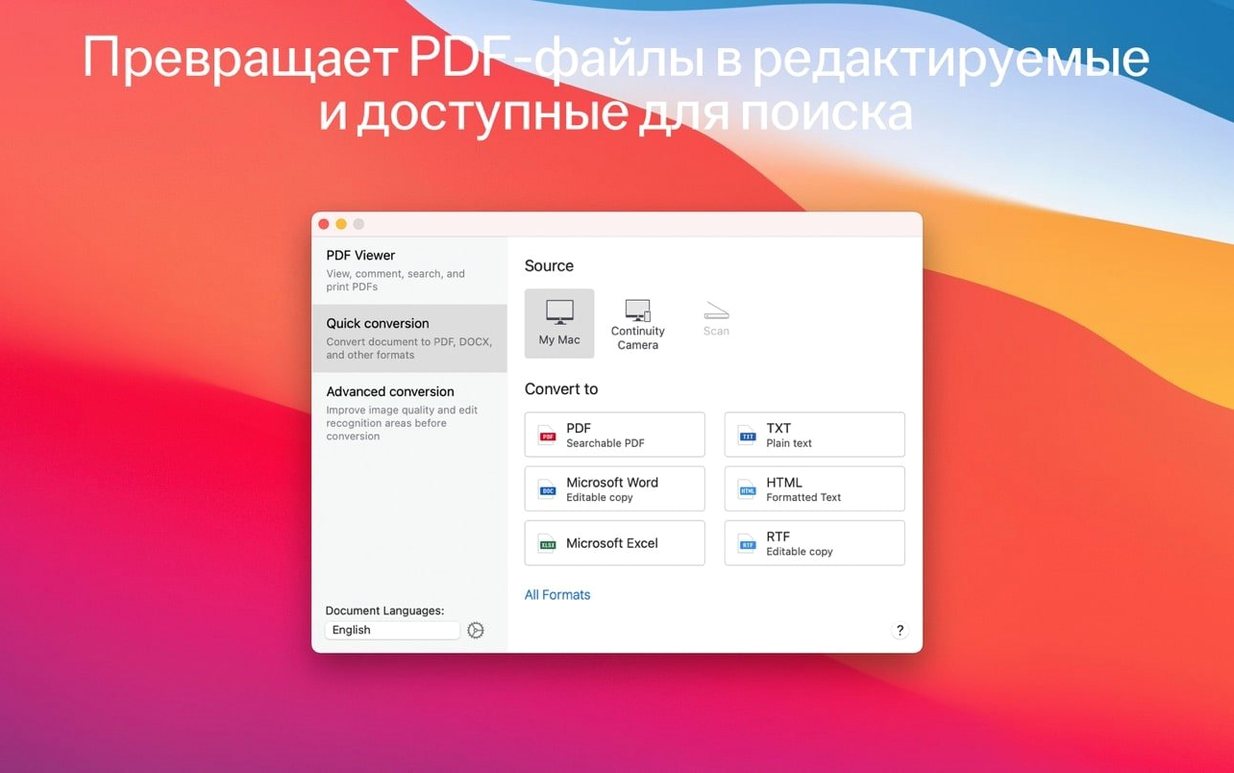
Open your scan or a photo of a document. The app switches into OCR Editor mode automatically, laying out recognized text zones, tables, and images on the page. You verify the splits are correct, hit Recognize, and it builds an editable layer while keeping the original look intact.
Where does the export fit into a working day?
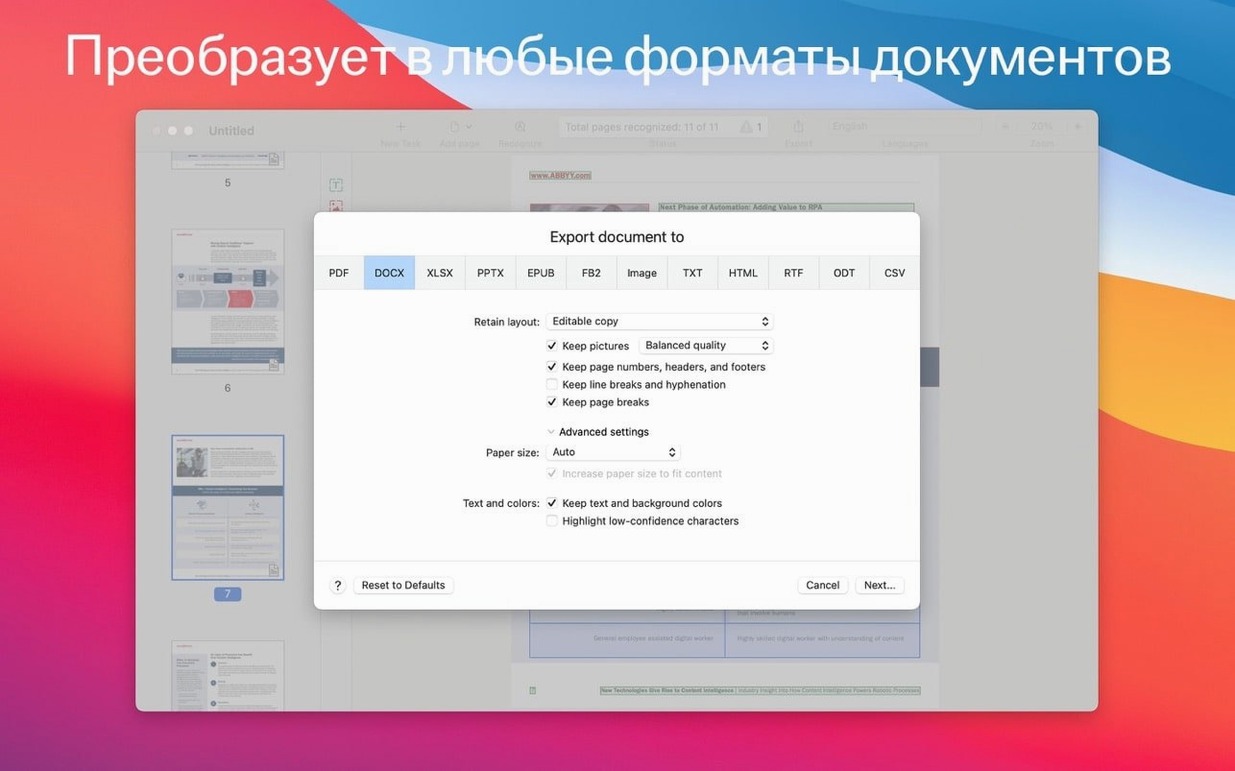
Once the recognition finishes, you pick a format that matches the next task—DOCX for a contract revision, searchable PDF to drop into a shared drive, or a plain text fragment for translation. The export panel lets you choose page range and format in one motion, so the file lands exactly where your deadline needs it.
Who needs the PDF/A or PDF/UA options?
Anyone handing off final records. PDF/A bakes in fonts and color profiles for long-term archiving; PDF/UA adds tags for screen readers. A quick checkbox during save covers both, which beats digging through a separate preflight tool when a project wraps.
Who Squeezes the Most Value Out of This App?
Lawyers and paralegals live here. A fifty-page contract arrives as a flat scan from opposing counsel at 4:45 PM. FineReader rips it into an editable DOCX, tables intact, before you'd finish your coffee. The table recognition alone saves them from retyping schedules and exhibits.
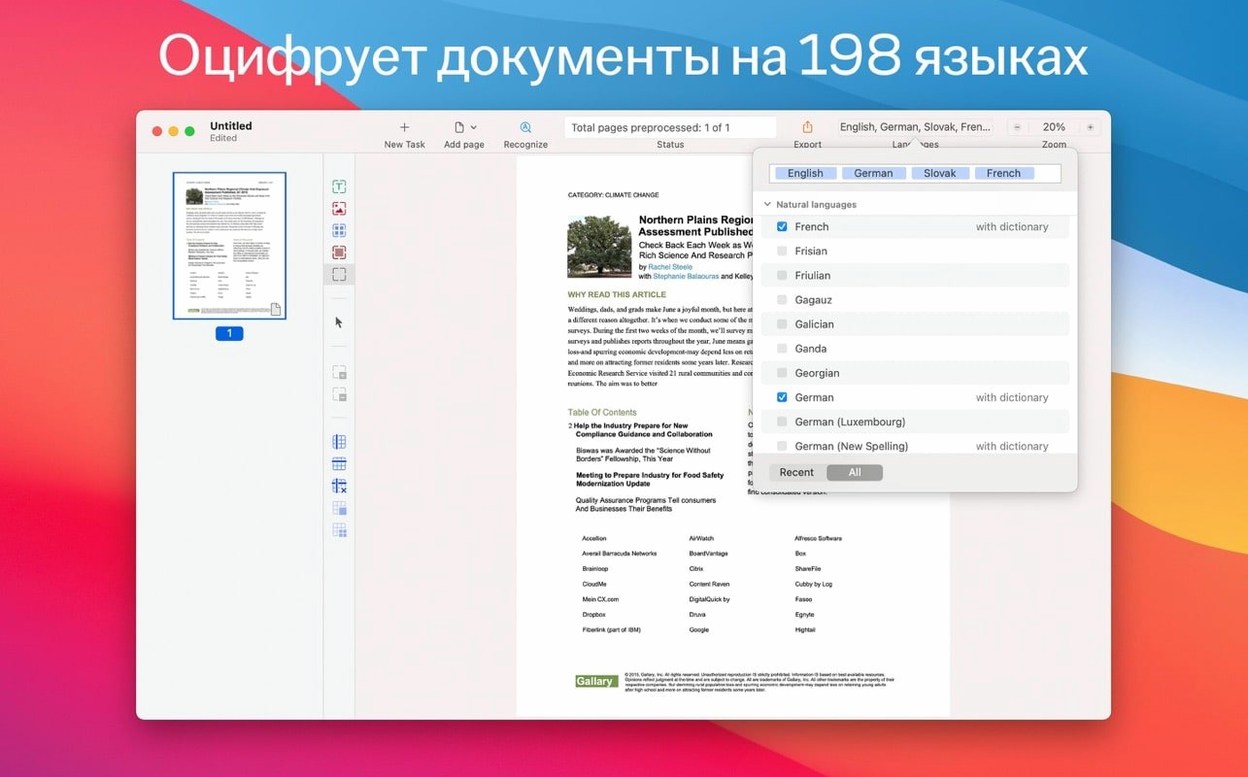
Academics and graduate students are the next tribe. Journal articles, book chapters, archival materials—all of it becomes searchable text you can quote without squinting at a photocopy. The 198-language support means a sociology paper with French and German citations doesn't slow you down. Copy a paragraph, paste it into your notes, and the citation string is already clean.
Translators get a genuine head start. Feed it a scanned contract in German, export to DOCX, run your CAT tool on the result. The layout stays close enough to the original that you're not reconstructing formatting from scratch—you're translating, which is what you bill for.
Small business owners who handle their own paperwork round out the group. Invoices, receipts, old employee records stuffed in a filing cabinet—one pass through a scanner and FineReader turns them into a searchable archive. The PDF/A export means those records still open ten years from now.
Right-Click to Scan Straight from Your iPhone
Continuity Camera is the quiet killer feature. Right-click in the FineReader window, choose Import from iPhone, and your phone wakes up ready to scan. Snap the document on your desk, and it lands in the app as a clean image ready for OCR. No AirDrop dance, no emailing yourself a photo.
For previously captured scans sitting in your Photos library, the import path is just as direct. Grab a batch of document shots from your phone's camera roll without ever touching a cable. That's a real timesaver when you photographed a stack of receipts during a business trip and need to process them on your Mac later.
The DOCX export works with Pages, Word, and LibreOffice without fuss. Tables come through as actual tables, not text-box jigsaw puzzles. The searchable PDF output integrates with Spotlight automatically—once the file sits on your drive, you can find it by the words inside it, even if the original was a photo of a printout.
Dark mode support means the interface matches your system setting. When you're reviewing recognized text zones at midnight, the dark background cuts the glare. Small thing, but it adds up over a long session.
Little Tricks That Are Easy to Miss
The built-in PDF viewer does more than preview. You can open any PDF, select a block of locked text that wasn't OCR'd yet, and tell the app to recognize just that area. No need to run the full document through recognition when you only need three paragraphs from page twelve.
Double-click any recognized text zone in the editor, and it zooms to a tight comparison view—original image on top, recognized text below. This is the fastest way to catch OCR errors in names, numbers, or legal citations before they propagate to your export.
Hold Option while dragging a recognition zone boundary, and it snaps to the nearest detected text block edge. This sounds minor until you're manually adjusting sixty zones on a complex layout and every pixel of precision saves you a re-export.
The language selector is not just a dropdown—you can stack multiple recognition languages for a single document. Set English as primary and French as secondary, and the engine switches mid-page when it hits a foreign-language paragraph. No need to pre-split the document.
Skipping Zone Review Scrambles Your Columns
The biggest mistake is skipping the zone review step. New users drop a scan in, hit Recognize immediately, and wonder why the export has scrambled column order or merged sidebars into the main text. Spend thirty seconds checking that the blue zones match the actual content areas. The engine is good, but it's not psychic about your document's reading order.
Exporting everything as a searchable PDF and assuming that means the text is editable. Searchable PDF layers the recognized text behind the original image—great for archiving and Spotlight, useless if you need to rewrite paragraph three. That's what DOCX or RTF exports are for.
Ignoring the resolution of the source image. A shaky phone photo of a wrinkled receipt at 72 DPI will produce garbage OCR no matter how good the engine is. Aim for at least 200 DPI on the original capture. Continuity Camera scans default to a decent resolution, but random photos from your library might not.
Leaving the recognition language on the default when working with multilingual documents. If your PDF has Spanish footnotes and you only have English selected, those footnotes become gibberish. Add the extra language before you run recognition, not after.
A Translator's Afternoon, Step by Step
Maria gets an email at 2 PM: a thirty-page scanned French contract, due back as a translated English draft by 6. The scan is slightly skewed, a mix of single-column text and multi-column tables with financial figures.
She opens FineReader, imports the PDF, and watches the automatic zone detection lay blue rectangles over the page. Page four has a two-column table that the auto-detection merged into one. She drags a new zone boundary, holds Option to snap it to the column edge, and splits the block. Thirty seconds per page for the tricky ones, two minutes total for the review.
She sets recognition language to French, hits Recognize, and the text layer builds in under a minute. One quick pass through the comparison view on the first page catches a "1" that should have been "l" in a proper name. She corrects it manually in the editor.
Export to DOCX. The file opens in Word with the original layout structure preserved—paragraphs are paragraphs, tables are tables, the header block didn't turn into a floating text box. She feeds the DOCX into her translation environment, and by 5:30 the English draft is back in the client's inbox. The OCR and formatting prep took twelve minutes. Without it, she'd have spent the first hour retyping tables.
- macOS 11 or later
- Intel 64-bit processor
- Apple Silicon supported via Rosetta 2
Questions I actually get
How many languages does the OCR engine read?
It supports 198 recognition languages, so you can process multi-language documents without switching dictionaries.
Does the app work on Apple Silicon Macs?
The current build is an Intel 64-bit app that runs on macOS 11 and later via Rosetta 2.
Can I grab just a paragraph of text without exporting the whole file?
Yes, you can select and copy text fragments straight from the OCR editor for citation, copying, or dropping into a translation tool.
Notes from the edit bay · 0
Sign in or get an edit-bay pass to leave a note.
No notes from the edit bay yet. They go up after I read them.