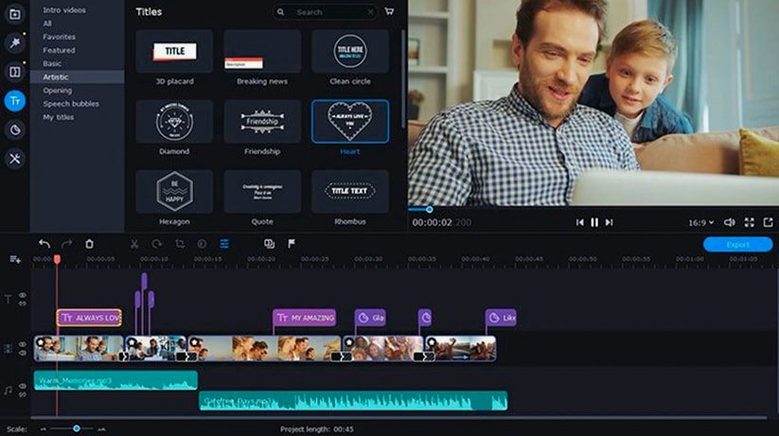
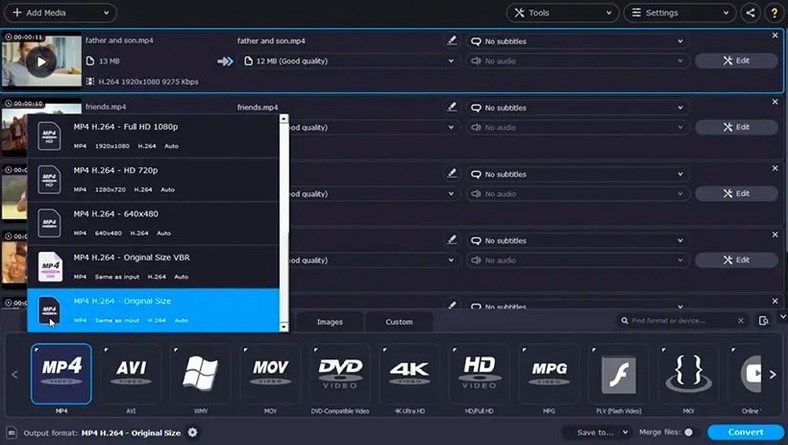
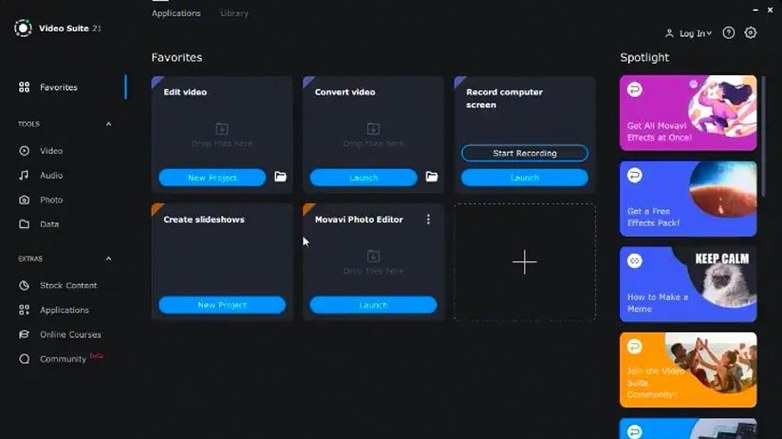
Content creators who bounce between trimming a talking-head clip, converting a client’s oddball file format, and grabbing a quick screen demo will find Movavi Video Suite built exactly for that shuffle. Instead of launching three separate apps and praying they play nice, you stay in one workspace. The editing tools cover the basics—cuts, transitions, titles, effects—with enough polish to turn out a clean corporate video or a YouTube recap. When the timeline is locked, the built-in converter takes over, handling format swaps and even letting you burn in subtitles during the process so you don’t have to make a separate pass. The screen recorder rounds out the trio, and it’s not just a silent capture: you can add live audio commentary, which is a genuine time-saver for walkthroughs and training videos.
| Fact | Detail |
|---|---|
| Current version | 22.4.1 |
| Developer | Movavi |
| macOS | 10.13 or later (Intel) |
| Interface | English |
Where It Fits
This is the Swiss Army knife for solo creators on Intel Macs who value a unified launch point over deep, single-purpose feature sets. It won’t replace a dedicated NLE for complex multi-cam projects, but for the straight-line work of cutting, converting, and capturing, it keeps the gears turning.
Set Your Preferred Output Folder and Frame Rate First
Out of the box, Movavi Video Suite leans toward default output paths and frame rates that might not match your project. Hit the preferences panel before you start any real work. The first stop is the Files tab, where you can redirect the capture and output folders away from the system drive—essential if you're recording long screen sessions and don't want to choke your main disk. Point it to an external scratch drive instead.
Next, check the Capture settings. The default audio source usually grabs the system output, but if you plan to record voice commentary through a mic, you need to switch that input manually. The app won't prompt you. While you're there, set your preferred frame rate for screen recording—30 fps is the factory setting, but 24 fps gives you smaller files and a more natural look for software demos that don't need silky motion.
In the converter section, uncheck "Add to iTunes Library" unless you actually use that workflow. It's checked by default and adds a step you probably don't need. Also worth toggling on: the checkbox that preserves folder structure during batch conversion. Without it, a hundred clips from nested client folders turn into one flat pile of files, and that cleanup is nobody's idea of a good time.
When Screen Recording Is the Side Dish, Not the Main Course
Movavi Video Suite vs. Camtasia
Camtasia is a screen recorder that grew editing muscles. Movavi is a video editor that happens to record screens and convert files. If your world revolves around software tutorials with heavy annotation—callouts, quizzing, interactive hotspots—Camtasia runs deeper. But Movavi pulls ahead the moment you need real format flexibility or batch conversion. Camtasia simply doesn't play in that sandbox, so anyone who regularly receives footage from clients shooting on phones, drones, and screen recorders will spend less time hunting for a separate converter.
Movavi Video Suite vs. ScreenFlow
ScreenFlow gives you a cleaner timeline for multi-track recording, especially when you're capturing mic audio, system audio, and a camera feed simultaneously. The editing model there is more refined for that one specific job. Movavi treats screen recording as one tool among three, not the centerpiece. The trade-off: ScreenFlow has no batch conversion and a narrower list of export formats. If you deliver to multiple platforms with different format requirements—say, a ProRes master for a client and an H.264 review copy—Movavi handles that after the edit without launching another app.
Where the Converter Stands Alone
Compared with dedicated tools like HandBrake, Movavi's converter is less tweakable at the codec level—don't expect fine control over x265 parameters or subtitle track selection granularity. But it supports over 180 formats with drag-and-drop simplicity, and the ability to hard-burn subtitles during conversion is something HandBrake users have to script separately. For a freelancer who just needs a watchable MP4 from a MKV before lunch, that's a real shortcut.
Burn Captions Straight Into Video During Conversion
- Subtitles during conversion: Add an SRT file to the conversion queue, and the app burns it into the video. No separate rendering pass, no muxing tools. This alone saves a step for anyone delivering captioned social cuts.
- Mouse cursor effects: In the screen recorder, you can add a colored halo or a click animation around the cursor. It's a small touch, but it spares you from drawing circles in the edit later when a client asks "where did you click?" on a training video.
- Phone-to-app transfer: The built-in network transfer lets you pull files from a phone over Wi-Fi straight into the media bin. No AirDrop hiccups, no USB cable hunt in the middle of a session.
- Batch conversion with folder structure: Already mentioned, but worth calling out again. Keeping the original folder tree intact across dozens of files is the kind of thing you don't appreciate until you've had to rebuild it by hand once.
- Applied effects indicator: Version 22.4.1 updated the symbol for applied effects, so a quick glance at the timeline tells you which clips have filters stacked on them. Small visual cue, less guesswork.
From Screen Recording to Captioned MP4 Before the Morning Meeting
Here's how the pieces actually fit together for one kind of user. A corporate trainer starts the day with a request: record a five-minute walkthrough of the new expense-reporting portal, add captions, and deliver it as an MP4 that the company LMS will accept. She also needs to pull a short clip from last week's Zoom recording—sent to her as a WMV file—to include as a reminder of the old process.
She opens Movavi Video Suite. The screen recorder captures her browser and her voice-over mic in one pass, with a subtle click halo so employees can follow every menu selection. The capture lands on her external drive, exactly where she pointed the preferences. She drags the WMV into the converter, picks H.264, and queues it alongside a batch of other client files she needs in a different format. While the converter works, she trims the screen recording on the timeline, drops in the converted clip, and adds a title card with the new music tracks that shipped in 22.4.1. She attaches an SRT file to the final export in the conversion panel, and the captions hard-burn during the render. One app, one morning, three tools, no round trips. That's the rhythm the suite is built for.
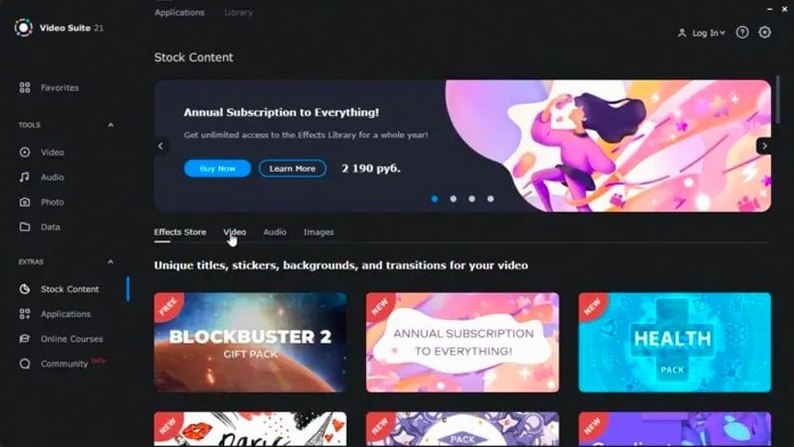
The title editor is finally stable—no more unexpected shutdowns while tweaking text. Fresh music tracks landed in the library, and the little symbol that marks an applied effect got a visual refresh so you can spot it faster on a crowded clip.
Also fixed: a crash when working with titles.
- macOS 10.13 or later
- Intel processor (x86 64-bit)
Questions I actually get
Can I record my voice while capturing the screen?
Yes. The screen recorder lets you add live audio commentary, so you can narrate a tutorial or presentation as it happens.
Does the converter handle subtitles?
It does. You can add subtitles during the conversion pass, which saves you from muxing them in later with another tool.
Is this an Apple Silicon native app?
No, version 22.4.1 runs on Intel Macs using x86 64-bit architecture. It requires macOS 10.13 or later.
Notes from the edit bay · 0
Sign in or get an edit-bay pass to leave a note.
No notes from the edit bay yet. They go up after I read them.