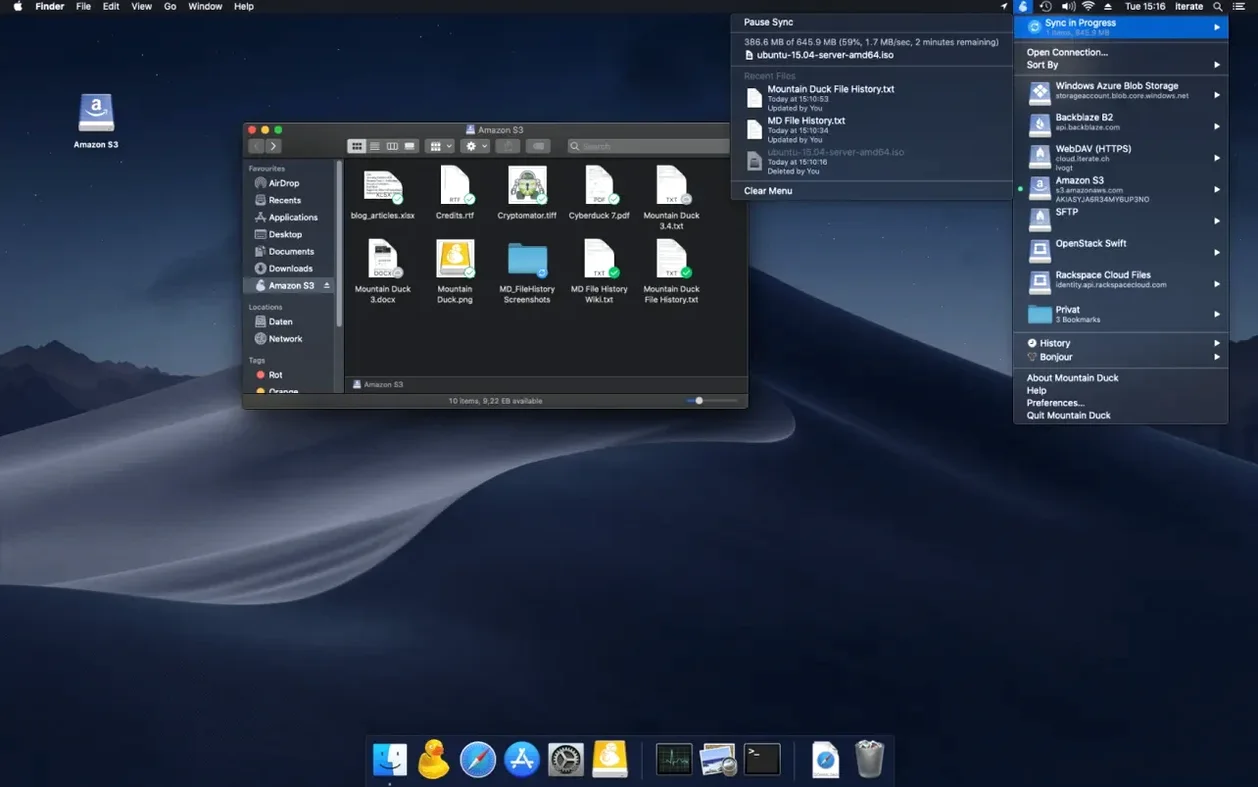
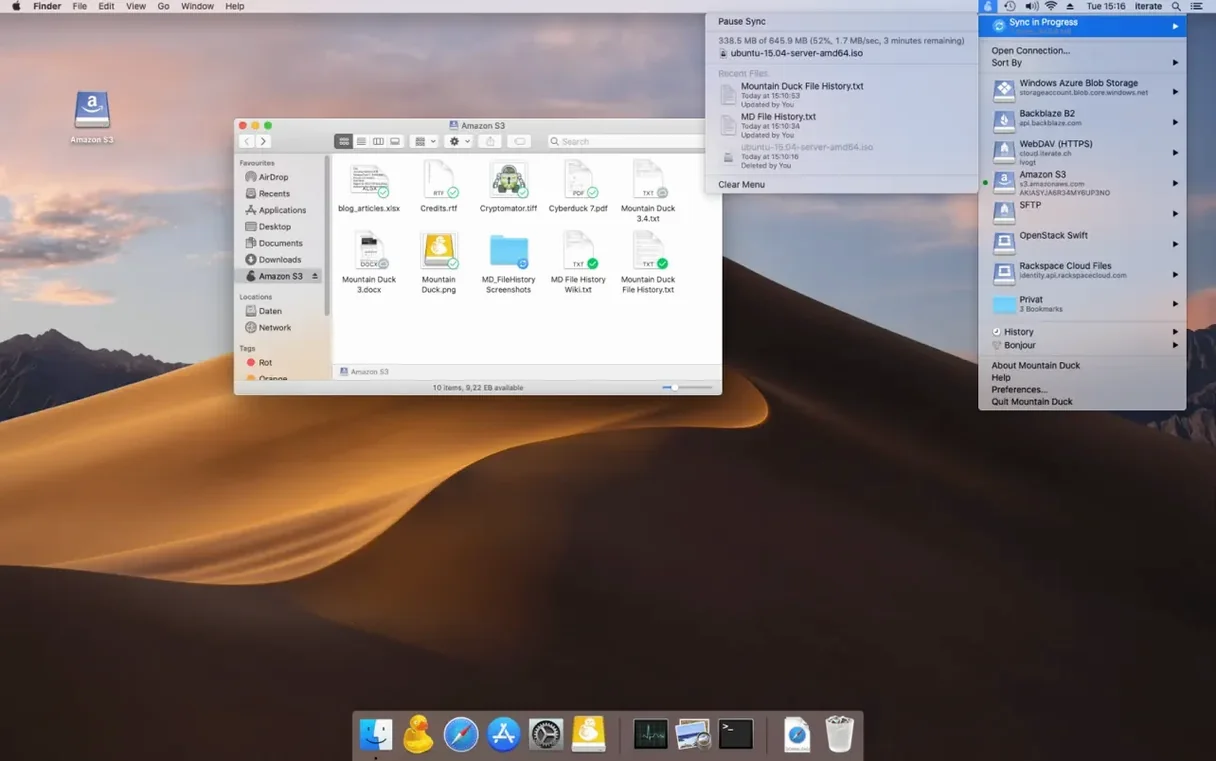
You drop a batch of ProRes files into a folder on your desktop, and minutes later the director in L.A. sees them appear in an S3 bucket — no browser uploads, no separate transfer app. Mountain Duck makes that possible by turning cloud storage into a plain old Finder volume.
| What | Detail |
|---|---|
| Current version | 5.3.2 |
| macOS required | 13 or later |
| Architecture | Apple Silicon and Intel |
| Key protocols | S3, Dropbox, Google Drive, SFTP, WebDAV, Backblaze B2, Azure, and more |
Version 5.3.2 doesn’t ship a flashy list of changes — and that’s part of the appeal. The core behavior is locked in: you connect a service, it shows up in Finder, and you work with files like they’re local. The v5 lineage brought Integrated Connect Mode, which tightened the link between the menu bar app and the mounted volumes so disconnects and reconnects feel less like a guessing game. Smart Synchronization still downloads files on open and caches what it needs, while anything you mark for offline use stays on disk regardless of network state. Bookmarks sync with Cyberduck if it’s installed, so your connection list doesn’t have to be rebuilt from scratch. Under the hood, it’s the same broad protocol support — FTP, Google Cloud, OpenStack Swift, the whole roster — running on both Apple Silicon and Intel Macs. For the editor who just wants the render destination to appear in a save dialog, that stability matters more than release notes.
Workflow: Ingesting a Day’s Shoot Straight to S3
Here’s a Friday night ritual that Mountain Duck collapses into minutes. A DIT hands you a drive with 180 GB of camera originals from a two-camera interview shoot. The files need to be on an S3 bucket before the assistant editor starts pulling selects Monday morning, and you’d rather not babysit a browser upload bar.
First, create a new bookmark in the Mountain Duck menu bar panel. Point it at the production bucket — say, client-cuts-2025 — and pick the right region. The connection test runs, and seconds later the bucket mounts as a plain volume named after the bookmark. So far, nothing has downloaded. The bucket just sits there in Finder, empty or showing whatever was already inside.
Next, open two Finder windows side by side. Drag the day’s folder from the shuttle drive straight into the mounted bucket. Finder starts copying, and Mountain Duck queues the uploads in the background. Here’s where Smart Synchronization earns its keep: as each file lands, it doesn’t automatically download a local copy onto your Mac. Only when something — or someone — opens a file does Mountain Duck pull it down. You’re not clogging your internal SSD with 180 GB of rushes you won’t touch again.
Once the copy finishes, eject the source drive and close your lid. The upload continues whenever the network is available. If the Wi-Fi drops, Mountain Duck pauses and resumes without losing progress. Monday morning, the assistant editor mounts the same bucket from their machine, and the folder structure is exactly what you dragged in. No zip files, no manual chunking, no transfer logs to decipher.
A Colorist’s Afternoon
Picture a remote colorist running DaVinci Resolve on a Mac Studio. The director sends XML timelines and reference stills through a shared Dropbox folder, but the graded exports need to land in a client’s Backblaze B2 bucket — not a service the client knows how to access through a web portal.
The colorist mounts that B2 bucket with Mountain Duck, then sets Resolve’s render destination directly to the mounted volume. After each render pass, the file appears in the client’s browser-based B2 console within seconds. The colorist doesn’t break flow: no separate upload step, no exporting to the desktop and then dragging. The save dialog sees B2 as just another folder. When a second round of notes comes in, the colorist opens the project straight off the Dropbox mount, tweaks the grade, and re-renders to the same B2 path. Mountain Duck handles the overwrite cleanly because versioning is storage-independent in v5 — the B2 bucket keeps the old file version, and the colorist never has to think about conflicting filenames.
Small Tricks Worth Knowing
A few moves that don’t jump out from the menu bar icon but save real friction once you know them.
Offline-only folders. Right-click any folder inside a mounted volume and pick the option to keep it offline. Mountain Duck pins that folder and its contents to your local disk, skipping the on-open download delay. Use this for music libraries, LUT packs, or a project’s reference stills that you open dozens of times a day. The rest of the bucket stays cache-as-needed.
Bookmark sharing with Cyberduck. If you already have a Cyberduck bookmark list from years of one-off transfers, Mountain Duck picks it up automatically. No import step. Every connection you’ve ever saved in Cyberduck shows up as a mountable volume here. The reverse works too — add a new Mountain Duck bookmark and it’s waiting in Cyberduck next time you launch it. If you’ve been hunting a mountain duck mac workflow that bridges quick mounts and full transfer sessions, this is the quiet link between them.
Drag-and-drop bookmark creation. You can drag a connection file or a bookmark export straight onto the Mountain Duck menu bar icon to add it. No digging through preference panes. Colleagues can send you a pre-configured S3 or SFTP bookmark, and you’re connected in one gesture.
Integrated Connect Mode. Version 5 tightened the bond between the menu bar controller and the mounted volumes. If a volume un-mounts unexpectedly — say, a VPN drop — double-clicking the bookmark in the menu bar remounts it with the same Finder path. No duplicate volume names piling up. It’s the kind of fix you only notice when it’s missing.
When someone grabs a Mountain Duck torrent expecting it to be just another FTP mounter, these small touches are what separate it from the free System Preferences network mounts. The app doesn’t force you to think about protocols; it only asks where you want to save, and then it stays out of the way.
- macOS 13 or later
- Apple Silicon or Intel 64-bit Mac
Notes from the edit bay · 0
Sign in or get an edit-bay pass to leave a note.
No notes from the edit bay yet. They go up after I read them.