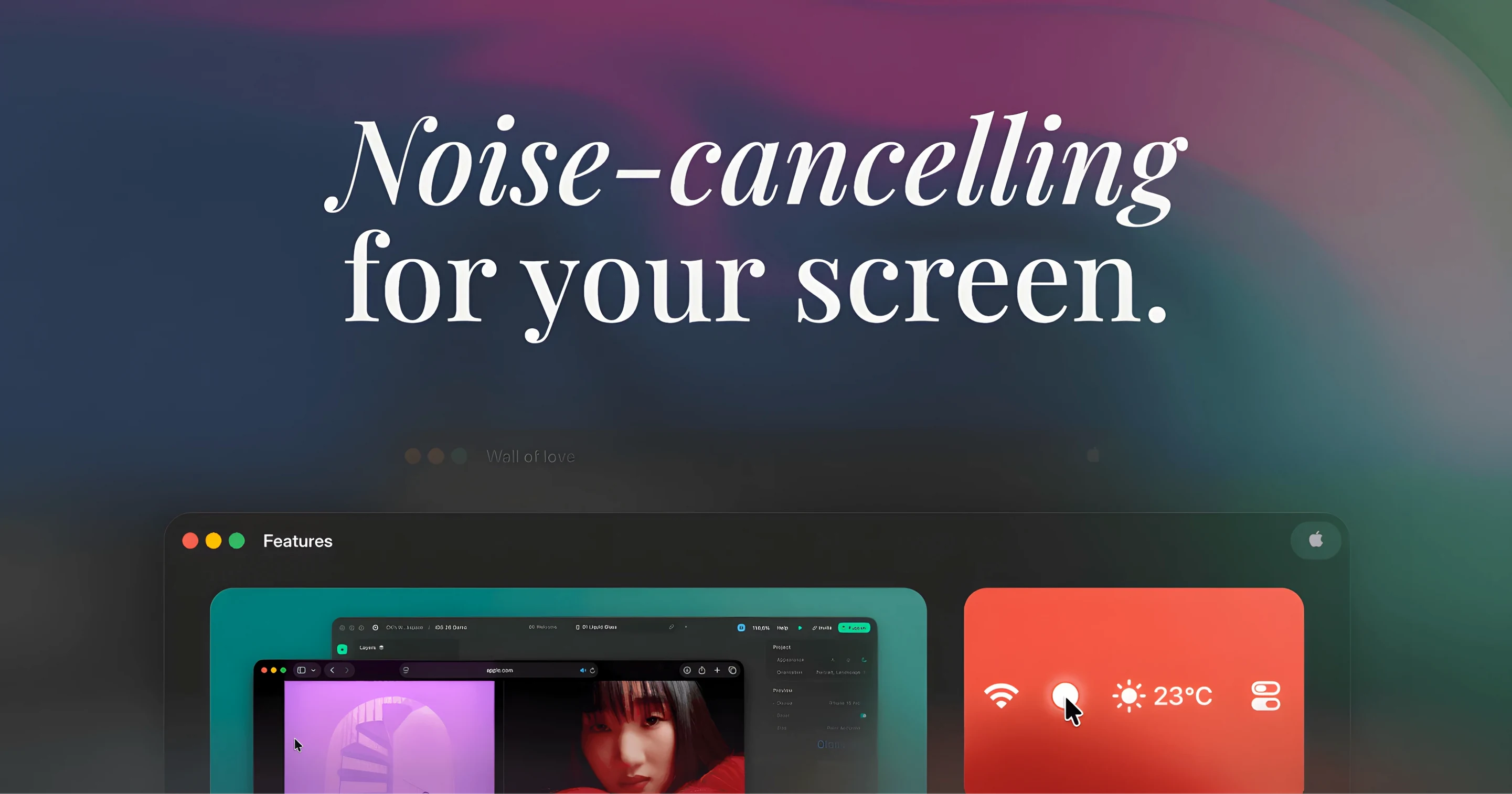
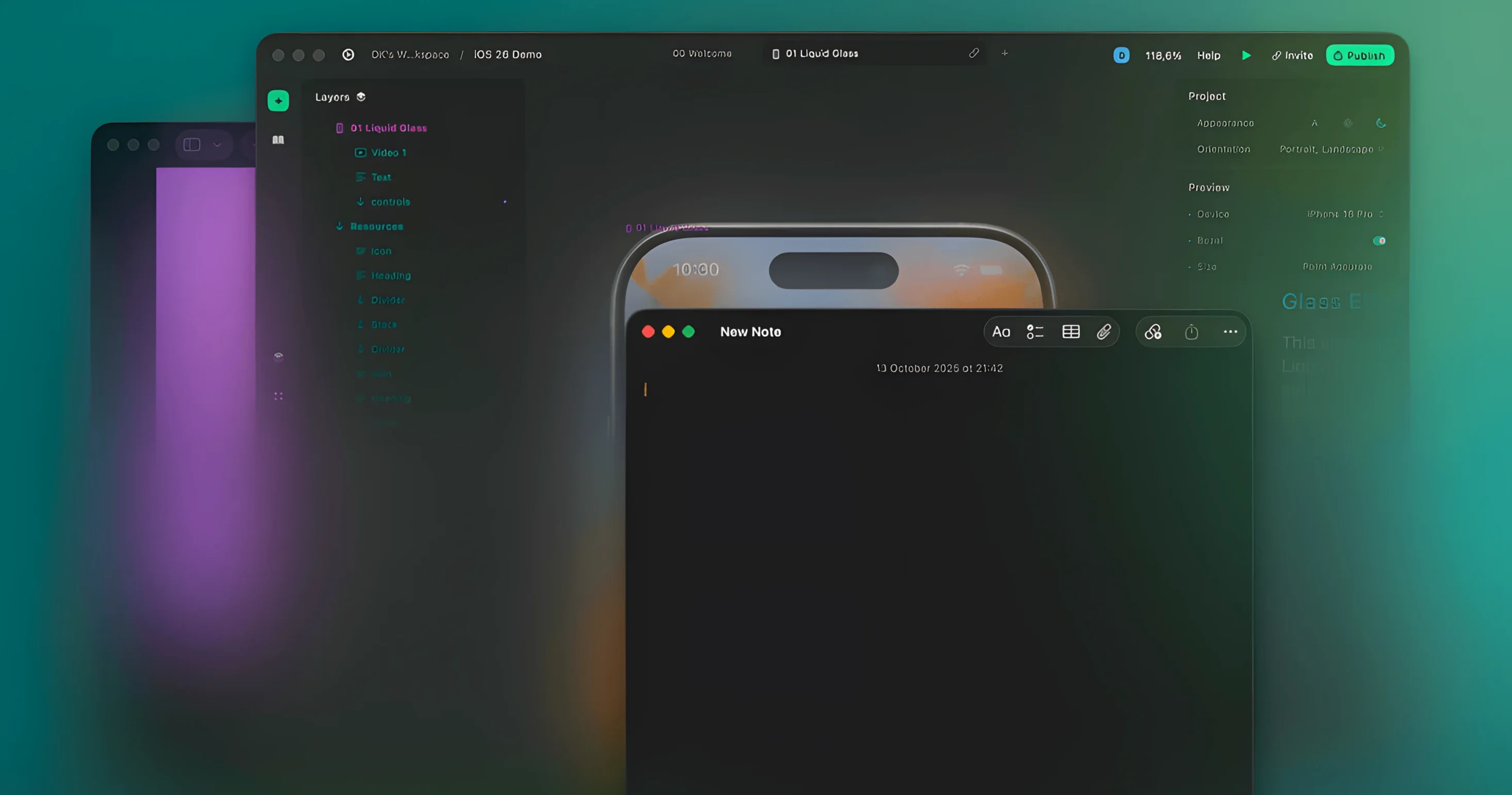
Writers, coders, and anyone juggling a cluttered desktop will get it immediately. Monocle lives in your menu bar and does one job cleanly: it pushes everything except the active window into the background. Not by hiding it, but by dimming or blurring it out of your line of sight.
macOS 14.6, Both Chips, and a Menu Bar Only
Check a few things before you download. Compatibility is straightforward but specific:
- macOS 14.6 or newer — Older systems are not supported.
- Apple Silicon and Intel — Runs natively on both architectures.
- Menu bar utility — It's lightweight, no floating panels or heavy preference panes.
System-Wide Attention Dimmer with a Fade Gradient
The core idea is a system-wide dimmer for your attention. Click a window, and everything behind it fades back. You can choose a simple dim or a blur effect, and tweak a gradient so the transition feels subtle instead of harsh. Fullscreen mode gets the same treatment—your writing app or timeline stays bright while the desktop vanishes. If a particular app misbehaves or you need it crisp, just add it to the exclusion list. This latest update strips out an experimental GIF feature and tightens up a few settings quirks, so what's left is a focused tool that stays out of your way until you glance at the menu bar.
Swap Dim for Blur in the First Minute
Out of the box, Monocle dims background windows with a gentle dark overlay. That's fine for a first impression, but three adjustments make it feel like your own tool within sixty seconds.
First, open the menu bar dropdown and switch from Dim to Blur. Dimming works, but blur actively scrubs legibility from background text—a stray Slack thread or an email preview stops pulling your eye. Second, pull up the intensity slider. The default lands around 70%; dropping it to 40–50% keeps secondary windows readable at a glance without competing for focus. Third, visit the exclusions list and add anything that needs real-time visibility. A media player, a system monitor, or a reference document you're actively pulling from—all candidates. Those three moves take under a minute and the app instantly shifts from "neat idea" to daily driver.
Rough Cut at Noon with Finder, Notes, and a Scratch Track
You sit down with a rough cut due at noon. The timeline is open in Final Cut, but so are Finder windows with dailies, a notes app with client timestamps, and a browser tab playing the scratch track.
- Launch Monocle if it isn't already running. The menu bar icon confirms it's active.
- Click the timeline window. Every other window softens into a blurred backdrop. The Finder columns and note text are still there, but they've lost their pull on your peripheral vision.
- Cmd-Tab to the notes app to check a timestamp. The notes window snaps clear; the timeline blurs behind it. You grab the number, Cmd-Tab back, and the timeline sharpens again with no extra click.
- Drag a clip from a blurred Finder window directly into the timeline. Monocle doesn't block the interaction—the window sharpens the moment you click into it, then fades when you return to the main workspace.
- Go fullscreen on the timeline. The menu bar hides, but Monocle's blur holds. Nothing competes with the canvas except the clip you're trimming.
- Finish the export, close the project, and glance at the now-sharp desktop. Monocle sits quiet in the menu bar until the next session.
No toggles to flip mid-flow, no forgetting to turn it off. The app follows focus, and that's the whole story.
Who Actually Needs This?
A podcast editor working across two displays is a perfect test case. On the left screen sits the DAW—Reaper or Logic, tracks stacked and faders visible. On the right screen: a recording notes document, a browser for fact-checking guest claims, and a messaging app pinging with producer notes. Without Monocle, every window fights for attention at the same brightness. With Monocle set to blur, clicking into the DAW pushes both displays into focus mode. The right screen's clutter becomes a soft suggestion rather than a demand. The editor can still glance over and spot a highlighted date in the notes document through the blur, but it no longer reads as a second task. That's the difference between an app that hides things and one that quiets them.
Version 3.5.1 is a tidy-up release. The experimental before-and-after GIF feature has been removed, a few settings issues are fixed, and minor improvements polish the overall feel.
- macOS 14.6 or newer
- Apple Silicon or Intel Mac
Questions I actually get
Does Monocle work in fullscreen mode?
Yes, it supports fullscreen mode so your active app stays bright while other spaces and the desktop are dimmed or blurred.
Can I stop Monocle from dimming a specific app?
Absolutely. You can exclude selected apps from the blur or dim effect so they always remain fully visible.
How do I control the dimming effect?
Monocle lives in the menu bar. Click its icon to toggle the effect, adjust between dim and blur, or set up gradient dimming.
Notes from the edit bay · 0
Sign in or get an edit-bay pass to leave a note.
No notes from the edit bay yet. They go up after I read them.