
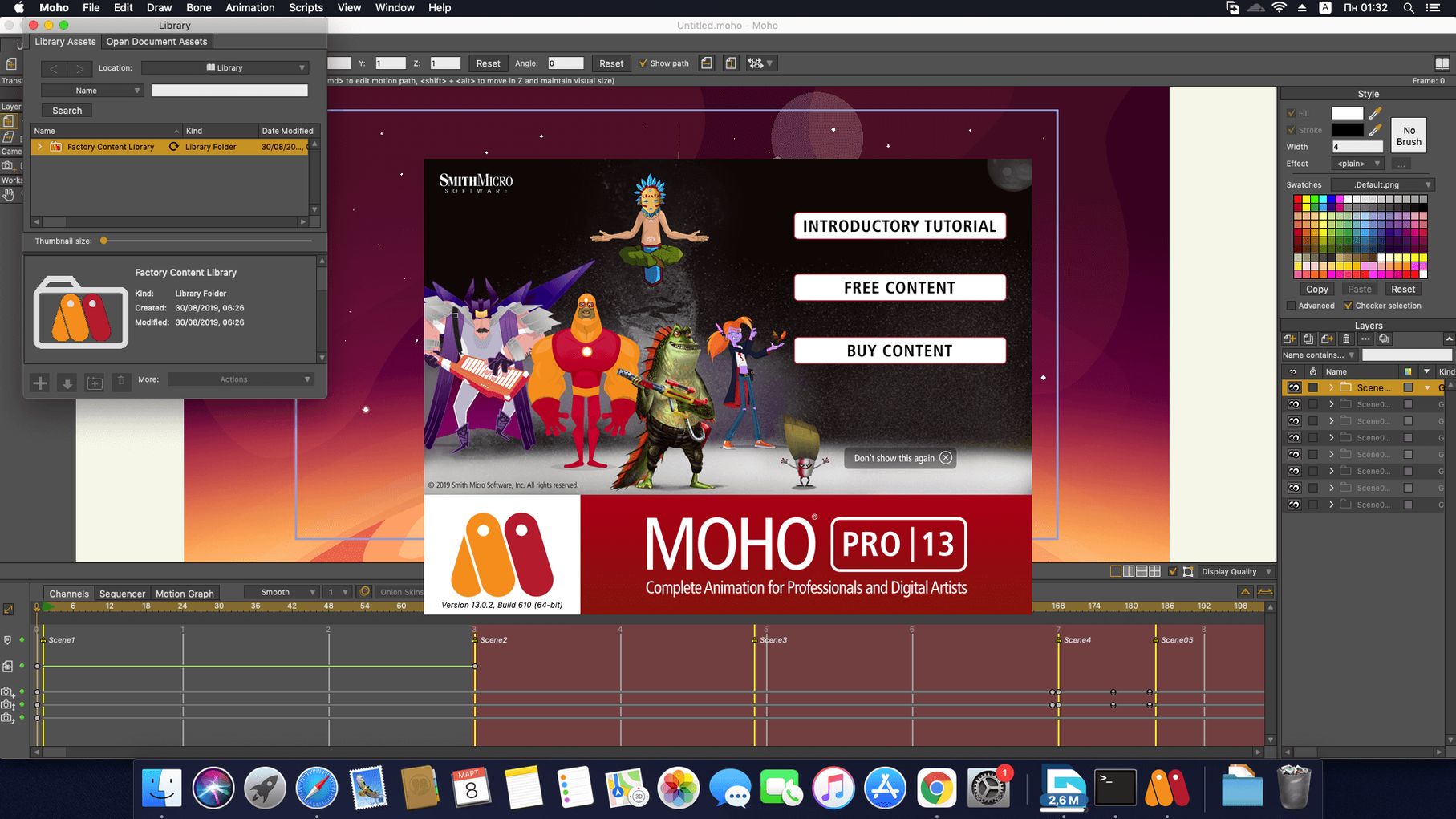
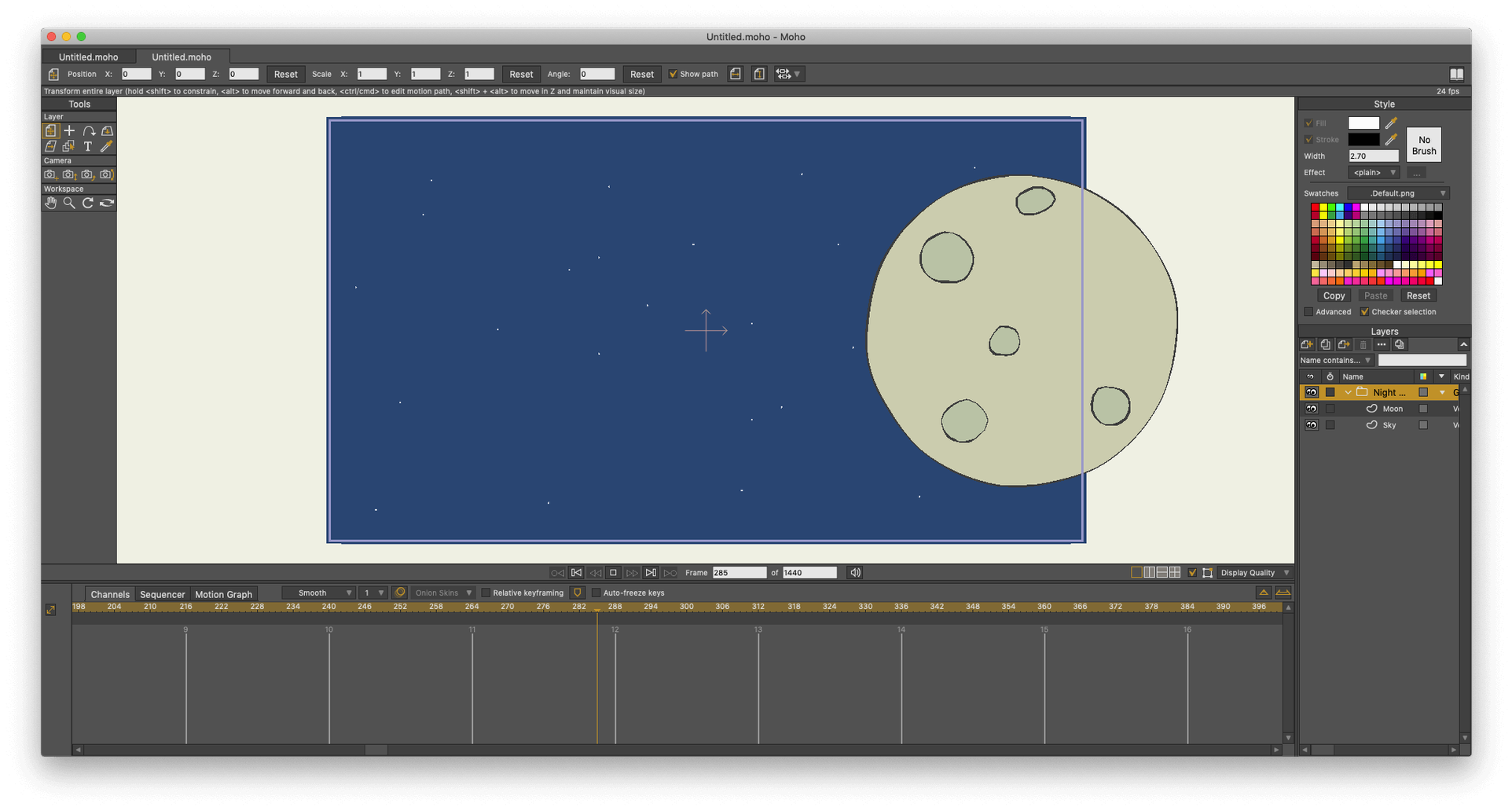
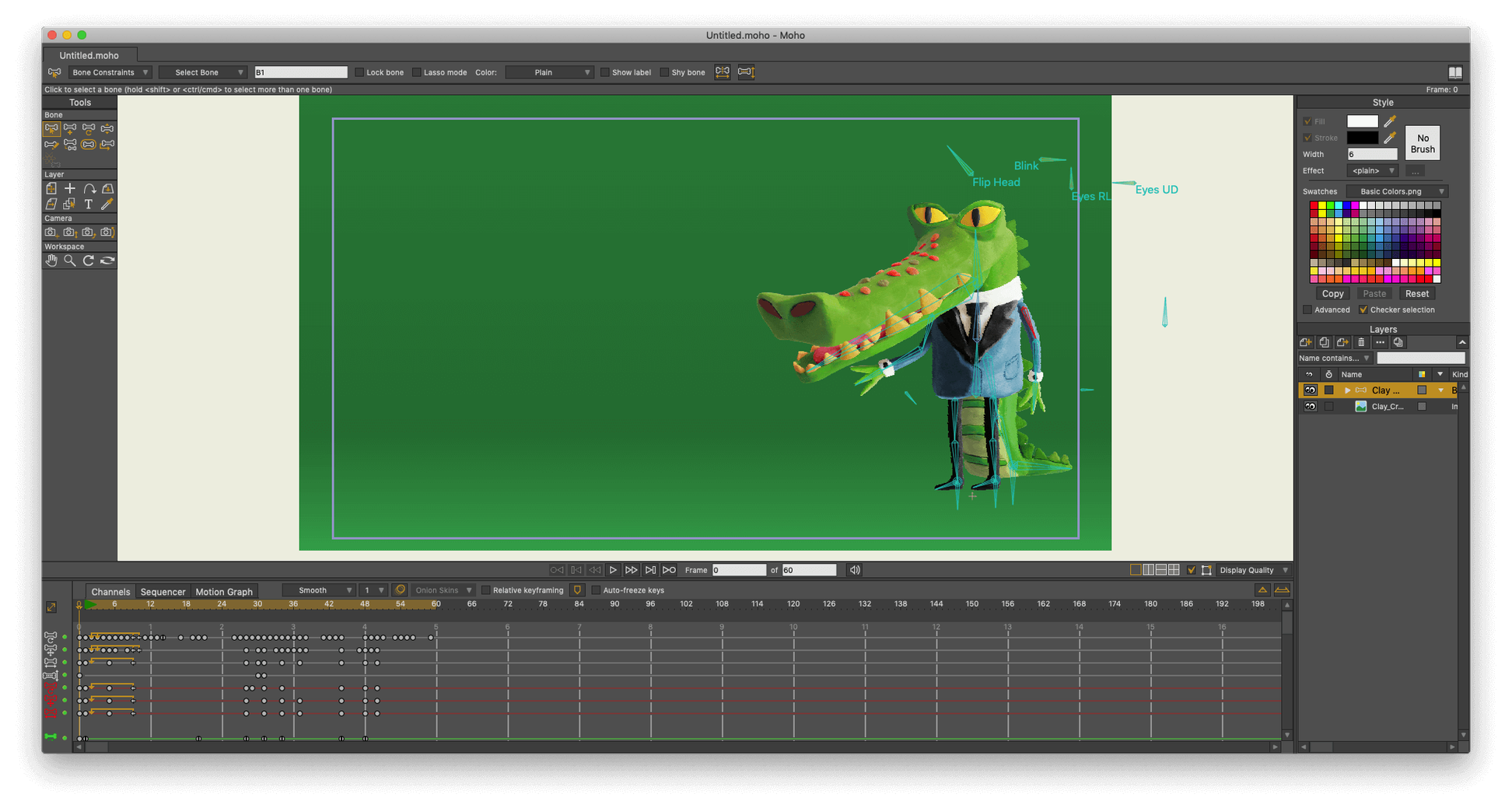
Moho Pro 14.4 keeps the update focused where working animators live: interchange and automation. The new glTF/GLB export opens a direct path into game engines and 3D packages, and bumping the scripting interface to Lua 5.4.4 means older scripts need a check but newer ones run on a far more current foundation. If you've been cutting vector animation in Final Cut or building motion graphics, this is a different beast — one where the timeline is less important than the rig.
- Lua 5.4.4 scripting. Custom tools, batch operations, and pipeline glue. The version jump matters if you maintain scripts across projects.
- glTF/GLB export. Get a rigged character or prop out to Blender, Unity, or Unreal without rebuilding it. The export is the headline feature for a reason.
- Poser scene import. Bring in 3D figures and composite them with 2D work. Useful for pre-vis or hybrid shots that would otherwise require round-tripping through another app.
- 2D-to-3D object creation. Lathe and extrude vector shapes into simple 3D volumes inside the same document. Fast for props that need to rotate in perspective.
- Particle system fixes. The update addressed stability in layers and particles — the kind of quiet fix you notice on the third render, not the first.
The built-in object library and full HD import/export are table stakes. What keeps an experienced user in Moho is the scripting layer and the new export paths. The render bar is still the boss, and these tools are aimed squarely at getting work out the door faster.
Rig Once, Export Directly to Unity or Godot
Indie game animators live here. The glTF export alone makes rigging in Moho and dropping characters into Unity or Godot a straight line instead of a detour. No rebuilds, no surprise bone rotations on import. If a project ships with a dozen animated NPCs and a tight sprint schedule, that direct export pays for itself in the first week.
Cut-out animators who think in hierarchies get it immediately. The bone system, smart mesh, and pin-bone tools reward a methodical approach — build the skeleton right once, then animate for days without touching a vector point. Teams that share rigs across episodes or multiple shorts lean on the scripting layer to enforce naming conventions and bake out turnarounds. It is not a frame-by-frame playground, and that is exactly the point.
Motion graphics generalists who already know After Effects sometimes pick up Moho for character work they cannot pull off cleanly with DuIK. The 2D-to-3D extrude tool covers a specific gap — spinning logos, prop rotations, anything that needs to turn in perspective without leaving the vector environment. It is niche, but when you need it, the alternative is modelling in Blender and compositing manually.
Music video editors on a deadline use it for stylized lyric sequences and animated band logos. The physics engine — gravity, friction, bounce — handles secondary motion that would take an afternoon to keyframe by hand. Dial in density and elasticity, let the simulation run, bake it, and move on. The render bar does not negotiate.
Faster Rigging for Solo Operators vs. Harmony’s Depth
Moho Pro vs. Toon Boom Harmony. Harmony is a deeper program for traditional frame-by-frame animation and multi-plane camera work. Moho is leaner, faster to rig, and far more approachable for a solo operator who needs a character walking by lunch. Harmony's node-based compositor has no equivalent here, but Moho's bone rigging and smart-warp meshes are quicker to set up and iterate on. For cut-out and puppet animation, Moho often wins on speed. For feature-film hand-drawn work, Harmony pulls ahead.
Moho Pro vs. Blender (Grease Pencil). Blender gives you a full 3D suite around the Grease Pencil; Moho gives you a dedicated 2D rigging environment without the 3D overhead. If the project is a 2D character series with occasional 3D props, Moho keeps the interface and the toolset focused. Blender's Grease Pencil is free and improving fast, but its workflow is still a hybrid that expects you to think in 3D space. Moho's lathe and extrude features handle simple volumes without pulling you into a full 3D viewport.
Moho Pro vs. Adobe Animate. Animate handles interactive SWF output and web-ready assets natively; Moho exports to video, image sequences, and now glTF for game engines. Moho's rigging tools are more sophisticated — smart bones, target bones, and the physics engine go beyond Animate's puppet pins. For a web banner or an interactive infographic, Animate remains the obvious pick. For a five-minute short with a cast of characters, Moho's rigging depth saves hours.
Turn On Auto-Save Before Your First Smart-Bone Session
Open Preferences and turn on Auto-save before anything else. Moho does not hold your hand on crash recovery, and a corrupted rig after two hours of smart-bone tweaking stings. Set the interval to 10 minutes and point the backup folder somewhere you will remember.
Next, check the GPU acceleration toggle under Display Options. On Apple Silicon machines, leaving it off can tank canvas responsiveness during complex vector playback. Turn it on, restart the app, and scrub a heavy timeline to feel the difference. If you see rendering artefacts, a graphics driver issue is the usual suspect — the toggle is there for a reason.
Under the timeline, right-click and switch interpolation to Linear as your default for initial blocking. Ease curves are useful later, but starting with linear keys keeps motion readable and prevents the dreaded "everything floats" look on a first pass. Switch back to smooth interpolation only when you are polishing.
In the Layers panel, pin the Bones layer to always show its strength handles. The little circles on each bone tip are easy to miss when you are deep in a pose, and accidentally scaling a bone instead of rotating it wastes minutes. Making them permanently visible costs nothing in performance and saves a surprising amount of grief.
If you share rigs with a team, set a script folder location in Preferences and point it to a shared drive or cloud folder. Lua 5.4.4 scripts that auto-name layers or validate bone hierarchies run on launch, and keeping one canonical folder avoids the "which version of the export script are you on?" conversation.
Why the Lua 5.4.4 Bump Broke Old Scripts but Sped Everything Up
The Lua bump to 5.4.4 in version 14 was not cosmetic. Older scripts that relied on deprecated 5.1 calls broke, and the fix was not always a find-and-replace. The upside is faster script execution and better memory handling, which matters when a tool script processes hundreds of vector layers on export. If you maintain custom pipeline tools, the migration is done now and the foundation is stable.
Version 14.4 added the glTF/GLB export and quietly overhauled parts of the particle system. Particles that used to flicker on layer boundaries or stutter during a long render now behave — the fix list is short, but anyone who has wrestled with a particle-heavy scene at 2 a.m. will notice the difference on the second and third render passes. Layers that combine particles, vectors, and 3D objects hold together better under playback.
The Poser scene import has not changed dramatically, but the glTF export gives it a new second life. Import a Poser figure for reference, animate a 2D character over it, then export the whole setup as a GLB for a game engine pre-vis. It is a workflow that would have required three different apps a few years ago and now sits inside one session file.
Moho Pro 14.4 adds glTF/GLB export for game engines and 3D software, so a rigged character can move into Blender or Unity without a rebuild. The particle system and layer handling got a round of fixes. Also fixed: the scripting interface now runs Lua 5.4.4, a real version bump for anyone maintaining custom tools.
- macOS 10.15 or later
- 64-bit OS
- Intel or Apple Silicon
- 2.0 GHz Intel Core i3 or higher
- 4 GB RAM or more
- 1.6 GB free disk space
- OpenGL 4.1 supported graphics card
- Online connection for activation
Questions I actually get
What scripting language does Moho Pro 14 use?
Moho 14 updated its scripting interface to Lua 5.4.4, which means custom tools and automation run on a more modern version of the language than earlier releases.
Notes from the edit bay · 0
Sign in or get an edit-bay pass to leave a note.
No notes from the edit bay yet. They go up after I read them.