
It runs on any Mac with macOS 11 or later, natively on both Intel and Apple Silicon. No workarounds, no Rosetta-only builds — just a straightforward utility that sits beside the Dock you already know.
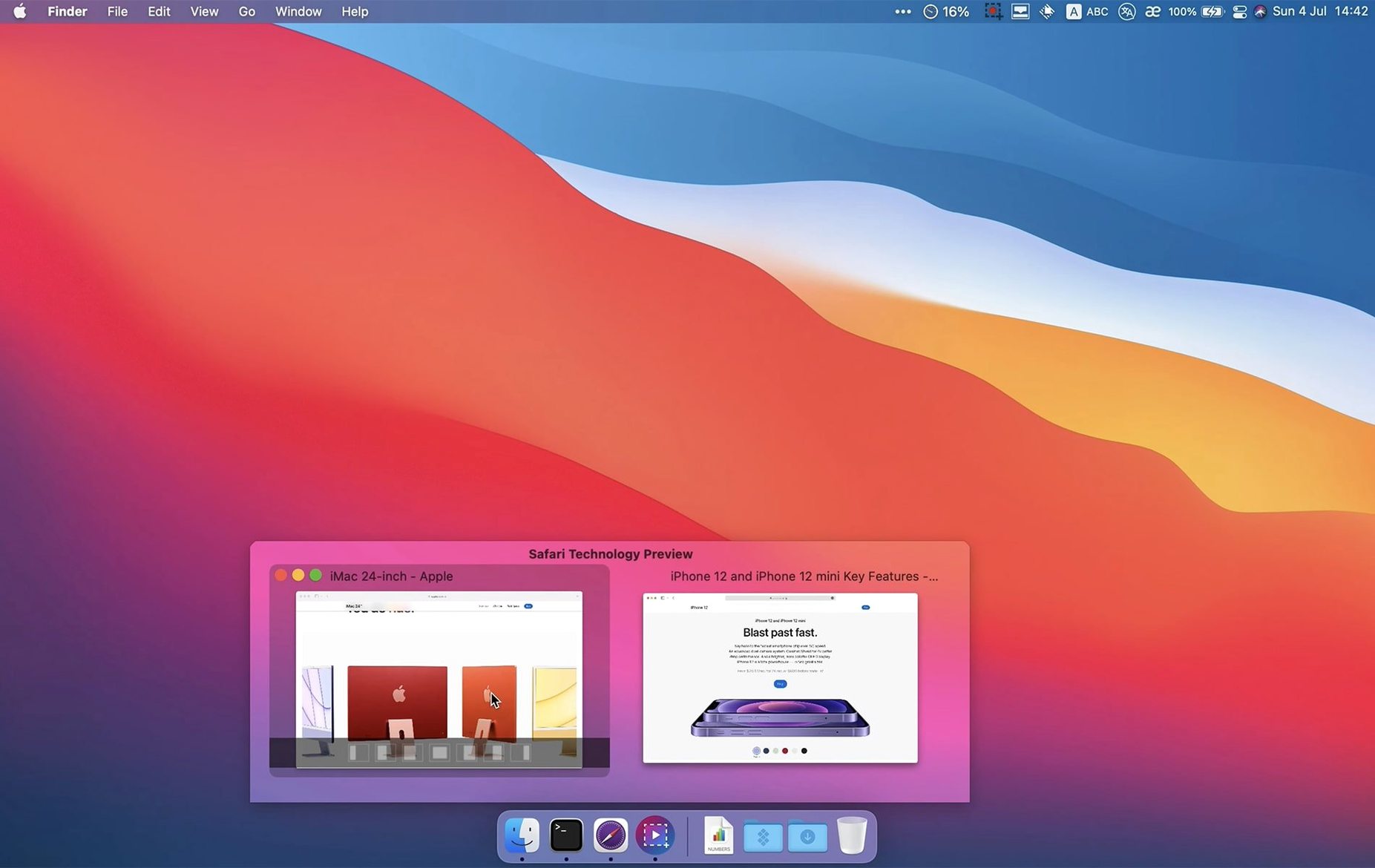
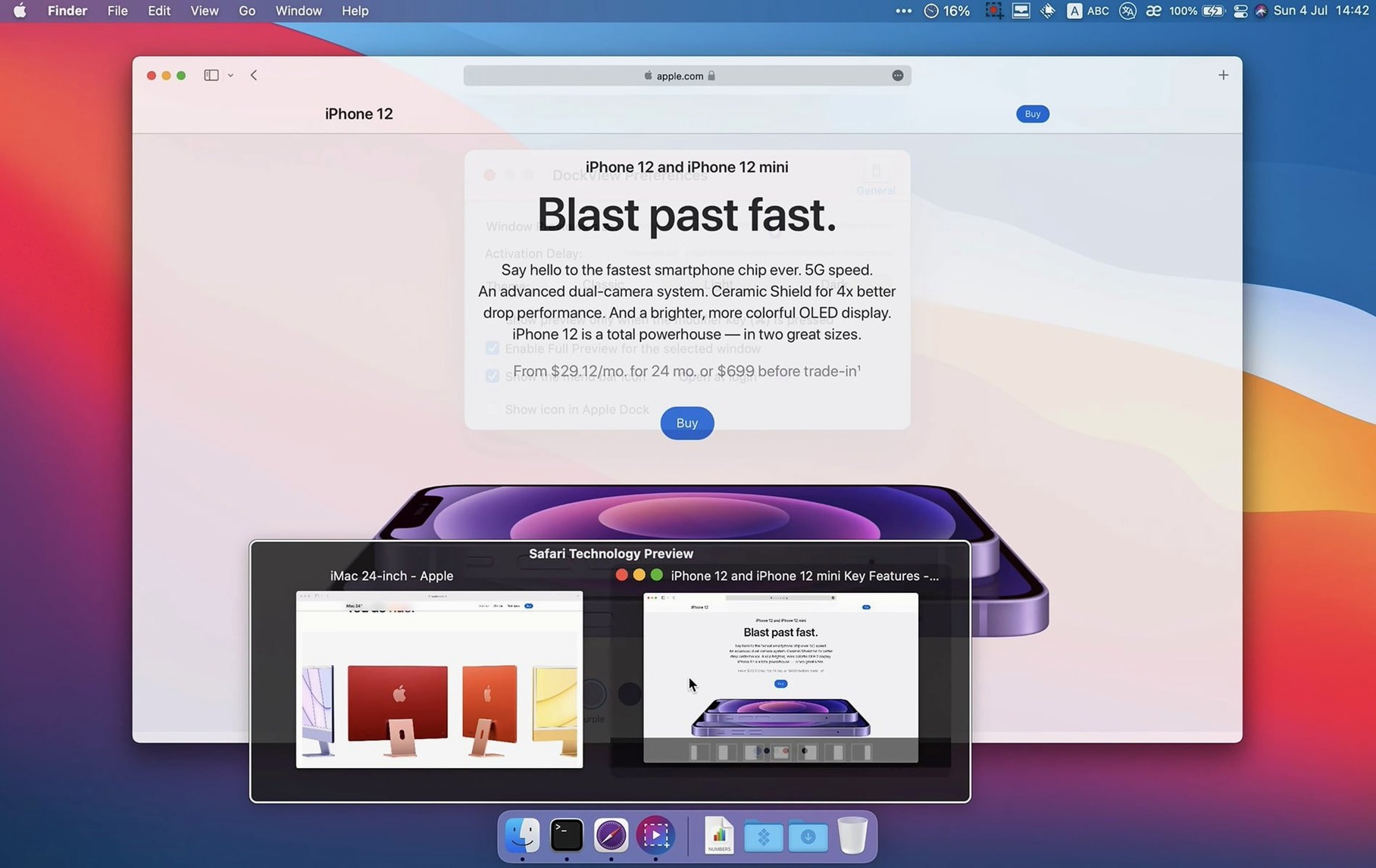
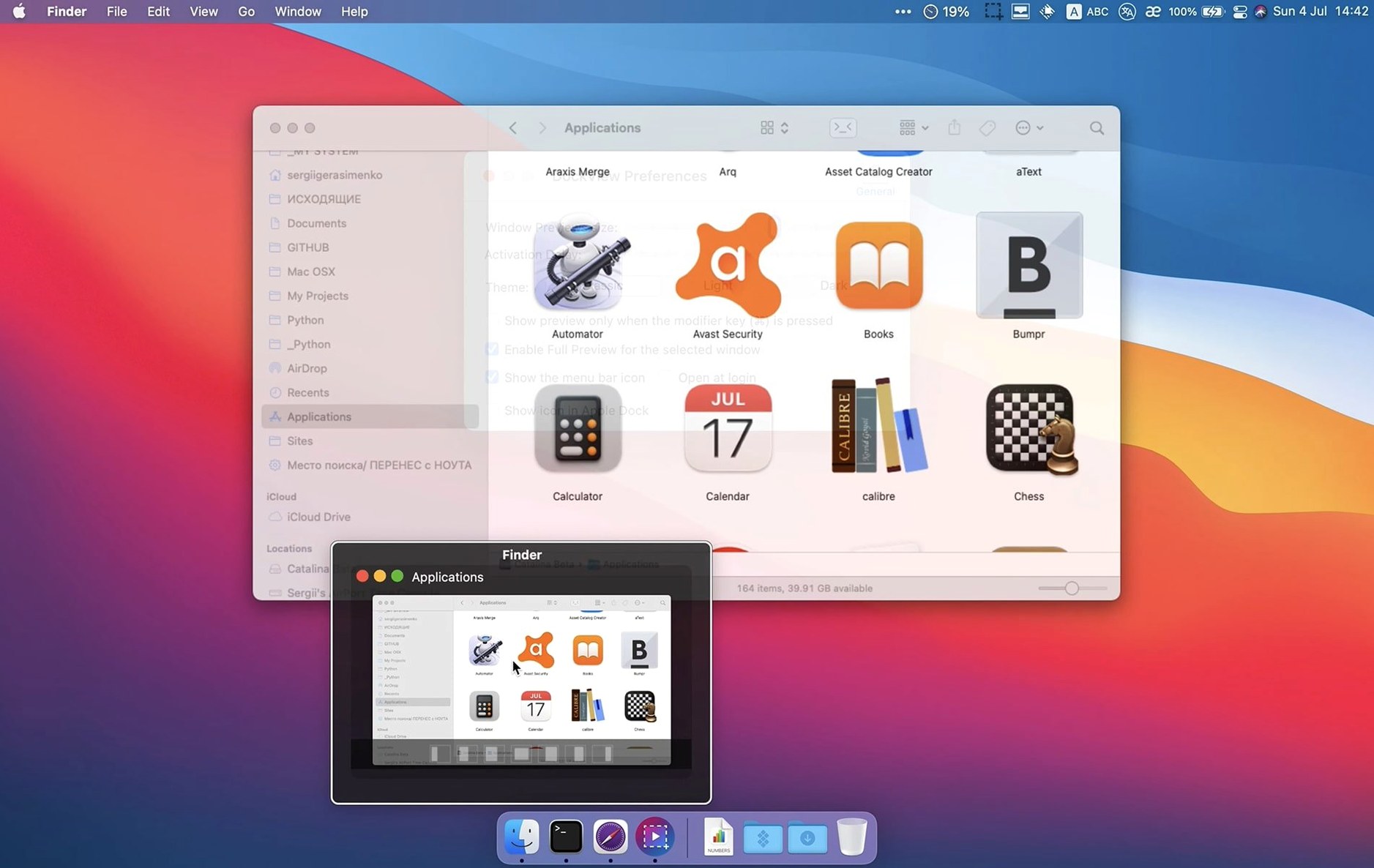
The core job is simple. Hover over an app in the Dock and you see live thumbnails of every window that app has open, right above the icon. That’s the preview panel. Version 2.2.4 adds a Show All Windows button inside that panel, so a click does what the hover does — two ways into the same view depending on how you like to work.
Each preview is numbered. Tap a number key and you jump straight to that window. Right-click a thumbnail and you get quick layout options — tile two windows side by side, snap one to a corner, that kind of thing. It’s the speed of App Exposé but anchored to the Dock where your hand already rests.
Accessibility permission lets it switch windows for you. Screen Recording permission is what pulls the window titles and builds those live thumbnails. Both are standard gatekeepers on modern macOS, and the app walks you through them on first launch.
When the Preview Panel Stays Blank
The most common hiccup is a blank preview panel. Nine times out of ten, Screen Recording permission got missed during setup. Open System Settings > Privacy & Security > Screen Recording and flip the switch for DockView. You’ll need to quit and relaunch the app afterward. If you’ve already granted it and previews still look frozen, macOS sometimes revokes that permission after a system update — re-toggle it and you’re back in business.
Another one: keyboard shortcuts stop working while the preview panel is open. This isn’t a bug. DockView grabs focus so the numbered shortcuts can fire. Click anywhere outside the panel and your global shortcuts return. If you’d rather not use numbers, the Show All Windows button added in 2.2.4 gives you a click-only path through the same interface.
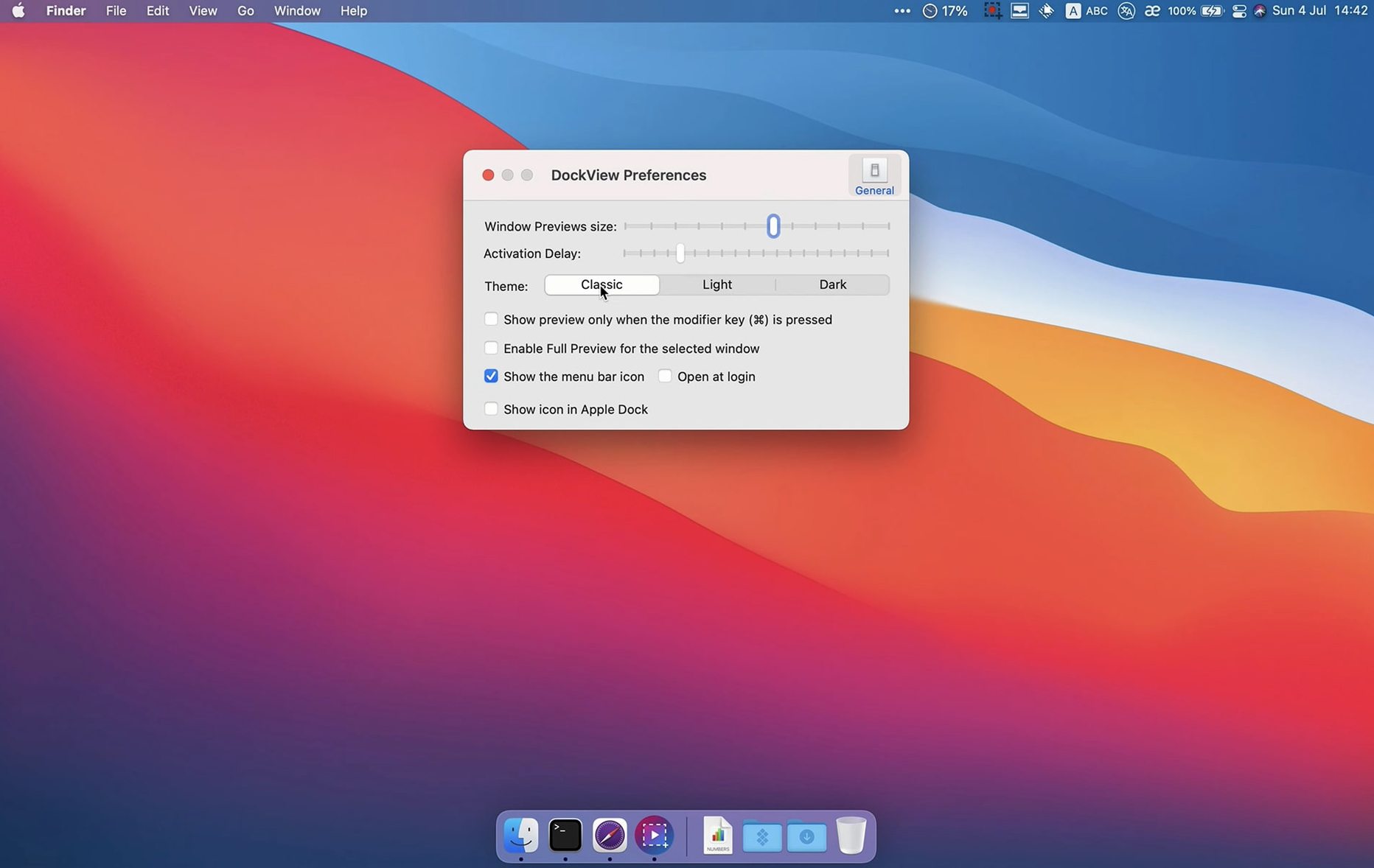
On multi-monitor setups, previews appear above the Dock on whichever display the Dock lives. If you’ve moved your Dock to a secondary screen and the thumbnails show up on the wrong display, the fix is a quick trip to DockView’s Appearance settings — there’s an option to anchor previews to a specific screen, not just the one macOS thinks is primary.
A Quick Workflow: Taming a Messy Browser Session
Say you’ve got Safari sprawled across three windows — research in one, a CMS in another, a YouTube reference in a third. Normally you’d Command-Tab and squint at tiny thumbnails or swipe through Mission Control. With DockView, here’s the flow:
- Hover over the Safari icon in the Dock. Three live thumbnails pop up, each showing the current page content.
- Spot the CMS window — it’s preview number 2. Tap
2on the keyboard and you’re in it. - Need to compare the research window and the CMS side by side? Hover again, right-click thumbnail 1, and pick the left-half layout. Then right-click thumbnail 2 and send it to the right half.
- Done with the YouTube window? Hover, right-click its thumbnail, and close it directly from the preview panel. No hunting, no Mission Control drift.
That whole sequence takes about six seconds once muscle memory settles in. It’s the difference between window management as a chore and window management as a reflex.
Memory Footprint on an M-Series Mac
On an M-series Mac, DockView sits under 80 MB of RAM in typical use — my Activity Monitor shows it hovering around 62 MB with a dozen Safari tabs, Mail, Notes, and a couple of Finder windows open. It’s not the lightest menu-bar utility I’ve run, but it’s also doing real-time window capture, which isn’t free. CPU usage is negligible when idle; it spikes briefly to maybe 4% on a single core when you trigger a preview refresh, then flatlines again.
Stability is solid for a dockview mac app that hooks this deep into the window server. I haven’t seen a crash in weeks of daily use. The one edge case worth knowing: if you’re running apps that draw their own custom window chrome (think some Electron apps or older Java-based tools), the thumbnails occasionally show a stale frame. Tapping the preview still switches correctly — it’s a cosmetic glitch, not a functional one.
Live preview responsiveness depends on how many windows you’re juggling. Under a dozen, thumbnails populate in under half a second. Push past twenty windows on a single app and you’ll feel a slight hesitation — maybe a full second — before everything renders. For the kind of user who keeps thirty Finder windows open, that’s a trade-off, but the numbered shortcuts still fire instantly regardless of preview load.
The latest update brings a round of stability fixes and small refinements across the preview and animation engine.
- macOS 11 or later
- Apple Silicon or Intel 64-bit Mac
Questions I actually get
Which permissions does DockView need and why?
It needs Accessibility permission to switch between app windows, and Screen Recording permission to capture window titles and generate the live preview thumbnails.
Does DockView replace the macOS Dock?
No, it’s an addition to the existing Dock — it extends it with window previews without altering the Dock itself.
How do I switch to a specific window with DockView?
Hover over an app’s Dock icon, then press the number key shown on the preview thumbnail to jump directly to that window.
Notes from the edit bay · 0
Sign in or get an edit-bay pass to leave a note.
No notes from the edit bay yet. They go up after I read them.