
Compatibility Check
Word version 16.93 needs macOS 13 Ventura or later and runs natively on both Apple Silicon and Intel Macs. If your machine is on an older OS, this build won't install.
For Those Who Live Inside Documents
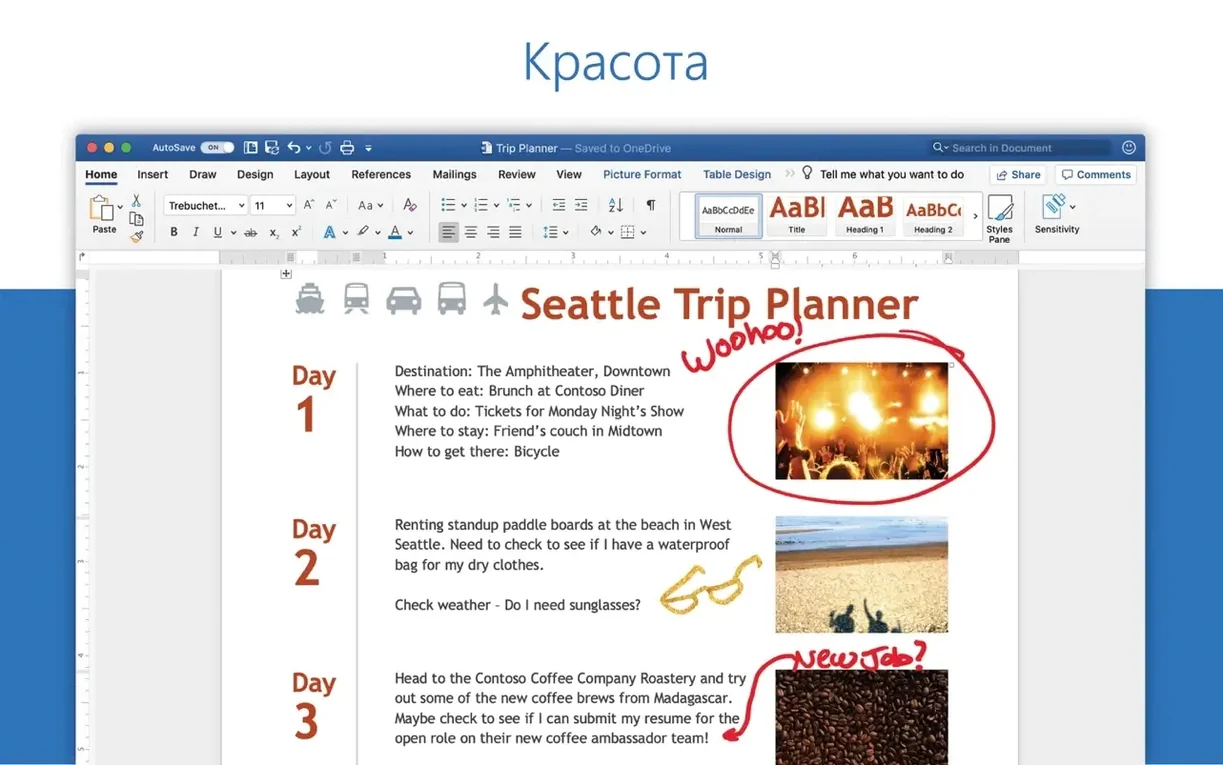
This is the heavyweight word processor inside the Office 2024 package, sitting alongside Excel, PowerPoint, Outlook, and OneNote. It's built for people who live in documents—reports, scripts, contracts, academic papers—and need real-time collaboration without leaving the page.
Workflow Steps
- Start a document. Blank page or a template—Word opens fast and gets out of the way. The interface feels familiar from years of iteration, so muscle memory kicks in immediately.
- Write and format. The editing engine handles long-form text smoothly. Equation editing got a specific fix in this release, so math-heavy work should behave again.
- Collaborate. Share a link and watch edits appear in real time. Comments and track changes sit in the margins the way you'd expect.
- Share or attach. Grab a document and attach it to an email message directly from the File menu. No exporting gymnastics required.
Version 16.93, which landed January 14, 2025, is a maintenance release. Performance feels snappier under the hood—scrolling through image-heavy files and switching between views is smoother than the previous build. The big fix targets equation editing, which had been unreliable for a few releases. Beyond that, the core experience hasn't shifted: this is still the same Word millions of people rely on, just quieter under load. If you share documents with a team or need a word processor that handles tracked changes without breaking a sweat, this update keeps things predictable.
Forum Repeats and What Actually Fixes Them
Even a mature app like Word trips people up. Here are the ones I see again and again in forums and group chats, plus what actually works.
Equation Editing Goes Silent
You insert an equation, everything looks fine, then you click to edit it and nothing happens. The cursor just stares back. This was the headline fix in 16.93, but if you're still seeing it, the culprit is usually a document that travelled through an older build. The fix is straightforward: select the equation, cut it, paste it back as a new equation object. Word rebuilds the metadata and editing springs back to life. For stubborn cases, save the file as .docx again under a new name—stale cache data inside the package sometimes blocks the equation engine.
Collaboration Stalls on Large Documents
Co-authoring a 200-page manuscript with tracked changes and embedded images can grind to a crawl. The bottleneck is rarely your Mac—it's the sync layer. Before you blame the internet, try this: accept all formatting-only tracked changes (the ones that don't affect meaning) and compress any images that have been pasted at full resolution. Word's real-time sharing gets chatty when it has to reconcile tiny visual diffs across every paragraph. Trim the noise and the sync speed picks up noticeably.
Fonts Look Wrong After Opening a Windows Document
You open a file from a colleague on a PC and the line breaks shift, fonts look off, or spacing feels cramped. Mac Word doesn't ship with every Windows system font, so it substitutes—often poorly. The quickest route: install the core Windows fonts on your Mac (Calibri, Cambria, and the rest of the ClearType set). After that, hit Format > Font and re-apply the document's theme fonts. Layout snaps back to what the author intended.
AutoUpdate Refuses to Find New Builds
Sometimes Microsoft AutoUpdate sits there claiming you're up to date while you're clearly behind. The Microsoft AutoUpdate database can corrupt silently. Hold Option while launching any Office app, click Check for Updates from the Help menu, and choose Check for Updates again from the MAU window that appears. If it still won't budge, download the latest MAU package directly from Microsoft servers—the manual installer replaces the broken database and resumes normal updating.
Why Academics and Researchers Drive Word’s Priorities
Word casts a wide net, but a few groups lean on it harder than others—and the way they use it shapes what matters in a release like this one.
Academic writers and researchers live inside the equation editor, citation tools, and cross-referencing. A broken equation workflow isn't an annoyance for them; it's a showstopper. The 16.93 fix makes this build the obvious pick over any earlier version where math editing was flaky. If your thesis has fifty numbered equations, you'll notice the difference immediately.
Project managers and proposal teams run on tracked changes and shared documents. They're not composing novels—they're iterating on scope documents, contracts, and status reports with five people poking at the same file. For them, the performance polish under the hood matters more than any single feature. Scrolling through a 60-page proposal deck with embedded spreadsheets feels less like wading through treacle in this build.
Journalists and editors work fast, file to multiple outlets, and need formatting to stay intact when a document moves from Mac to CMS to print. They'll appreciate the improved stability when attaching documents to email messages directly from the File menu—a workflow step that used to occasionally hang Word on earlier builds. It's a small thing, but when you're on a 20-minute deadline, a hung attachment dialog is the last thing you need.
If you're writing the occasional letter or recipe, you probably won't feel much difference from the previous version. But if you're in documents all day, the accumulated fixes in 16.93 add up to fewer interruptions.
Pre-Install Questions Worth Asking
Native Intel and Apple Silicon, No Translation Penalty
Both architectures are supported natively. If you're on an Intel machine running macOS 13 or newer, you're fine. The universal binary means no Rosetta translation layer, no performance penalty. Word has been running on Intel Macs for decades—this build continues that without fuss.
Can I open documents from newer versions of Word?
Yes, and the reverse is true too. The .docx format hasn't changed its core structure in years. A file saved in Word on Windows or a newer Office 2024 build will open here without conversion warnings. The only edge case is documents that use very recent cloud-only features tied to a Microsoft 365 subscription; those might prompt a read-only notice, but the content is all there.
Your Custom Normal.dotm Survives the Install
Word leaves your existing Normal.dotm alone. Your custom styles, default font, and margin settings carry over. If you want the factory-fresh template, you can rename your existing one and Word will generate a new default on next launch—but you don't have to. Most people won't even notice the template file survived the install untouched.
Does this build play nicely with other Office apps from different versions?
Mixing versions within the Office suite isn't recommended, but in practice it usually works. A Word 16.93 document with an embedded Excel chart opens fine even if your Excel is a build or two behind. The friction shows up in shared components like the equation engine or the collaboration layer—if you're co-authoring with someone on an older build, you might see sync delays. Keeping the whole suite on the same version avoids those edge cases.
What's different between this and the Microsoft 365 version?
This is the LTSC (Long Term Servicing Channel) build—a static feature set with bug fixes and performance updates but no new capabilities rolling out month by month. The Microsoft 365 version gets feature drops continuously. If you need the latest AI-powered editing tools or cloud-connected templates, you'd notice the gap. If you want a word processor that stays predictable and doesn't change its interface overnight, this is the one.
A Workflow: Cleaning a Messy Manuscript for Submission
Here's a real scenario I worked through last week—a 90-page manuscript that arrived with five different heading styles, inconsistent line spacing, and twenty author comments scattered across three rounds of review. The goal: clean it, unify it, and hand off a polished file without losing any editorial notes.
- Inspect the damage. Open the document and switch to Draft view. This strips out pagination and lets me scroll fast through the entire text. I'm looking for pattern breaks—places where the font suddenly changes, where numbered lists restart, where headings use direct formatting instead of styles.
- Clear direct formatting in bulk. Select all, then hit Clear All Formatting from the Styles pane. Yes, this nukes everything—bold, italics, heading sizes—but I'm not keeping the mess. I'm rebuilding from clean text. If there's italic emphasis I need to preserve, I mark those passages with a unique comment first so I can find them later. For most manuscripts, losing italics is an acceptable trade for killing five layers of conflicting formatting.
- Map headings to styles. Now I walk through and apply Heading 1, Heading 2, and Normal styles properly. This takes fifteen minutes on a 90-page document. The Navigation Pane on the left builds a clickable outline as I go, which doubles as a sanity check—if Chapter 4 shows up under Chapter 2 in the outline, I've applied the wrong heading level.
- Set paragraph defaults. Open the Normal style for modification, set line spacing to exactly what the submission guidelines ask for, add a first-line indent, and check "Don't add space between paragraphs of the same style." Word applies this everywhere Normal is used, which by now is every body paragraph. One change, document-wide.
- Resolve comments and tracked changes. Switch to All Markup view and work through each change systematically. Accept formatting changes in batches, then handle content changes one at a time. The goal isn't to accept everything—it's to leave a clean file where the remaining tracked changes are only the substantive ones the editor needs to see.
- Rebuild the table of contents. Insert a fresh automatic TOC at the top, based on the heading styles I just applied. Word scans the document and pulls in every heading with its page number. If the outline looked right in the Navigation Pane, the TOC will be right too.
- Run a final sanity pass. Switch to Read Mode and scroll top to bottom. No editing here—just reading. Spot odd page breaks, widowed headings, or figures that slipped out of position. Fix those directly in Print Layout view, then save.
The whole process took under an hour and the author's editor got a file that didn't need a style-guide intervention. Word's strength in this workflow isn't any single feature—it's that styles, the Navigation Pane, and markup tools all talk to each other without needing a third-party bridge.
Where Word Stands Among Mac Writing Tools
Pages
Apple's word processor is lighter, prettier, and free on every Mac. For a two-page flyer or a letter with a photo layout, I reach for Pages. The iCloud collaboration works smoothly and the templates look more modern out of the box. Where Pages stumbles is long-form writing with heavy revision tracking. Track changes in Pages is functional but feels tacked on—comments don't thread the way they do in Word, and documents with hundreds of changes slow to a crawl. If you're writing a novel or a contract that will bounce between four stakeholders, Word's collaboration and markup engine is the reason to stay. For a quick handout or a school project with light edits, Pages handles it gracefully.
LibreOffice Writer
Writer is the open-source contender that opens and saves .docx files without a subscription. It runs on older Macs that can't install this version of Word, and its interface feels like Word circa 2008—which some people prefer. The compatibility story has improved massively over the last few years; simple documents round-trip between Writer and Word without visible damage. The gap shows up in tracked changes. A document with heavy markup from Word sometimes renders comments in the wrong places when opened in Writer, and vice versa. If your workflow is solo writing or you're exchanging files with people who also use Writer, you're fine. If you're in a team where everyone else is on Word, the small formatting drifts add up fast.
Google Docs
Docs lives in the browser, which means zero install, instant sharing, and collaboration that still feels more responsive than Word's real-time co-authoring. For a shared meeting agenda or a collaborative article draft, Docs gets out of the way faster. The trade-off is depth. Word's styles engine is leagues ahead—Docs can't do the kind of heading-to-TOC-to-cross-reference chain that Word handles natively. Offline access exists but isn't the default; you need to plan ahead. And heavy documents with embedded charts or large tables strain under Docs in a way they don't in a native app like Word. The best workflow I've seen is drafting collaboratively in Docs, then pulling the text into Word for final formatting and export. Each tool does what it's good at.
Word isn't the lightest option and it's not the cheapest. But when a document matters—when the formatting has to survive, when the revision history needs to be legible, when you're attaching it to an email and sending it to a publisher—it's still the one I open first.
Performance gets a quiet bump—scrolling and switching views feels more fluid. The headline fix: equation editing works reliably again after a stretch of misbehaving.
Also fixed: general quality improvements under the hood.
- macOS 13 Ventura or later
- Apple Silicon or Intel processor
Questions I actually get
Is Word for Mac part of the Office 2024 package?
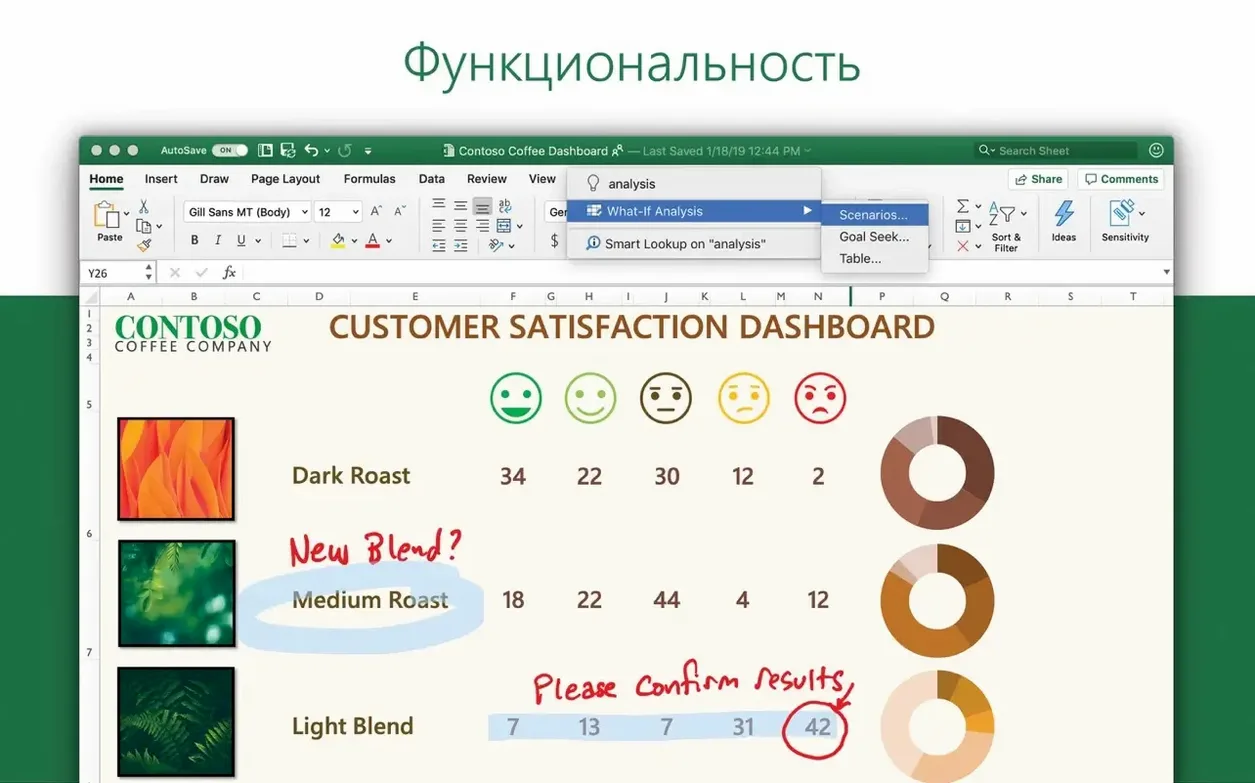
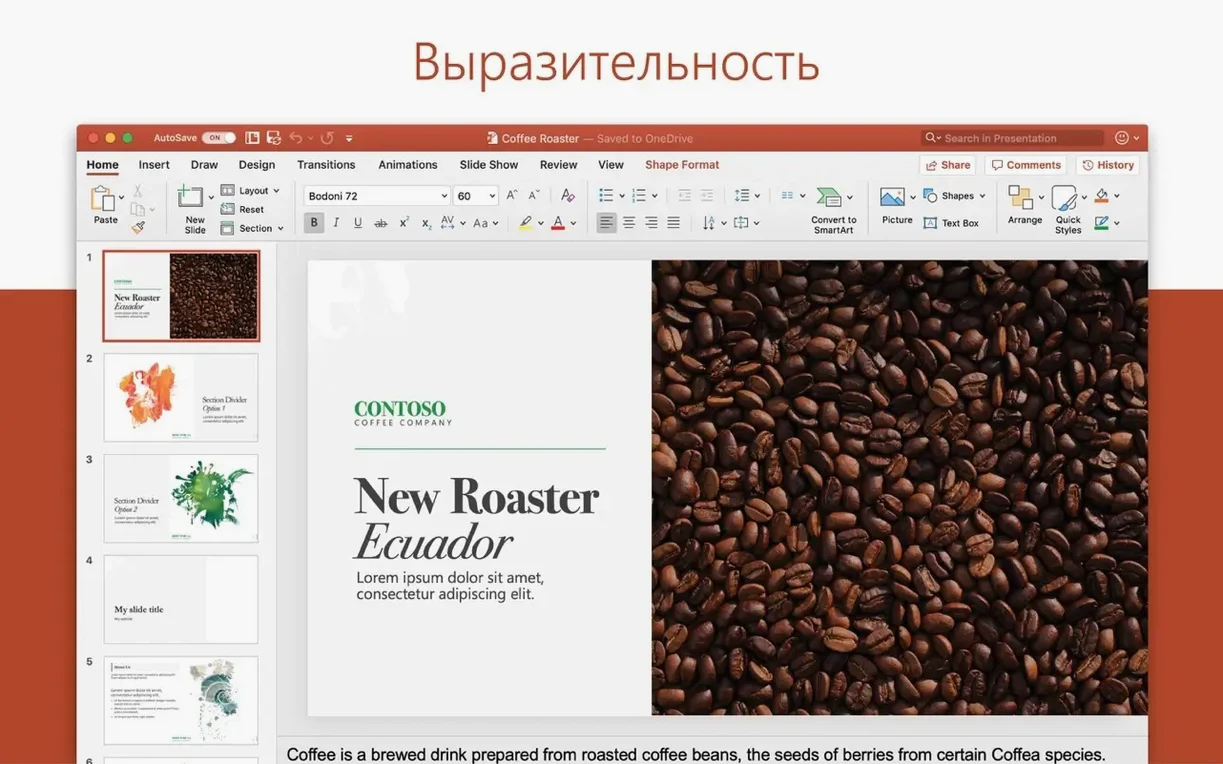
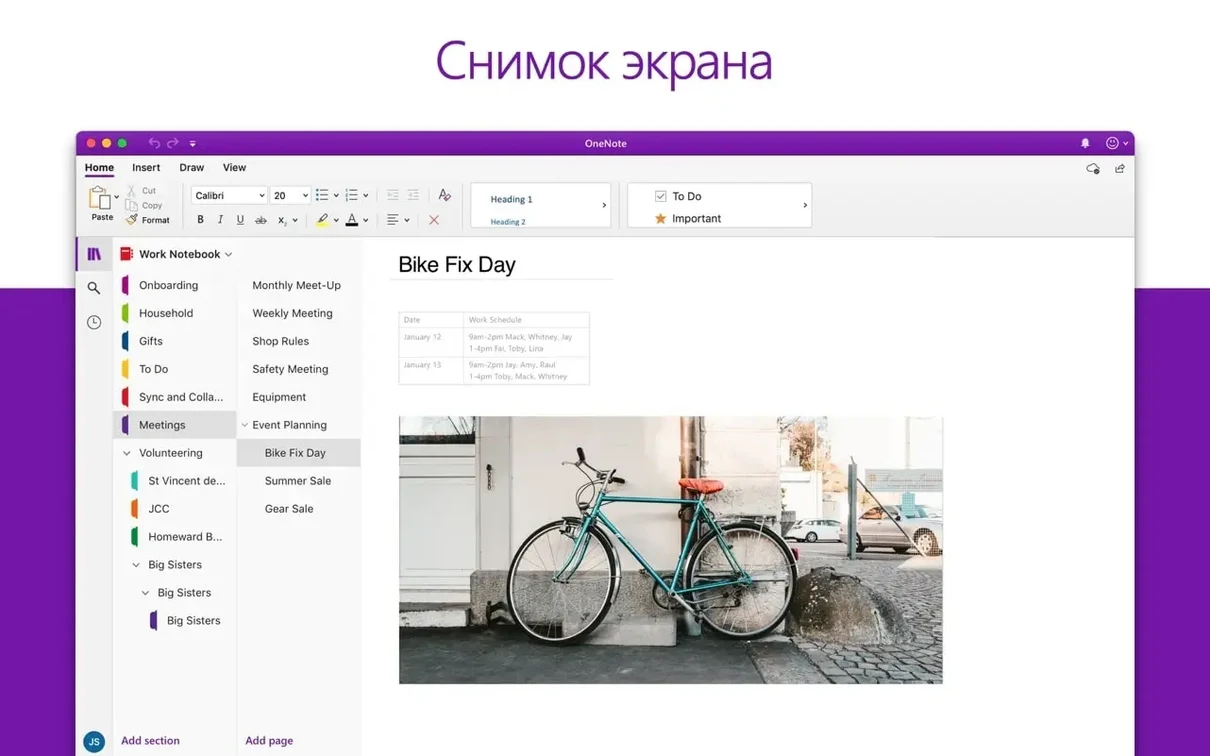
Yes, Word ships inside the Office 2024 suite alongside Excel, PowerPoint, Outlook, OneNote, and OneDrive integration.
What got fixed in version 16.93?
Microsoft addressed an issue where editing equations wouldn't work as expected and included general quality and performance improvements.
Notes from the edit bay · 0
Sign in or get an edit-bay pass to leave a note.
No notes from the edit bay yet. They go up after I read them.