
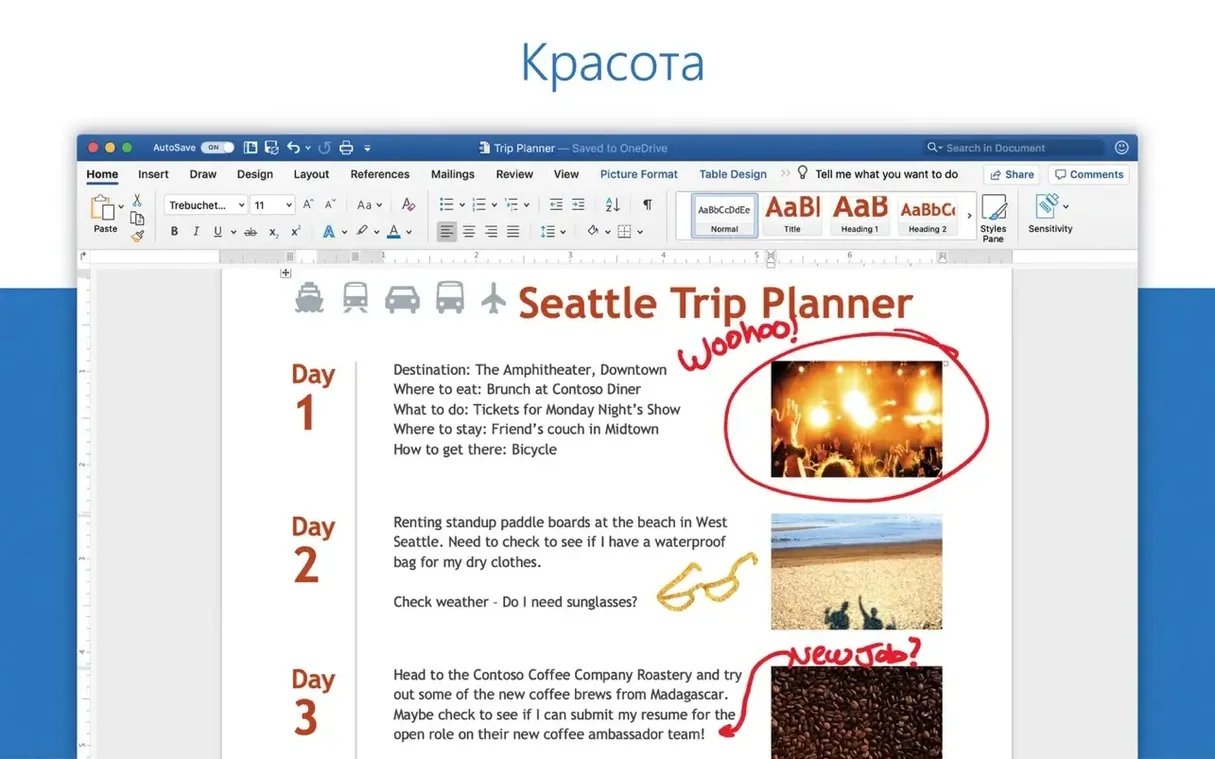
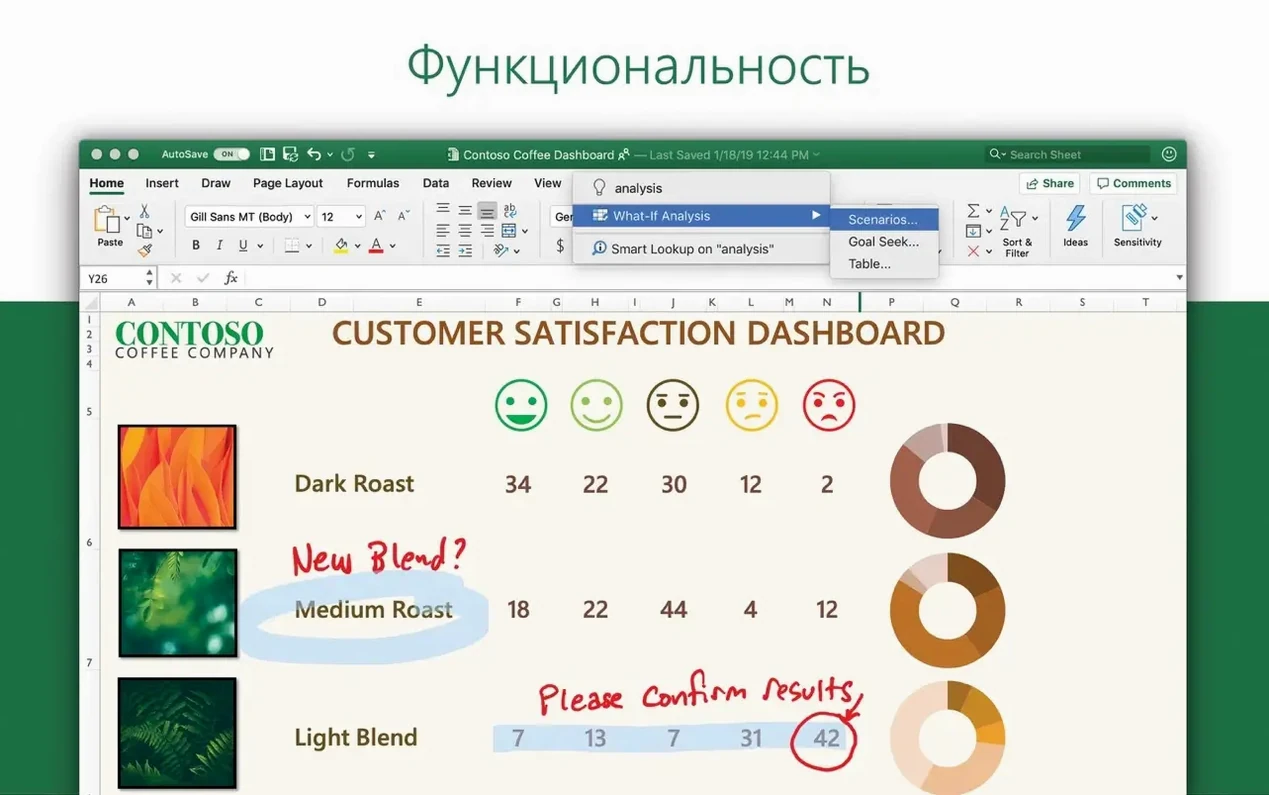
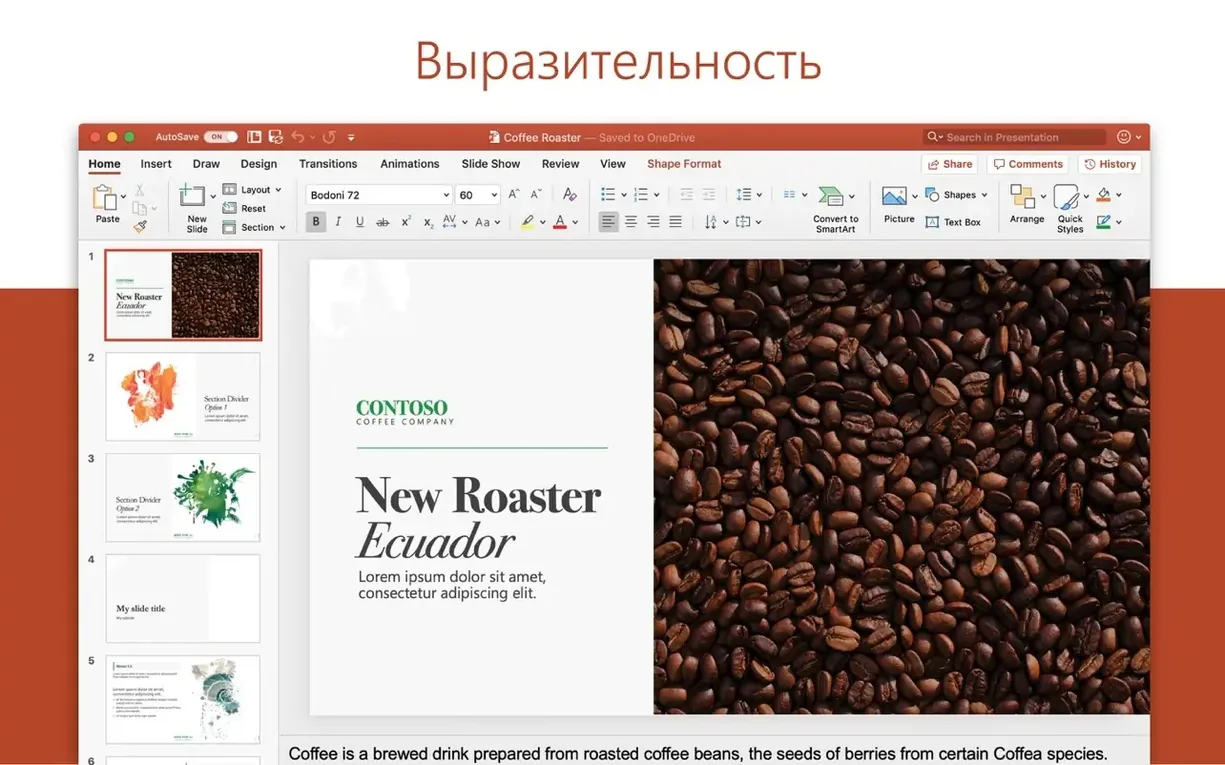
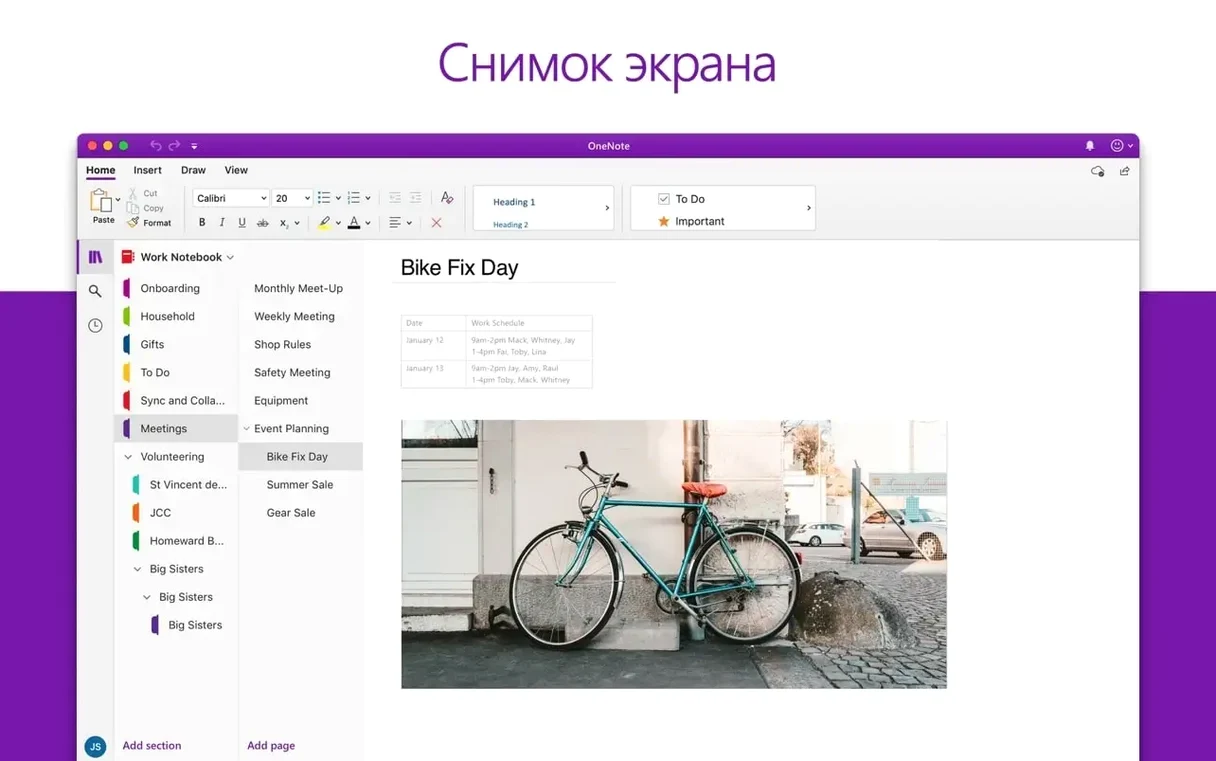
It's the workbench for the universal stuff—budgets in Excel, a treatment in Word, the deck for a client pitch. For a video editor, Office is the app suite you live in between renders. The 16.93 update for Mac doesn't rewrite the playbook, and that's perfectly fine.
What's in the 16.93 Package
The monthly refresh cadence continues. This build applies to the core five:
- Word, Excel, and PowerPoint for documents, numbers, and presentations
- Outlook to corral email accounts and calendars into one place
- OneNote as a scratchpad for call sheets and shot lists
OneDrive is the quiet tie that binds them, letting you pull up a budget or script and have a producer tweak it in real time. PowerPoint still packs motion camera effects and 3D model support for when a static deck won't cut it. The whole thing runs 64-bit, no surprises there.
The Familiar 16.x Toolset Stays Put
The major version 16.x branch covers Microsoft 365 and both Office LTSC 2024 and 2021 for Mac, so the toolset remains familiar. You're not learning a new layout mid-project. The point of this update isn't a flashy new feature; it's a routine alignment across Word, Excel, PowerPoint, Outlook, and OneNote. For deadline-driven work, that kind of predictability is the whole point of sticking with a standard suite.
Kill Smart Quotes and Auto-Dashes Before You Type
Out of the box, Office makes a few assumptions about how you work that don't hold up under a deadline. The first stop is Word's AutoCorrect panel. The default replaces straight quotes with smart quotes and turns hyphens into dashes. If you paste code snippets, timecode, or log lines into a doc, that gets messy fast. Uncheck those two and you stop fighting your own text.
In PowerPoint, kill the default "Show start screen" behavior in Preferences > General. Nobody cutting a pitch deck at 11 p.m. needs a landing page. While you're there, set "End with black slide" to off unless you do keynote-style talks where it's expected.
Excel ships with automatic formula suggestions turned on. It's clever, occasionally wrong, and distracting when you're hammering through a budget. Switch off Formula AutoComplete in Preferences > Formulas unless you genuinely want the pop-up. For media work—call sheets, cost reports, shoot-day schedules—set the default number of sheets in a new workbook to 1 instead of 3. You're not building a multi-tab monster every time you open Excel; you're tracking catering headcounts.
Outlook's default is to download images automatically. Turn that off in Preferences > Reading. On a production Wi-Fi network or a tethered connection on location, every megabyte counts. The same panel lets you disable the reading pane, which I consider essential. Previewing a long thread from a client while scanning for one attachment is slower than double-clicking the message itself.
Conveniences and Shortcuts You'll Miss
There's a handful of things buried in plain sight that save real minutes across a week.
In Word, Shift-F5 jumps to the last edit point. That's gold when you bounce between a script page and a notes section. The Navigation Pane (View > Navigation Pane) gets overlooked constantly. For anything longer than three pages—a treatment, a post-mortem doc—it turns heading styles into a clickable outline. You navigate without scrolling, which is the fastest way to find the "Changes Requested" section before a call.
Excel's Quick Analysis button appears whenever you select a range of data. Most people ignore it because it looks like decoration. It's actually a one-click route to conditional formatting, charts, and totals. Highlight a column of overtime hours, click the icon, pick "Data Bars," and you have an instant visual of which shoot days ran long. No dialog boxes.
PowerPoint's Selection Pane (Arrange > Selection Pane) is the fix for slides with stacked text boxes and logos. It lists every object on a slide by name. Click the eye icon to hide a version of a logo while you adjust the one beneath it. The alternative is dragging elements around and hoping you grabbed the right layer, which is how decks get broken at 2 a.m.
OneNote's Command-Period shortcut starts a bullet list from any line. Most people click the ribbon button. The keyboard route keeps your hands moving, which matters when you're transcribing meeting notes or rough-cut feedback. And if you haven't set up a side-by-side view with Word, hold Option while clicking the green window button to tile them. That's a macOS trick, but Office apps respect it perfectly.
Merged Cells Are Sabotaging Your SUM Formulas
The biggest one: treating Excel like a Word table. Typing numbers into merged cells and then wondering why SUM returns garbage. Merged cells break formula ranges. If a budget sheet has merged header cells, unmerge them and use "Center Across Selection" from the alignment tab instead. It looks the same and formulas still work.
Another classic is pasting Excel charts into PowerPoint as live links. That embeds a connection to the source workbook, and when you email the deck to a producer, the chart goes blank because the link points to your local drive. Paste as a picture or use "Paste Special > PDF" instead. The chart won't update, but it also won't break.
In Word, beginners gravitate toward manual formatting—hitting Enter twice for paragraph spacing, using spaces to indent. That falls apart the moment someone else opens the file on a different Mac or in the web version. Learning three heading styles and a body text style takes fifteen minutes and prevents the "why does this look different on my screen" email chain.
Outlook newbies often set up every account as a separate profile instead of adding multiple accounts to one profile. That means switching profiles to check personal mail, then switching back for work. One unified inbox with rules to sort by account is simpler and costs less mental switching.
Pin Only the Apps You Actually Open to the Dock
Day one, pin the apps you actually use to the Dock. The full suite installs everything, but if you never open OneNote or Outlook, get them out of sight. The less you scroll past unused icons, the faster you land on the tool you need.
Set up OneDrive syncing, but pause it during heavy render or export jobs. The sync agent is polite most of the time, but on a machine grinding through ProRes exports, every background process hurts. Toggle it off from the menu bar icon, then back on when the render bar finishes.
Open Word, Excel, and PowerPoint and check the Save preferences. Set the default file location to a project folder, not the Documents root. For video work, that's usually a shared drive or a folder inside a project directory. It saves the "where did that save?" scramble when you're exporting a call sheet five minutes before a production meeting.
If you collaborate with Windows users, install the fonts that ship with Office but aren't activated by default—Calibri, Cambria, and the rest live in /Library/Fonts/Microsoft/. Open Font Book and activate them so cross-platform docs don't reflow.
Run a test: create a Word doc with a small table, paste it into an Outlook message, and send it to your phone. If the table holds its formatting, you've got a clean pipeline for shooting schedules sent from the field. If it collapses, adjust the paste settings in Outlook to "Match Destination Formatting" and test again.
Why Production Coordinators Live Inside Excel
The obvious answer is anyone whose inbox fills with .docx and .xlsx files. But the power users are a more specific group.
Production coordinators and line producers live inside Excel. Call sheets, day-out-of-days breakdowns, equipment checklists—every one of those templates runs on formulas and conditional formatting. This group benefits from the monthly update cadence because a broken formula after a macOS point release can stall a shoot day. The 16.93 build on macOS 13 keeps those sheets calculating correctly without surprises.
Editors who also write treatments or cut-down notes get value from Word's collaboration features tied through OneDrive. You can have a director highlighting sections of a script while you're assembling a rough cut, and the comments appear in real time without email attachments flying back and forth. The Office torrent Mac users pull down comes with the full collaboration stack; it's not a stripped installer.
Freelancers juggling multiple clients need Outlook's unified calendar badly. When one gig sends .ics invites through Gmail and another through a production company's Exchange server, having both in one calendar pane prevents double-booking. The Microsoft Office Mac torrent package includes the full Outlook client, not the lightweight web wrapper, so calendar delegation and shared mailboxes work the way they do on a PC.
Students and academics lean on OneNote as a research notebook, and the Mac version syncs cleanly with the iOS app for field notes. A film student marking up a shot list on an iPad during a location scout sees those notes on the Mac version within seconds.
If your work is entirely inside Final Cut and you never touch documents, spreadsheets, or client emails, this suite is overkill. But the moment a project involves budgets, call sheets, decks, or email threads with attachments, the Office 2016 torrent crowd upgraded to a current build for a reason: native Apple Silicon support, fast launch times on M-series Macs, and a rendering engine that doesn't choke on complex PowerPoint animations. For the rest of us, 16.93 is the current working build, and it's the one to install.
Version 16.93 drops as the monthly refresh for the Office suite, covering Word, Excel, PowerPoint, Outlook, and OneNote. No single app gets a marquee feature here—it's a stability and alignment update across the board.
- macOS 13 or newer
- Apple Silicon or Intel (64-bit only)
Questions I actually get
Is this the same as Office LTSC for Mac 2024?
Yes, the 16.93 version applies to the Office suite for Microsoft 365, Office LTSC for Mac 2024, and Office LTSC for Mac 2021.
Does OneDrive support real-time collaboration?
Absolutely. OneDrive provides access to your files and sharing for real-time collaboration directly inside Word, Excel, and PowerPoint.
Notes from the edit bay · 0
Sign in or get an edit-bay pass to leave a note.
No notes from the edit bay yet. They go up after I read them.