
If you've spent any time in Apple's Keynote, you know its strength is simplicity. PowerPoint answers a different call—sheer depth. Where Keynote leans on clean typography, PowerPoint brings a massive toolbox of animation paths, 3D model support, and layout engines built for complex corporate decks. It's the standard when your slides need to travel beyond your own laptop.
Native Silicon Support—No Rosetta Required
Compatibility is straightforward. You need macOS 13 or later, and it runs natively on both Intel and Apple Silicon machines. No Rosetta-only half measures here. The current version, 16.93, is part of the Office LTSC Standard for Mac 2024 package, downloaded directly from official Microsoft servers.
Blocking Slides With Layout Tools and Icon Libraries
Once you're up and running, the workflow is familiar but deep:
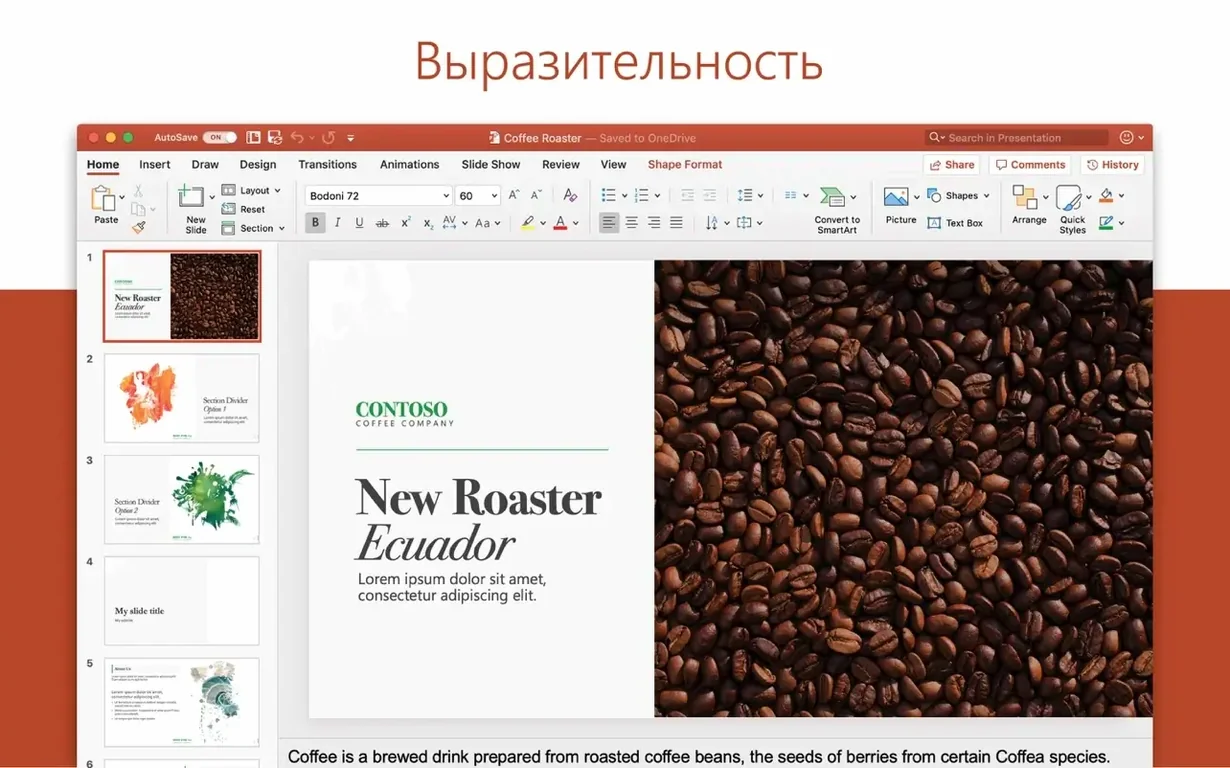
- Build the skeleton. Use layout tools and a vast icon library to block out slides quickly. The interface gets out of the way when you're arranging content.
- Add motion with purpose. This is where PowerPoint pulls ahead. Motion path effects and a refined animation timeline let you choreograph reveals that don't feel like cheap transitions.
- Drop in rich media. Insert and manipulate 3D models directly on a slide. Rotate them, adjust lighting, and let viewers grasp a product or concept spatially.
- Review across devices. The file format is the lingua franca. Your deck looks the same whether you present from a Mac, a tablet, or PowerPoint online.
The interface comes in Russian, English, German, Hungarian, Greek, Danish, Indonesian, Spanish, Italian, Korean, Dutch, Polish, Portuguese, Slovak, Thai, Turkish, Finnish, French, Czech, Swedish, and Japanese. It's a global tool, plain and simple.
A Freelancer’s Thursday Panic
Picture a freelance brand designer wrapping up a Thursday pitch deck for a fintech startup. The client sent a last-minute request: embed an interactive 3D model of their payment terminal and animate a revenue chart that builds itself bar by bar. Keynote can handle the chart animation, but the 3D model spins with a jerk. In PowerPoint, the designer drags the GLB file straight onto a slide, adjusts the rotation with the 3D model handles, and sets a morph transition that spins the terminal from a flat angle to a dramatic close-up on the next slide. The chart gets a staggered “Grow” animation applied to each data series. Twenty minutes later, the deck renders smoothly and exports as a self-running kiosk file that the client can leave on a lobby screen. It’s not about flash. It’s about a tool that doesn’t tap out when a brief gets demanding.
Embed Fonts Before You Send That Deck
Fresh installs are a good time to set a few defaults. Head to PowerPoint > Settings > Save and tick Embed fonts in the file. It saves you from the dreaded font-substitution scramble when a client opens your deck on a Windows machine that lacks your carefully chosen typeface.
Next, strip the ribbon down to what you actually use. Right-click the toolbar area, choose Customize the Ribbon, and build a tab that pulls together the Selection Pane, Animation Pane, and Align tools. Those three panels will do more for clean slides than any template. After that, spend ten minutes inside the Slide Master view. Set up a parent slide with your brand’s corner logo, a subtle guide grid, and text placeholders that match your real body copy size. You’ll stop fighting rogue text boxes by Tuesday.
One last move: open the Animation Pane and practice changing the Start setting from “On Click” to “With Previous” on a few objects. That single switch turns clunky sequenced builds into fluid, overlapping motion—and it’s the fastest way to make a deck feel polished before you touch a single easing curve.
The Moment You Need More Than a Handsome Slide
Place PowerPoint beside Apple Keynote and the difference is one of philosophy. Keynote excels at guiding you toward a handsome slide with minimal decisions. Its type handling and default themes feel native to the Mac. But the moment you need a motion path that curves around an image, or you want to recolor an SVG icon without leaving the app, Keynote’s simplicity becomes a boundary. PowerPoint puts those levers front and center, even if the interface feels busier.
Google Slides wins on real-time collaboration and zero-install convenience. It’s the right call for a distributed team hammering out bullet points simultaneously. But its animation engine is sparse, and offline work means a Chrome extension and crossed fingers. PowerPoint’s desktop app runs with or without a connection and doesn’t punish you for wanting fine control over a gradient stop or a custom shadow angle.
Canva has eaten into the template-design space with a web-first approach that makes a stunning title slide fast. It’s a strong choice for social-media graphics that happen to be slides. For a 60-slide investor deck with numbered figures, cross-referenced footnotes, and a table of contents that auto-updates, Canva’s slide-by-slide model strains. PowerPoint handles long documents better because it treats a deck as a structured file, not a canvas for a single page.
Pasting Excel Charts With Keep Source Formatting
PowerPoint plays a specific role in a Mac-based workflow. Next to Word and Excel, it completes the Office triangle. An analyst builds a financial model in Excel, copies the chart, and pastes it into PowerPoint with the “Keep Source Formatting & Link Data” option. When the Excel numbers update next quarter, the deck’s charts refresh without re-copying. That link is something web-only tools can’t match.
With OneDrive signed in, the “Recent” list on your Mac’s PowerPoint follows you to an iPad or a browser tab. Start a deck on a desktop, tweak speaker notes on a tablet backstage, and present from a phone. It’s the same file, and version history keeps you from losing a morning’s work.
macOS features blend in where they help. Split View lets you keep a research PDF open on half the screen while you build slides on the other, dragging images straight from Preview into a placeholder. Focus modes tied to the app mean notifications stay quiet during a rehearsal. And because the app is a native build for Apple Silicon, battery drain on a MacBook Air stays reasonable even during a long editing session with multiple media-heavy decks open.
Office suite release 16.93 rolls up the latest fixes and performance tweaks for PowerPoint alongside the rest of the suite.
- macOS 13 or later
- Works on Intel and Apple Silicon Macs
Questions I actually get
Does the Mac version support 3D models?
Yes. You can insert and rotate 3D models directly on slides, along with using motion path effects and standard animation tools.
Is PowerPoint for Mac part of a suite?
It is a core application in Microsoft Office LTSC Standard for Mac 2024, alongside Word, Excel, Outlook, and OneNote.
Can I open my PowerPoint files on other platforms?
Absolutely. PowerPoint works across desktop, mobile, tablet, and the web, so your presentations maintain their formatting everywhere.
Notes from the edit bay · 0
Sign in or get an edit-bay pass to leave a note.
No notes from the edit bay yet. They go up after I read them.