
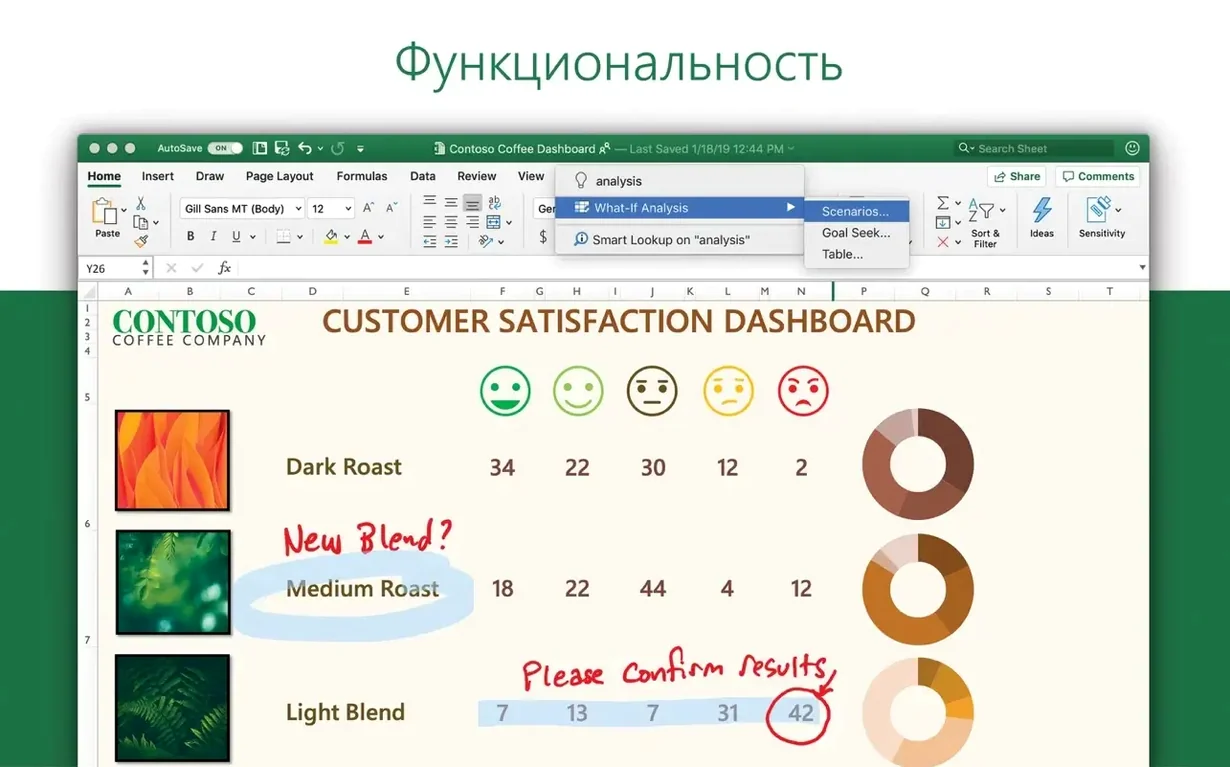
Three months of bank statements, one blank workbook. Here's how Excel 16.93 turns that mess into a chart you can read at a glance.
Data entry — Type "Date," "Description," "Category," and "Amount" across Row 1. Freeze it with View > Freeze Top Row so you never lose the headers while scrolling.
Formula — =SUMIF grabs totals per category. Point it at your Category column, tell it "Rent," then point it at the Amount column. Drag the formula down for Groceries, Transit, whatever you actually spend on.
Visualization — Select the category names and their totals. Hit Insert > Recommended Charts. The new chart types in this build make a clustered bar chart pop; the Ideas pane suggests trend lines if your spending has a story.
Sharing — Save the file. A colleague opens it on their Mac, adds a few rows, and the formulas recalculate. That's the collaboration loop finance teams run on, and it works the same on a home budget.
Pasting Linked Charts into Word Without Breaking
Most people don't live inside one app. A spreadsheet grabs data from somewhere, crunches it, and feeds results into a report or a presentation. The Office suite handles the obvious pairings: paste a chart into Word and it stays linked so edits in Excel ripple through, drop a table onto a PowerPoint slide and the formatting survives. Those connections feel tighter in 16.93 — fewer broken links after a rename, fewer font mismatches between apps.
Outside the Microsoft bubble, Excel talks to Numbers without drama. Open a .xlsx in Apple's app, make light edits, send it back. Heavy PivotTables won't survive the round trip intact, but basic sheets come through fine. For quick lookups, Spotlight indexes workbook contents. Type a client name into the menu bar, and macOS surfaces the file without you touching the Finder. That alone saves me five minutes a day.
Power users often pair Excel with a database. Pull a CSV export from a SQL tool, open it, and the Power Query editor reshapes it before a single formula runs. On the export side, save a sheet as CSV or tab-delimited text and feed it straight into After Effects for data-driven motion graphics — lower thirds with quarterly numbers, bar chart races that update from live cells. Excel isn't the hero of that pipeline, but it's the engine room.
QuickBooks Online exports transaction lists that land in Excel with zero cleanup. Accountants live in that loop. Finance teams pass workbooks through Teams or Slack; the Mac version respects file locking, so two people don't overwrite each other's changes. And if you're hunting for a Microsoft Excel torrent because Numbers feels too light, this build delivers the full function library Mac users used to miss.
Small Conveniences You Walk Past Every Day
The Quick Analysis button appears as a tiny icon at the bottom-right of any selected range. Most people ignore it. Click it and you get one-tap formatting, charts, totals, and sparklines — all without touching the ribbon. For a quick conditional formatting heat map on a column of numbers, it's three seconds versus digging through menus.
Flash Fill watches what you type and offers to finish the column. Got a list of full names in column A? Type the first initial in B1, hit Return, start typing the second, and Excel ghost-fills the rest. Accept with Enter. It handles pattern recognition you'd otherwise need LEFT, RIGHT, and FIND formulas for. Works on dates, phone numbers, email domains — anything with a detectable structure.
The status bar at the bottom of the window shows Sum, Average, and Count by default. Right-click it and you can add Min, Max, and Numerical Count. Select a range, glance down — no formula needed. I add Max every time I install. Knowing the peak value in a column without writing =MAX() speeds up sanity checks.
Control+tilde toggles between showing formula results and showing the formulas themselves. Press it once, scan for broken references, press it again. F2 jumps into cell editing without double-clicking. Shift+Space selects an entire row, Control+Space selects an entire column. Three keystrokes you use a hundred times a day once they're muscle memory.
Stop Auto-Stripping Leading Zeros from IDs
Excel ships with defaults that make sense for nobody in particular. A few tweaks and it bends to how you actually work.
Turn off auto data conversion. Excel loves turning long numbers into scientific notation and stripping leading zeros from product codes. Go to Excel > Preferences > Edit > Automatic Data Conversion and uncheck every box. Your ZIP codes and part numbers will thank you.
Set default file format to .xlsx. Preferences > Compatibility. The Mac version sometimes defaults to older formats. Lock it to the modern Office Open XML format and you avoid compatibility warnings every time you share a file with a Windows user.
Show the Developer tab. Preferences > Ribbon & Toolbar, scroll down, check Developer. Even if you don't write VBA, the tab gives you one-click access to the Macro recorder and the XML mapping pane. Power Query lives there too, partly.
Change the number of recent workbooks. Preferences > General > Show this number of Recent Workbooks. Crank it to 20. The default is too small if you bounce between client files.
Turn on iterative calculation if you build models with circular references. Preferences > Calculation > Limit iteration. Set max iterations to 100 and max change to 0.001. Without this, a circular formula just throws an error instead of converging.
Tracking Travel, Gear, and Talent Across Three Docs
Sarah produces short documentary segments. She's cutting three projects right now and tracking expenses across all of them. Her accountant sends a workbook template every quarter — travel, gear rentals, talent fees, post-production line items. The template has six tabs, but Sarah only touches two.
She opens the file. The "Expenses" tab has columns for date, vendor, amount, project code, and a receipt link. She pastes in a dozen rows from her credit card export. Flash Fill separates vendor names from transaction descriptions without her writing a formula. She highlights the Amount column, clicks the Quick Analysis button, and slaps on conditional formatting that flags anything over $500 in red — gear rentals pop instantly.
She switches to the "Summary" tab. A PivotTable pulls project codes into rows and sums amounts into columns. She right-clicks the total for Project 2, drills down, and Excel generates a new sheet showing every transaction behind that number. She spots a duplicate camera rental, deletes the row, and the PivotTable updates. Total saved: $340 before she sends the file to her accountant.
She saves the workbook, drags it into a Slack DM, and the accountant opens it on a MacBook Air running the same build. The formulas recalculate, the conditional formatting holds, and Sarah gets a reply in twelve minutes: "Approved. Send the next one by Friday." That loop — paste, check, share, approve — is why people who grab a Microsoft Excel download torrent on a Mac end up staying. The spreadsheet doesn't fight the platform.
A Full Workflow: Quarterly Sales by Region
Your boss drops a CSV of raw transactions on you at 9 AM and needs a regional breakdown with charts by noon. Here's the line, start to finish.
1. Get the data in clean. Open the CSV. Excel's import dialog appears — choose Delimited, comma separator, and set the date column to a date format during import instead of fixing it later. If the file uses semicolons, change it here. Hit Finish.
2. Convert to a Table. Click anywhere in the data, press Control+T, confirm the range. Tables auto-expand when you add rows, formulas copy down automatically, and column headers stay visible when you scroll. The blue banded rows are a nice readability bonus.
3. Add a region column with XLOOKUP. Your transaction data has a zip code or city but no region. Create a lookup table on a second sheet: city in column A, region in column B. Back on the main sheet, in a new column, write =XLOOKUP([@City], LookupTable!A:A, LookupTable!B:B, "Unknown"). The [@City] syntax references the Table column, not a cell address — it reads like English and survives column reordering.
4. Build a PivotTable. Click inside the Table, Insert > PivotTable, new sheet. Drag Region to Rows, Quarter to Columns, and Sale Amount to Values. Right-click a value, Show Values As > % of Column Total if you want share instead of raw dollars. The PivotTable now tells you which region grew and which shrank, by quarter, in about ninety seconds of dragging fields.
5. Chart it. Select the PivotTable, Insert > Recommended Charts. The Ideas pane might suggest a stacked area chart to show composition over time; if not, pick Clustered Column for clarity. Move the chart to its own sheet for a clean export.
6. Polish for presentation. Click the chart title, type something human-readable. Right-click the legend, move it to the bottom. On the Chart Design tab, pick a color palette that matches the company deck. Add data labels to the highest-value series only — too many labels clutter.
7. Save and send. File > Save As, pick the project folder. The .xlsx opens identically on a colleague's Mac or a Windows machine. If the boss needs a PDF, File > Export > Create PDF. The chart renders vector-sharp. Total elapsed time from CSV open to PDF send: under an hour. That's the rhythm a good spreadsheet app gets out of your way for — you think about regions and quarters, not about where the button moved.
New chart types land in this build, so you're not stuck with the same blue columns every time. The Ideas pane also gets smarter about visualizing trends in your data without you hunting for the right button.
Also fixed: the usual under-the-hood stability tweaks that keep a workbook with three years of transactions from crashing when you add a slicer.
- macOS 13 (Ventura) or later
- Intel or Apple Silicon Mac
Questions I actually get
Which Macs run Excel 16.93?
It runs on any Mac with macOS 13 Ventura or later, on both Intel and Apple Silicon processors.
What languages does the interface support?
The interface switches between Russian, English, German, Hungarian, Greek, Danish, Indonesian, Spanish, Italian, Korean, Dutch, Polish, Portuguese, Slovak, Thai, Turkish, Finnish, French, Czech, Swedish, and Japanese.
Is this part of a larger Office suite?
Yes, it's included in both Office LTSC Standard for Mac 2024 and the Microsoft 365 for Mac suite.
Notes from the edit bay · 0
Sign in or get an edit-bay pass to leave a note.
No notes from the edit bay yet. They go up after I read them.