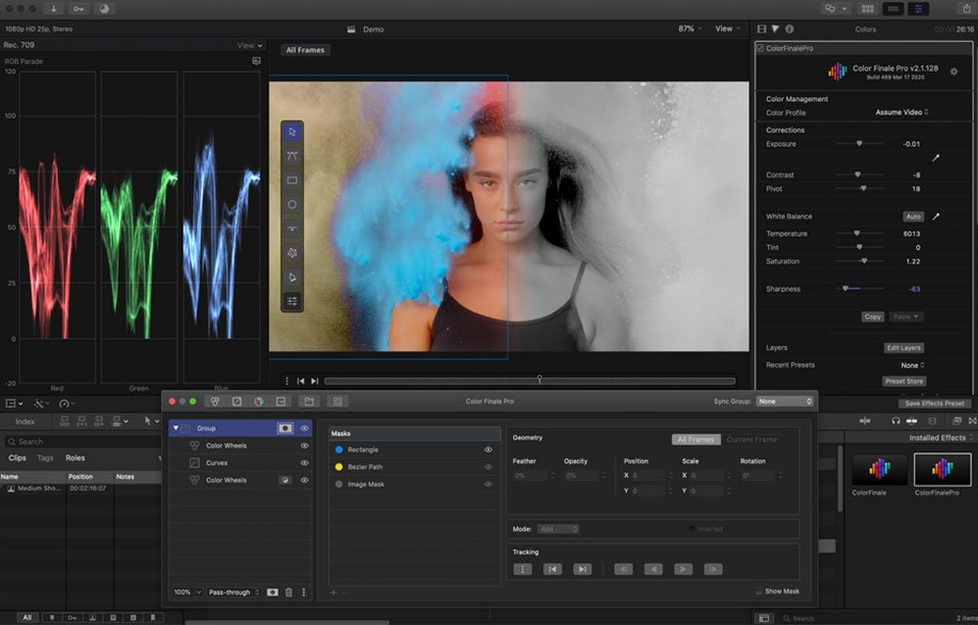
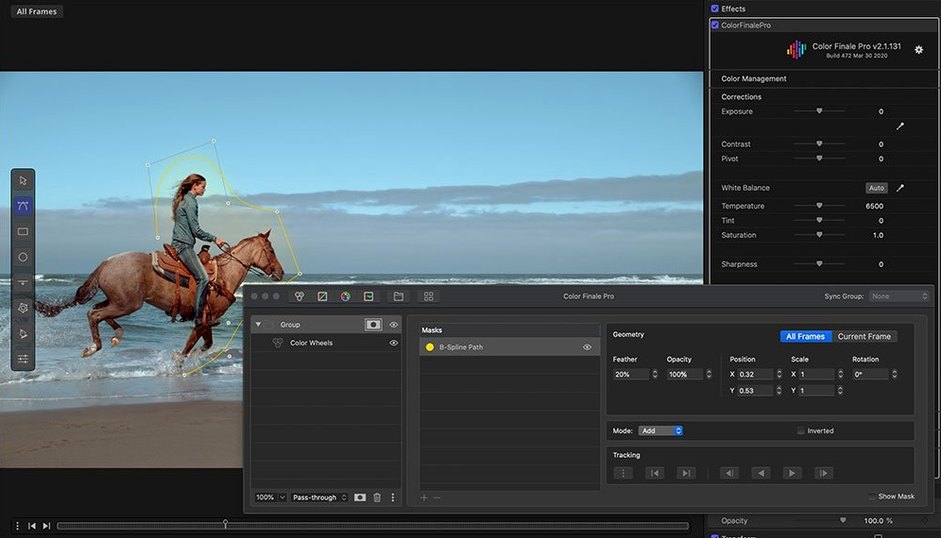
Color Finale is a dedicated color-correction plugin that lives inside Final Cut Pro.
When Final Cut's Built-In Tools Hit Their Ceiling
Editors who've hit the wall with Final Cut's built-in color tools and want deeper grading without leaving the timeline. It's built for people who think in wheels, curves, and LUTs rather than slider stacks.
One Grading Layer Instead of a Slider Stack
It slots into your effects workflow as a full grading layer. Instead of piling on multiple instances of the color board, you get one panel with color wheels, curves, HSL curves, primary color vectors and LUT authoring — all stacked as layered adjustments.
What Formats and LUTs Can It Handle?
You can import standard cube LUTs or build and export your own presets directly from the plugin. The Color Preset Store and 30 ASCEND colorist presets give you a starting library, and any look you build can be saved as a reusable preset for other projects.
The Intel 64-bit Build and Separate App Requirement
Version 2.2.8 is a 64-bit Intel build for macOS 10.12 or later. It installs as a video effect into Final Cut Pro and Motion, and a separate Color Finale application has to be present for the plugin to work within macOS.
Feels Native Inside the Inspector
In daily use, Color Finale feels like a native part of Final Cut Pro rather than a third-party guest. The plugin loads inside the inspector without forcing a roundtrip to another application, and adjustments register in the viewer with very little lag — even with three or four layers stacked on a 4K timeline. That responsiveness isn't magic; it's the payoff of a plugin designed solely for one host.
Memory usage stays reasonable for a grading tool. On an Intel Mac with 16 GB of RAM, a project with five graded clips and multiple LUT layers might push the plugin's footprint to around 600 MB of additional memory. That's heavier than the built-in color board but entirely manageable. The real hit comes when you pile on HSL curve nodes — each extra qualification nudges render times up, and on older Intel hardware you'll feel it during export. Background rendering keeps the timeline playable, though scrubbing through a heavily graded section occasionally drops frames until the render cache catches up.
Stability is solid in the 2.2.8 build. Crashes are rare and almost always trace back to a corrupted LUT file rather than the plugin itself. One quirk worth knowing: if you rename a LUT that's already applied to a clip, Color Finale doesn't always re-link it automatically. You'll see a missing-file warning in the inspector, and relinking takes two clicks. Not a dealbreaker, just a small workflow speedbump.
Wedding Editors' Fast Turnaround Secret
Wedding and event editors who deliver fast turnarounds get a disproportionate lift from Color Finale. The layered adjustments mean you can build a base correction on one level, add a stylized LUT on another, and dial back the opacity of the look without baking anything. That stackability replaces the three-clip compound workaround a lot of Final Cut editors resort to, and it saves real minutes per project.
Corporate video editors working with multi-camera interviews will lean on the color match tools and the ability to save a grade as a preset, then stamp it across a dozen clips in a single selection. The HSL curves are precise enough to pull a skin tone back into range after a white-balance shift without affecting the background, which is the kind of surgical fix that the built-in color board makes clumsy.
Indie filmmakers and music video editors are the other natural audience. If you're building a stylized palette across an entire short film, the LUT authoring tools let you develop the look on a hero shot and export a cube file that travels to After Effects or Resolve later. That's not something Final Cut's native tools can do at all.
Users who won't feel the benefit as strongly are editors who mostly cut dialogue-driven content with locked-down cameras and consistent lighting. If your grading rarely goes beyond a quick exposure tweak and a saturation bump, the plugin is overkill — the built-in tools handle that without the extra plugin overhead.
Pre-Install Questions
Before or After the Built-In Color Board
It can, but it doesn't have to. Color Finale works as a separate effect, so you can apply it before or after the built-in color adjustments in the effect stack. Some editors use the color board for quick white-balance fixes and Color Finale for the creative grade on top. The two coexist without conflict.
Export Times on 2015–2017 Macs
On machines from 2015–2017 with integrated graphics, you'll notice longer render times on 4K projects with multiple layers. The plugin itself isn't heavy on the GPU during playback — background rendering does most of the lifting — but export times will climb compared to a grade done with the built-in tools. On any Mac with a discrete GPU, even an older one, the difference is negligible.
One-Click Presets vs. Real Grading Power
The interface is approachable if you've ever used a three-way color corrector, and the 30 ASCEND presets give you one-click starting points for common looks. But the real power — HSL qualification, custom curve shaping, LUT authoring — only clicks if you understand what a gamma curve does or how to isolate a hue range. Beginners can grow into it; editors who just want a quick "make it look good" button will underuse it.
Missing-Plugin Warning After Uninstall
Projects graded with Color Finale will show a missing-plugin warning and the clips revert to their uncorrected state. If you plan to archive projects long-term, bake the grade into a rendered file or export the LUT and apply it with a simpler effect. This isn't unique to Color Finale — it's true of any third-party FCP effect — but it catches people off guard.
Six Angles, Mixed LED, Two-Day Delivery
Picture this: a three-minute performance cut with six camera angles, shot under mixed LED lighting that shifted color temperature between setups. The editor has two days to deliver a graded master and a clean log version for the label.
Day one starts with matching the cameras. Color Finale's primary wheels handle the heavy lifting — lifting shadows on the B-cam that underexposed by a stop, cooling down the key light spill on the wide shot. Each correction sits on its own layer, so the editor can toggle individual adjustments to check before-and-after without resetting the whole grade.
By midday, the base corrections are locked and the creative grade begins. A teal-and-orange split-tone goes on layer three, built with the color wheels rather than a pre-made LUT, because the director wants the skin tones warmer than the default preset delivers. The HSL curves isolate the orange range and push it slightly toward amber without touching the background teal. That adjustment alone would take three separate tools in the native color board; here it's one curve with two control points.
On day two, the label asks for a desaturated version for a B-roll cut. Instead of starting over, the editor selects all clips, opens Color Finale, and drops the saturation layer to 40 percent. The grade exports as a LUT and gets emailed to the motion graphics artist handling the title sequence. Everything stays in Final Cut Pro, nobody roundtrip
Don't Pile Every Fix on One Layer
The most common fumble is piling every correction onto one adjustment layer. Color Finale lets you stack layers for a reason: separating exposure fixes from creative looks means you can tweak or disable one without rebuilding the whole grade. Beginners tend to treat the first layer like a single-correction bucket, then wonder why fine-tuning becomes a chore.
Another classic slip: applying a LUT at full opacity and calling it done. LUTs are starting points, not finished grades. Dropping the opacity to 60–80 percent and adding a small curve adjustment underneath almost always produces a more organic result, but new users skip that step and end up with a look that screams "preset."
Overusing the HSL qualifier is the third trap. It's tempting to isolate every hue and tweak it independently, but without soft key edges you get harsh transitions and banding on compressed footage. Feathering the qualification and keeping key adjustments to two or three ranges keeps the image from falling apart on export.
Finally, forgetting that Color Finale needs its companion application open. The plugin installs as a video effect, but the separate Color Finale app has to be present on the system for the effect to function. Closing it mid-session doesn't crash anything — the grade stays applied — but the inspector controls will grey out until you relaunch it. It's a small architectural quirk that trips up new users at least once.
- macOS 10.12 or later
- 64-bit Intel Mac
- Final Cut Pro X or Motion
- Interface in English and Simplified Chinese
Questions I actually get
Is this build native on Apple Silicon?
No. Version 2.2.8 is a 64-bit Intel build, so on an M-series Mac it relies on Rosetta 2.
Can I save my own color presets?
Yes. You can author LUTs and save complete grading setups as presets for use across projects.
Notes from the edit bay · 0
Sign in or get an edit-bay pass to leave a note.
No notes from the edit bay yet. They go up after I read them.