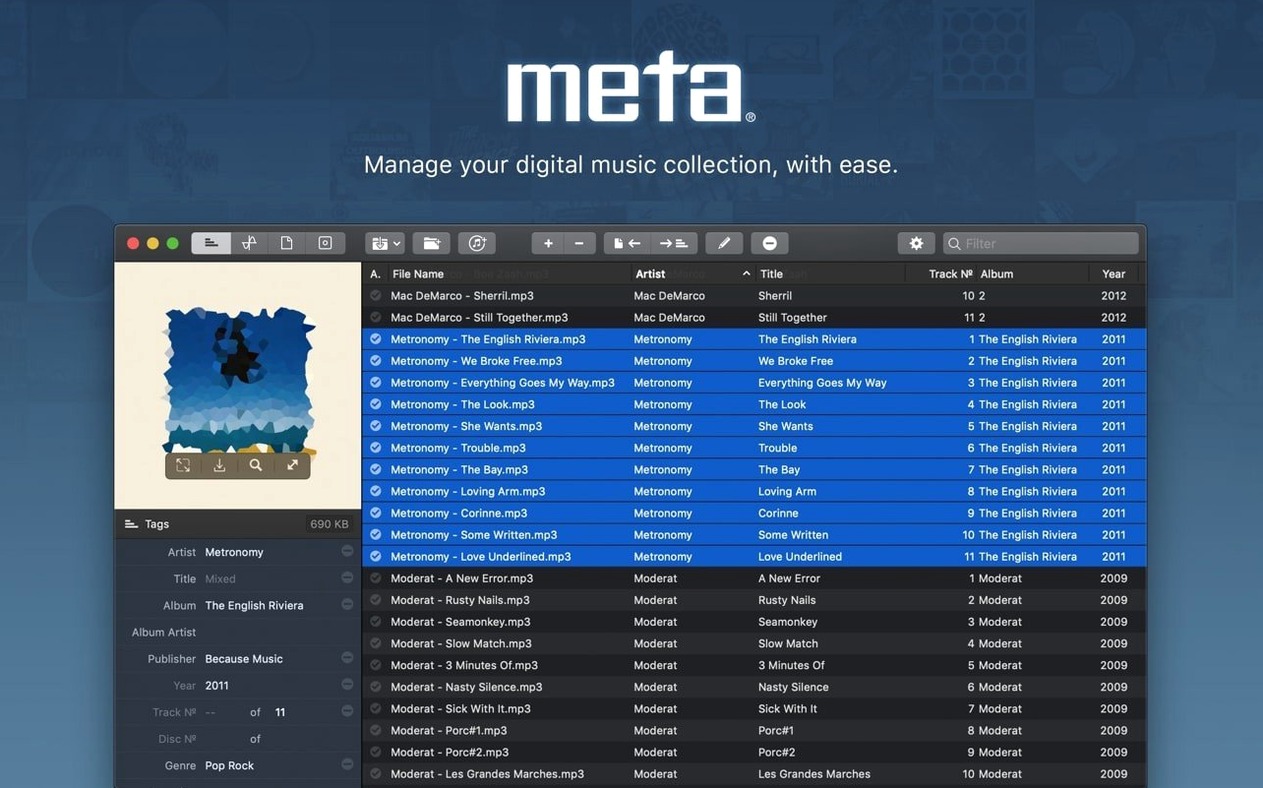
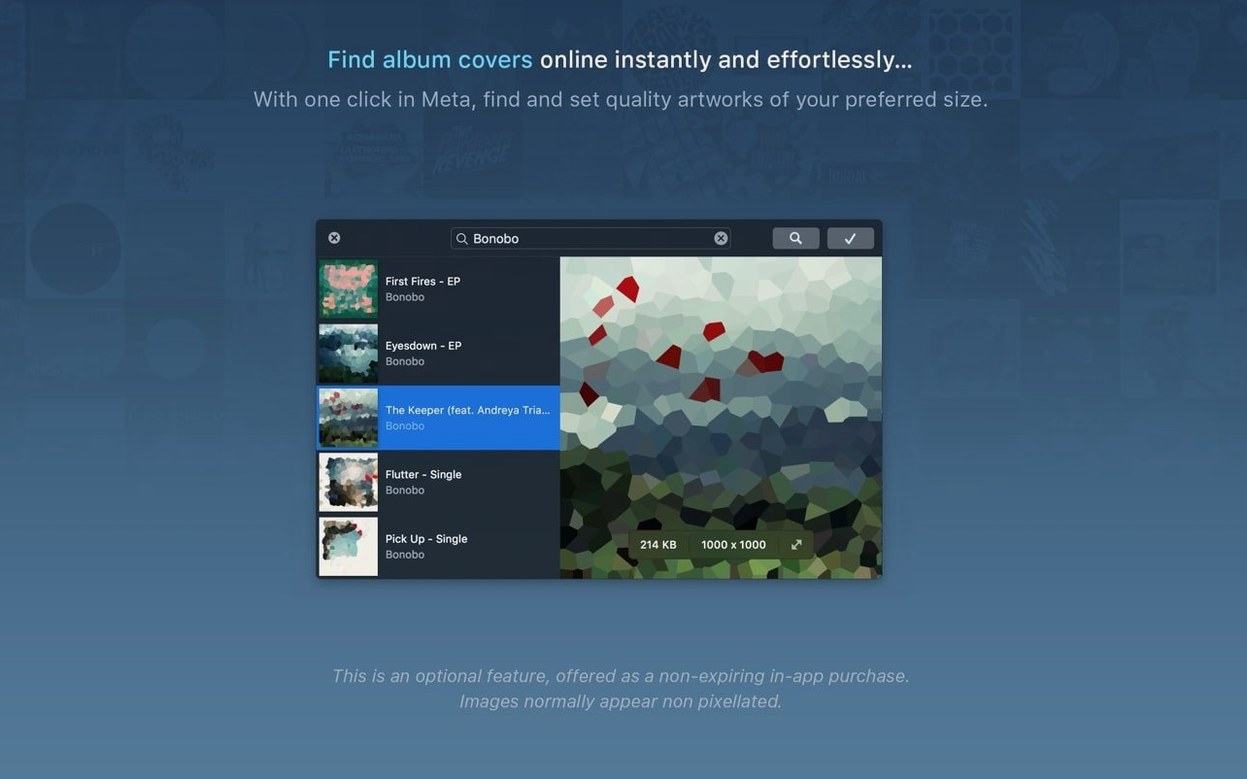
Anyone who has stared at a cluttered iTunes library understands the pain of inconsistent artist names or missing album art. Think of Meta as the utility Apple’s Music app should have shipped with. Instead of fighting a slow, monolithic player just to fix a typo across twenty tracks, you get a dedicated workspace that mirrors the iTunes database logic but strips away everything that isn’t about raw metadata. The autocomplete suggestions pull directly from that same ecosystem, so you stay consistent without retyping catalog data.
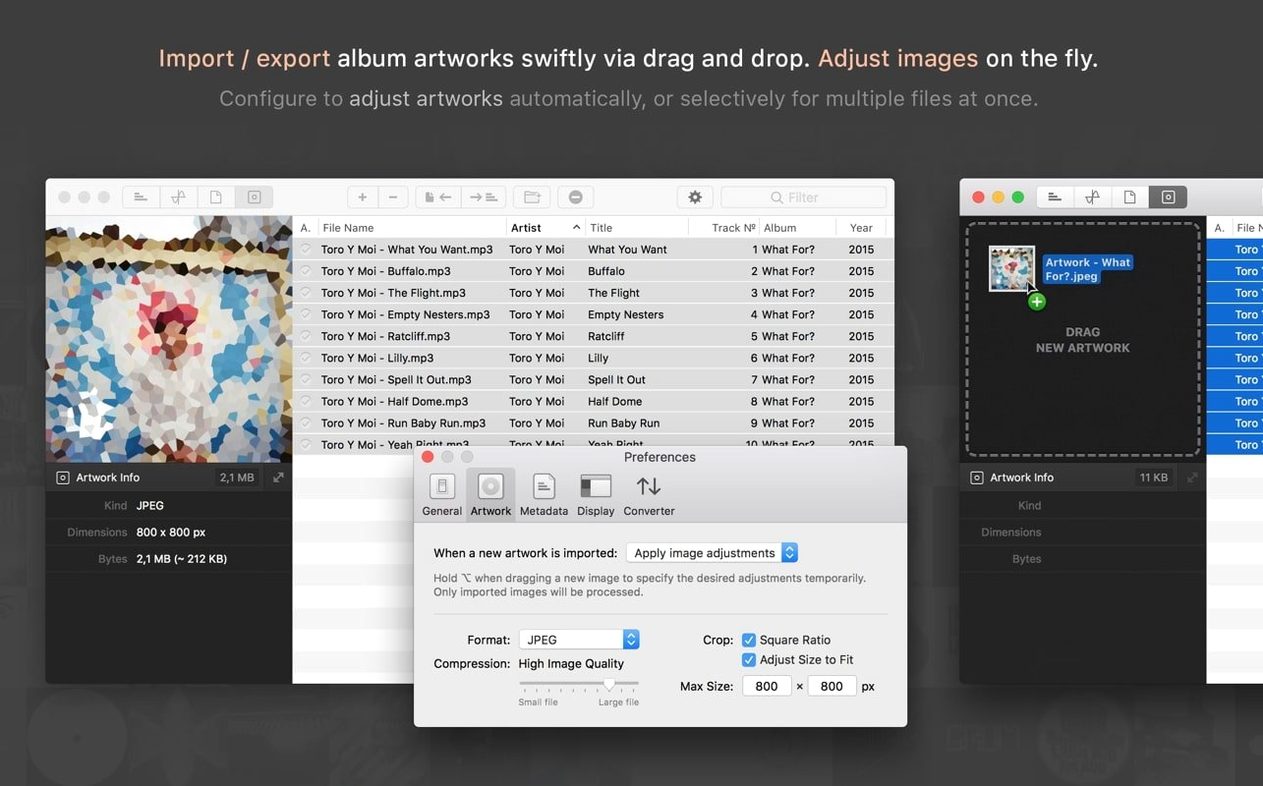
A realistic session starts with a mess: a folder of WAV files named correctly but internally blank. Drag them in, and Meta can reverse-engineer the track titles and numbers straight from the filenames using a template. No manual typing. From there, you batch-select the empty album field, hit autocomplete, and let the app fill in the official cover art while automatically scaling and compressing the image to keep file sizes sane. You aren’t just tagging—you’re running a miniature assembly line.
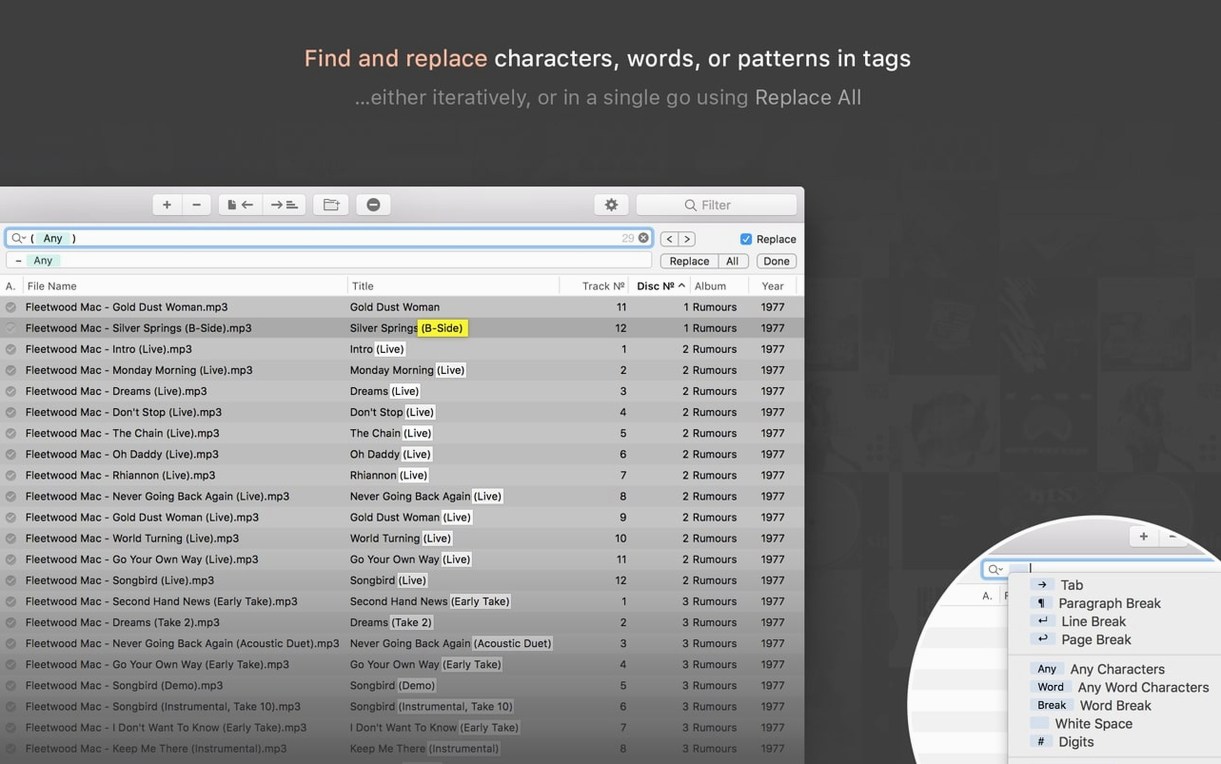
The real muscle shows up when you deal with bad data. Maybe a collaborator sent MP4 files where the artist field is stuck in all caps. A quick search-and-replace with regular expressions flips the formatting in a click. Cutting and pasting metadata between columns feels like a spreadsheet, which makes sense because you can export the whole view to CSV, clean it up in Numbers, and pull it back in. It bridges the gap between a rigid audio editor and a flexible data tool.
Before you even hit save, file actions let you audition a track in its default app or reveal it in Finder to double-check the waveform. It’s a tight, logical loop. You fix the tags, verify the audio, and move the files into a structured folder hierarchy generated from the metadata you just perfected—all without leaving a single window.
An Interface That Feels Like It Landed on macOS by Accident
Kid3 runs on the same Taglib engine and covers nearly identical formats, but its interface feels like a Linux port that landed on macOS by accident. Menus nest three levels deep, and the window layout fights you when you resize. Meta keeps the same technical reach while staying inside Mac conventions—Quick Look integration, clean drag targets, and a sidebar that doesn’t require a manual.
Yate pushes further into scripting and custom actions, which a power user with a six-digit track count might need. For everyone else, that complexity just adds friction between opening the app and fixing a genre tag. Meta lands in the middle: batch operations, regex, and CSV roundtrips cover real-world cleanup without turning into a programming environment.
If you only tweak the occasional MP3 inside Finder’s Get Info panel, downloading a meta mac full version probably looks like overkill. But the first time you rename three hundred files from their metadata or pull consistent artwork across a box set, the dedicated tool pays for itself in minutes. It’s less about raw feature count and more about how fast you move from mess to organized library.
Set Up Two Tag Views Now to Keep Bulk Work Lean
Start by configuring two tag views—one for basic fields like artist, album, and title, another for the deep stuff: BPM, composer, disc number. Swapping between them with a single click keeps the window lean when you’re doing bulk work and detailed when you need forensic edits on a single track.
Before you touch a large folder, run a dummy rename on a duplicate set. Build a filename-to-tag template, test it, then apply it to the real files. The pattern syntax clicks after a few tries, but experimenting on copies means you don’t undo careful naming by accident. Same goes for artwork: set the auto-compression threshold to something like 500 KB and let Meta handle JPEG scaling in the background.
Finally, lean on the iTunes integration early. Select freshly tagged tracks, send them to the Music app, and verify changes appear instantly. It’s the fastest sanity check, and it turns Meta into a staging area where you prep files before they ever touch your main library. You’ll stop thinking of tagging as cleanup and start treating it as part of import.
Meta 2.6.0 lands with a fresh round of fixes and performance improvements from the developer.
- macOS 10.13 or later
- Apple Silicon or Intel 64-bit
Questions I actually get
Which tag formats does Meta support?
It handles the heavy hitters you’ll actually run into: ID3v1 and ID3v2.3/2.4 for MP3s, MP4 tags for AAC and ALAC, plus Vorbis comments, APE tags, and INFO tags for older WAV files.
Can I use Meta to organize files without manually renaming them?
Absolutely. You can create folders and rename files dynamically using metadata templates, so an album can automatically sort itself into an Artist > Album folder structure based on the tags you’ve set.
Notes from the edit bay · 0
Sign in or get an edit-bay pass to leave a note.
No notes from the edit bay yet. They go up after I read them.