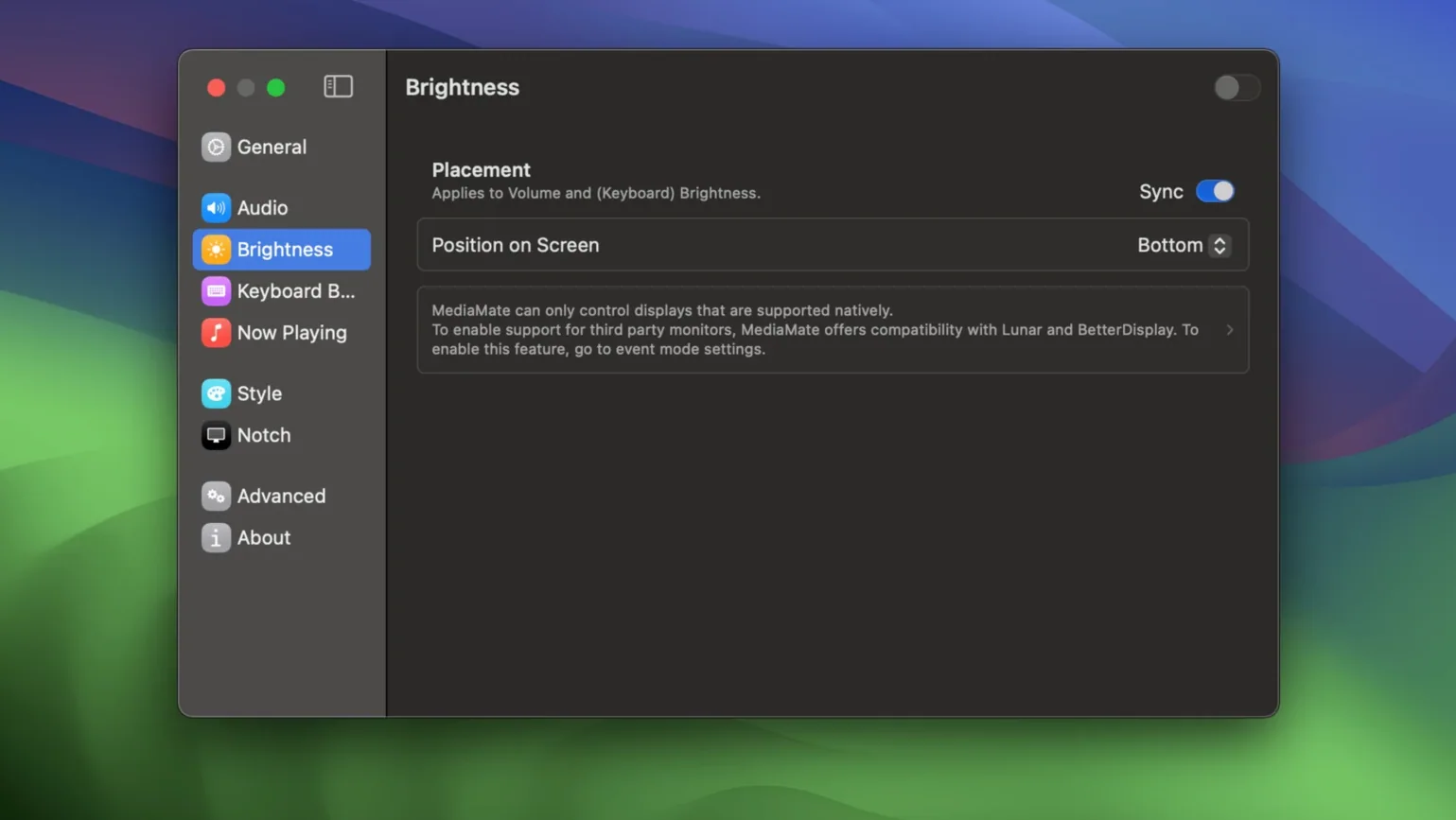
Anyone who tweaks a mix on a deadline knows the feeling: you tap the volume key and a giant, opaque block parks itself in the middle of your timeline. MediaMate is for editors, colorists, and anyone who keeps one hand on a fader — people who want system feedback without the cinematic interruption. It strips the volume and brightness heads-up displays down to something leaner and gets out of your way.
A Volume HUD That Stays Out of Your Way
- Replacing the built-in macOS volume HUD with a compact indicator that doesn’t block the canvas.
- Swapping the standard brightness overlay for a slimmer version that suits calibrated displays.
- Working across any Mac — ARM and 64-bit Intel machines are both supported.
Ventura Is the Floor, English the Only Language
- Requires macOS Ventura; older versions of the OS are out.
- Version 3.8.4 is a stability release with no new feature changes listed.
- Interface is English-only at the time of this build.
Squashing the Multi-Display Bugs
Version 3.8.4 didn't ship with a splashy feature list, and that's the point. Wouter Hennen focused on squashing edge-case bugs that would trip up users running the app across multiple displays. The compact HUD now behaves more predictably when you disconnect a monitor mid-session — no more ghost overlays stuck on a screen that isn't there. That one fix alone saves a trip to Activity Monitor.
Also fixed: a timing quirk where the media playback indicator would lag behind track changes if you were switching between Apple Music and a browser tab playing video. The update tightened the refresh cycle, so the artist name and title swap out faster. Not the kind of thing you'd put on a feature card, but exactly the kind of thing that makes the app feel like part of the system instead of a bolt-on.
First Days With MediaMate: What to Dial In
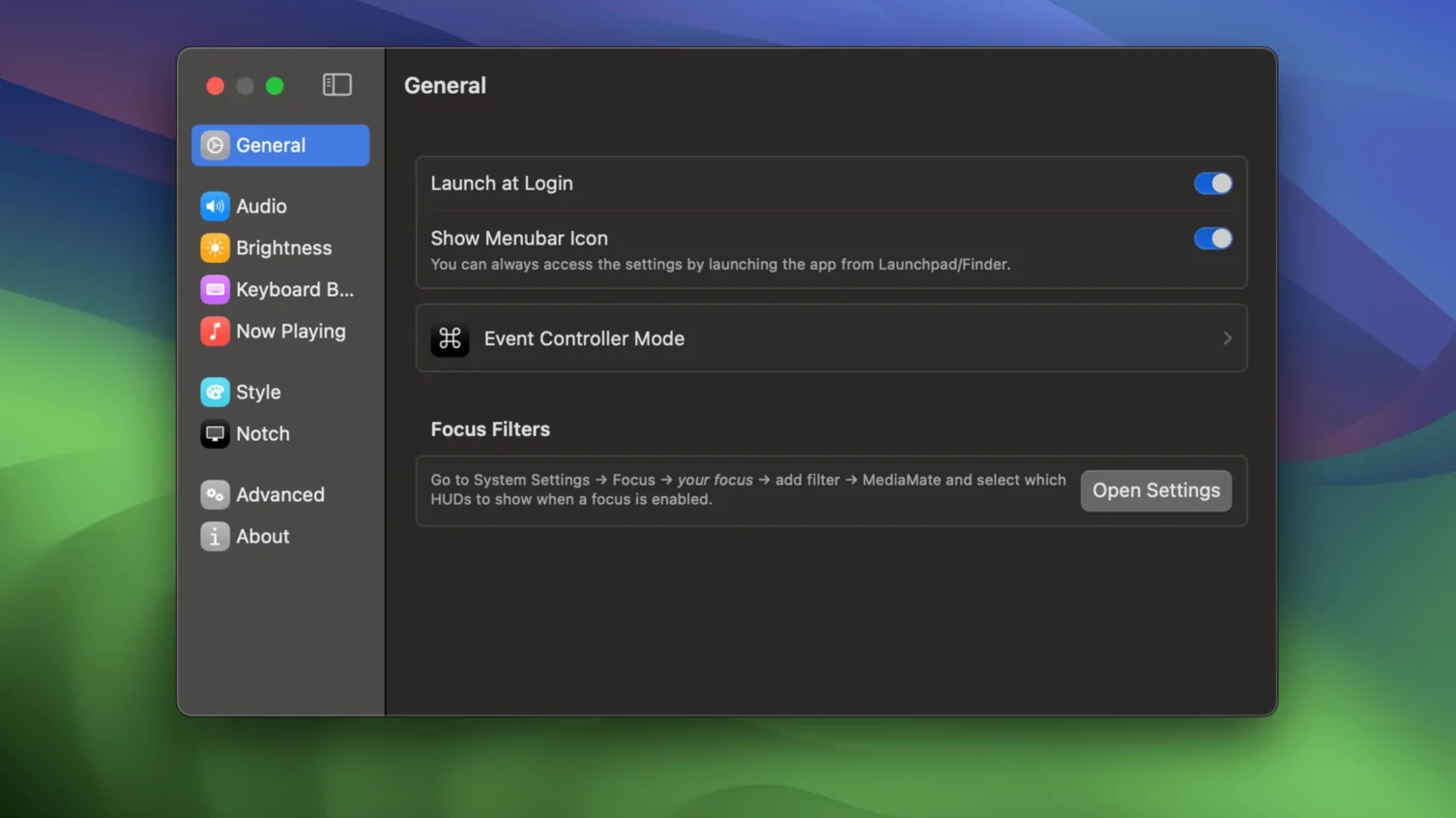
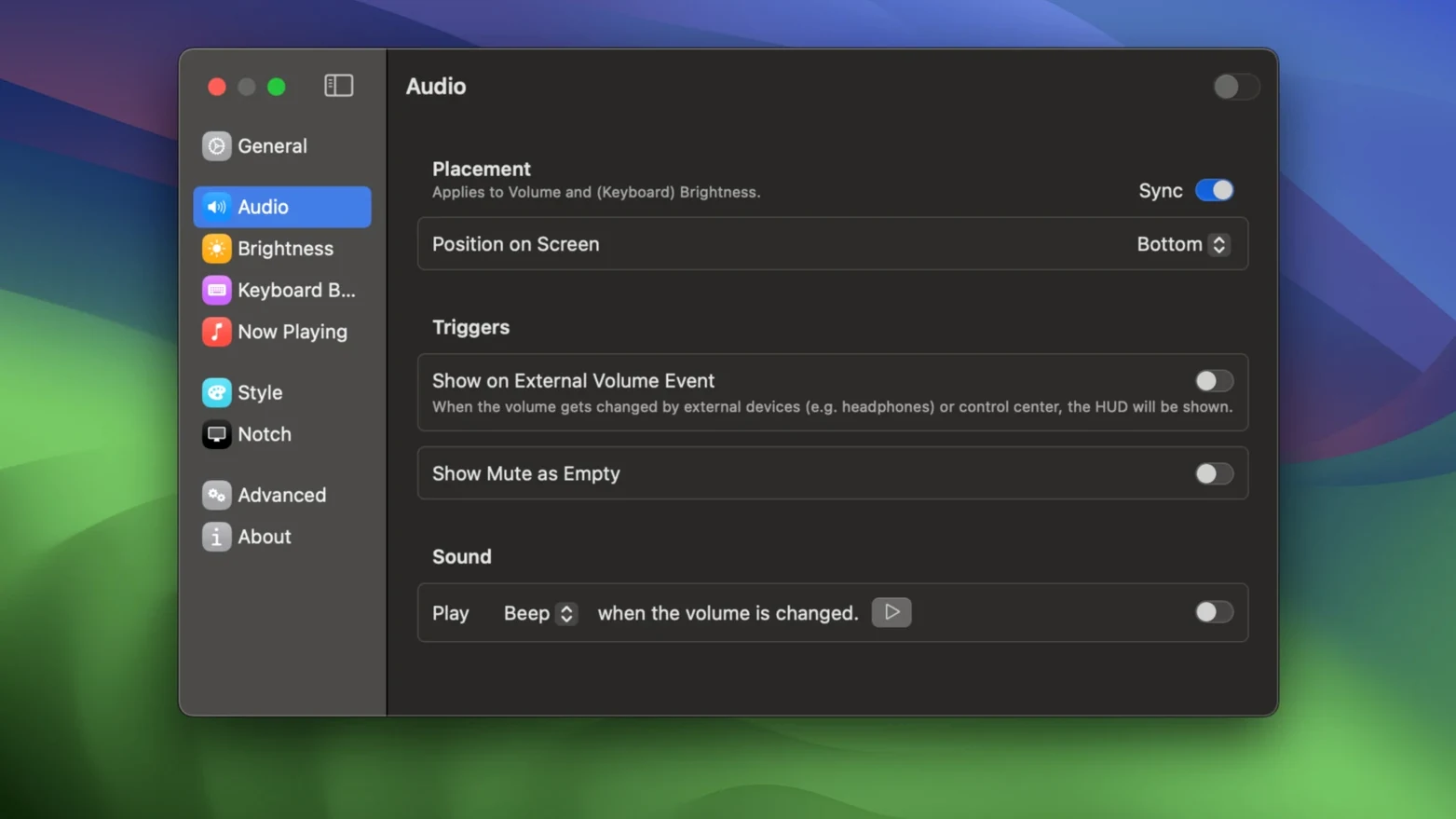
Right after you install the mediamate mac build and drag it into Applications, the app sits in your menu bar and immediately takes over the volume and brightness HUDs. The default style looks clean, but spend ten minutes in Preferences. The HUD position is the first thing to adjust — center, left, or right edge. If you work in Final Cut with the browser on the left, pushing the HUD to the right edge keeps it off your selects.
Next, enable the now-playing HUD and set its duration. The factory setting holds it on screen a beat too long for my taste. I drop it to 1.5 seconds and only trigger it on manual input. If you keep keyboard backlight adjustments on the Touch Bar or function row, MediaMate mirrors that feedback too — useful on late-night sessions when you're riding the brightness of the keys without looking down.
Touch Bar Macs Need a Second Step
Owners of Touch Bar Macs have to flip a compatibility mode in the app's settings. Without it, the HUD can appear behind the Touch Bar strip in certain full-screen setups. It's a one-time toggle, but it's not obvious on first launch. The mediamate download package includes a brief readme, but nobody reads those. Just check the checkbox labeled "Use alternate display mode" and restart the app.
Scenario: The Colorist Running a Client Session
Picture a colorist in a DaVinci Resolve suite, client over the shoulder. The room is calibrated, the lights are down, and every pixel on the reference monitor counts. The macOS brightness HUD is a fluorescent rectangle that blows out the ambiance and pulls focus. With MediaMate, the brightness feedback shrinks to a slim pill at the bottom edge of the GUI monitor — not the reference monitor — so the client never sees it. The colorist rides the keyboard brightness too, dimming the backlight between passes to keep the room neutral. One less distraction, zero explanation needed.
Workflow: Building a Stream Deck Volume Controller
Stream Deck users can pair MediaMate with button macros to create a tactile volume rig that stays in visual sync with the system. Here's how I set it up:
- After a clean mediamate 3.8.3 or newer install, set the HUD position to "Bottom Right" and opacity to 80%.
- In Stream Deck software, assign two buttons to system volume up and volume down using the built-in system actions.
- Add a third button that launches a Shortcut triggering a specific output device switch — say, from desktop speakers to a calibrated headphone amp.
- Tap the volume buttons while watching the HUD. MediaMate's fade-out timing (set in Preferences) controls how long the level indicator stays visible after you release the macro.
- Adjust that fade to 1 second so the HUD disappears right after you stop tapping — clean enough for a live stream overlay setup.
The result is a dedicated volume station where every press gets a visual response that doesn't linger and doesn't obscure the preview window. If you're streaming with OBS and grabbing display capture, the HUD lands in a corner that chat rarely covers.
Why the Now-Playing HUD Matters More Than You Think
The media indicator isn't just a party trick for music nerds. In an editing bay, you're often bouncing between a reference track in Apple Music and the timeline playback in your NLE. When a client asks "what's that cue we just heard?", glancing at the HUD gives you the track name without leaving the app or pulling up the Music window. It's a small thing that keeps the flow moving forward instead of sideways.
Pair it with a mediamate license key activation and the preference for "Show on track change only" to keep it invisible during continuous playback. The HUD pops up only when you skip, which is exactly when the information is useful. No persistent overlay, no manual toggles.
- macOS 13 Ventura or newer
- Apple Silicon or 64-bit Intel processor
Questions I actually get
Does MediaMate replace both the volume and brightness HUDs?
Yes. It overrides the default macOS overlays for volume and brightness with a single, unified compact HUD.
Will this work on an older Intel Mac?
It supports all Macs running macOS Ventura or later, covering both Apple Silicon and 64-bit Intel machines.
Notes from the edit bay · 0
Sign in or get an edit-bay pass to leave a note.
No notes from the edit bay yet. They go up after I read them.