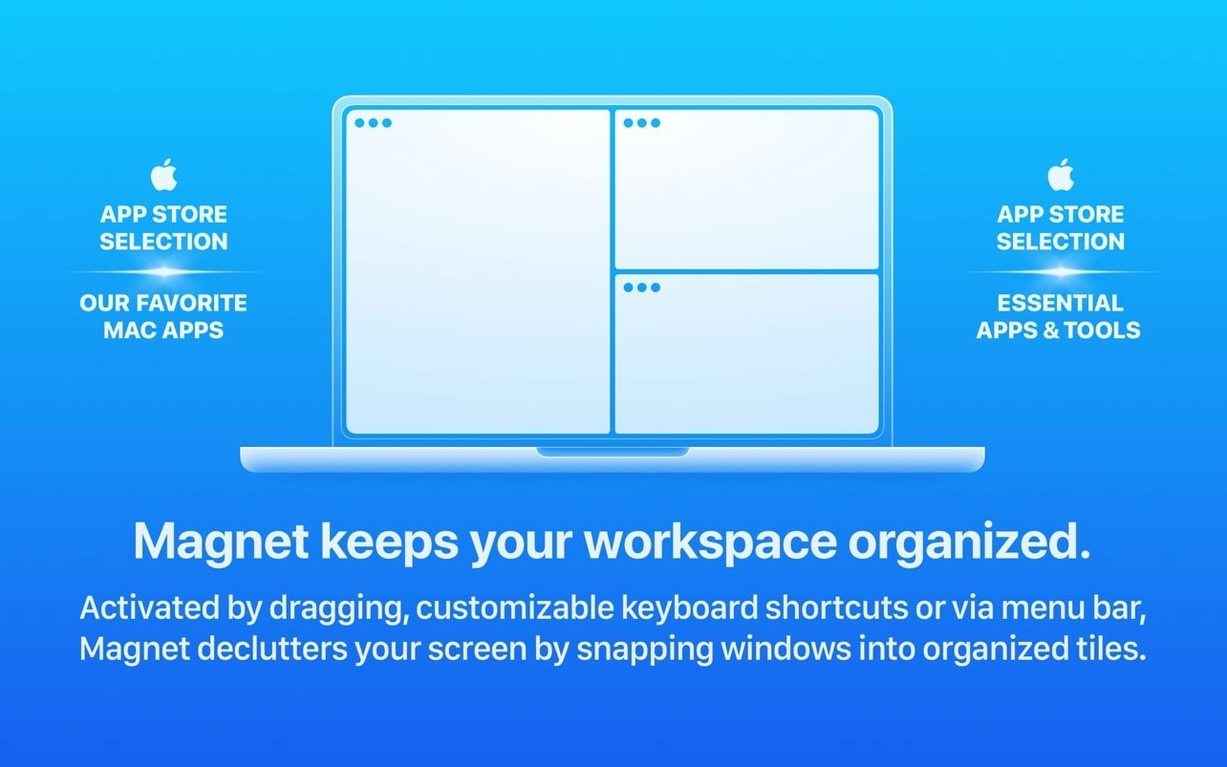
You just pulled a clip from the timeline, color grades a still in another window, and need to cross-reference a shot list in a third. Clicking and dragging them into a usable layout eats the seconds you don't have. That's the moment a window manager stops being a nice-to-have and becomes part of the render pipeline.
Where the Power Tools Live
Magnet's snap zones are fast, but the real speed is in the details. The menu bar icon holds more than presets. It's the launchpad for custom hotkeys that map any arrangement to a combination that makes sense for your muscle memory, not someone else's. The app extends macOS window management without burying it in a preference pane you'll never visit again. It runs natively on both ARM and Intel Macs, so Rosetta won't touch your CPU cycles.
The Margins Matter
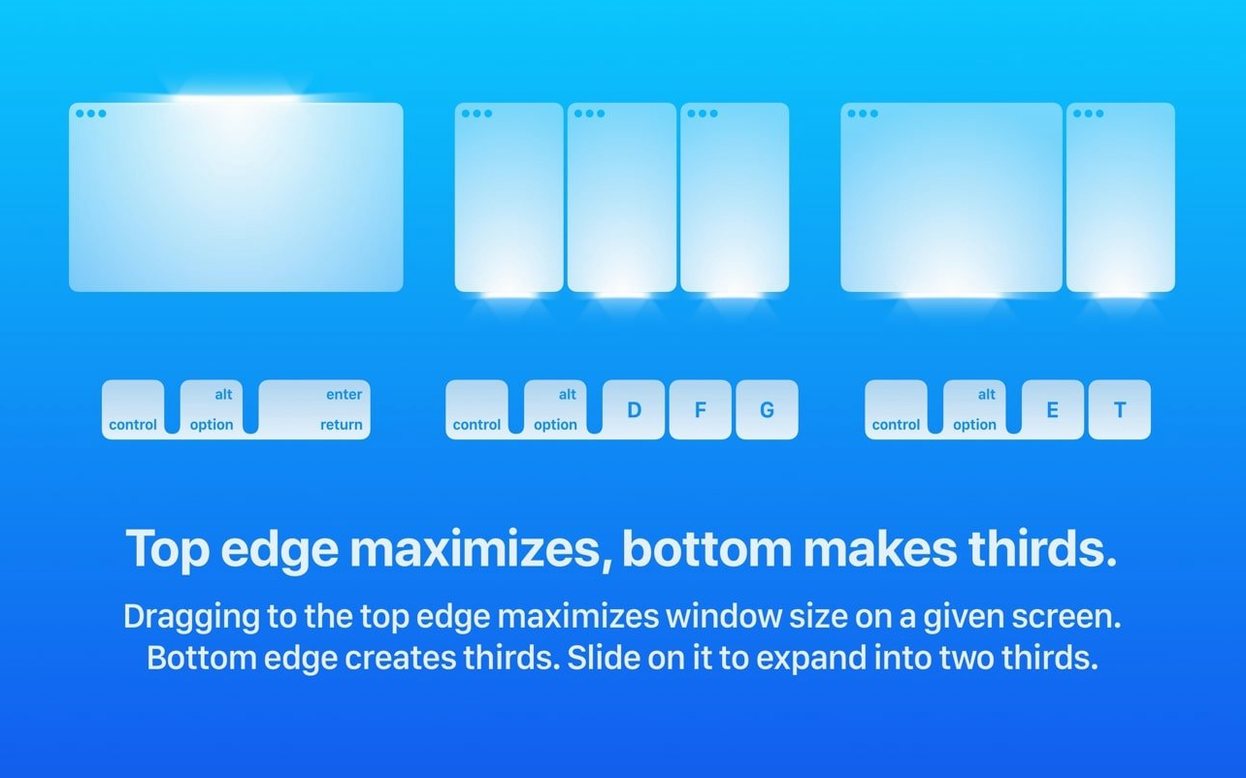
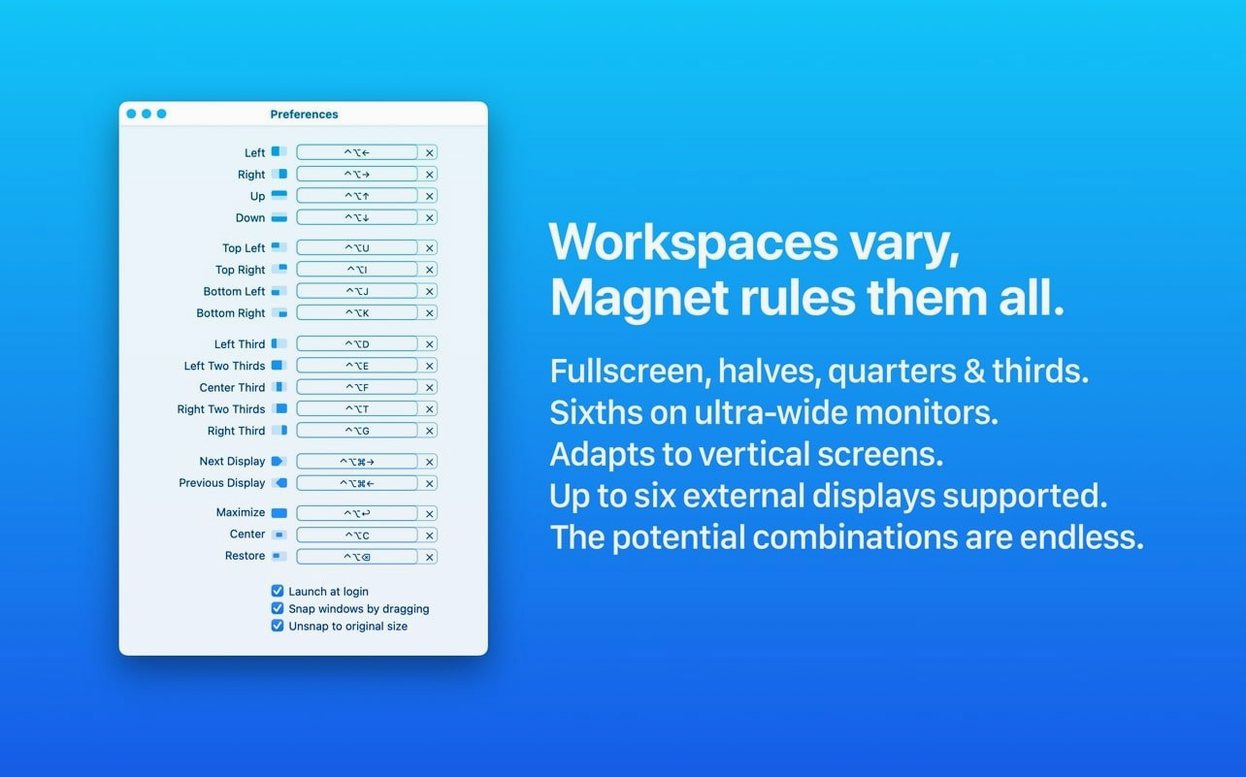
Dragging a window to the edge of the display triggers a snap, but the hotkey engine is where experienced users live. You can bypass the drag entirely and punch windows into thirds, quarters, or full-screen without lifting your fingers from the keyboard. The interface speaks your language, with localization in fourteen options including Korean, Polish, and Traditional Chinese. It's a quiet utility that pays out in rendering minutes you get back.
Video Editors Snapping Scopes to a Second Display
Anyone juggling more than two windows benefits, but three groups feel the difference daily. Video editors running Final Cut on one display with bins and scopes on a second can snap reference material into place with a single keystroke. Magnet treats external monitors as independent canvases, supporting up to six displays, so a triple-screen edit bay becomes a grid you already know how to play. The app doesn't care if your screens are Retina or not. It just positions the pixels.
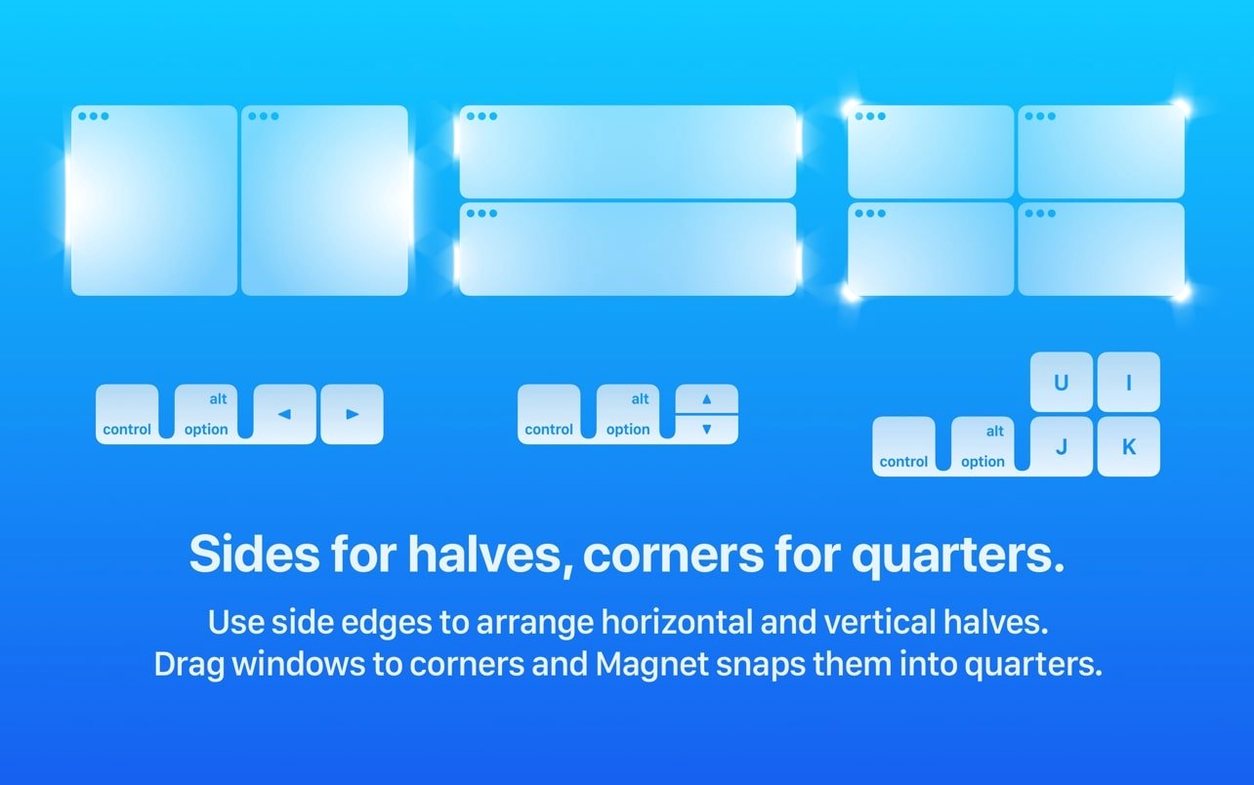
Developers who live in Xcode, Terminal, and a browser also pull more from the tool than average. A quarter-snap puts documentation in the lower right, the sim in the upper right, and the code editor still has half the real estate. The custom hotkey engine means they can map a rarely used corner arrangement to something like Control-Option-[ and never hunt for a mouse again.
Writers and researchers who thought Stage Manager would solve their chaos often end up here instead. Magnet gives you fixed, predictable positions. No spring-loaded side stacks, no shifting when you open a finder window. For anyone whose work depends on spatial consistency across long sessions, that stability matters more than a slick animation.
Never Clicking the Menu Bar Icon
The first mistake is treating the drag-to-snap as the whole product. New users pull a window to the top edge, see it go full-screen, and assume that's the feature set. They never click the menu bar icon to discover the hotkey library, which is where the app actually earns its keep. A magnet mac download lands you the full engine, but it's quiet about its own depth.
Another common misstep is ignoring the quarter-snap zones at the corners. A window dragged to a display corner doesn't halve; it quarters. That's four windows on one screen with no overlap, but only if you commit the motion to muscle memory instead of reverting to mouse-tugging half-screen habits. Beginners also tend to set hotkeys that collide with app shortcuts in tools like After Effects or Logic Pro. Magnet won't warn you. It just fires, and suddenly your playhead jumps because Control-Option-Right now does two things at once. Check your key map before you blame the tool.
Hold Option to Nudge Without Snapping
Holding Option while dragging overrides the snap behavior entirely. It's the quickest way to move a window without triggering an arrangement when you just need to nudge something five pixels to the left. The menu bar menu shows thumbnails of your current layout, and clicking one restores a window to that zone without re-dragging. It's a tiny re-snap feature hiding in plain sight.
The app respects the gap between windows and the menu bar automatically. On a MacBook Pro with a notch, it leaves the correct headroom so no window title bar disappears behind the camera housing. You won't find a setting for it because there isn't one. It just handles the geometry. That's the kind of polish you notice only when a competing tool gets it wrong.
Less Jitter Dragging Across Two Displays
Version 3.0.7 tightened the snap response on Apple Silicon builds. Windows land with less jitter when you drag across the boundary between two displays, something that used to produce a half-second wobble on M-series machines driving high-resolution externals. The update also refined the quarter-snap activation zones so a window dragged to a corner commits faster without requiring a pixel-perfect mouse drop.
The localization layer got a quiet overhaul. Earlier builds occasionally dropped keyboard shortcut labels in the menu bar for right-to-left script users, and that's been fixed across all fourteen interface languages. If you run the app in Japanese or Arabic-aligned layouts, the menu reads cleanly now. Nothing flashy in the changelog. Just the kind of fit-and-finish work that keeps a utility from becoming a distraction during a deadline push.
Works Beside Stage Manager, Not Inside It
Does it fight with Stage Manager? They coexist without drama, but they don't really collaborate. Stage Manager's stacks ignore Magnet's snap zones, and Magnet won't reposition windows inside a Stage Manager pile. If you commit to one, the other stays out of the way. Most users pick Magnet and leave Stage Manager off for external displays.
Will it slow down an older Mac? The app runs as a lightweight background process. On Intel machines from the Ventura era it consumes negligible resources because it's not polling windows at a high frequency. It listens for drag events and hotkey triggers, then fires a single repositioning call. No continuous CPU draw, no GPU compositing overhead. A magnet for mac download on a 2019 iMac feels identical to one on an M3 MacBook Air in terms of system impact.
Can I share hotkey setups between machines? Not natively through the app, but the preference file lives in ~/Library/Preferences and copies across cleanly if both Macs run the same version. It's a manual move, not a sync, but it works when you're setting up a second workstation and don't want to rebuild every shortcut from memory.
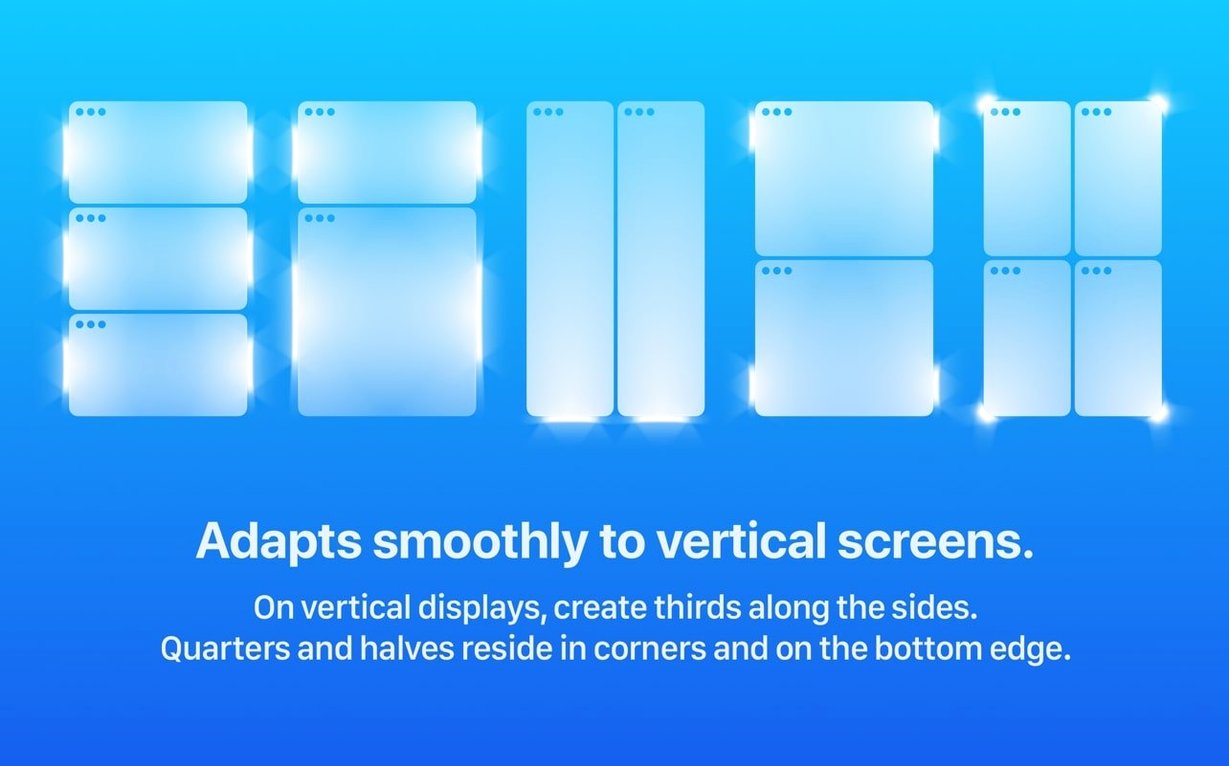
Does it handle portrait monitors? Yes, and it's one of the less obvious reasons a magnet macos install catches on in coding and writing circles. A vertical display snapped into thirds gives you three tall columns, which turns a single 27-inch portrait panel into a document viewer, an editor, and a terminal stack without overlapping anything. The snap zones recalculate automatically when you rotate the display in System Settings.
- macOS 13 or later
- Apple Silicon or Intel 64-bit Mac
Questions I actually get
Can I configure my own keyboard shortcuts?
Yes, custom hotkeys can be set directly from the menu bar, letting you map any window arrangement to a shortcut that fits your workflow.
Notes from the edit bay · 0
Sign in or get an edit-bay pass to leave a note.
No notes from the edit bay yet. They go up after I read them.