Your MacBook Pro just finished rendering an hour-long timeline and the fans are still idling along at their default curve. You know the CPU is cooked, but macOS is holding back. Macs Fan Control Pro steps in right here — a window into every sensor and fan header in your machine, paired with direct control to override Apple's decisions when the work demands it.
| Developer | Current Version |
|---|---|
| CrystalIDEA | 1.5.21 |
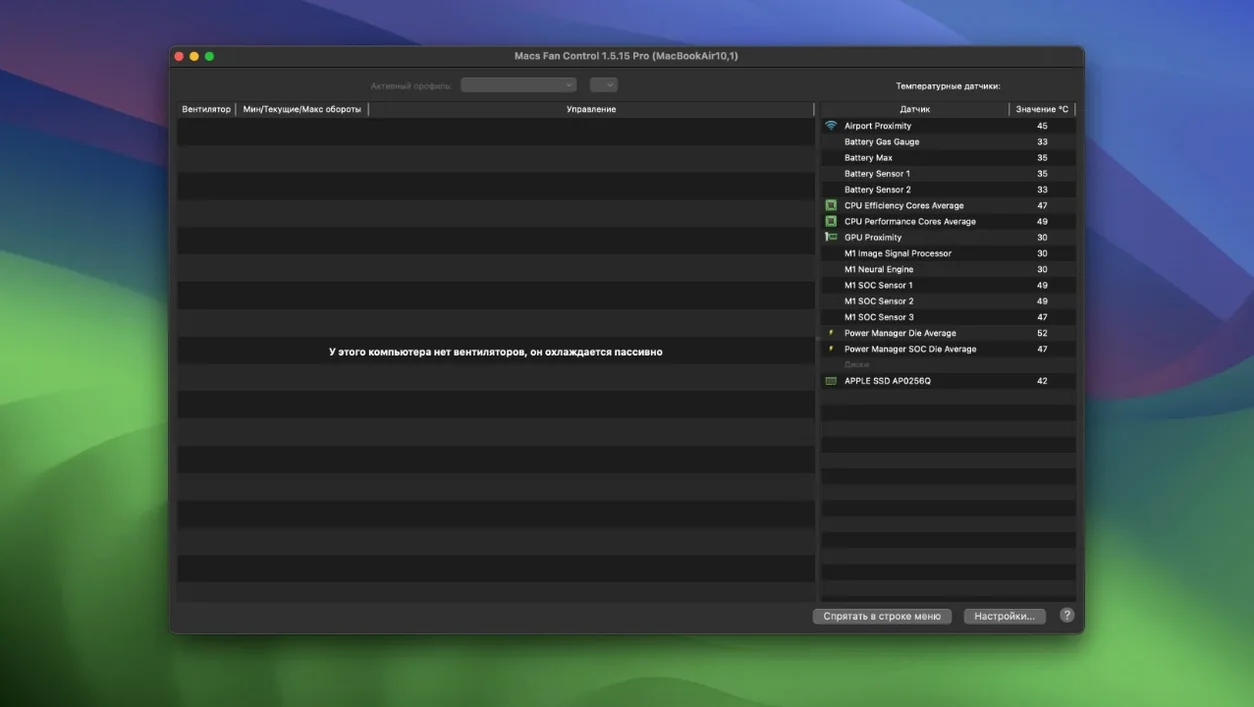
Where does it fit? It sits next to your monitoring widgets and system stats tools, but it's the only one that hands you the reins. Real-time graphs track every temperature sensor while fan RPMs report live. The real power is the control mode: pick a sensor — CPU proximity, GPU die, whatever you're pushing hardest — and set a target temperature. The fan ramps to match. Or skip the sensor mapping and lock a custom RPM value. For a DIT on set copying cards in the sun, that's not a tweak; it's insurance against thermal throttling. It doesn't replace anything in Final Cut or DaVinci Resolve; it just keeps the hardware underneath them cooler and quieter on your terms.
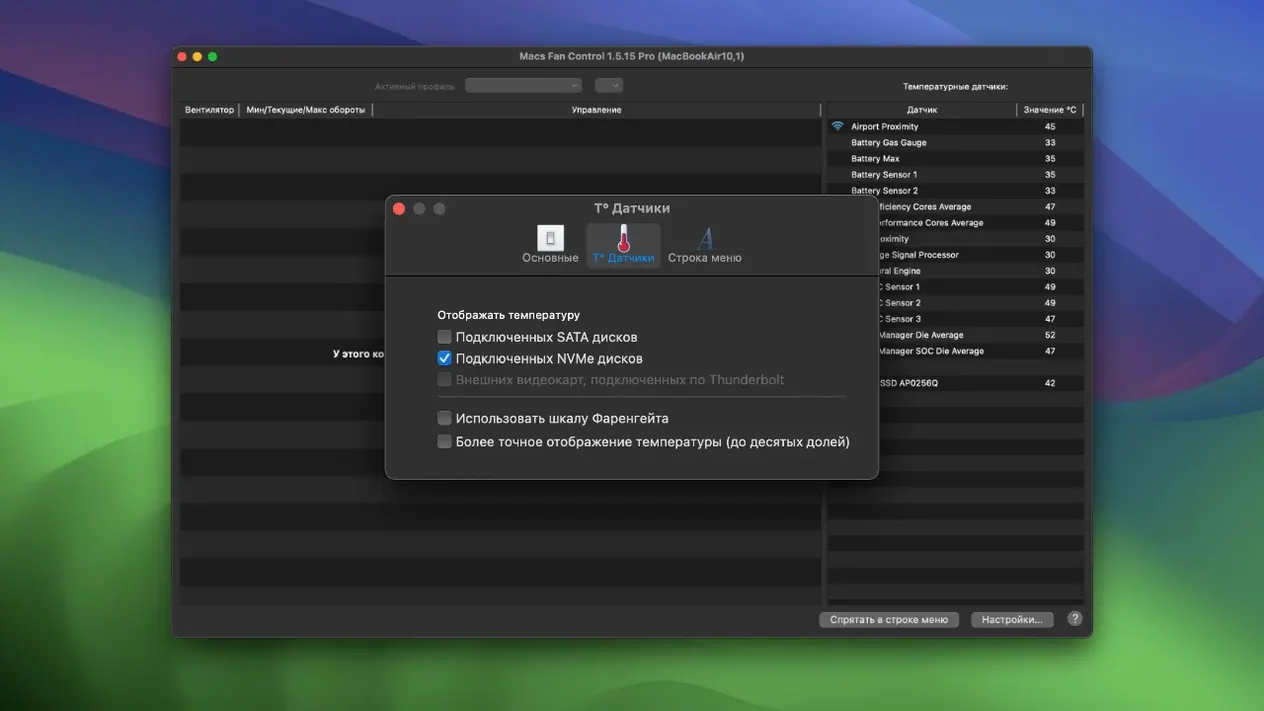
Pick Celsius or Fahrenheit Before Your First Render Panic
The defaults won't hurt anything, but they don't do much either. Open preferences before you create any custom presets.
Switch to Fahrenheit or stick with Celsius. It's trivial until you're scanning six sensor readouts mid-render. Pick the scale your brain works in and commit. The toggle lives in the General tab.
Menu bar icon behavior. By default it shows a fan icon. Change it to display the hottest sensor temp or the fastest fan RPM — either one gives you a glanceable status without opening the window. I keep it on CPU proximity temp. If that number climbs past 80°C, I know something's chugging harder than it should.
Startup behavior. The app can launch hidden at login. Turn that on if you're running custom fan curves, otherwise your machine reverts to Apple's defaults every time you reboot until you remember to open the app. Ask me how I learned that after a 45-minute export sat thermal-throttled for half of it.
When the Sliders Do Nothing: Auto Mode Is Still in Charge
"The fan control isn't doing anything." Check that you've actually selected a control mode. The app defaults to auto for every fan, which means macOS is still driving. Click the dropdown next to the fan, switch it to Sensor-based or Constant RPM, then apply the preset. If the dropdown is grayed out, your Mac model doesn't expose PWM control for that fan header — some iMacs and the MacBook Air M5 only report speeds without letting you override them. Nothing to fix there; that's a firmware limitation.
One sensor reading looks stuck or wrong. Temperature sensors occasionally glitch after waking from sleep, especially on third-party SSDs reporting via SMART. Quit and relaunch the app. If it persists, the sensor ID might have shifted — remove it from any presets, restart the Mac cold, and reassign it. I've seen this twice on a Sabrent Rocket in a Thunderbolt enclosure; the relaunch fixed both.
Fans ramp too aggressively with a custom sensor target. Drop the sensor's max temperature target by 5°C increments until the noise settles. The fan curve has a minimum and maximum RPM window — if you set the floor too high, it'll blast at idle. Start with a floor around 1500 RPM and a ceiling that only kicks in above 85°C. Adjust from there based on your tolerance for noise versus heat.
One more thing: if you're hunting for the macs fan control pro mac full version experience, know that the preset system is where the utility stops being a monitor and becomes part of your hardware toolkit. Save a preset for rendering, one for DIT offloads, one for quiet office hours — then switch between them from the menu bar without opening the main window.
A Workflow: Keeping a MacBook Pro Cool During Batch Exports
Here's a scenario I run into weekly. I've got 18 short clips queued for batch export from Compressor, and the MacBook Pro's default fan curve won't spin the fans past idle until the CPU has been baking for a full minute. By then, throttling has already started.
1. Set up the sensor mapping. Open Macs Fan Control Pro and locate the CPU Proximity sensor. That's the one that reacts fastest to sustained load on my machine — faster than the die-average sensors Apple surfaces in Activity Monitor.
2. Create the preset. For the left fan and right fan, switch both to Sensor-based control. Target CPU Proximity. Set the temperature range to start ramping at 45°C and hit maximum at 75°C. I want the fans fully spun up well before the CPU hits the 90°C territory where throttling kicks in.
3. Name and save. Call it "Compressor Batch." The preset now lives in the dropdown menu and the menu bar icon.
4. Engage before the export. Select "Compressor Batch" from the preset list, verify both fans report sensor-based mode, and minimize the window. The menu bar temp readout is my sanity check — I glance at it between batches to confirm the curve is holding.
5. After the job finishes. Switch back to the Auto preset. Letting a custom curve run overnight while the machine idles is just unnecessary fan wear. Two clicks from the menu bar and the Mac is back to Apple's brain.
Total time to set this up the first time: under three minutes. Every batch export after that is a five-second preset switch before I hit go. The machine stays at full clock speed for the entire run and the fans do exactly what I told them to.
Version 1.5.18 rolls out with the developer’s latest fixes and stability improvements.
- macOS 10.13 or later
- Apple Silicon or Intel 64-bit Mac
Questions I actually get
Can I set a fixed fan speed instead of using a sensor?
Yes, Macs Fan Control Pro lets you pick a constant RPM value for any fan, overriding the system curve entirely.
Which Macs does version 1.5.21 support?
It runs on macOS 10.13 High Sierra and later, with new support added for M5 Pro/Max MacBook Pro, MacBook Air M5, and MacBook Neo.
Notes from the edit bay · 0
Sign in or get an edit-bay pass to leave a note.
No notes from the edit bay yet. They go up after I read them.