Does My Mac Even Run It?
You need macOS 14 on an Intel 64-bit or Apple Silicon machine. That covers most Macs from the last several years. Version 15.2.1 tightened those checks—the app now hides model categories your hardware can't use, so you won't download something that won't run.
What Files Can I Throw at It?
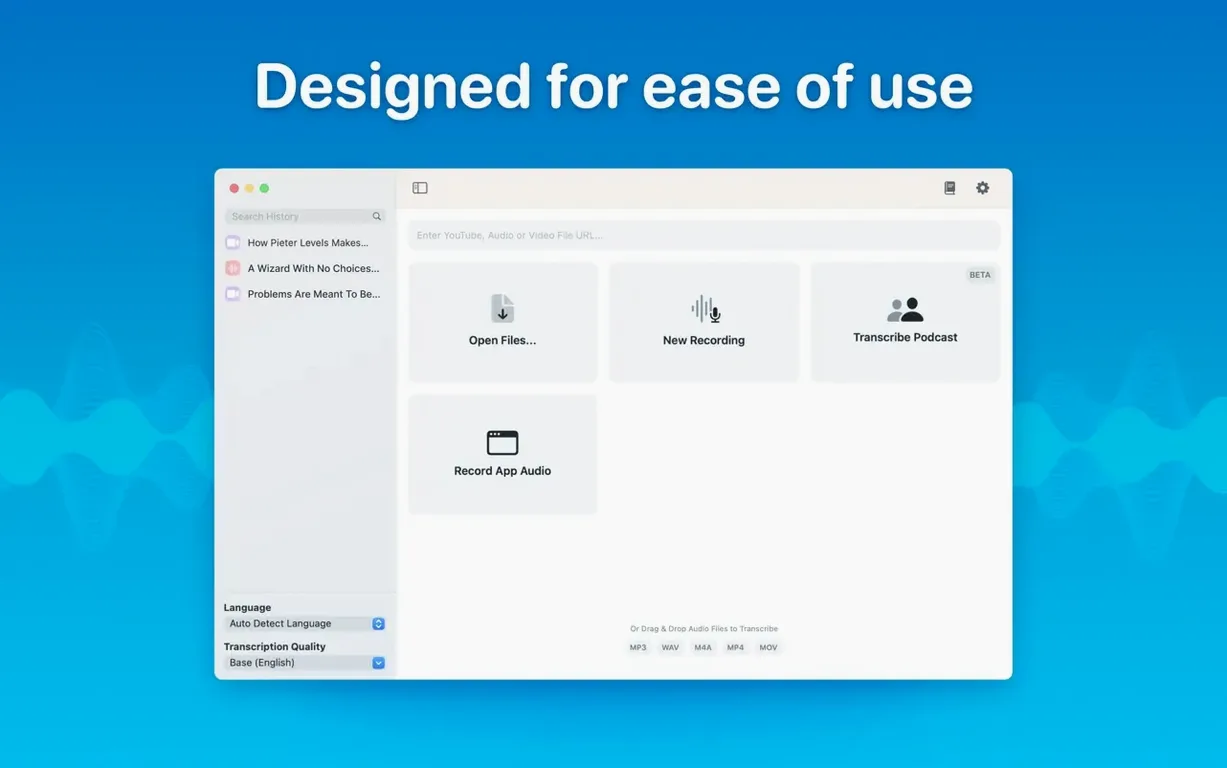
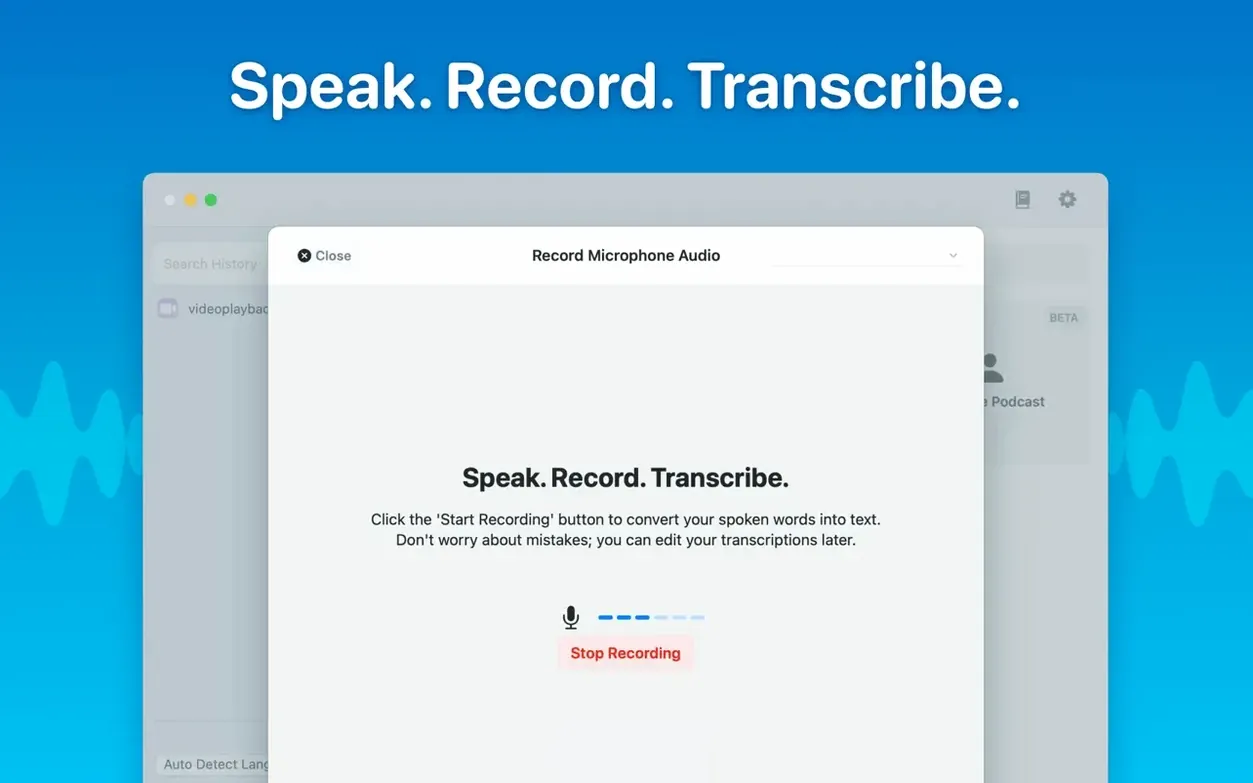
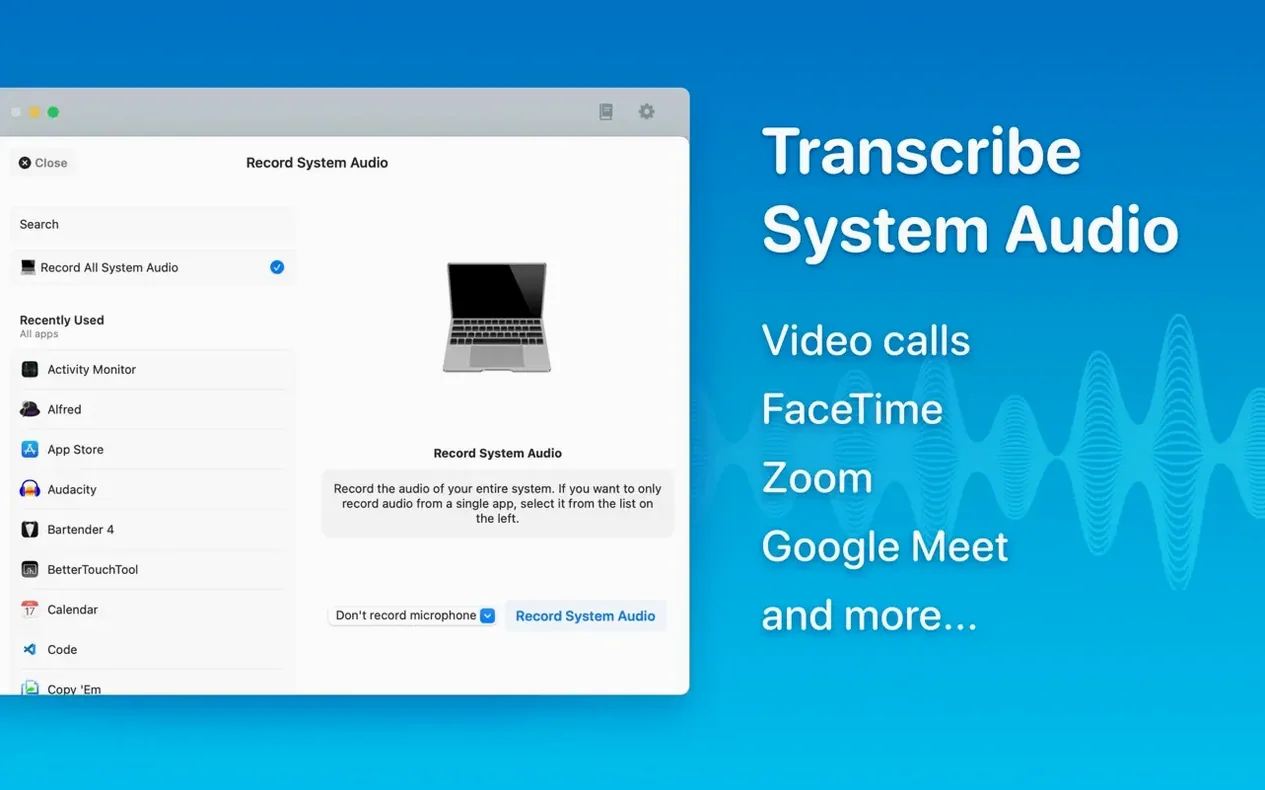
Drag in mp3, wav, m4a, mp4, mov, ogg, or opus files. You can also record directly in the app or grab system audio. Batch transcription handles a pile of files in one go, and you export them all at once when the render bar finishes.
Where Does the Audio Go?
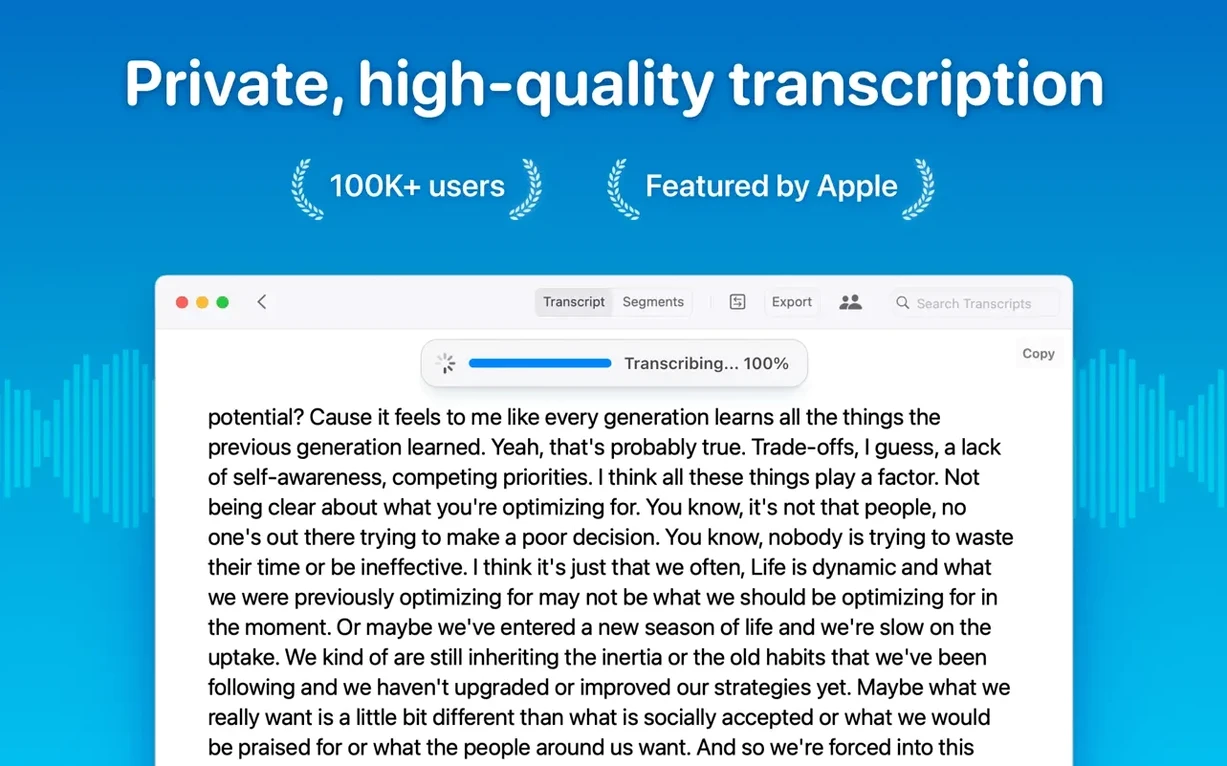
Nowhere. Transcription stays on your Mac. No uploads, no cloud processing. Edit or delete segments after the fact, and organize everything into folders so your meeting transcripts don't mix with podcast cuts.
Meetings and More—What's the Workflow?
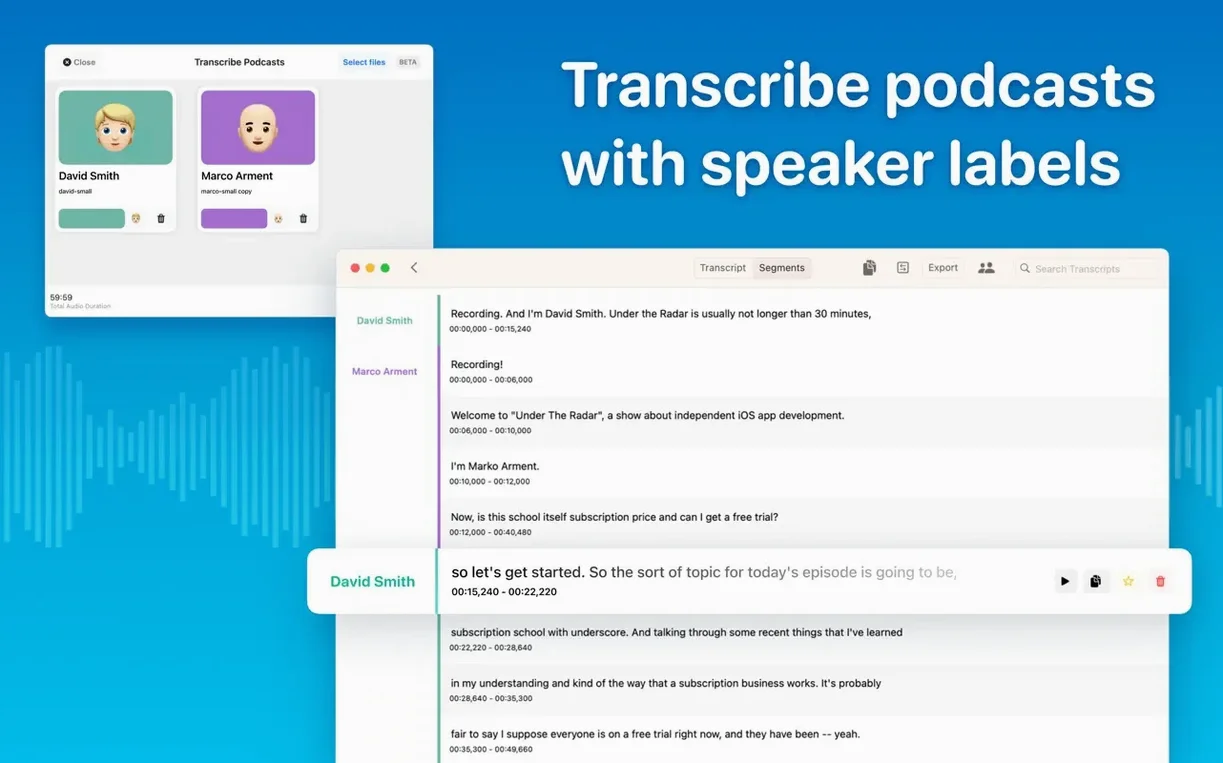
Real-time transcripts arrived in version 15.2. Speaker separation uses a new diarization model that actually identifies who said what. When you're done transcribing, switch to reading mode to scan through the text like a document.
Diarization That Remembers Who Spoke When
Version 15.2 wasn't a quiet bug-fix release. The new diarization model rewrites how speaker labels land on a transcript. Before, you'd get "Speaker 1" and "Speaker 2" that swapped identities mid-conversation. Now the model tracks voice signatures more stubbornly—somebody who starts as Speaker A tends to stay Speaker A through the whole file. For a podcast editor pulling guest quotes, that's the difference between a five-minute skim and a twenty-minute forensic exercise.
Real-time meeting transcripts arrived in the same update. You start a session, talk, and watch words appear as people speak. It is not a polished teleprompter feed—there's a half-second lag—but for live note-taking during a client call, it catches what you would have missed while typing. Folders and subfolders landed alongside it, so you can finally split client work from personal projects without dumping everything into a single list and squinting at filenames.
Version 15.2.1 cleaned up the edges. The app checks your Mac's model before letting you download a Large-V3 that would choke on an Intel MacBook Air. Empty model categories simply vanish from the interface. A crash on macOS 15 when opening the Live Captions language menu got fixed, and Qwen3-ASR support disappeared for M1-series Macs—likely a compatibility call, not an oversight. The Local Models list also got a visual refresh: cleaner rows, a new Qwen provider icon, less visual noise when you just want to pick a model and move on.
From Meeting M4A to Timestamped Transcript in Minutes
You open the app at 9:15 a.m. with a client meeting recording you grabbed via system audio. The file sits in your Finder as an m4a. You drag it onto the MacWhisper window. It asks which model to use—you pick Medium because you need accuracy on a conversation with two people and some cross-talk, but you also want the transcript before coffee gets cold.
The progress bar fills in about ninety seconds for a thirty-minute recording on an M2 Mac. While it runs, you open the new folder you made yesterday called Client X – Q2. When the bar finishes, you drop the transcript into it. The speaker labels are already there—"Speaker A" and "Speaker B"—and they hold steady through the whole file. You skim the reading mode view, find the three paragraphs where budget numbers came up, highlight them, and copy them into an email.
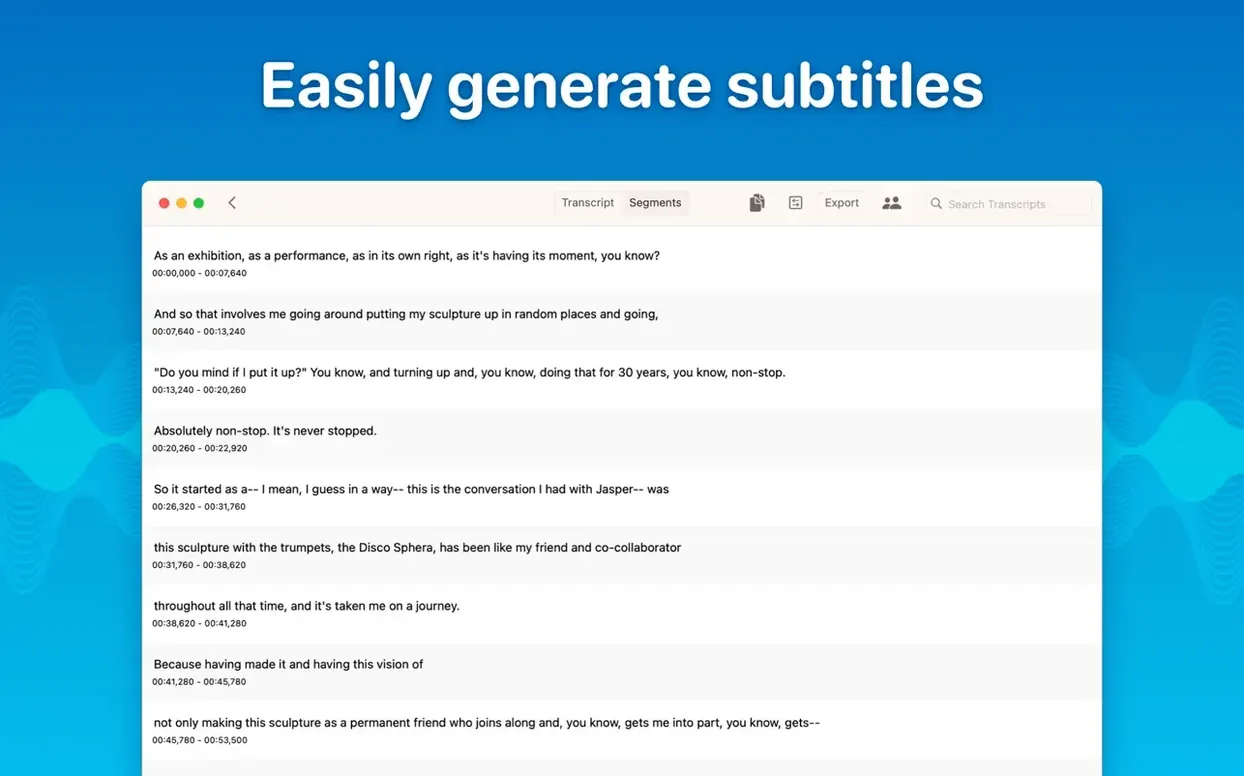
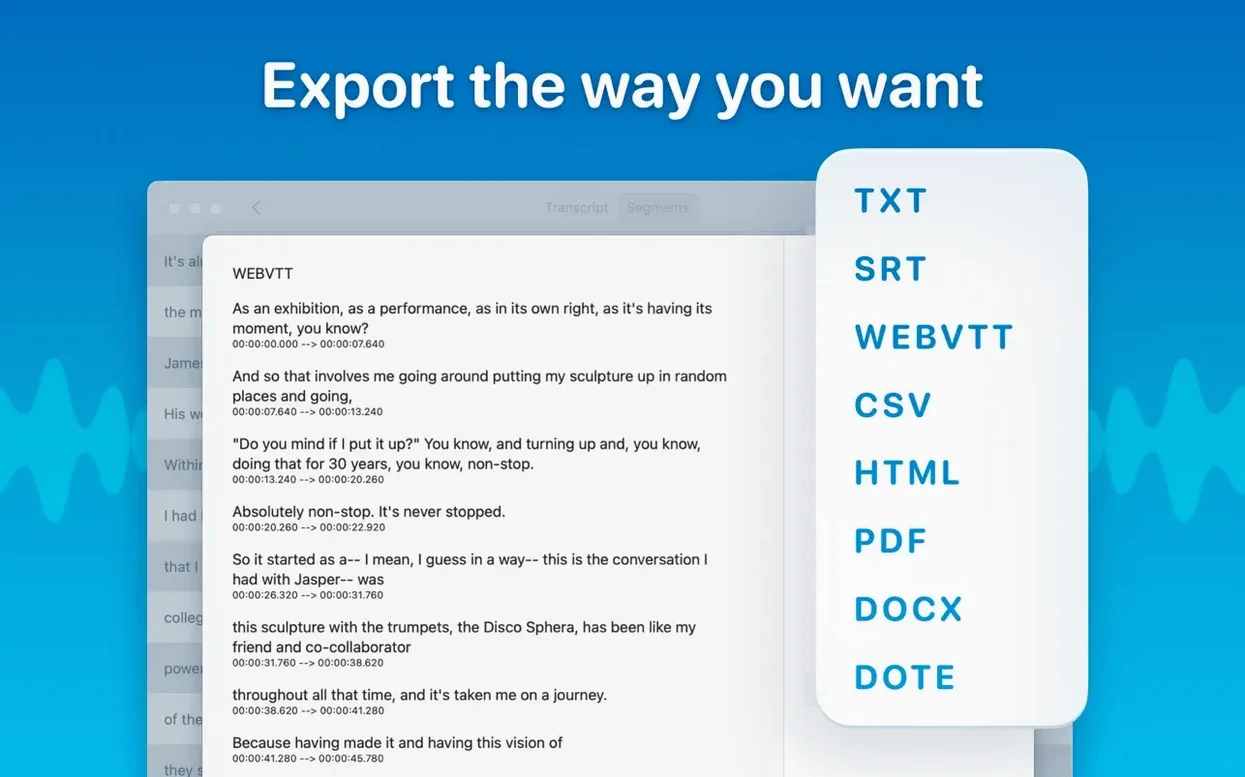
Next, you spot a misheard phrase where "per-unit cost" became "purr unit cost." You click the segment, edit the text inline, and it updates instantly. No re-transcription, no export-edit-reimport dance. You export the corrected version as a Word doc for the client and an SRT file for the video editor who'll sync highlights to a reel. Both exports happen from the same menu, at the same time.
By 9:35, you have a clean transcript, two exported files, and an empty coffee mug. The batch queue sits idle because you only had the one file, but yesterday you threw six podcast interviews at it and walked away for lunch. Same rhythm, just multiplied.
Why Tiny Models Sabotage a Conference-Room Recording
The most common one is picking the wrong model for the job. Tiny and Small are fast—great for dictation where you speak clearly into a mic. Throw a conference-room recording with reverb and three people at Tiny, and you will get word salad. Start with Base or Medium for anything with background noise; save Large-V2 and Large-V3 for foreign-language files or audio so muddy you owe the client hazard pay.
Another classic: ignoring the language selector. Auto-detection works well for English, French, Spanish, and a handful of others, but if you transcribe a bilingual conversation where people switch mid-sentence, lock the primary language manually. The model does not guess context—it guesses phonemes, and a German phrase in an English file can derail a whole paragraph.
People also forget that system audio transcription needs the right permissions in macOS System Settings. The app prompts you, but if you click through too fast and deny the audio capture extension, real-time meeting transcripts will not work. You'll sit there watching a blank screen while your colleagues talk. Five minutes of troubleshooting, fixed by one trip to Privacy & Security settings.
Lastly, new users sometimes export only one format, realize they needed another, and re-export the same transcript manually. Batch export exists for a reason: tick Word, PDF, SRT, and HTML all at once, hit export, and archive what you need. You save three return trips to the menu.
How MacWhisper Feeds SRTs Straight Into Your Editor
MacWhisper does not try to be a video editor, a note-taker, or a document formatter. It sits squarely in the middle: audio in, text out. That makes it a feed for the tools you already use. Drag an SRT into Final Cut Pro and your interview gains searchable captions. Open the Word export in Pages and send clean meeting notes to a client without reformatting. Drop an HTML transcript into a browser-based CMS and publish a podcast episode page in minutes.
On the macOS side, the app plays well with the system audio pipeline. If you record a call via Loopback or BlackHole, MacWhisper grabs that virtual input and transcribes it live. The reading mode feels like a native document view—scroll with a trackpad, select text with standard shortcuts, copy with Command-C. It does not invent its own interaction model.
For people who search out a macwhisper pro torrent or a macwhisper torrent, the draw is usually the local processing. No account, no cloud dependency, no subscription. The app runs on the same machine where you edit video, write notes, and archive client files. Export formats land in Finder, not in a proprietary database. You can treat a transcript folder like any other project folder—back it up, zip it, share it over AirDrop.
When a macwhisper pro crack or macwhisper cracked version circulates, it often reflects how well the batch export and speaker separation fit into workflows that are already local-first: a Final Cut editor who needs SRTs, a journalist who needs searchable interview text, a student who records lectures and exports to PDF for highlighting. No integration is required because the output is a file, and files are the universal handoff between macOS apps.
- macOS 14 or later
- Apple Silicon or Intel 64-bit Mac
Questions I actually get
Does MacWhisper need an internet connection?
No. Transcription runs on-device. Your audio data never leaves the machine.
Can I transcribe a podcast with two speakers?
Yes. Speaker separation identifies different voices, and you can edit segments afterward to fine-tune who gets which line.
Notes from the edit bay · 0
Sign in or get an edit-bay pass to leave a note.
No notes from the edit bay yet. They go up after I read them.