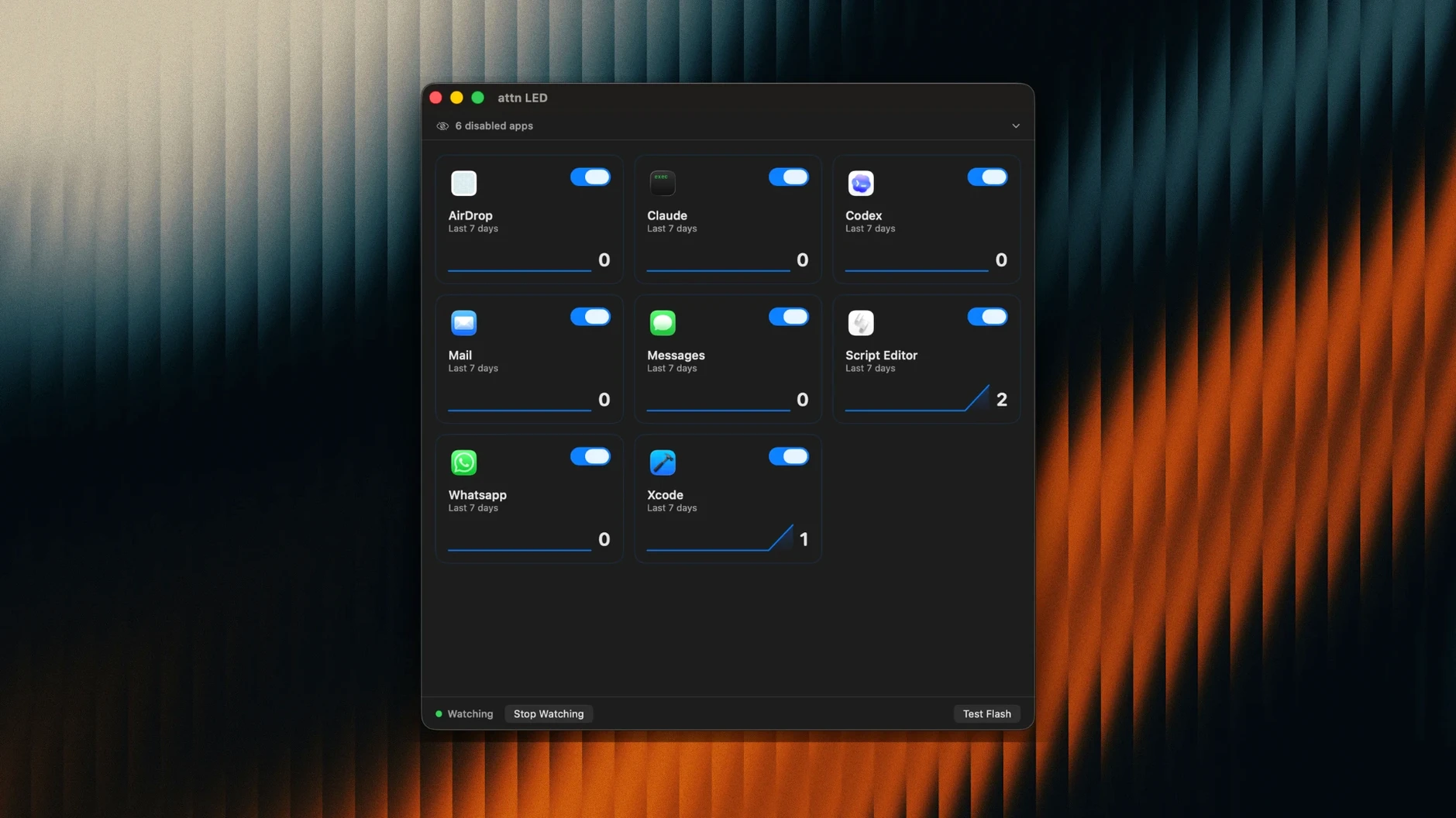
attn LED runs on any MacBook with a camera indicator light — that’s every Apple Silicon and Intel model from macOS 12 forward. It grabs that tiny green LED next to the lens and turns it into a notification dot that blinks when something needs your attention. No sounds, no banners sliding in from the edge of the screen, just hardware doing one thing quietly.
- New apps with notification permissions are detected automatically — you don’t manually add each one.
- The LED blinks when a notification fires, then stops. Glance down, decide if it matters, move on.
- During FaceTime calls and video conferences the blinking pauses so the light behaves normally for the person on the other end.
- Built for Focus and Do Not Disturb modes — the LED still works when banners and sounds are suppressed.
- Runs from Launchpad once copied; no menu bar clutter, no dock icon unless you want it there.
This is a single-purpose utility for people who keep macOS Focus modes dialed in tight and don't want to miss a message from one specific app while everything else stays silent. It pairs well with a writing session, a code sprint, or any stretch where the screen is full but the dock is hidden.
Can It Blink When the Lid Is Shut?
Does it work when the lid is closed? No. The camera LED lives on the display half of a MacBook, so attn LED only functions while the machine is open and awake. If you use an external monitor in clamshell mode, you’ll need to keep the lid up for the light to be visible.
Can I pick which apps trigger the blink? Yes. After the initial automatic detection sweep, you can prune the list down to just the messengers or email clients that actually matter. Slack, Mail, Messages, Discord, Teams and Telegram are all fair game. Limit it to two apps and the light becomes a meaningful signal instead of noise.
Will it drain the battery? Not in any way you’d notice. It monitors the macOS notifications database through FSEvents — a file-system-level mechanism that wakes only when something changes — and the LED itself draws next to nothing. If you’re on battery during a long writing session, attn LED won’t be the reason you reach for the charger.
What happens during a screen share? The app pauses blinking during any active video conference, including FaceTime, Zoom calls and anything that grabs the camera feed. The LED reverts to standard behavior so clients or colleagues see a normal indicator light, not a strobing mystery.
What Changed in attn LED 1.0
Version 1.0 is the launch release, so there’s no changelog of prior fixes to sift through. What matters is what the developers decided to ship on day one: automatic app detection that scans for anything with notification permissions, Focus Mode awareness baked in from the start, and the conference-call pause behavior. Those three decisions tell you the tool was built by people who actually use Focus modes and video calls daily — not by someone who just thought a blinking light sounded cool.
The architecture covers both Apple Silicon and Intel 64-bit Macs running macOS 12 or later, which means attn LED 1.0 skips the legacy cruft and targets the notification stack as it exists post-Monterey. The FSEvents approach to reading the notification database is a practical workaround: Focus Mode suppresses the usual delivery paths, so the app watches the database directly to know when something landed. That’s the kind of implementation detail that keeps the LED blinking when other notification hacks fall silent.
First Days: Getting the LED to Mean Something
Install attn LED 1.0 by opening the disk image and dragging the app into Applications. Launch it from Launchpad and the automatic detection runs immediately — every app that has ever asked for notification permission shows up in the list. That list is too long on most machines. Spend your first session cutting it down.
Here’s a rhythm that works: leave the app running for a few hours with everything enabled, then check which apps actually made the light blink. You’ll probably find that three or four apps account for every blink. Disable the rest. A blinking LED is only useful when it reliably means “check this” — if it fires for software updates, backup confirmations and calendar reminders you already saw on your phone, you’ll start ignoring it.
Position matters more than you’d think. The camera LED sits at the top edge of the display, so if you work with the screen tilted far back or with a secondary monitor blocking the bezel, you won’t see the blink. Adjust your screen angle just enough that the green dot catches your peripheral vision without pulling your eye every time the room lighting shifts. It takes about a day to find the sweet spot.
If you use multiple Focus modes — one for writing, one for email triage, one for meetings — test attn LED against each one. The app reads the notification database directly, so it should fire regardless of which Focus profile is active, but the behavior of individual apps can vary depending on how they post notifications. A quick test with a colleague sending a test message in each mode confirms everything is wired correctly.
Stop Auto-Adding Every New App to the List
The auto-detection toggle is on by default, which means any new app you install gets added to the notification list automatically. That’s convenient during setup, but switch it off once your app list is trimmed. You don’t want a random utility you install next week to start hijacking the LED without you noticing.
Check the app list against your actual notification habits. Mail might be in there, but if you get fifty newsletters a day, the LED will blink constantly and lose all meaning. Either disable Mail in attn LED, or set up Mail’s own notification filtering first so only VIP messages or specific threads trigger alerts. The same logic applies to any noisy channel in Slack or Discord — mute the channels you ignore, then let attn LED watch only the ones that matter.
If you keep your MacBook open next to you during video calls, leave the conference pause feature enabled. It’s on by default in attn LED 1.0 and there’s no reason to touch it. The LED behaves normally during calls and resumes blinking afterward — no manual toggle needed.
- macOS 12 or later
- Apple Silicon or Intel MacBook with a camera LED
- Interface language: English
Questions I actually get
Does attn LED work during video calls?
Yes — it detects when FaceTime or other conferencing apps are using the camera and automatically pauses the blinking so the LED behaves normally.
What happens when Do Not Disturb is on?
The LED keeps blinking for notifications even when banners and sounds are suppressed by Focus or Do Not Disturb, so you still see the alert.
Notes from the edit bay · 0
Sign in or get an edit-bay pass to leave a note.
No notes from the edit bay yet. They go up after I read them.