
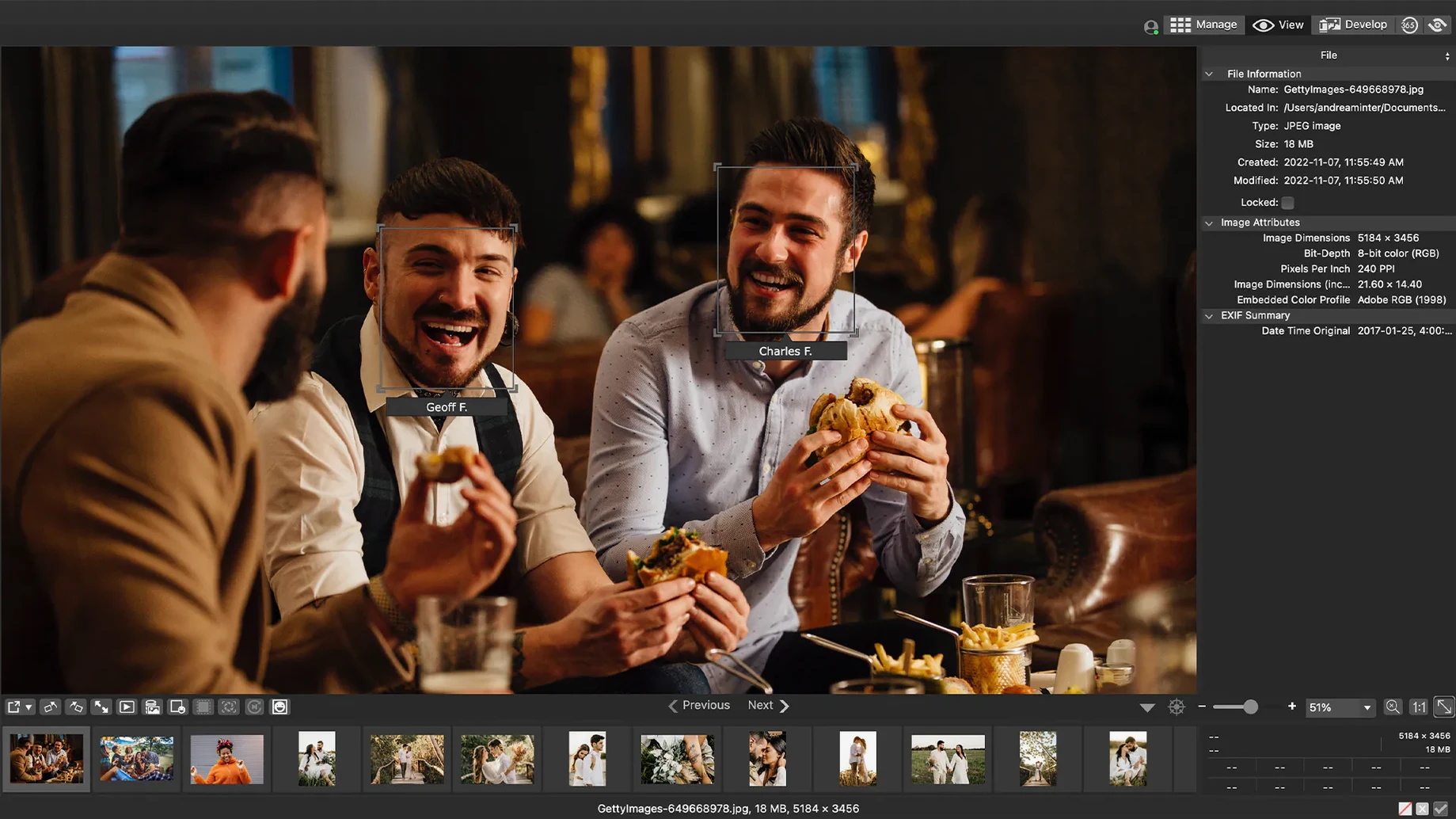
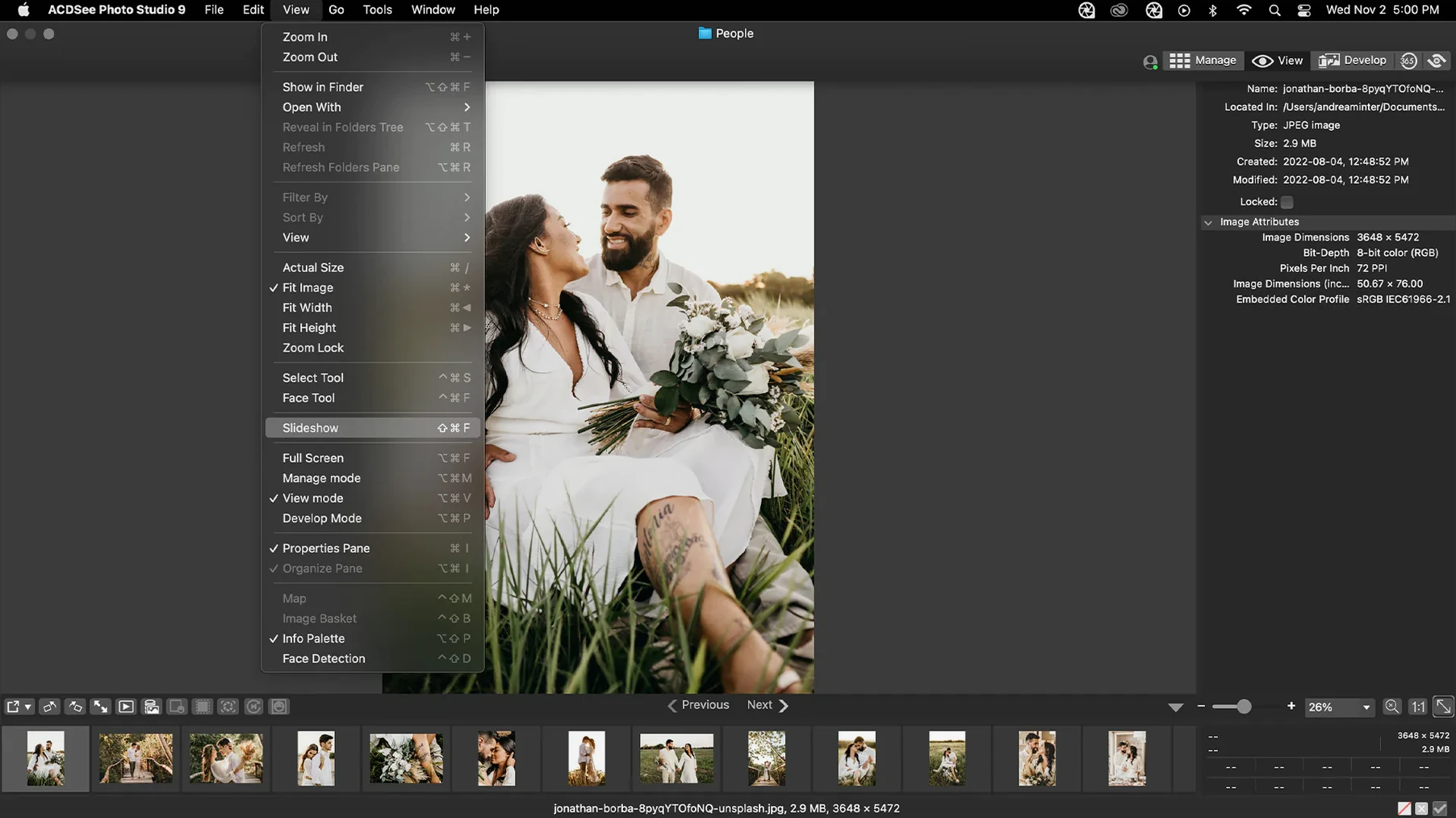
Version 26.0.3 landed and quietly fixed a handful of nagging things: a crash when adding keywords in a specific scenario, a glitch where clicking away wouldn't stop editing, and an iCloud integration hiccup. It’s a maintenance sweep that lets you focus on the photos, not the workarounds.
Drag a Folder Onto a Category to Tame Any Mess
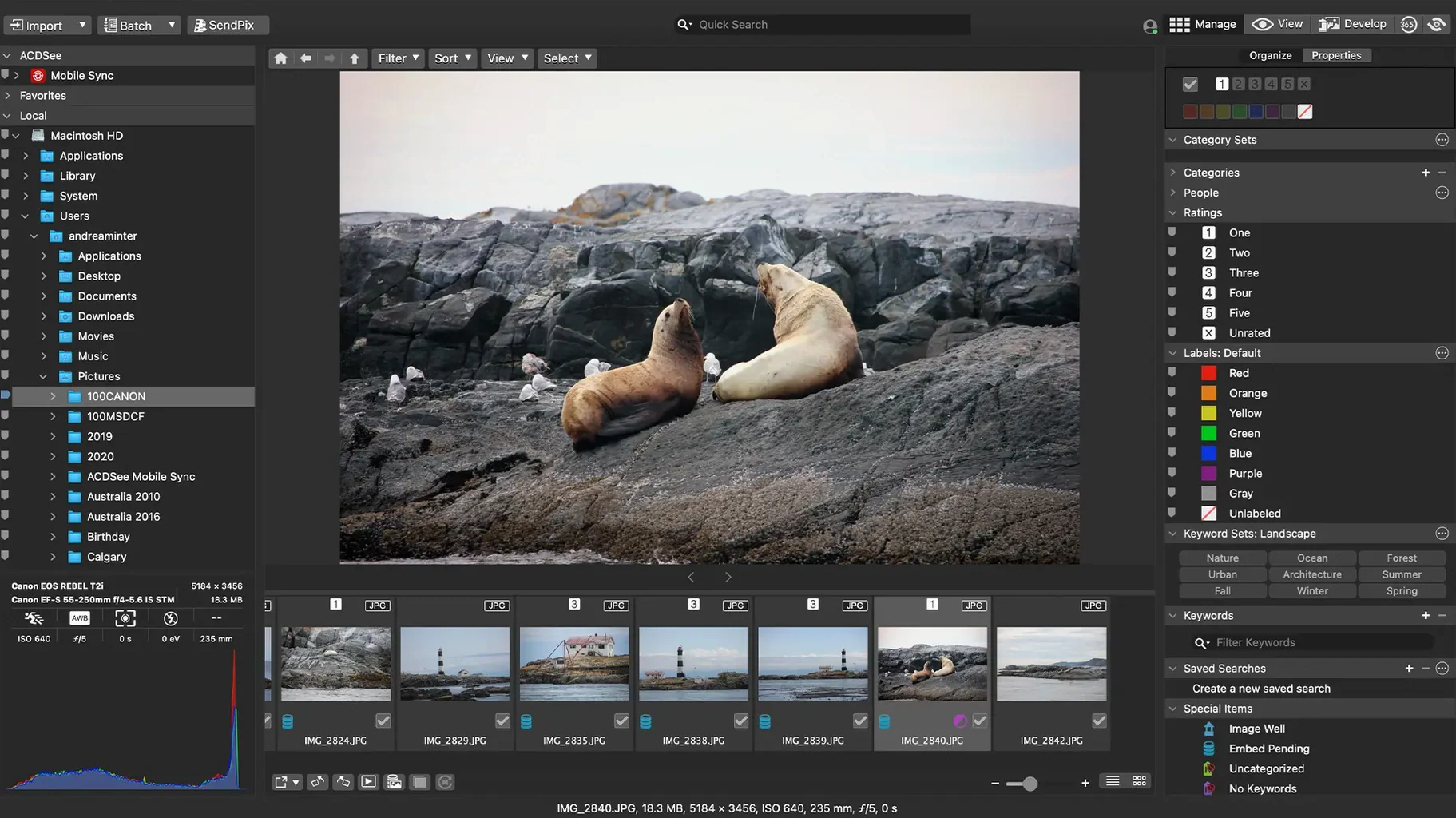
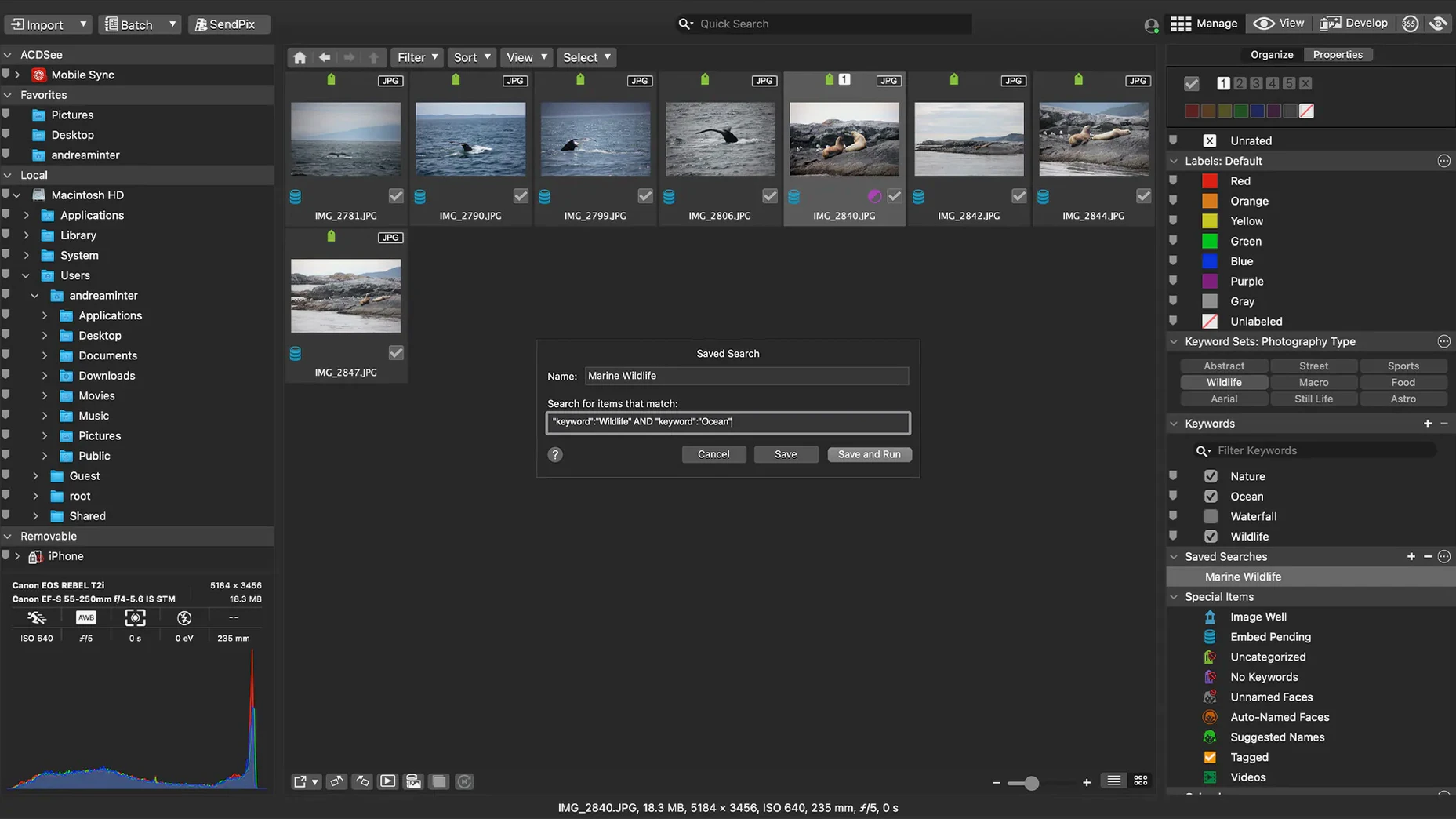
Hit the Manage mode and start assigning categories and keywords right after import. Dragging and dropping a folder onto a category is the fastest way to impose order on a messy shoot, and the drag-and-drop search means you never dig through Finder again.
How Do I Cull a Shoot Quickly?
Use the rating keys — 1 through 5 — while stepping through full-screen previews. The app writes ratings to the file, and version 26.0.3 fixed inaccurate reading of RAW file ratings, so what you mark in-camera or in another tool now holds steady here.
Can I Edit Without Damaging the Original?
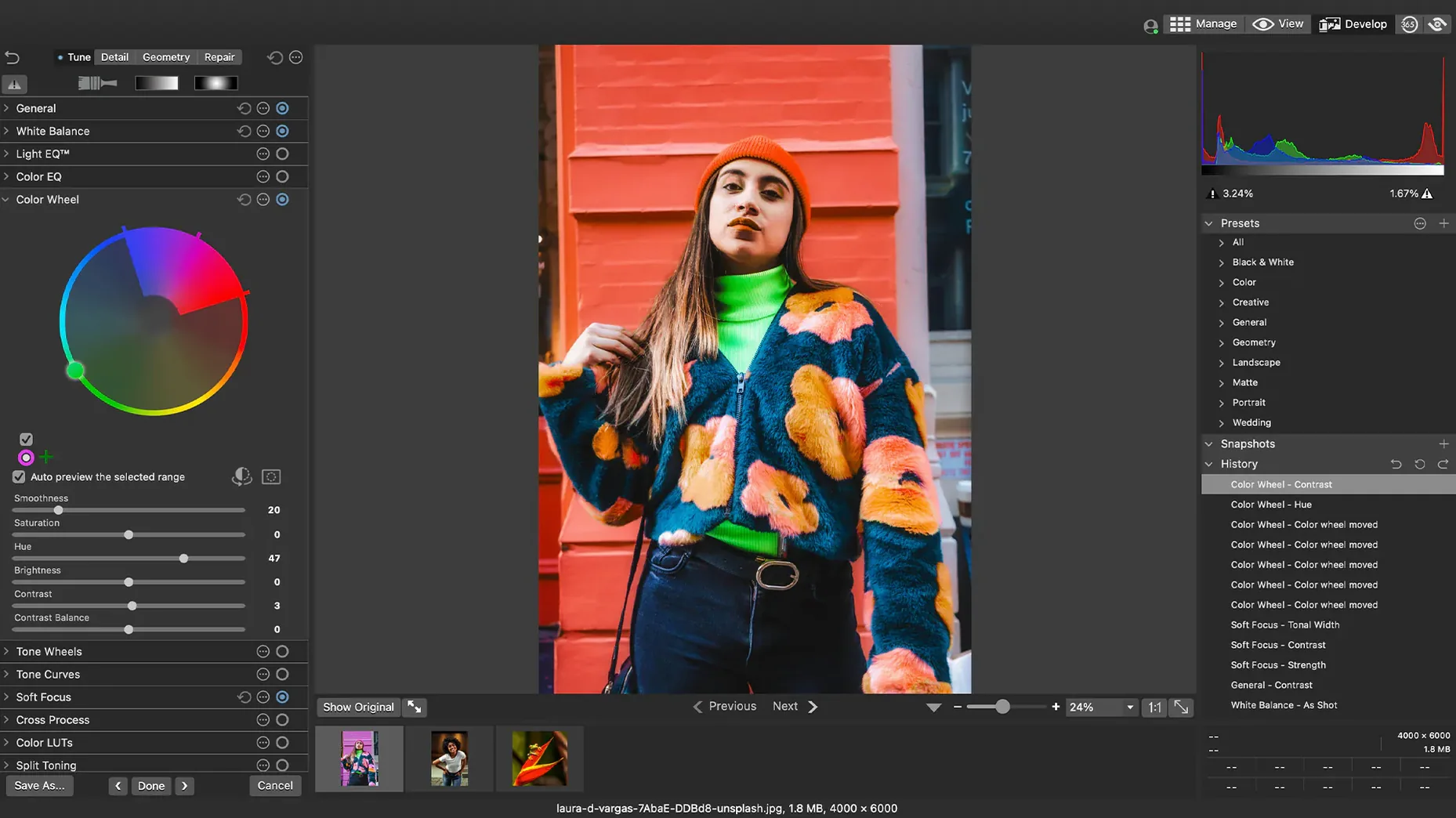
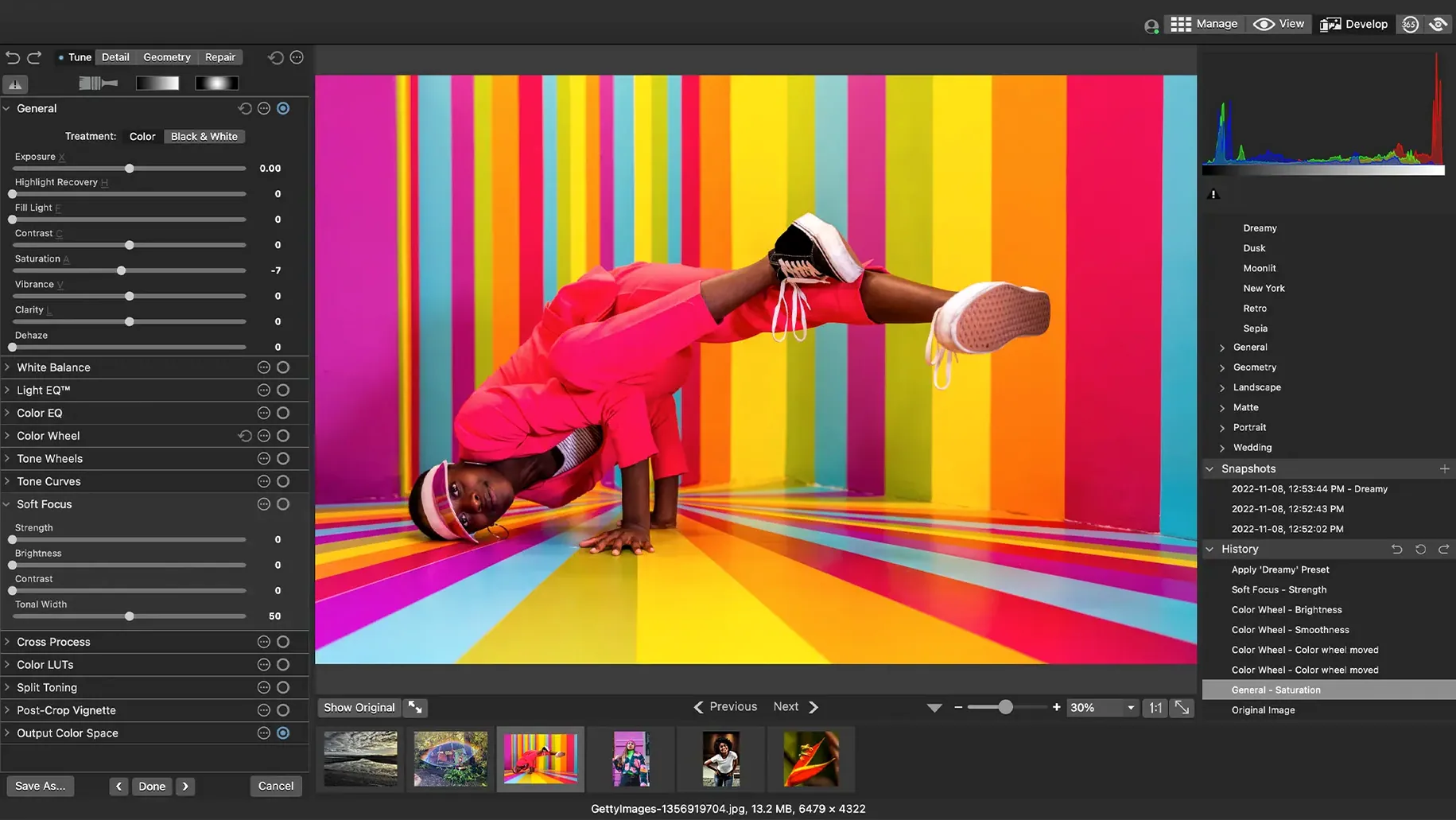
Yes. Every adjustment is non-destructive. Push exposure on a RAW from one of the 450 supported camera models, add a vignette, then walk it all back tomorrow. The original sits untouched, and you can view and edit EXIF and IPTC metadata without leaving the editing panel.
The Crash Fix That Saves Hours of Keyword Work
The update didn't add features. It removed friction. If you manage large keyword trees, the crash fix alone changes daily use — adding a child keyword no longer risks losing unsaved metadata work. And the end-editing behavior is now predictable: click outside a category name and the field commits, instead of hanging in a half-edited state that forces you to hit Escape and retype. For anyone who relies on iCloud to shuttle selects between an iPad and the Mac, the integration fix means folders that used to be stubbornly invisible now appear in the file tree without a restart.
It's the sort of release that matters most three weeks in, when you realize you haven't force-quit once.
Bridge Is Free but Heavy, XnView Edits Metadata Blind
Three names come up constantly when photographers talk Mac photo management: Adobe Bridge, XnView MP, and Photomator. Each pulls in a different direction.
Adobe Bridge lives in the Creative Cloud orbit. It's free of charge but heavy — it expects Photoshop or Camera Raw nearby to do the actual editing. Bridge's keyword and metadata tools are deep, but navigating its panel layout feels like operating a cockpit. ACDSee Photo Studio packs organization and RAW development into one window without the Creative Cloud background processes chewing through RAM.
XnView MP reads more file formats than almost anything else on macOS, including obscure old camera RAWs. Its batch engine is fast, and the interface is highly configurable. But the Mac version carries a slightly foreign UI feel — right-click menus that don't follow macOS conventions, text that misaligns in dark mode, a sense that the app was translated rather than designed for the platform. ACDSee feels native: drag-and-drop works as you expect, the window chrome follows macOS, and the file tree responds to the same gestures as Finder.
Photomator (from the Pixelmator team) is all about editing with a machine-learning spine — auto-select subjects, match colors with one click, denoising that learns the image. It's fast, beautiful, and Apple-native to its core. But it's not a digital asset manager. There's no keyword hierarchy, no category system, no duplicate finder, no batch rename. Photomator edits; acdsee photo studio manages and edits. If you're still dragging folders around Finder and double-clicking into a separate editor, that's where the difference lives.
Find True Duplicates by Image Content, Not Just Filename
The duplicate finder deserves more attention than it gets. It doesn't just match filenames — it compares visual content, so a resized export sitting next to the original RAW flags correctly. Before you dump a card with three hundred near-identical burst shots, run it through the duplicate scan and reclaim gigabytes.
Batch presets are another quiet powerhouse. Build a preset that renames, resizes, applies a watermark, and drops EXIF copyright into a hundred wedding shots in one pass. Save it. Next wedding, you select the folder, apply the preset, and walk away while the render bar does the work. You're not clicking through export dialogs a hundred times.
One shortcut I use constantly: pressing T in Manage mode jumps the cursor into the keyword entry field. No mouse. No sidebar hunt. Just type, comma-separate, and hit Return. Combine that with the rating keys and you can cull and tag an entire shoot without lifting your fingers off the keyboard.
Swap Double-Click to “View” for One-Step Focus Checks
Open Preferences and head to the Manage mode tab first. Switch the default double-click behavior from "Preview" to "View" if you want full-screen inspection without an extra click — it saves a step every time you check focus on a tight portrait crop.
Under the metadata section, enable "Write ratings to file" immediately. The version 26.0.3 RAW rating fix means this is reliable now, and it keeps your ratings portable across every other app that reads XMP sidecars.
If you work with a calibrated display, dig into the Color Management settings and assign your monitor profile explicitly rather than relying on the system default. The RAW engine respects it, and what you see in the viewer stays consistent when you move the file into an external editor.
Finally, turn on "Confirm file delete" unless you enjoy the cold sweat of realizing you just deleted selects from a paid gig. It's off by default. Don't learn that the hard way.
This release squashes a crash when adding a new keyword or category in a certain scenario and fixes editing behavior so clicking away now stops the edit like it should. Also fixed: inaccurate reading of RAW file ratings in certain scenarios and an issue with iCloud integration.
- macOS 14.0 or later
- Apple Silicon and Intel Macs
Questions I actually get
Does ACDSee Photo Studio sort photos by date?
Absolutely. You can group and view images by capture date, which makes organizing timeline-based projects or daily shoots straightforward.
Can I search with a drag-and-drop action?
Yes. Drag any image from the browser onto the search field, and the app finds visually similar files instantly — it's a real timesaver.
What file information can I see and change?
The app displays full EXIF and IPTC metadata. You can edit IPTC fields like captions and keywords to prep files for a stock agency or client delivery.
Notes from the edit bay · 0
Sign in or get an edit-bay pass to leave a note.
No notes from the edit bay yet. They go up after I read them.