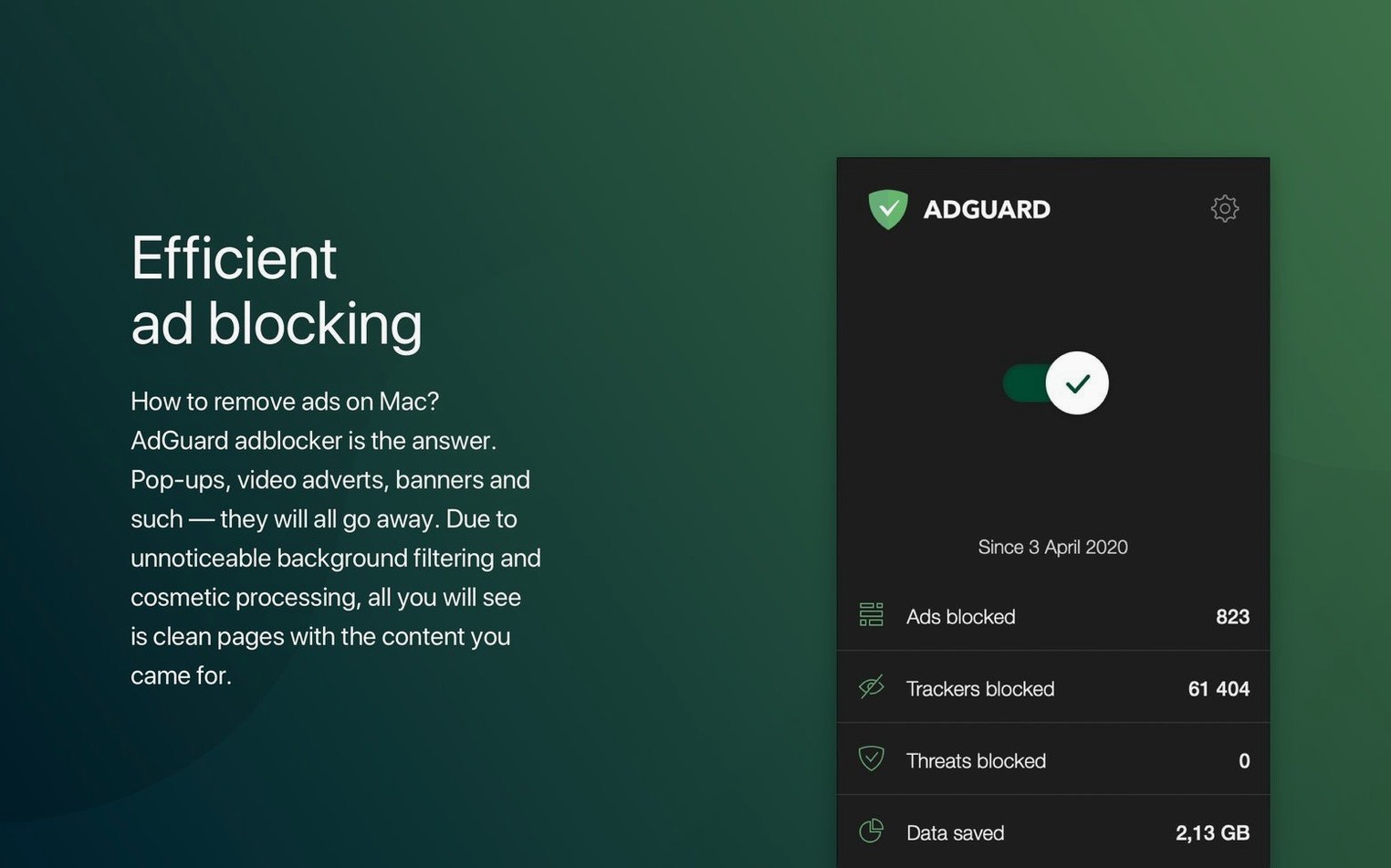
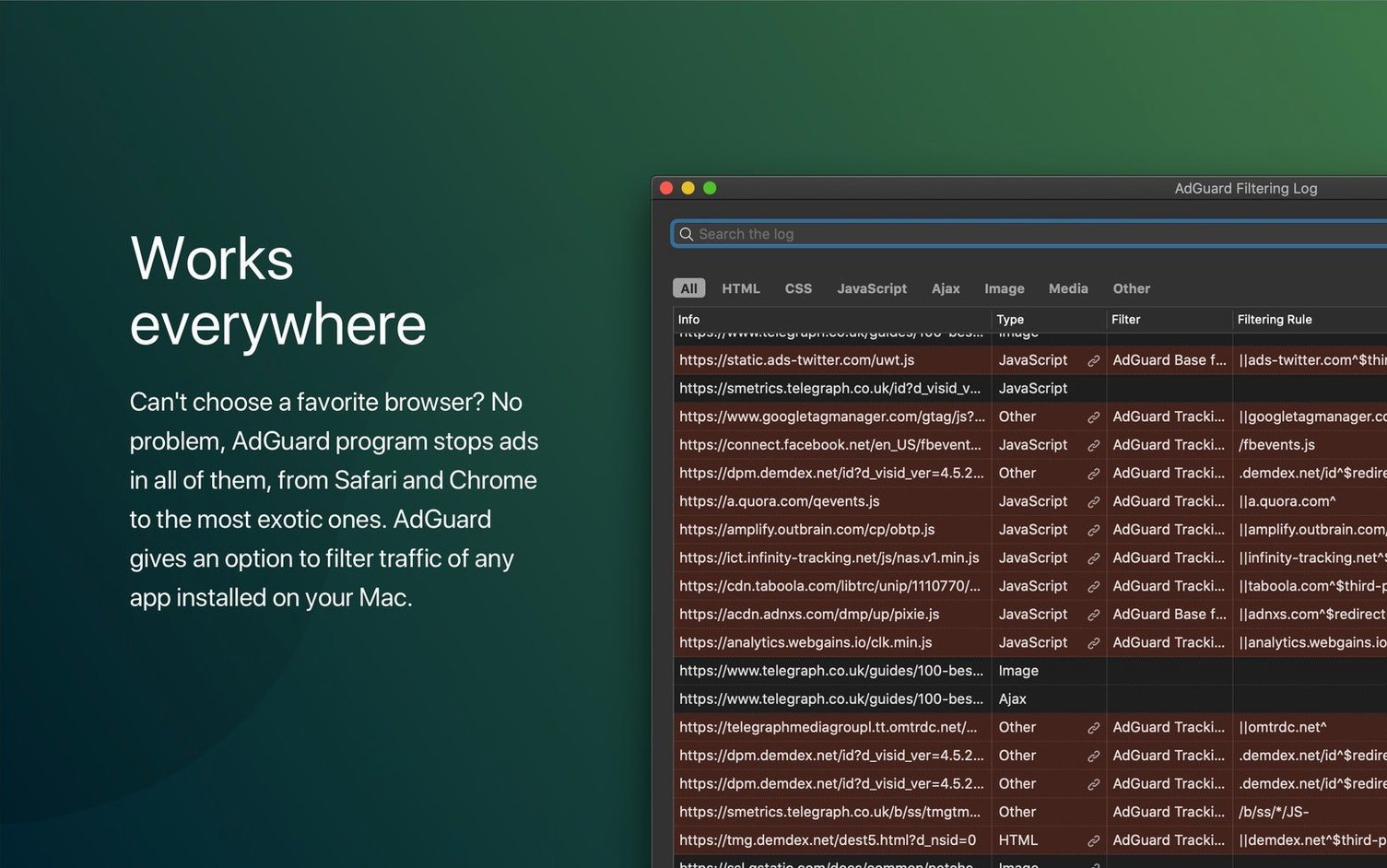
If you’ve ever relied on a browser extension like uBlock Origin, you know the quiet relief of a clean webpage. Adguard takes that idea and pulls it one layer deeper. Instead of living inside a single browser, it sits at the network level on macOS, filtering traffic from every app you launch. A Spotify ad that sneaks past a Safari blocker doesn’t stand a chance here.
Open the simple dashboard and the first thing to do is toggle on the HTTPS filtering. That’s where the magic lives for apps that aren’t a browser. Right next to it, the DNS protection slider gives you a second line of defense, blocking tracking domains before a connection even starts. Together, they catch clutter that a basic extension will never see.
Next, pick a filter list that matches how you work. The built-in language-specific options are solid, but scrolling down to enable the annoyance list—cookie notices, social widgets, those sticky “subscribe” overlays—makes pages feel faster immediately. If a site breaks, the manual blocking tool lets you click any element to zap it off the screen permanently, which feels like a small superpower the first time you use it.
The latest build plays nicely with the wave of AI-powered browsers hitting your dock, so you’re covered even when trying something new. Spend five minutes setting these three levers—HTTPS filtering, DNS protection, and a tuned filter list—and you’ll forget the app is even installed. That’s the whole point.
First Days: Lock In the Settings That Matter
The first launch dumps you into a clean interface that's almost too simple. Don't let that fool you. Spend fifteen minutes now and you won't touch the app again for months.
Start with the DNS module. Flip the switch and pick a provider that suits your paranoia level. The default AdGuard DNS blocks ads and trackers. If you want malware filtering baked in, swap to the DNS-over-HTTPS option and paste a Quad9 or Cloudflare endpoint. This one choice catches bad domains before your machine ever connects to them—browsers, mail clients, even a weather widget in the menu bar all get the same treatment.
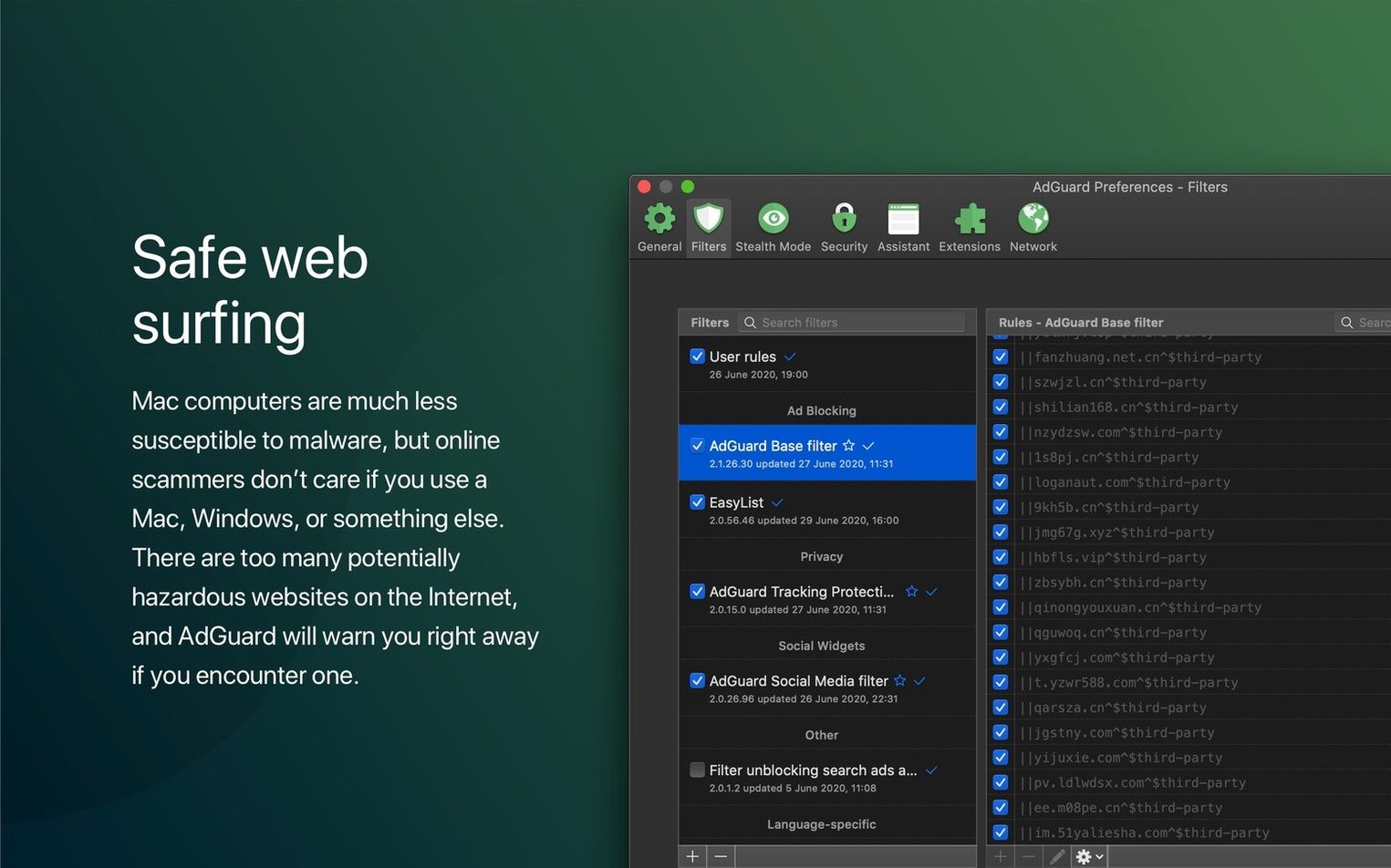
Next, open the Filters tab and get specific. The base filters are fine for a start, but the Annoyances section saves more sanity than the ad lists themselves. Enable the cookie notice filter immediately. Add the social media filter if your idea of a productive afternoon doesn't include Twitter embeds loading across every tech blog you read. For anyone outside the U.S., scroll to the language-specific section and check your region's list. A German news site loads faster with the dedicated filter than with the generic one trying to guess what to block.
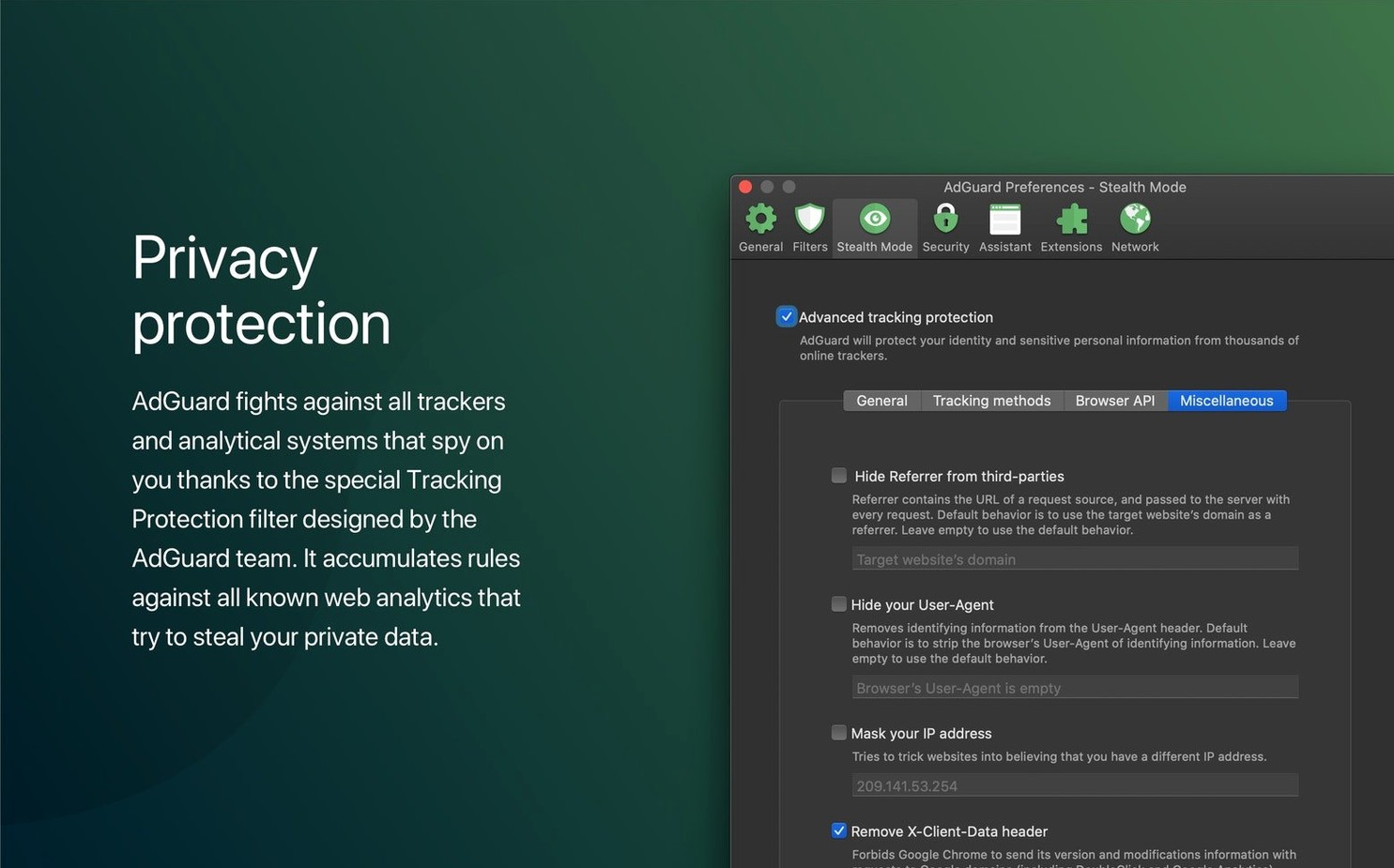
Turn on Stealth Mode last. It strips tracking parameters from URLs and spoofs your referrer header. Leave the default settings unless you know what a custom User-Agent rotation does. The one change worth making: enable the option to remove tracking from search results. Google and DuckDuckGo links get cleaned up automatically.
How a Freelance Video Editor Actually Uses This
Mia cuts corporate training videos from a home office in Portland. She bills by the hour but spends too many of those hours waiting for stock footage sites to load their bloated asset panels. Her client portals sit behind analytics scripts. The music library she pays for still serves video pre-rolls before every track preview.
After installing Adguard, three things changed in her first week. The stock site's search results appeared in under two seconds instead of five, because the tracking scripts that normally fire on every keystroke got blocked at the DNS level. The client portal stopped flashing behavioral analytics pop-ups. And the music library's pre-rolls vanished—not because Adguard magically detects video players, but because those pre-rolls load from ad-serving domains that the DNS filter already knows about.
She doesn't think about the app anymore. Her render bar fills up, she grabs coffee, and her browser doesn't feel like it's wading through mud when she comes back. For someone who judges tools by how fast they let her hit a deadline, that silence is the whole feature set.
The Layer That Cleans What VPNs and Firewalls Ignore
Adguard doesn't replace Little Snitch or a VPN, and it's not trying to. Think of it as the layer that cleans up what those tools don't touch.
A VPN encrypts your traffic and hides your IP. Adguard filters the traffic itself. You can chain them: route through a VPN provider, then let Adguard's local DNS module strip ads and trackers from that encrypted stream. The two don't fight because they operate at different stages of the network stack.
With Safari, you've got options. The adguard safari extension integrates directly into the browser for element hiding and cosmetic filtering that the system-wide proxy can't always do. Install it when you want Safari to look as clean as a Firefox setup with uBlock. For Chromium-based browsers, the system filter handles most of the heavy lifting already.
macOS privacy features like iCloud Private Relay will coexist with Adguard, but they talk past each other. Private Relay hides your IP and DNS queries from Apple and your network. Adguard wants to see DNS queries to filter them. The practical move: pick one or the other for DNS filtering, not both. If you run Private Relay, keep Adguard's DNS module off and let the HTTPS filtering handle app-level blocking instead.
The manual element blocker also pairs well with the built-in macOS screenshot tool. Hit Shift-Command-4 to grab a region, then use Adguard's picker to select the exact element you just screenshotted. No guesswork about which div container holds the offending banner.
9:23 a.m. Across Three Apps and a Cooking Blog
It's 9:23 a.m. and you're about to research a natural-language article. You open three apps: Firefox for general browsing, Chrome for a work profile, and the Slack desktop client for team chat.
In Firefox, you hit a cooking blog. The page loads without the auto-playing video ad that normally pins itself to the corner. Adguard's HTTPS filter caught the ad request before the browser's renderer ever saw it. You scroll past a newsletter pop-up that never appeared because the annoyance filter stripped the JavaScript that triggers it.
Over in Chrome, you open a marketing site for a competitor analysis. A chat widget tries to fire. Blocked. The site's analytics tag still runs—you chose to allow first-party analytics in the Stealth Mode settings, because you don't mind a site knowing you visited, just not a dozen third-party trackers following you around afterward.
Slack buzzes. A colleague sent a link to a YouTube tutorial. You click it and the video opens in Safari. No pre-roll ad plays. The system-wide proxy filtered the ad domain, so the video starts immediately. You send back a timestamp and keep working.
Mid-morning, you notice a local news site's layout looks off. The right sidebar is collapsed and the text runs edge to edge. Adguard blocked the sidebar's ad container, and the site's CSS didn't account for that gap. Two clicks: open the Adguard menu, select "Block an element on this page," hover over the broken area, and click. The picker highlights the parent container. You unblock it and add an exception for that specific div. The layout snaps back into place, and the exception persists across visits.
By lunch, you've opened maybe forty tabs across three browsers and two Electron apps. The filter counter in Adguard's dashboard has ticked past nine hundred blocked requests. Not one of them made it to your screen. You didn't see a banner, hear a jingle, or close a single cookie consent modal. The whole session felt like browsing in 2008, before every publisher turned their pages into surveillance vehicles.
That's the actual workflow. No configuration screen stays open. No daily tweaking. Just a quiet machine that loads what you asked for and nothing else.
Version 2.18 brings support for three AI-powered browsers, keeping filtering tight as the browser landscape shifts. The system requirements have been refreshed to match current macOS releases.
Also fixed: underlying stability improvements that make the app feel snappier during long browsing sessions.
- macOS 10.15 or later
- Apple Silicon or Intel 64-bit Mac
Questions I actually get
How is AdGuard for Mac different from AdGuard Mini?
AdGuard for Mac filters traffic in every browser and application across the whole system, while AdGuard Mini is a standalone ad blocker that focuses specifically on Safari.
Notes from the edit bay · 0
Sign in or get an edit-bay pass to leave a note.
No notes from the edit bay yet. They go up after I read them.