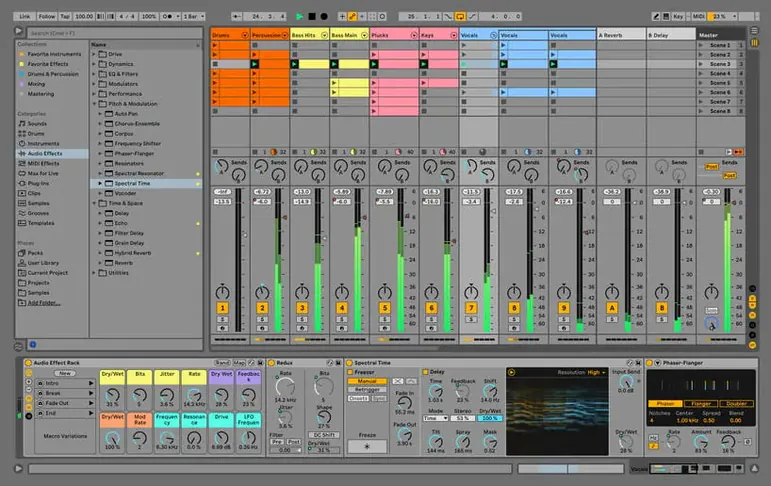
Live 12.4.6 squashes a nasty bug where rendering, bouncing, or consolidating would hang on big Sets. The trigger was audio clips in Beats Warp Mode with Transients Granular Resolution — a specific combo, but a showstopper if you hit it.
At its core, Ableton Live is built for two distinct but overlapping workflows. The Session View is a non-linear sketchpad where you launch clips and scenes on the fly, which makes it a natural fit for live performance and quick idea generation. The Arrangement View lays everything out on a traditional timeline for detailed editing and final mixdown. You switch between them without leaving the window.
The package includes a deep collection of instruments, sounds, kits, and loops that sync in real time. It runs on Intel and Apple Silicon Macs, and the interface speaks English, German, Spanish, Italian, French, and Japanese. If you write heavily automated music or play it live, this is the canvas.
Building a Beat from Scratch: Session View to Arrangement in 40 Minutes
Here's a workflow I reach for when a client needs a bed track and the clock is already ticking. It takes advantage of Live's non-linear strengths first, then locks things down once the bones are solid.
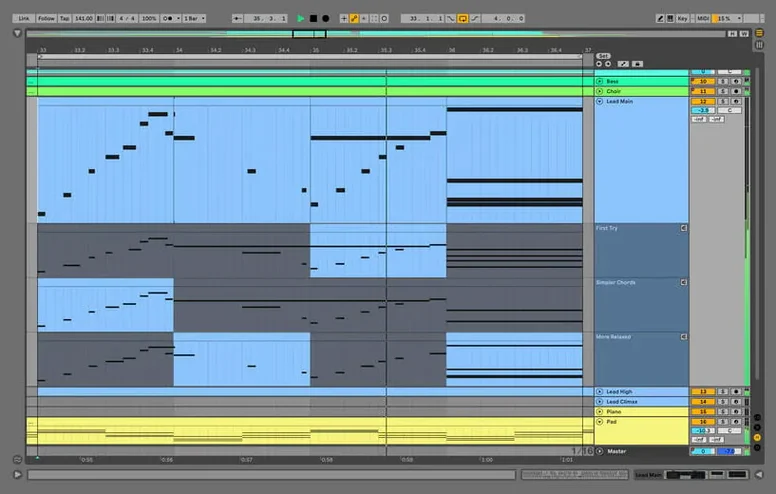
Start in Session View. Drag a 808 kit onto a MIDI track and double-click an empty clip slot. In the piano roll, lay down a kick on the one and three, a snare on two and four, then open hats on the offbeats. Keep it dead simple — you're sketching skeleton, not flesh. Duplicate the clip, switch the hats to closed, drop a kick hit on the last sixteenth before the downbeat. Now you have two variations ready to launch.
Next track: bass. The Operator synth loads fast and stays out of the way. Dial in a sine wave, give the amp envelope a short decay, and program a pattern that locks with the kick. Mine usually lands on the root and the fifth with a passing tone on beat three. Create another clip that plays the same rhythm but walks up on the fourth bar — instant call-and-response between sections.
Now the fun part. Map two scenes: scene one triggers the first kick pattern plus the main bass clip; scene two fires the kick variation with the walking bass. Hit play and toggle between them using the scene launch buttons. Adjust clip gain with the little fader inside each clip slot so the transition doesn't clobber your ears. Once the groove feels right, hit the global Record button in the Arrangement View transport. Live will capture every clip launch, stop, and scene change as an Arrangement in real time.
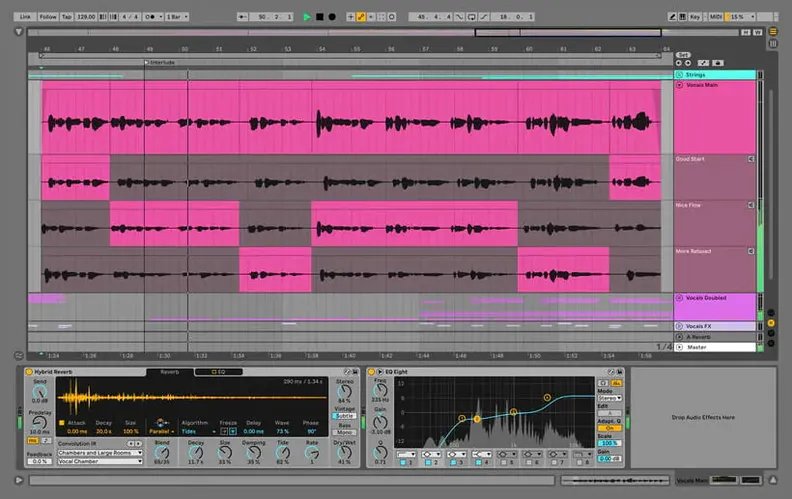
Flip to Arrangement View. What you see is a recorded performance, not a programmed timeline. Trim the dead air at the head, crossfade any abrupt clip transitions with a quick drag on the clip edges, and consolidate the drum track into one continuous file. That last step alone is why 12.4.6 matters — earlier builds would hang right here on large Sets with particular warp settings.
Consolidate, Zoom, and the Micro-Shortcuts I Use Daily
Live's interface hides a pile of micro-shortcuts that reward muscle memory. A few I use daily and still see experienced users overlook:
- Command-J (Consolidate) stitches selected clips on the same track into a single audio file. It respects fades and warp settings. If you ever arrange by feel in Session View and end up with a hundred tiny slices, this is your cleanup tool.
- Shift-Tab toggles between Device View and Clip View. Sounds minor, but when you're bouncing between tweaking a compressor and editing MIDI velocity, the half-second tab saves add up fast.
- Option-drag a clip duplicates it instantly. Works in both views. If you hold Command as well, you can drag to any track without snapping to the grid — handy for sliding a hi-hat pattern onto an off-kilter percussion channel.
- Right-click a parameter and pick "Show Automation" to drop an envelope lane directly beneath the track. No menu diving, no hunting through the automation chooser. The lane appears in Arrangement View with the parameter name already locked.
- Collect All and Save under the File menu grabs every sample referenced by the Set and bundles them into the project folder. I run this before moving a project between machines. Nothing worse than opening a Set on a laptop and seeing a sea of "Sample Offline" indicators.
- Back to Arrangement button — that little orange arrow in the transport bar. When you've nudged a fader or twisted a knob in Session View while the Arrangement plays, Live remembers the offset. Hitting this button snaps every automated parameter back to what's written on the timeline. If your mix suddenly sounds wrong and you can't figure out why, this is your first click.
Boots in Under Eight Seconds on Apple Silicon
On an Apple Silicon Mac, Live 12.4.6 boots in under eight seconds with a modest library of third-party plug-ins. The audio engine runs at a buffer size of 128 samples without breaking a sweat on Sets under 40 tracks, even with convolution reverbs on three or four returns. Intel machines see more variance — my older quad-core i7 sits around 40% CPU on projects that barely tickle the M-series chip, but the playback remains glitch-free as long as Turbo Boost has headroom.
The warp engine, particularly Complex and Complex Pro modes, still chews CPU when you push real-time timestretching across dozens of clips. I bounce those to audio early if I'm mixing on a laptop running off battery. Beats mode is snappy, and with the 12.4.6 fix for Transients Granular Resolution, rendering no longer hangs on Sets with dense percussion edits — a problem that burned a full evening last month before I updated.
Memory use sits around 1.8 GB for a blank Set with Live's stock devices loaded, climbing toward 6 GB once you pile on multisampled instruments and third-party synth instances. If you work with large Kontakt libraries or orchestral templates, 16 GB of RAM is the real-world floor. Live's disk streaming is efficient, though — I keep sample libraries on an external NVMe drive, and session loading times don't suffer noticeably over Thunderbolt.
Stability has been uneventful in daily use. The app hasn't beachballed once since installing 12.4.6, even on Sets that previously provoked the Beats Warp Mode hang. Auto-save ticks quietly in the background. One crash did surface when a beta plug-in with an expired certificate tried to scan at startup — Live caught it, disabled the plug-in, and finished loading. That's the behavior you want from a DAW under deadline: fail gracefully and keep moving.
Override the Default 512-Sample Buffer Right Away
Fresh out of the box, Live makes a few choices I always override. These are the first stops in Preferences:
Audio tab: Set your buffer size based on what you're doing, not the default 512 samples. Tracking vocals or guitar at 64 or 128; mixing at 512 or 1024. Check "Input Config" and "Output Config" to confirm Live sees all your interface channels — it sometimes defaults to stereo pairs only, leaving extra ADAT or SPDIF channels hidden.
Record/Warp/Launch tab: Turn off "Warp Long Samples" if you record acoustic instruments or long vocal takes. Live's auto-warp guesses are aggressive, and a 3-minute guitar take with misdetected transients becomes a headache to fix. Switch the Default Warp Mode from Beats to Complex Pro for polyphonic material — you can always change it per-clip later.
File/Folder tab: Set a dedicated Cache folder on a fast drive, away from your system disk if possible. This is where Live stores decoded audio files and waveform data. A cluttered cache slows down Set loading. The "Maximum Cache Size" slider can stay around 10 GB unless you constantly pull from massive sample libraries.
Look/Feel tab: Crank the "Zoom Display" setting if you're on a high-resolution display. Live's text scales cleanly up to about 125% before things get blurry. Turn on "Show Tooltips" until you learn what every button does, then kill it — tooltips get in the way during fast editing.
Outside Preferences, I pin the Browser width so the device names don't truncate, and I immediately create a Favorites folder pointing at my go-to drum kits and effects chains. Scrolling through the full library every time I need a 909 kick wastes minutes that add up.
Stop Fighting the Warp Engine Before It Stretches Your Loop
I see the same handful of missteps when people first sit down with Live. The pattern is predictable enough to list.
The biggest: fighting the Warp engine instead of using it. New users drop in a loop, hear it stretch to the project tempo, and immediately turn Warp off because it sounds wrong. The real fix is picking the right Warp mode for the source material. Beats for drums, Tones for monophonic instruments, Complex Pro for full mixes and vocals. A bad mode choice makes even great samples sound mangled, and the instinct is to blame the DAW.
Another classic: ignoring the grid division selector. The global quantize setting in the top bar determines when clips launch and stop. Set to 1 Bar, your clips fire on the next downbeat. Set to None, and they fire instantly — which sounds chaotic and usually is. Check this before you ever hit play in Session View, especially if someone else touched your laptop.
Overloading the Master channel with devices during sound design is a trap. Cramming a limiter, a saturator, and an EQ on the Master because the kick needs more punch produces a muddy mess. Put processing on the individual track, group tracks into a bus, or use return tracks. The Master is for final polish, not for fixing a weak snare.
Not naming tracks and scenes seems harmless until you're staring at "Audio 1" through "Audio 23" during a live set. Name things as you create them. Your future self, squinting at a dim stage laptop, will thank you.
Finally, assuming the Arrangement View and Session View are always in sync. They aren't, not automatically. If you tweak a fader in Session View while the Arrangement plays, Live remembers the offset. Your mix sounds different depending on which view you last touched. Hit the Back to Arrangement button when things sound off, or commit your performance to the Arrangement with the Record button before you start mixing.
The big fix in 12.4.6 targets a hang during render, bounce, or consolidate. It hit Sets with many audio tracks where clips used Beats Warp Mode and Transients Granular Resolution.
Also fixed: general stability improvements for large projects.
- macOS 12 or later
- Apple Silicon or Intel 64-bit processor
Questions I actually get
Does Ableton Live work on Apple Silicon Macs?
Yes. Version 12.4.6 runs natively on both Apple Silicon and Intel 64-bit Macs.
What does the Authorize.auz file do during installation?
After launching the app, you drag the Authorize.auz file into the app window to complete the activation process.
Notes from the edit bay · 0
Sign in or get an edit-bay pass to leave a note.
No notes from the edit bay yet. They go up after I read them.