
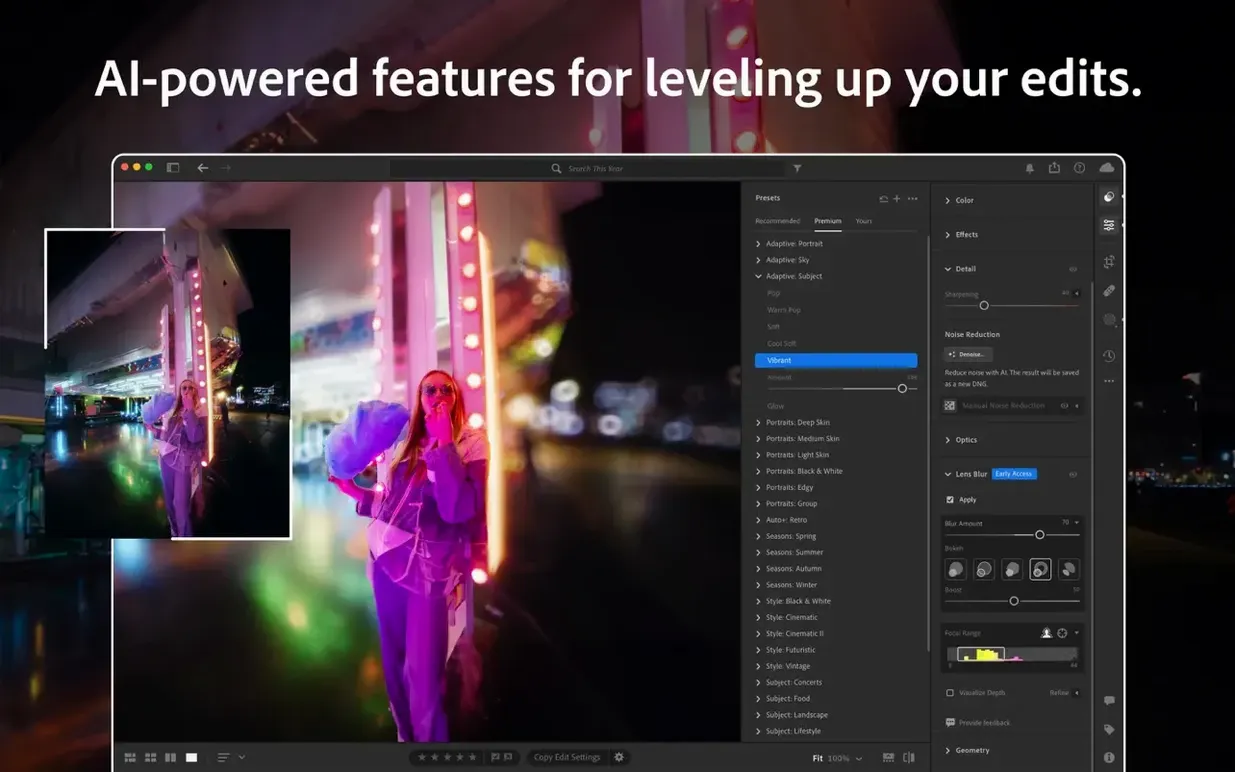
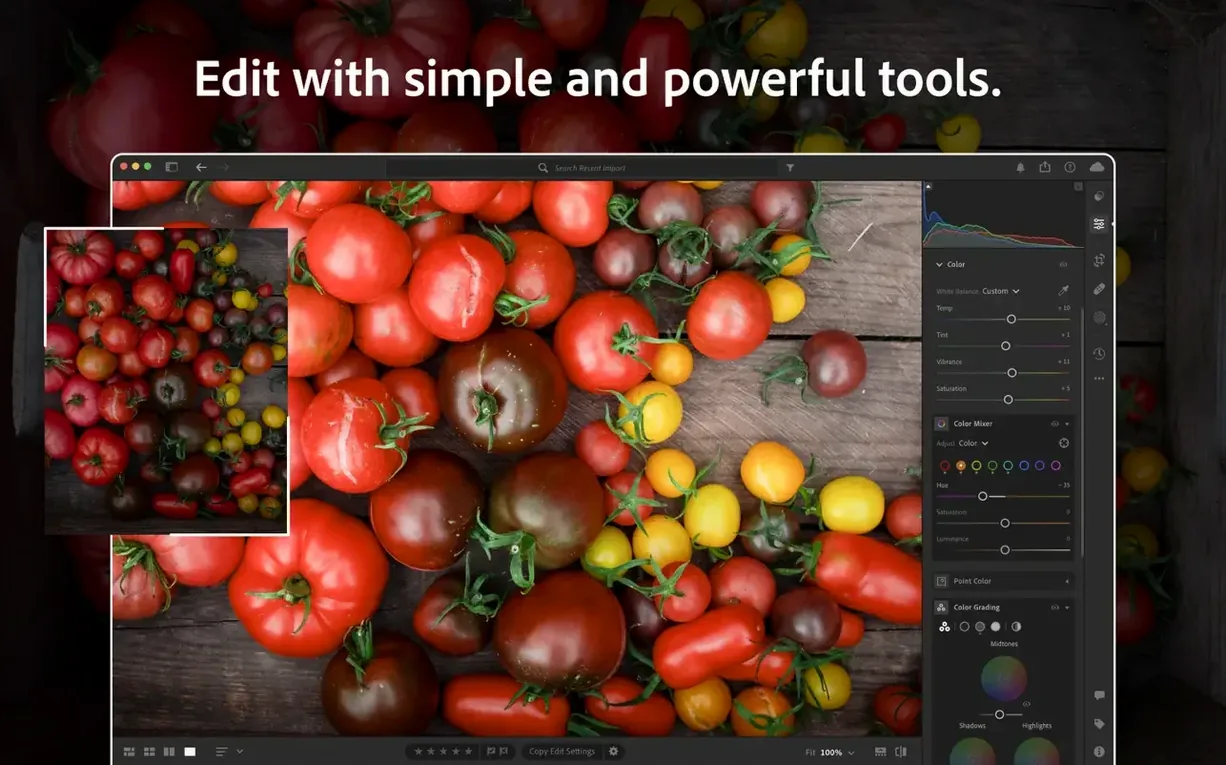
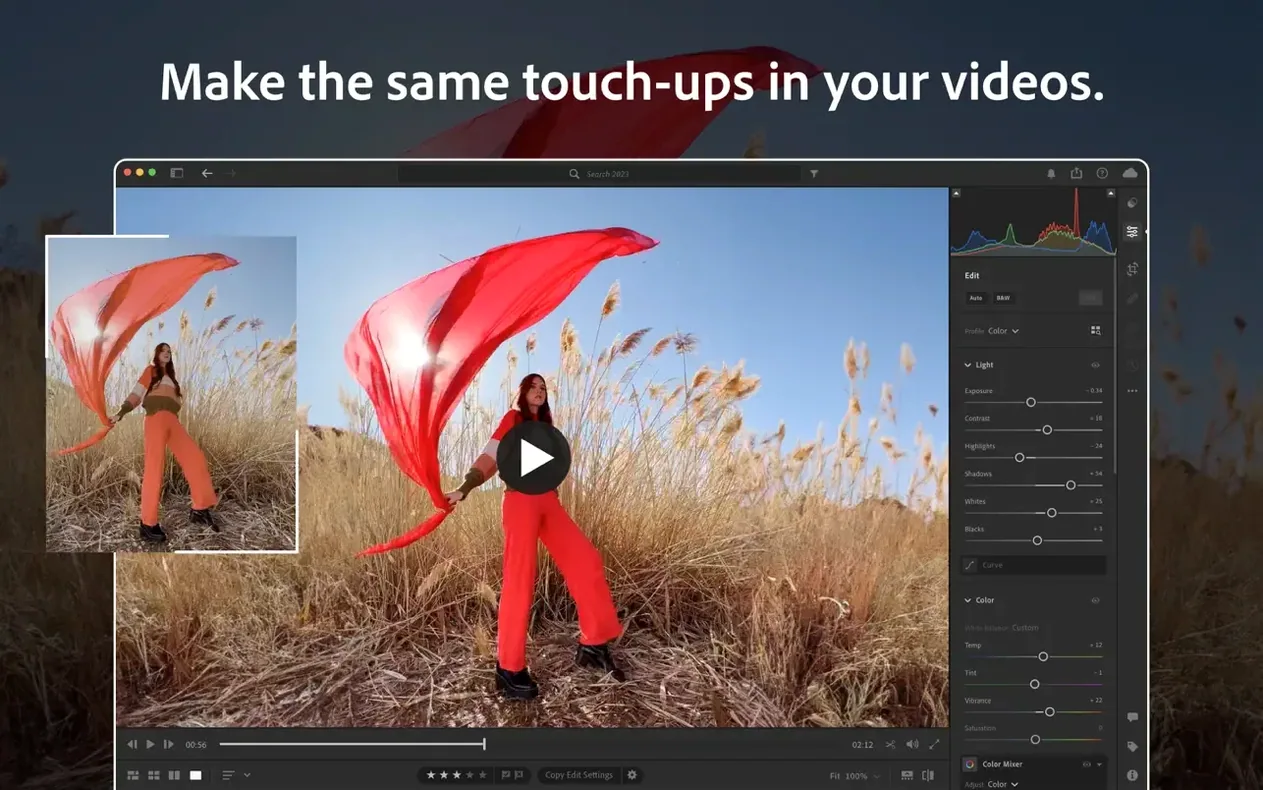
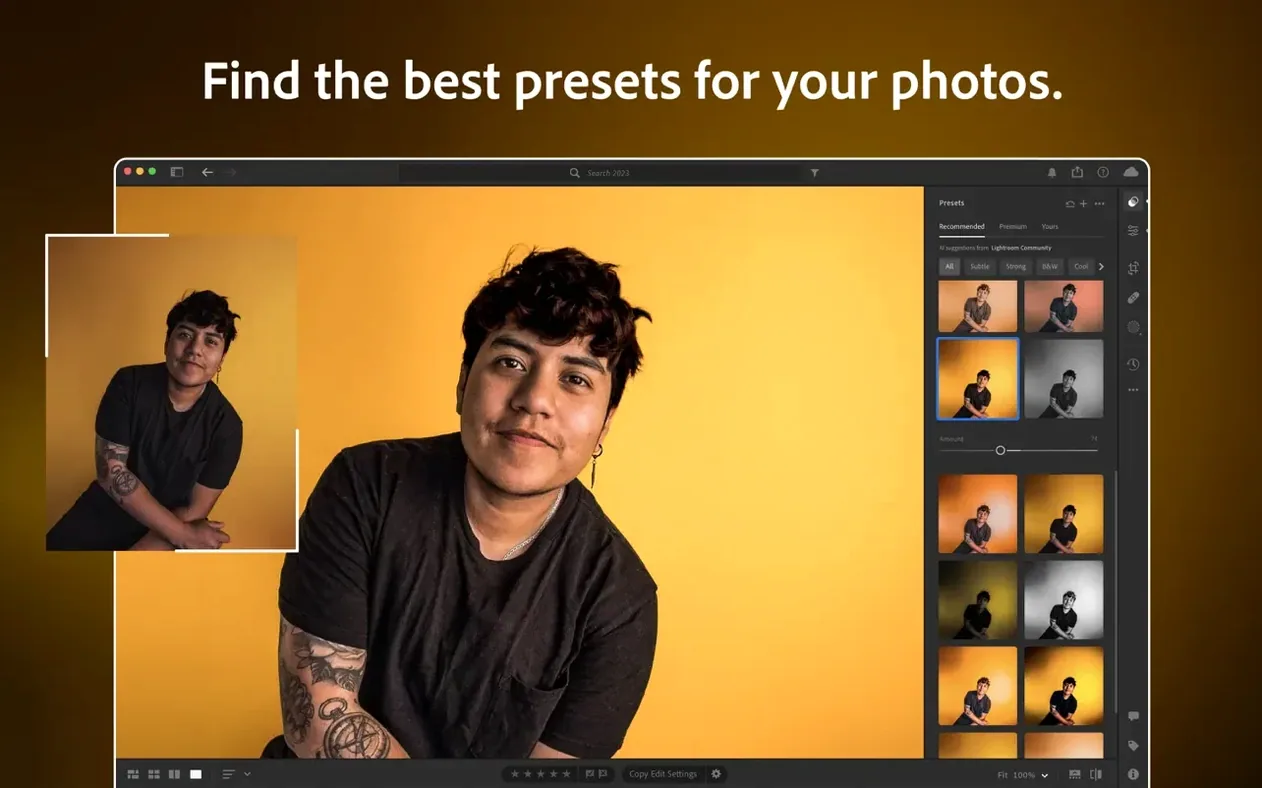
If you know Lightroom Classic, you know the folder-based, local-storage workflow. Lightroom CC flips that script. It's built around the cloud. Your full-resolution originals live on Adobe's servers, and every edit, flag, or album you make syncs instantly to your iPad, your phone, and the web. It's the same RAW processing engine under the hood, but the organizing philosophy is fundamentally different.
Editing Across a Laptop, iPad, and Phone Without Syncing
- Photographers who edit on a laptop in the field, an iPad on the couch, and a phone on the go — without ever manually syncing a catalog.
- Deep color work that needs tone curve and HSL controls without switching to a heavier tool.
- Quick roundtrips to Photoshop for pixel-level retouching, launched right from the CC interface.
- Creating social graphics via Adobe Spark integration, pulling photos straight from your synced library.
- Generative expansion of a crop or straightening job that left a gap at the edge of the frame.
Your Originals Live in the Cloud, Not in Folders
- This is the cloud-native Lightroom. It is not the folder-based Lightroom Classic. Library management is fundamentally different.
- Originals are stored in the cloud. A fast, stable internet connection is part of the essential spec, not a nice-to-have.
- RAM matters. 8 GB is the floor; don't expect it to glide on a base-spec machine with a giant panoramic stitch.
Kill the Auto-Apply Preset Before Importing
The defaults are fine for a start, but a few tweaks make the everyday experience feel less like a demo and more like your own darkroom. Here's what I adjust before importing the first shoot.
First, kill the auto-apply preset. Lightroom CC likes to slap a default color profile on every raw file the moment it appears. I switch the raw default to Camera Settings instead of Adobe Color. That way the initial preview matches what I saw on the back of the camera, not Adobe's idea of a good starting point. You find this under Preferences > Import.
While you're in Preferences, bump the GPU acceleration to Full if you're on Apple silicon. The Develop module responds with noticeably less lag when painting a gradient across a high-megapixel file. On an Intel machine with a discrete GPU, leave it on Auto and let the software decide.
Next, turn off People View unless you genuinely need face recognition eating cycles in the background. The feature is clever but it churns through battery on a MacBook while indexing. I toggle it off from the View Options menu in the grid.
Last, set your external editor. If Photoshop is installed, Lightroom CC defaults to it — but check the file format. I set it to TIFF, 16-bit, ProPhoto RGB. You're already working with raw latitude; don't choke the roundtrip into an 8-bit sRGB container unless you have a specific delivery reason.
What People Ask Before They Download
Does this replace Lightroom Classic?
Not in the sense of a one-for-one swap. Classic uses local folders and a catalog file you manage yourself. Lightroom CC puts the cloud in charge of storage. If you need smart previews on an external drive and full control over where every raw file lives, Classic is still the tool. If you want the same library on three devices without thinking about it, CC is the one.
Can I work offline?
Yes, with an asterisk. Smart previews download locally for recent work, so you can edit on a plane. But the originals stay in the cloud until you reconnect, and you won't generate a full-resolution export without the original data cached locally. It's designed for intermittent connectivity, not a permanently air-gapped workflow.
Will my old Lightroom presets work?
XMP profiles and most .lrtemplate files import cleanly. If you've collected a folder of presets over the years, Lightroom CC reads them. The sync engine then pushes those presets to your mobile devices automatically, which is a quiet quality-of-life win Classic doesn't offer.
Shoot Looser and Let AI Fill the Edges
The August 2026 update added Generative Expand, and it's the kind of feature that changes how you frame in the field. You can shoot a little looser, knowing you'll crop later and let the AI fill the edges convincingly. Straightening a horizon on a wide-angle landscape used to cost you pixels at the corners. Now you hit Generative Expand and Lightroom builds plausible sky, water, or grass into the gap. It's not perfect — fine patterns like distant fences can confuse it — but for organic textures it works well enough to save a composition.
The masking system got subtler. Feather and Edge controls are now per-mask, not buried in a global slider. That means a radial filter on a backlit face and a linear gradient across a sky can each have their own edge behavior. For portrait work, a brush on the iris can stay sharp while you feather a skin-softening mask heavily. The control is finally where your fingers expect it.
On the hardware side, 9.5 brought profiles for newer GoPro bodies and glass from Laowa and SIGMA. If you're merging HDR frames from a GoPro or stitching panoramas shot on a SIGMA ultrawide, the lens correction profile loads automatically now instead of leaving you to hunt through a generic list. It's a small update that removes a few seconds of friction per import — and across a wedding with three bodies, those seconds add up.
Generative Expand lands in version 9.5, letting you widen a composition and have the app fill new pixels based on the surrounding scene. Masking gets proper Feather and Edge controls for cleaner selections. Also fixed: added camera support for recent GoPro models and lens profiles for GoPro, Laowa, and SIGMA glass.
- macOS 14 Sonoma or later
- Apple Silicon or Intel Mac
- 8 GB of RAM minimum
- 10 GB of available disk space
- Internet connection and registration for activation and cloud services
Notes from the edit bay · 0
Sign in or get an edit-bay pass to leave a note.
No notes from the edit bay yet. They go up after I read them.